How do I see who I emailed in the last batch?

Whether you’re batch-sending schedules, invitations, confirmations, or anything else, there might be times when you need to send a supplemental batch.
You’ll want to make sure you don’t email the same people again.
Option 1. Excluding past recipients from a new batch send
The batch emailer offers the simplest method.
- Step 1. Start in the Attendee List or Company List (whichever type of participant you batch-emailed originally.)
- Step 2. Start your supplemental batch email.
- Be sure to choose the same Attachment as you used in the original batch.
- Step 3. Below the Attachment menu, choose one of these settings:
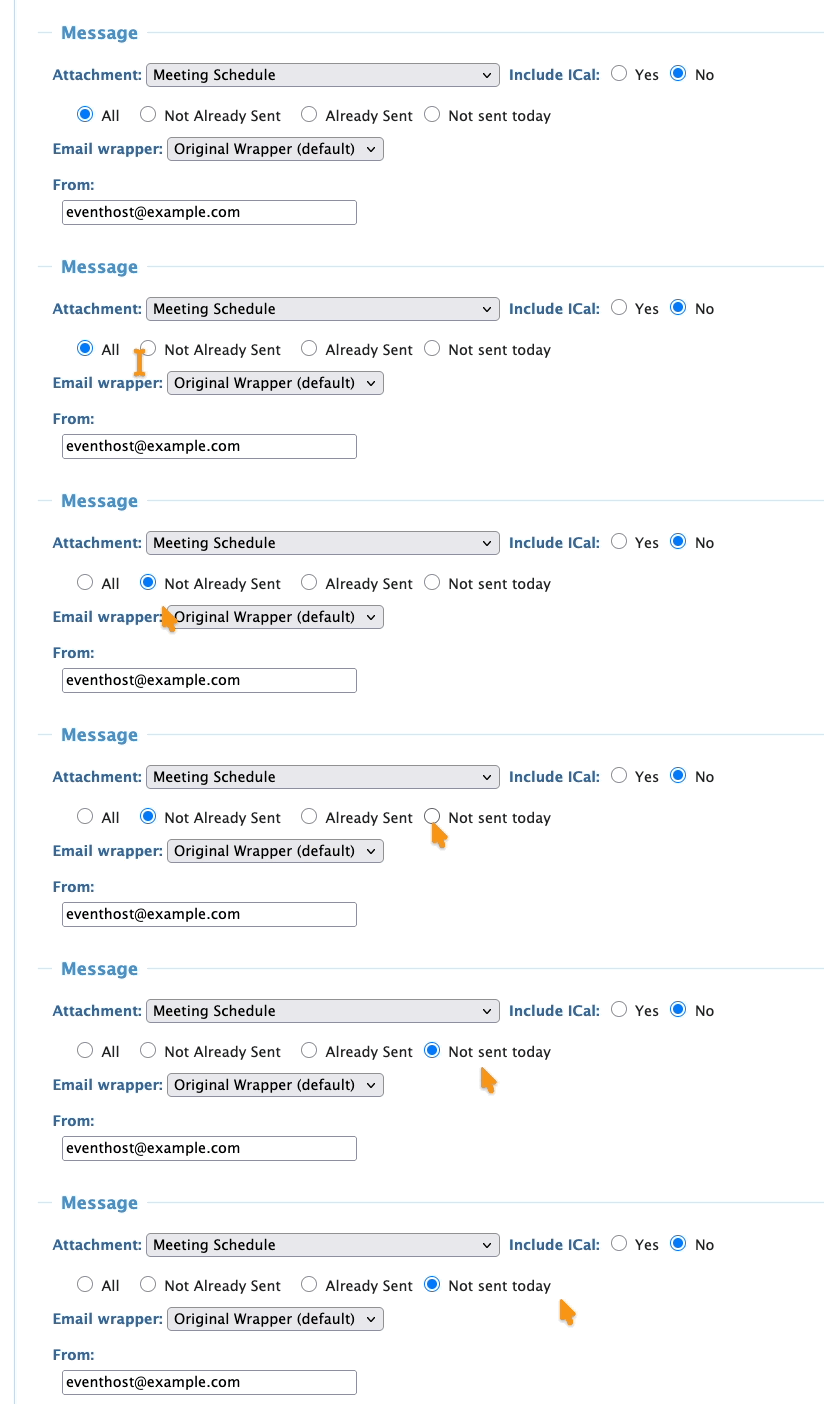
- • Not Already Sent: Send this email only to those you’ve never sent this Attachment to.
- • Not sent today: Send this email only to those you haven’t sent this Attachment to today.
- Step 4. Finish and send the batch. None of the previous recipients will see it.
Option 2: Getting a list of past recipients
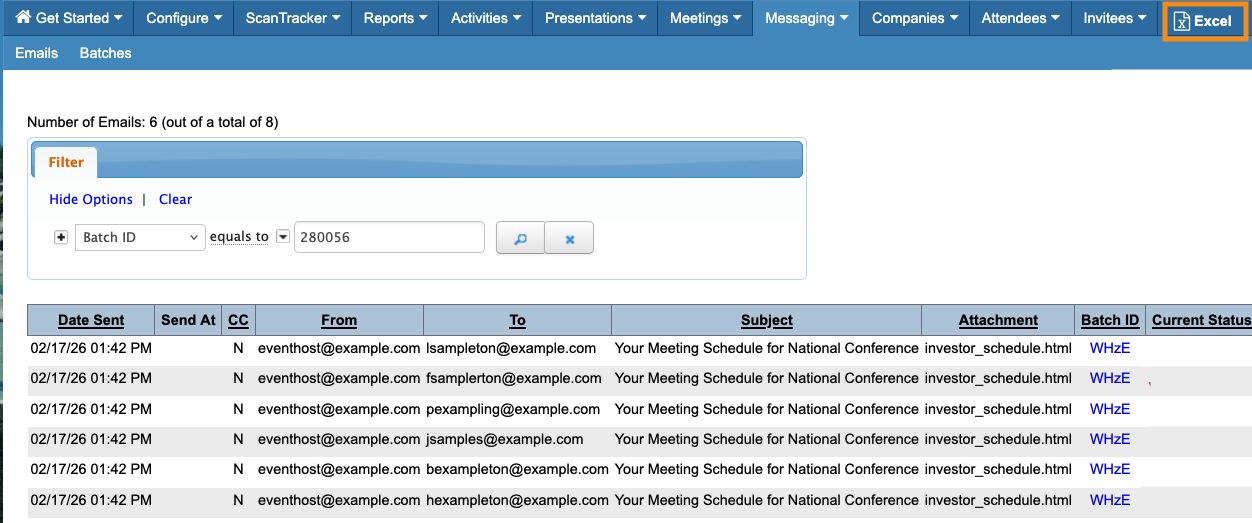
If you need a list of who received the original batch email, you can find it in the Batch Email Log.
- Step 1. Head to the Messaging tab. Choose Email Logs, then Batches:

- Step 2. Locate the batch you need, using the date, time, and subject line:
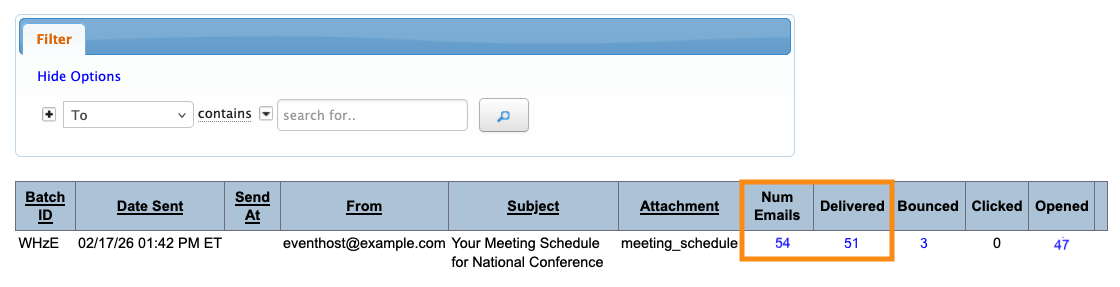
- You’ll see the results of the batch send. Click on one of the results shown above.
- • Num emails: Click here to see everyone in this batch. (Some of these people might not have received or opened the email.)
- • Delivered: Click here to see everyone who actually received your email.
- Step 3. You’ll now see a list of recipients. If you want to export the list in spreadsheet form, head to the top right corner of the page and click Excel: