


In this article:
- Where is it?
- Requirements for a group meeting
- Useful Meeting Times page settings
- Creating a group meeting from requests
- Adding Attendees to an existing group meeting
- Adding Colleagues to a group meeting
Where is it?
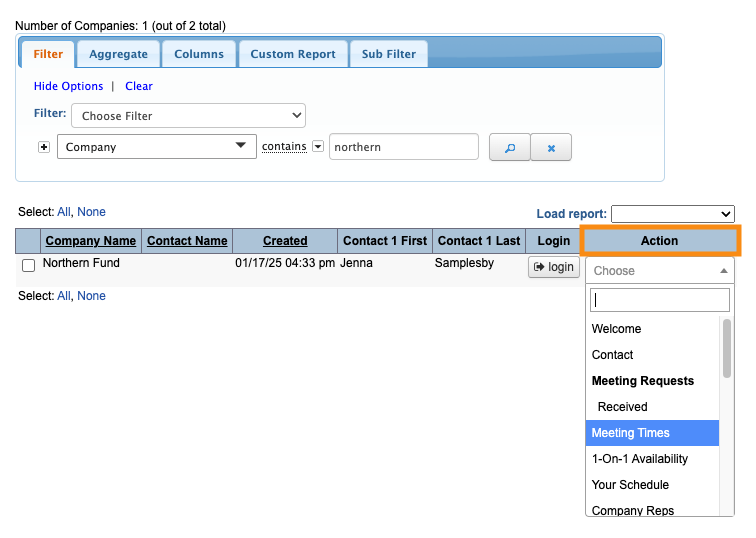
You’ll schedule group meetings from the Meeting Times page. You can get to it from either the Attendee List or Company List:


| If you need a group meeting where Attendees sign up to participate, see this article on joinable group meetings. |
Requirements for a group meeting
MeetMax lets you schedule a variety of meetings, like 1x1, 1x2, and Group.
What’s the difference between them? The number of institutions involved.
- There’s always one Company that’s hosting the meeting. That Company can have any number of its Company Reps present, but they all still count as the same institution.
- When an Attendee meets with this Company, they count as a second institution involved in the meeting. The Attendee might bring along one or more of their Colleagues, but they still count as the same institution.
- Attendees from several different, unaffiliated institutions can also meet with the same Company.
By default, MeetMax defines a group meeting as containing four or more Attendee institutions.
| If you’d like to define group meetings differently for your event, you can always adjust your Meeting Type Rules. |
Useful Meeting Times page settings
Before you start scheduling, you might want to enable these features - they display helpful details.
Add an Info column
- Step 1. Open any Company’s Meeting Times page. The change you make here will affect everyone.
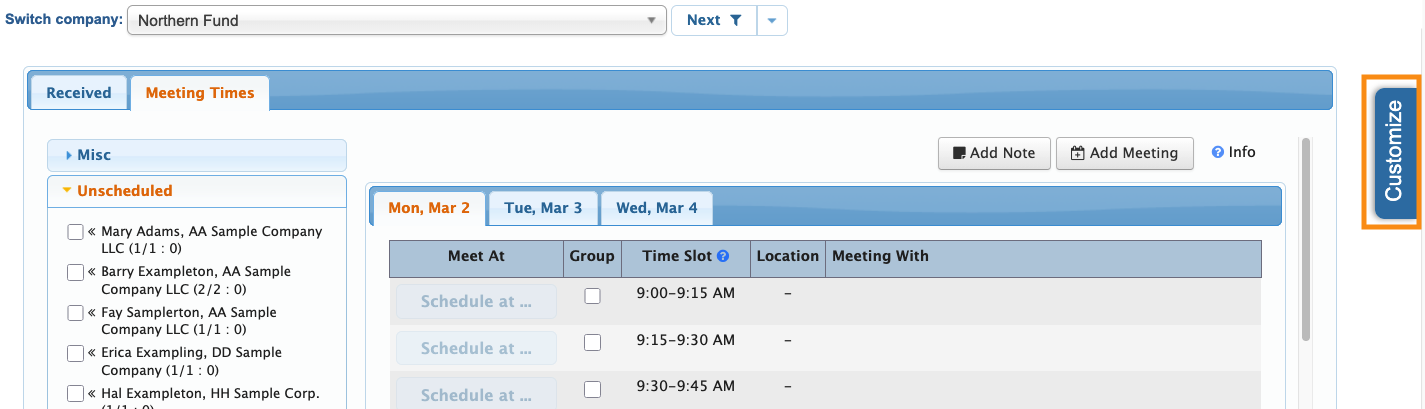
- Step 2. Head to the right edge and click the Customize tab:
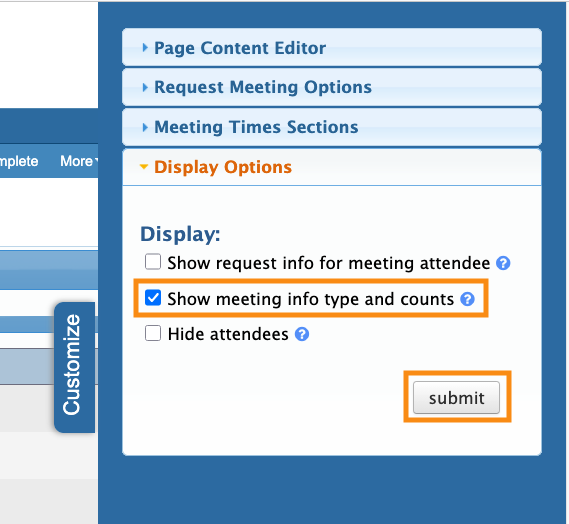
- Step 3. A menu slides out. Click on Display Options to open the section.
- Choose Show meeting info type and counts. Then click Submit:
- We’ll see this column in action in a moment.
Adding Meeting Type Tags
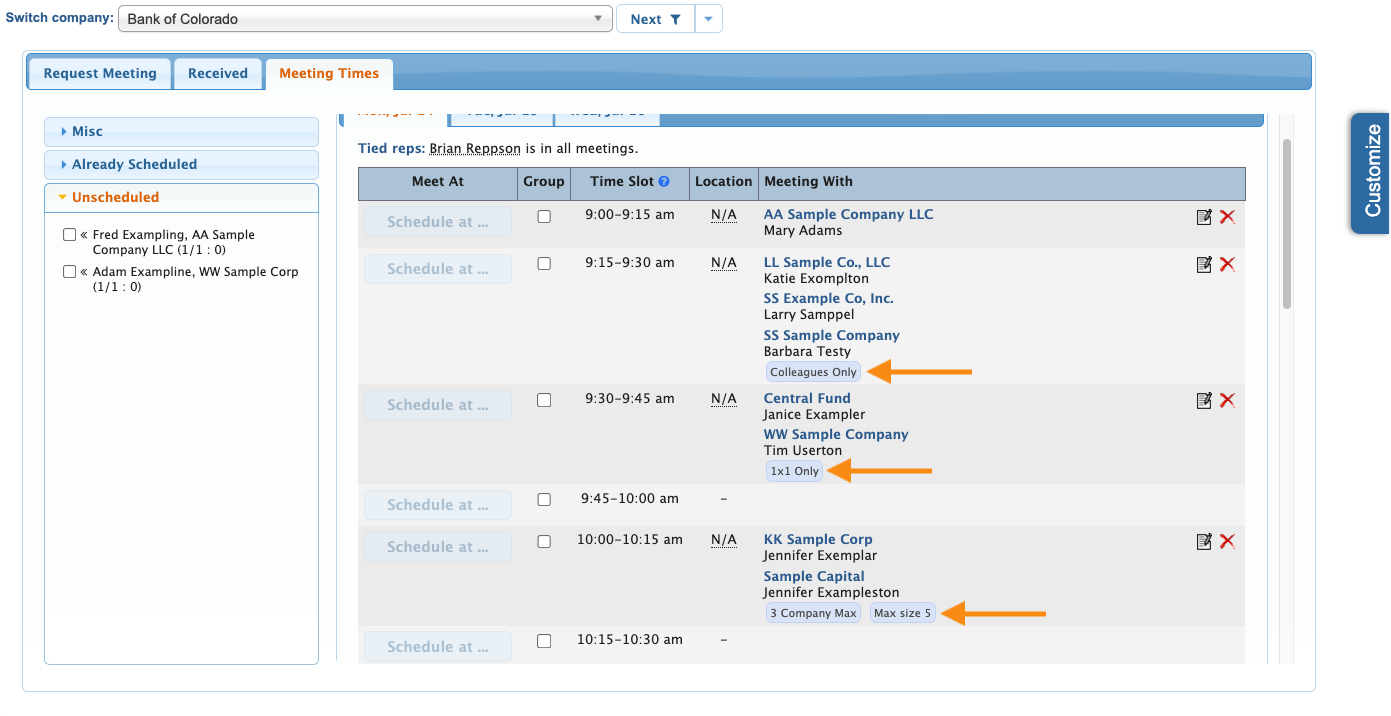
As an option, you can also add internal tags to meetings. It’s a great way to help your team to keep track of special requirements for any meeting.
Learn more about Meeting Type Tags here. See an example below:
Simplifying the display
If you’re scheduling a lot of group meetings, the Meeting Times page can become a bit cluttered.
You can switch to a streamlined display any time, to save you some scrolling.
Creating a group meeting from requests
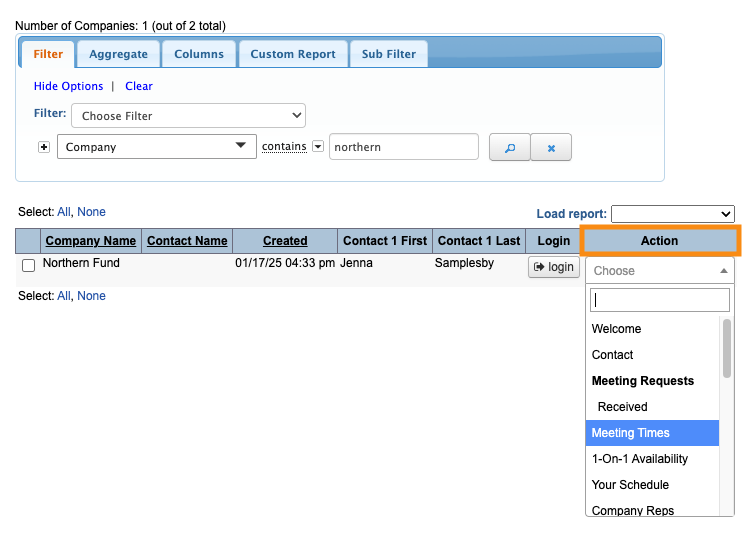
In this example, you’ve already received meeting requests from Attendees. You have multiple requests to meet with Northern Fund, so you decide to create a group meeting.
- Step 1. Head to the Company’s Meeting Times page:

- Step 2. Select the people you want to include in this meeting. In this example, we’ll add several Colleagues from one company, plus several unaffiliated Attendees from other companies.
-
MeetMax will grey out any time slots where this whole group isn’t available. 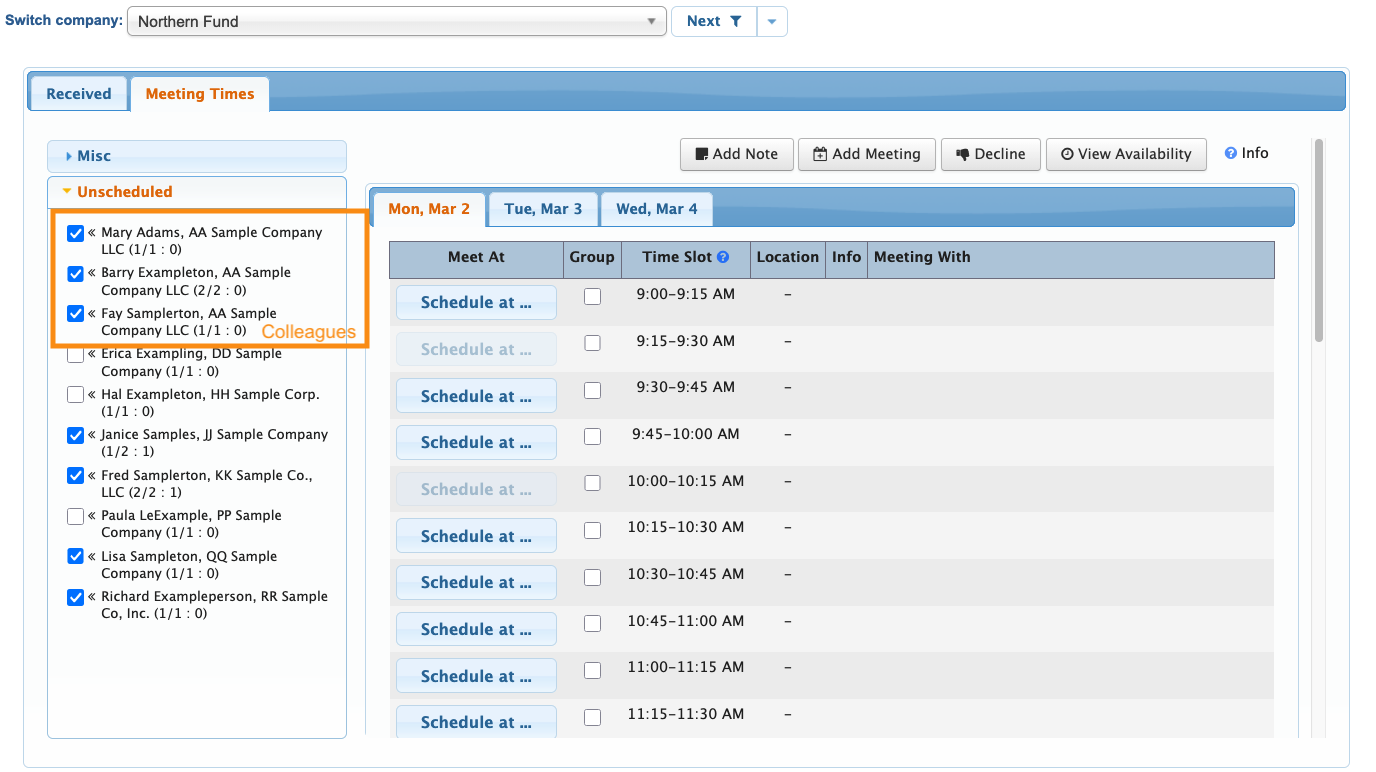
- Step 3. Choose the time slot for this group meeting:
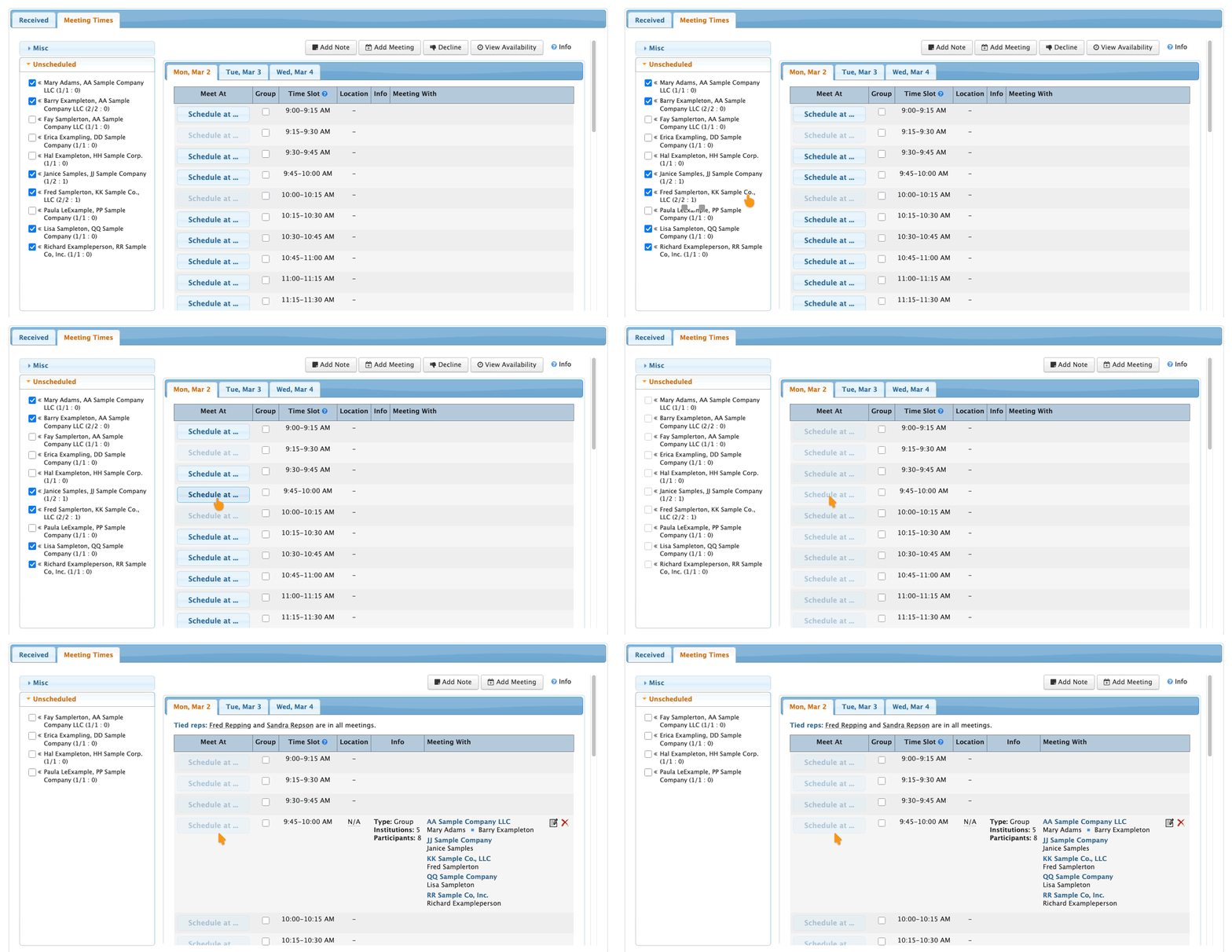
- The Info column shows the number of Institutions in this meeting, and the total number of participants (including Colleagues from the same institution):
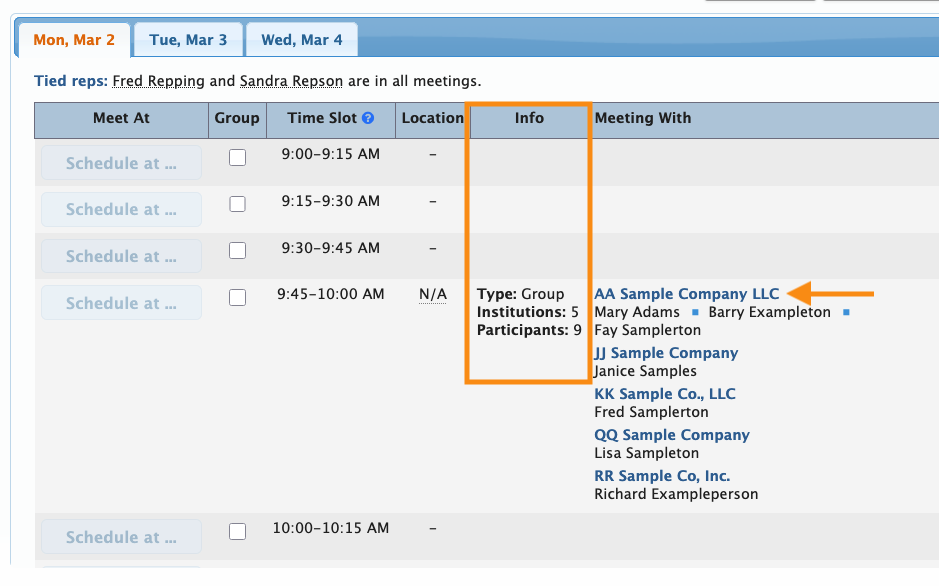
- Now you can proceed with adding a meeting location.
Adding attendees to an existing group meeting
In this example, you have an existing meeting for Coastal Investments. You have other Attendees who want to meet with this Company, so you decide to add more people to this meeting:
Click on the requestors you want to add. If they’re all available at this time, the Schedule at button becomes available. Click it to add them to the meeting:
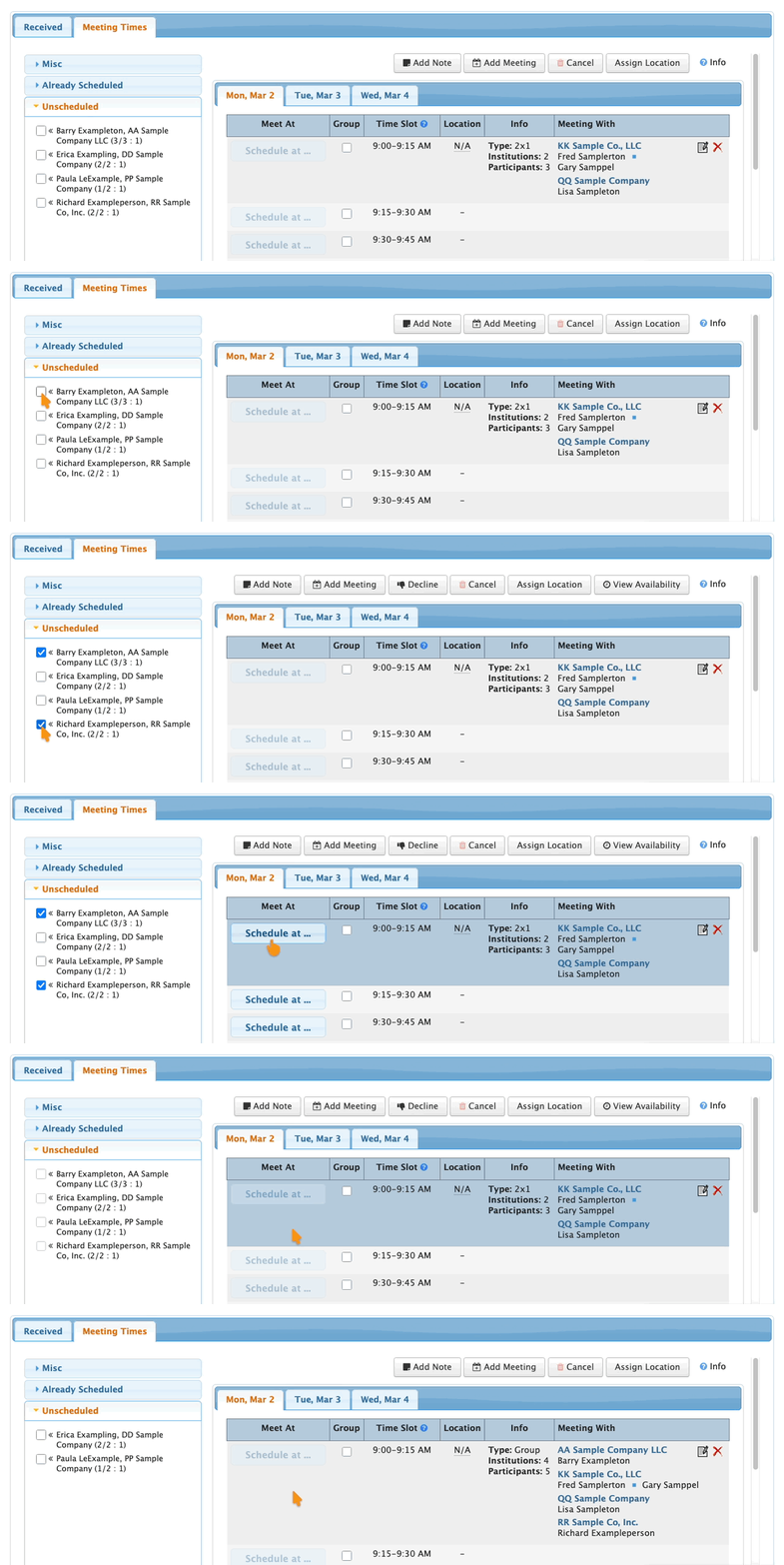
If you choose several requestors and they aren’t all available, the Schedule at button stays greyed out.
Instead, click on the Time Slot to see who’s actually available at this time:
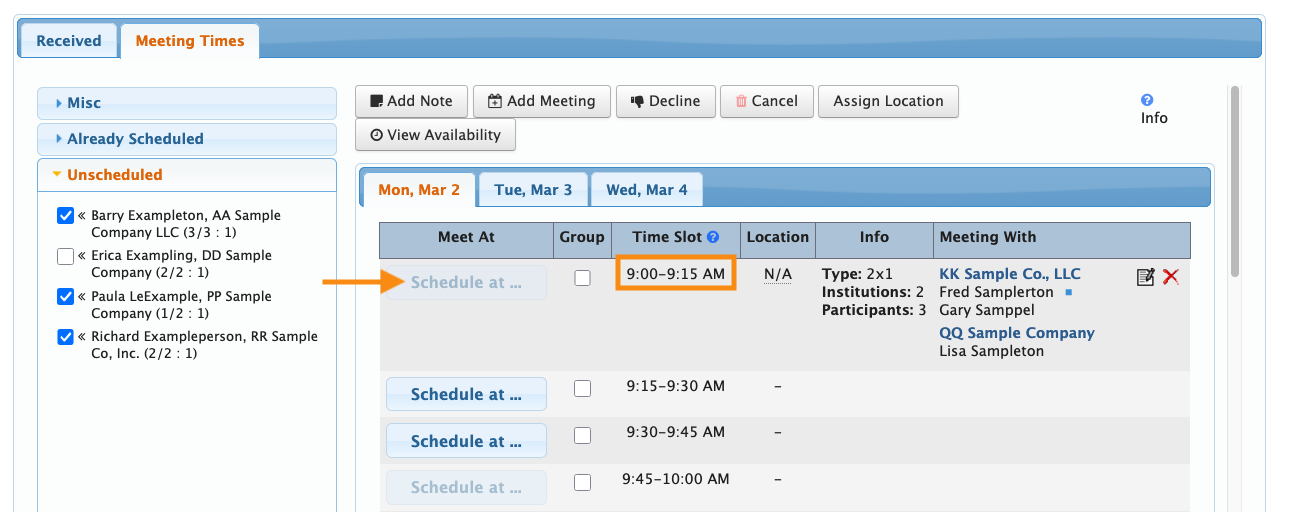
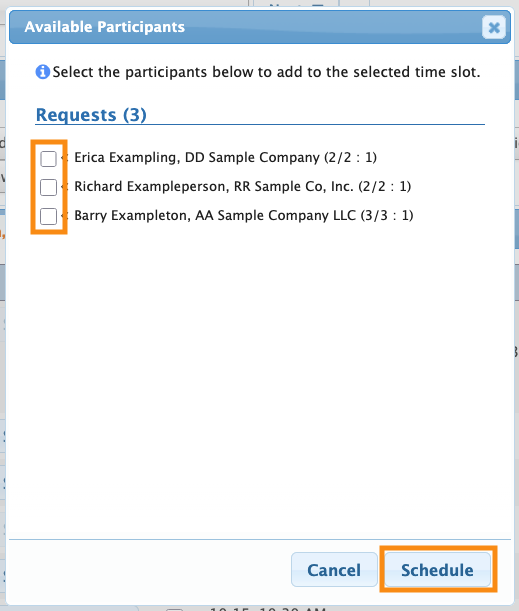
In the pop-up, click the checkboxes for any requestor you want to add to this meeting. Then click Submit.
Learn more about this feature here:
Adding Colleagues to a group meeting
In this example, you’ve scheduled a meeting scheduled for Bank of Colorado. One of the Attendees, Barry Exampleton, has several Colleagues at your event. You want to add them to this meeting, but they haven’t made meeting requests.
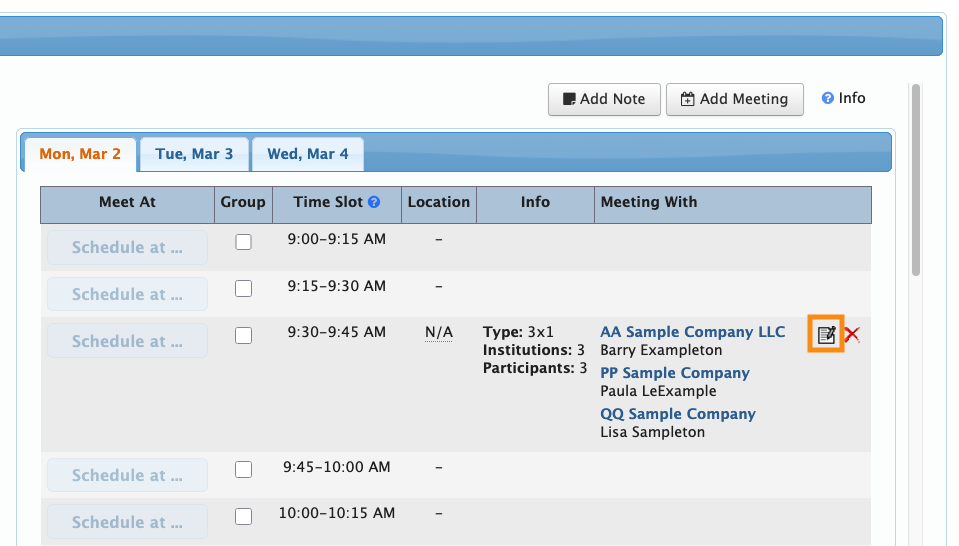
- Step 1. Click the Edit icon for this meeting:
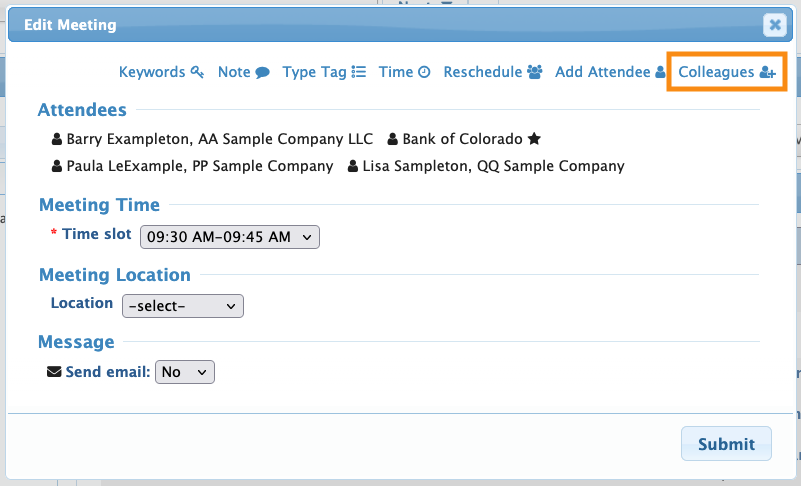
- Step 2. In the pop-up, click the Colleagues link:
- Step 3. Click the checkboxes for any Colleagues you want to add to this meeting. Click Submit to save:
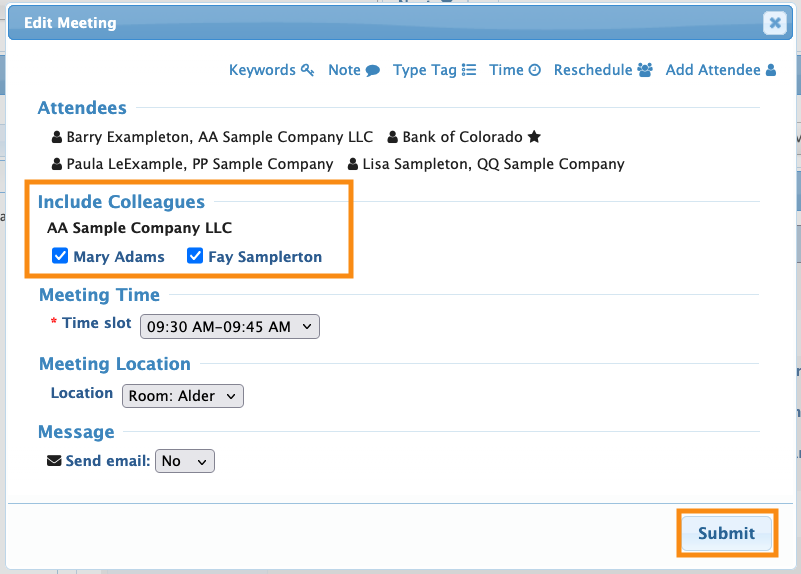
- MeetMax has added the Colleagues, and listed them under their company name.
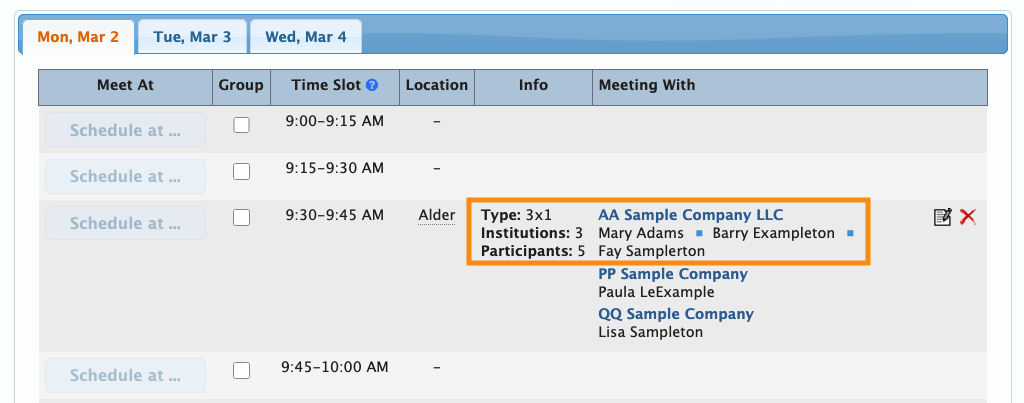
- Notice that, in the Info column, the number of Institutions in this meeting hasn’t changed. Colleagues add Participants, but not Institutions:
-
You can also add unaffiliated Attendees to meetings using this method.

