


In this article:
- Where is it?
- Enabling this feature
- SMS notifications vs. Push notifications
- Adding an opt-in for Attendees
- Sending a batch of SMS notifications
- Verifying receipt
- Can Attendees opt out?
Where is it?
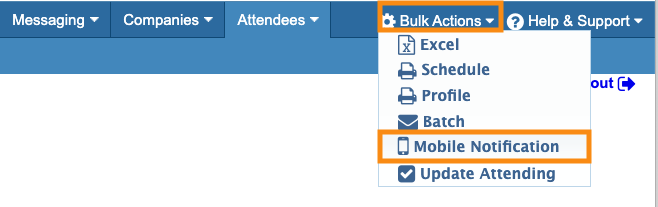
Once enabled, you’ll send SMS notifications from the Bulk Actions menu:
Enabling this feature
Batch SMS notifications are a premium add-on feature.
- Reach out to your TWST Events Sales representative to license this service.
- After that, our Support team will add the feature to your event.
SMS notifications vs. Push notifications
MeetMax offers several ways to communicate with Attendees during your event. You can use any or all of these options:
- Batch SMS notifications: What we’re covering here.
- Automated SMS meeting reminders: Alert Attendees when a meeting is about to start.
- Mobile Push notifications: If you’re using our mobile apps, send users messages through the app.
Adding an opt-in for Attendees
To use this feature, your event registration form needs two fields:
- Cellphone (Required field)
- Text Notifications (Required field)
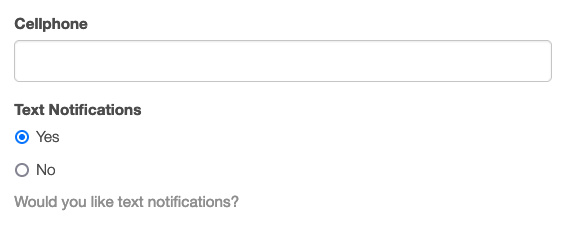
| If you like, you can create a form rule that reveals the Cellphone field only when someone chooses Yes for the Text Notifications field. |
Cellphone field setting
When you add the Cellphone field, we recommend adding a Validation setting.
In the Form Editor, head to the Type column and click on the Edit icon:

In the pop-up, head to the Validation section. Choose the phone number format that fits your event:
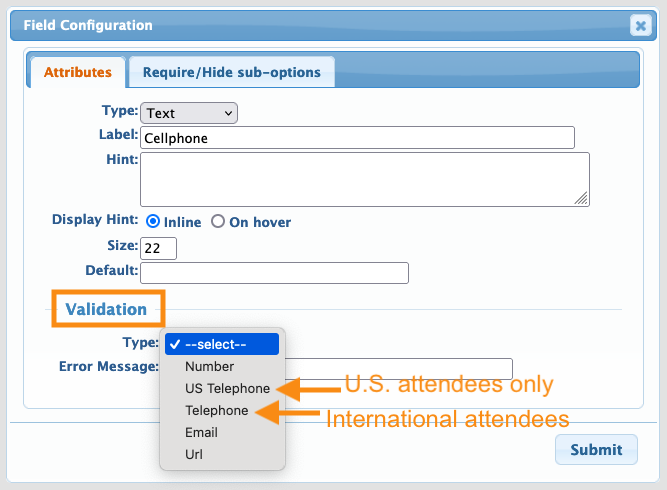
That way, MeetMax can ensure that cellphone numbers are always formatted correctly.
Sending a batch of SMS notifications
- Step 1. Head to the Attendee List:

- Step 2. Filter the list to display the Attendees who’ve opted in to receive SMS messages:
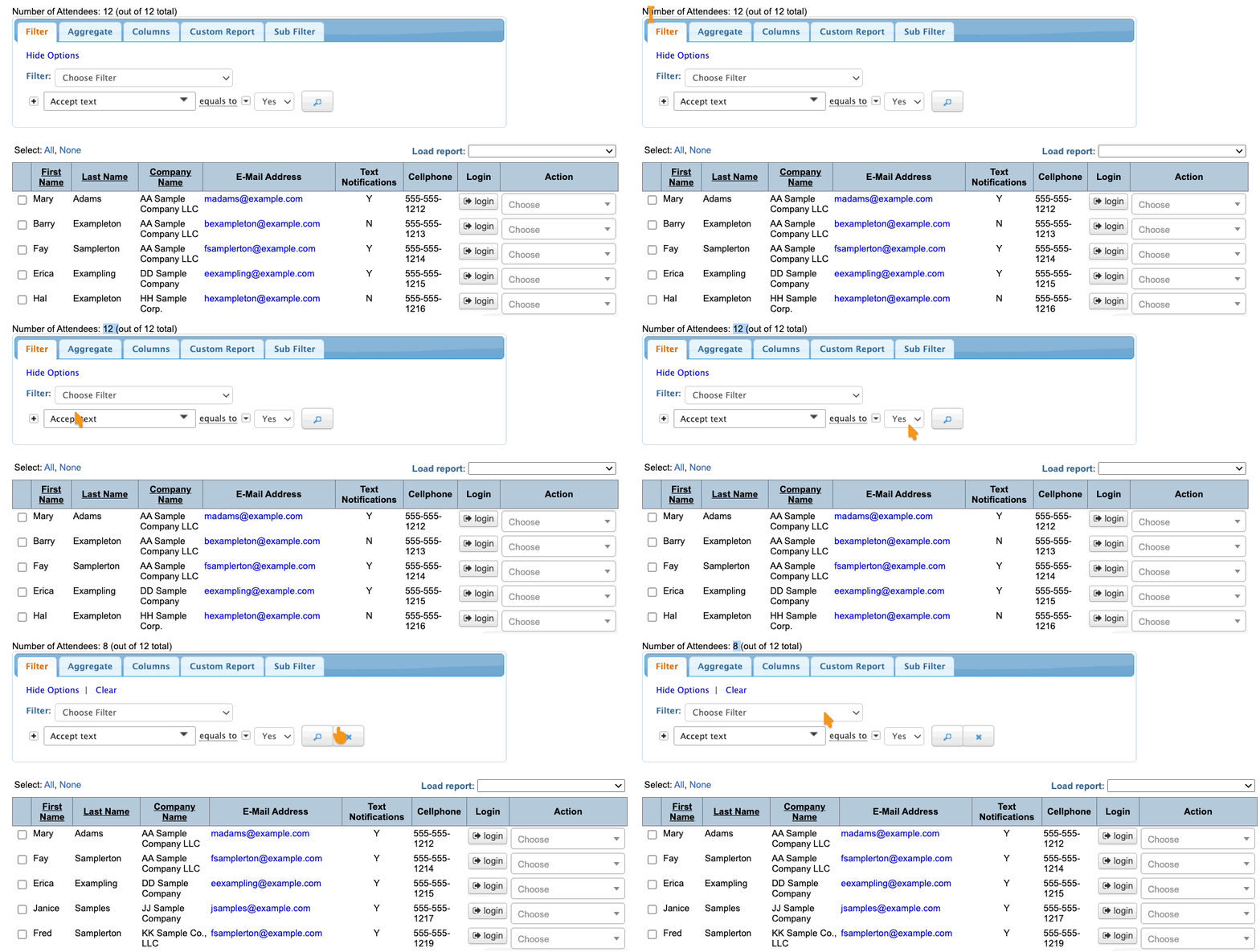
- Step 3. If you want to message a subset of these Attendees, add more filters to narrow the list down further. In this example, we’re messaging Attendees from one company:
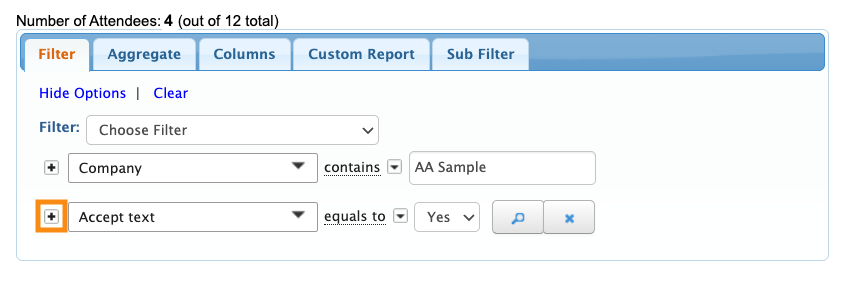
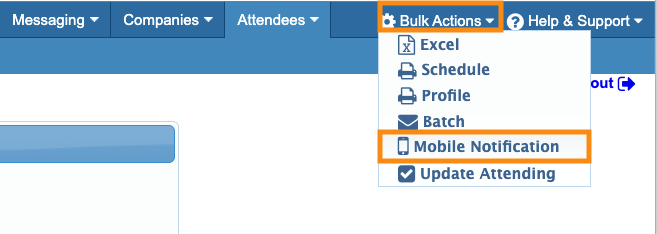
- Step 4. When the list is displaying the recipients you need, head to the top right corner of the page. In the Bulk Actions menu, choose Mobile Notifications:
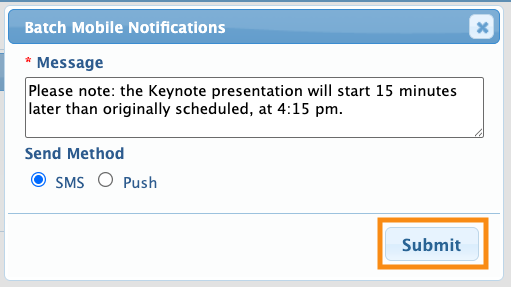
- Step 5. In the pop-up, compose your batch message. Then click Submit:
-
If your event is using our mobile app, you’ll see both the SMS and Push buttons as shown above. Be sure to choose SMS.
If you’re not using our mobile app, you won’t see any buttons and your message will always send by SMS.MeetMax can send SMS messages only to Attendees who’ve both opted in and provided a valid cellphone number.
Verifying receipt
After you’ve sent a batch SMS message, you’ll see a new option in the Messaging tab: Mobile Messages:

The Mobile Messages log shows you all batch SMS messages sent during your event, and how many Attendees received them:

Can Attendees opt out?
Even when an Attendee has previously opted in to receive text messages, we recommend giving them a way to opt back out during your event.
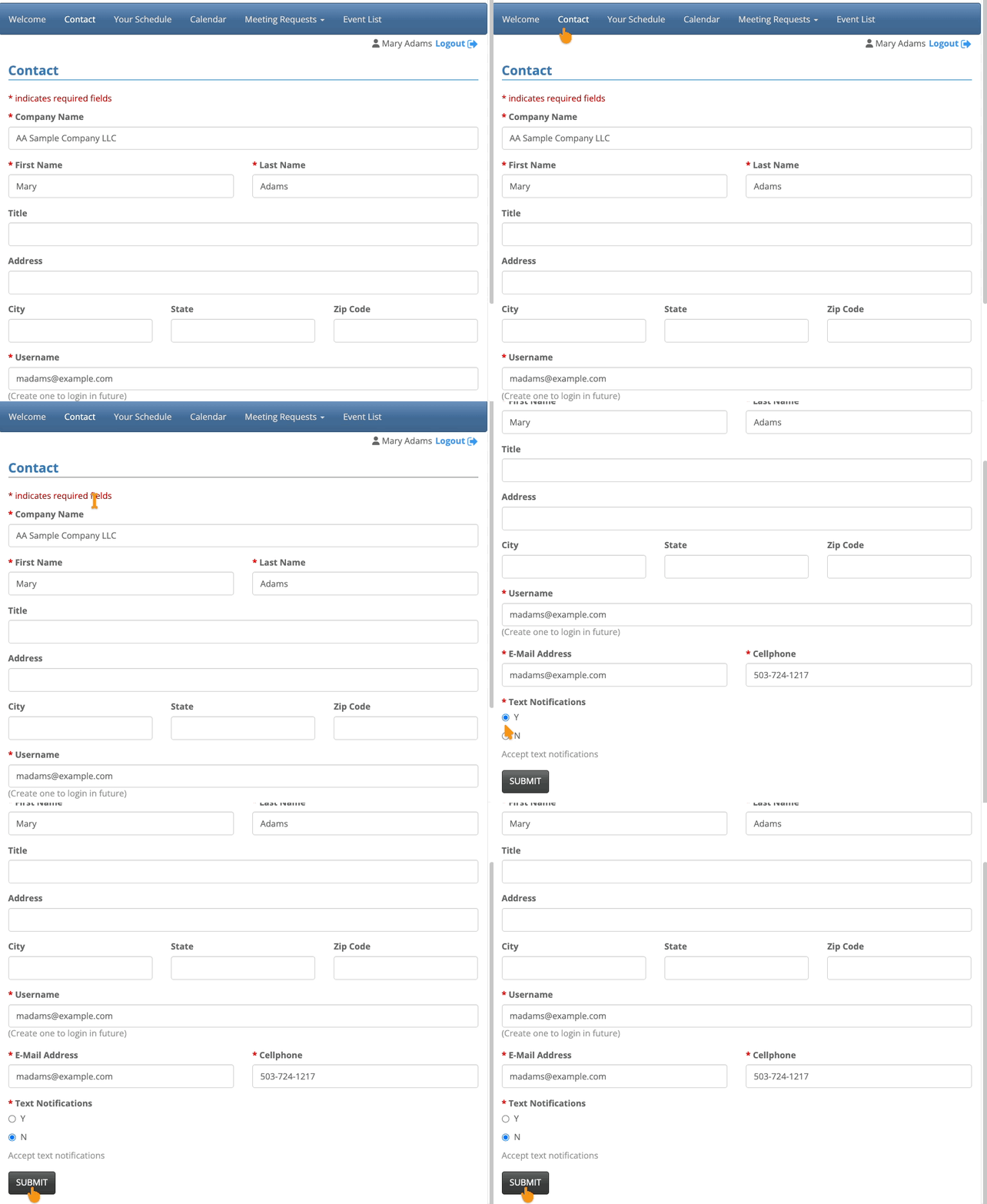
The Attendee can log into MeetMax and head to the Contact tab. They’ll access their registration form. They can opt out of texts, and click Submit to save:
| Your event might use a different name for this tab. |

