In this article:
- When is this useful?
- Enabling the Sales Rep view
- Who’s on the client list?
- Viewing registered events
- Viewing meeting requests and statuses
- Logging into registered events
- Registering a client for future events
- Inviting a client to register for future events
- Merging client records
When is this useful?
For some types of events, such as Roadshows, your team’s Sales Reps will have a list of assigned clients.
The Sales Reps need to:
- See which upcoming events each client is registered for
- Invite clients to register for other upcoming events
- Register clients directly for other events
- View a client’s current meeting requests and their current statuses
- Check to see which past events the client registered for
- Log into any event through a registered client’s record
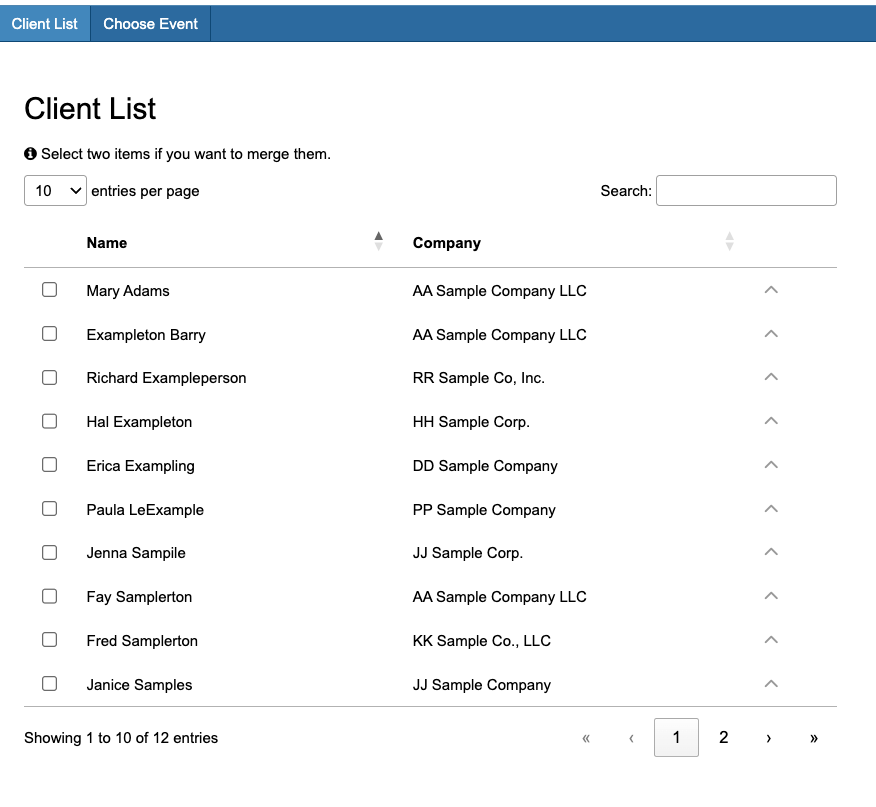
All of this is easy when the Rep can view MeetMax through a client-first lens:
| In this article, we’ll use the term “Client” to mean “registered Attendee.” | |
| In MeetMax, an admin is generally called a “Client Rep.” This feature is available to Client Reps with the Sales Rep, Event Administrator, and Client permissions. We'll focus on Sales Reps in this article. |
Enabling the Sales Rep view
These steps are for the main Event Administrator.
- Step 1. Reach out to our Support team to enable this Sales Rep view for your account.
- Step 2. Make sure your Sales Reps are added to MeetMax. Assign them the Sales Rep role.
- Step 3. Your upcoming events should be set up in MeetMax, with registration open.
- Step 4. Grant each Sales Rep access to all events, or to specific events. You can grant this access while adding the Sales Rep to MeetMax, or update event access in bulk.
-
MeetMax supports a number of CRM integrations as well as API. Our Support team can help with questions about sharing records between systems.
Who’s on the client list?
MeetMax offers multiple ways to structure your Sales Reps into groups, and to assign clients to each Rep. Our team will help you set this up.
Depending on your sales structure, when a Sales Rep logs into MeetMax they’ll see either or both of these kinds of clients:
- Clients that are currently assigned to the Rep.
- Clients that are currently assigned to the Rep’s sales group.
Viewing registered events
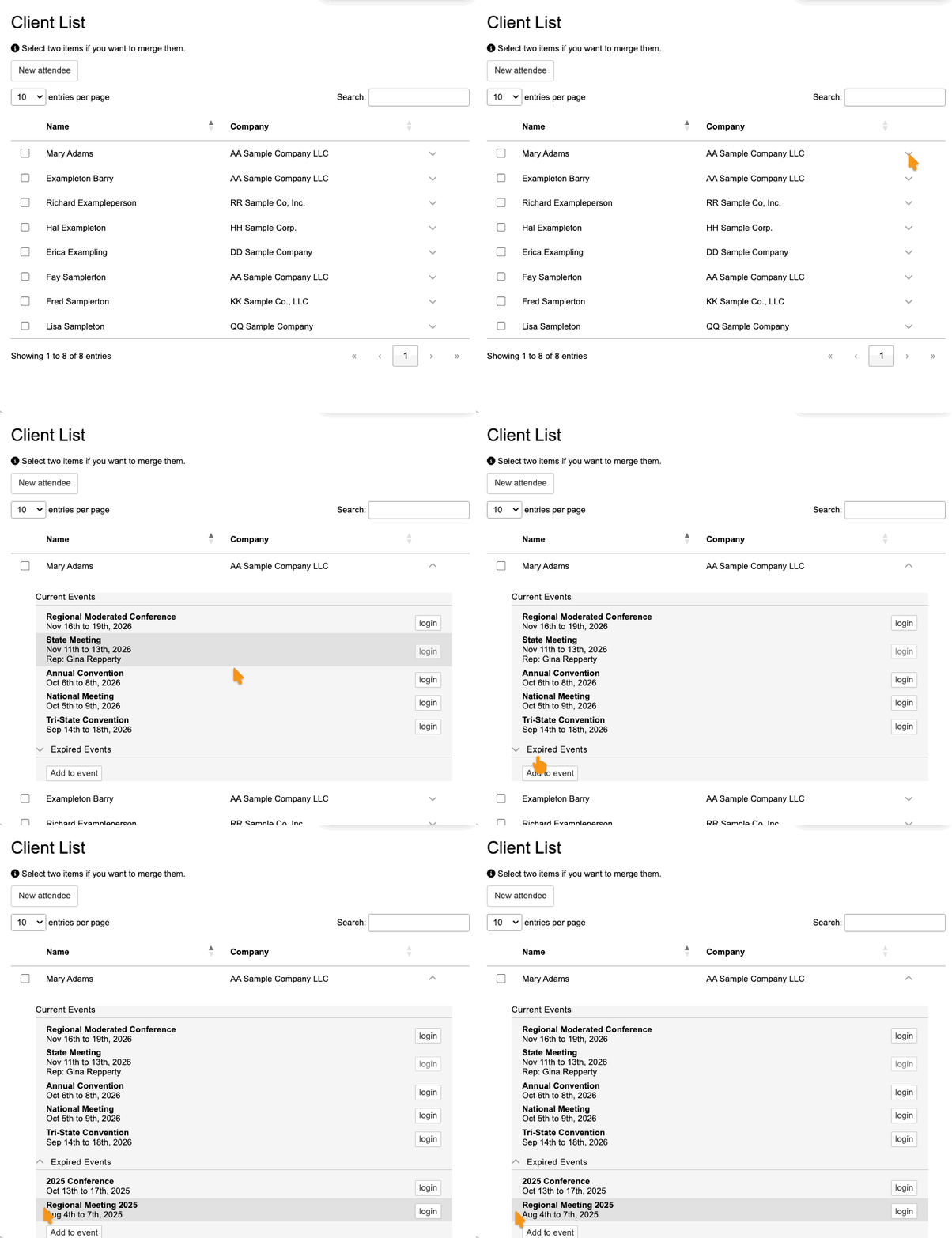
In the Sales Rep’s view of MeetMax, click on any client name. That expands to show two lists:
- Current and upcoming events the client is registered for
- Expired (past) events the client attended
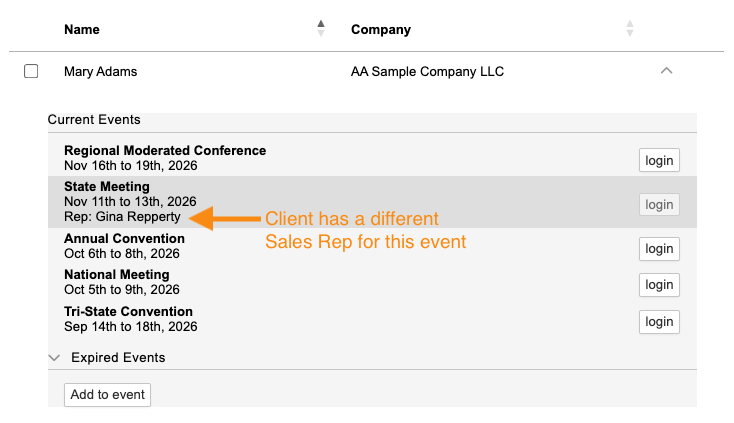
In this view, there might be cases where a client is registered for multiple upcoming events, but they’re assigned to a different Sales Rep for some of them.
These events still appear on the list, so that all Reps have a global view of this client’s registration. But some Reps will have restricted access. (See the section below).
If this client has a different Sales Rep for any event, that name appears on the list:
Viewing meeting requests and statuses
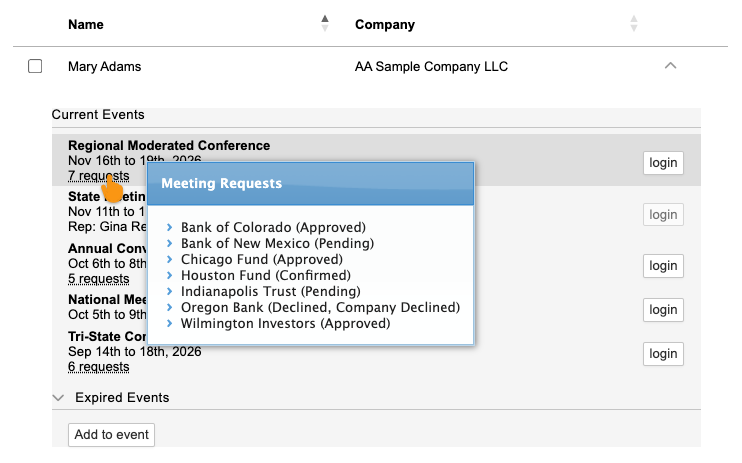
If a client has submitted meeting requests for an event, they’ll appear in the Client List view.
Sales Reps can hover over the link to see the current approval status and decline reasons:
Logging into registered events
If an event is assigned to the Sales Rep or their sales group, there’s an active Login button:
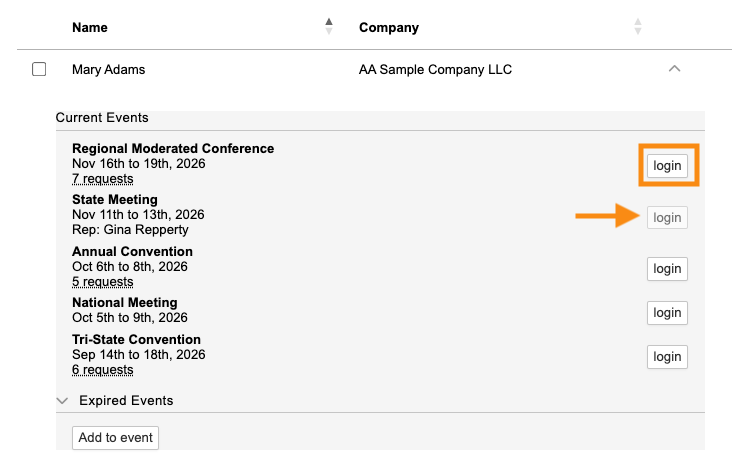
| If the event is assigned to a different Sales Rep or group, the Login button is inactive (as shown above). MeetMax displays the assigned Rep’s name, so there’s a contact person in case of questions. |
The Login buttons are client-specific. So when a Rep clicks any Login button, they’re taken to that client’s record in the MeetMax event.
The actual landing page depends on the amount of data currently in that record. The Rep will land on one of these:
- The client’s Meeting Times page, to manage scheduled meetings.
- The client’s Request Meeting page, to manage meeting requests.
- The client’s Contact page, to manage registration details.
The event opens in a new browser tab, so it's easy to go back to the main client list view any time.
Registering a client for future events
The Sales Rep can also use this page to register their client for current and upcoming events.
Clicking the Add to event button starts the process:
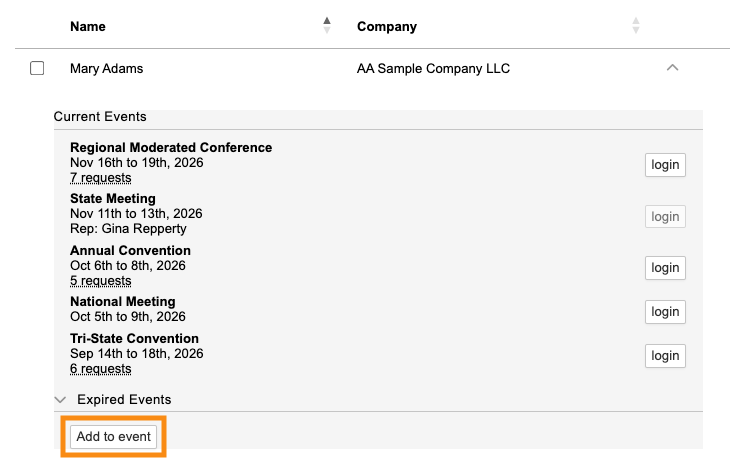
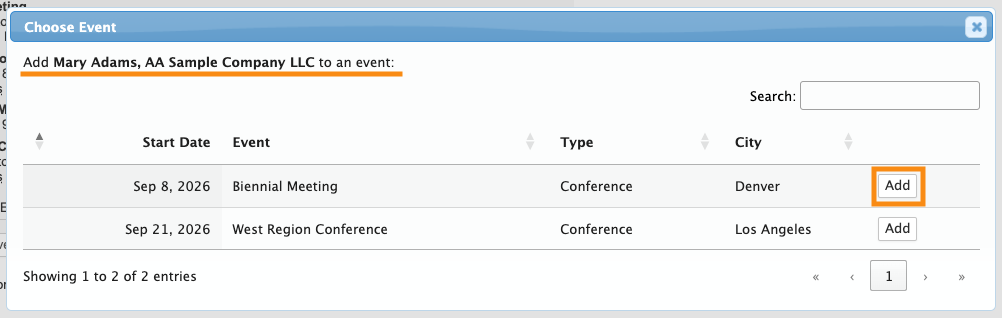
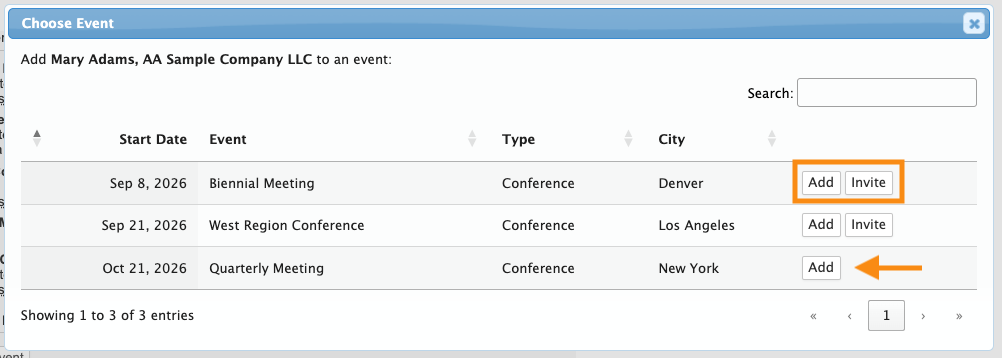
In the pop-up, the Rep sees all current and upcoming events they have access to in MeetMax. (Events the client is already registered for don’t appear in this list.) The Search bar helps locate a specific event.
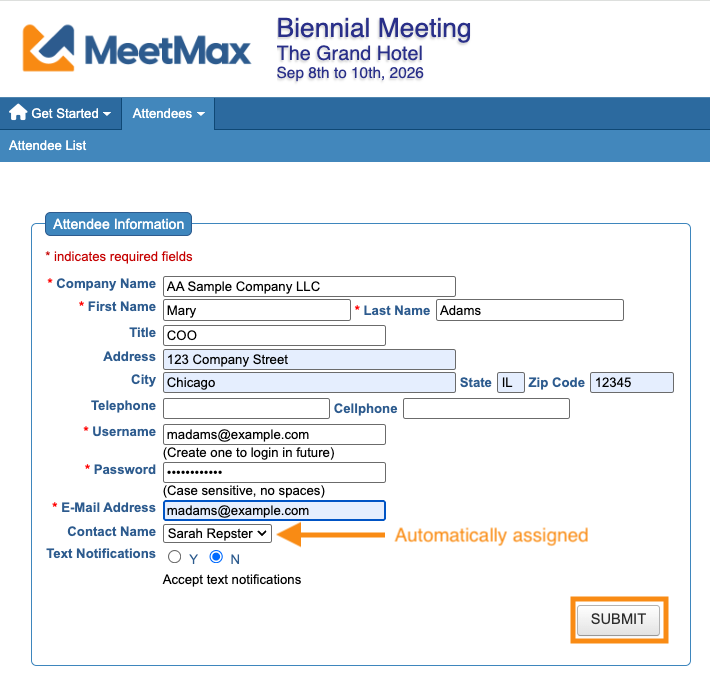
When the Rep clicks the Add button, they’re taken to the registration form for that event:
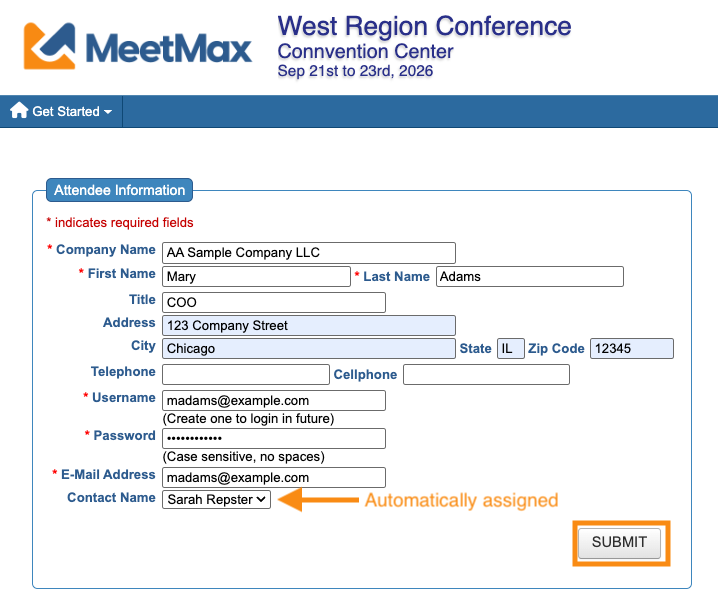
MeetMax references the client’s most recent event registration, and pulls in those details to complete the form.
The Rep can add any other details, then click Submit to complete registration:
Inviting a client to register for future events
If your events have Invitee registration enabled, your Sales Reps can issue invitations from the Client List.
The Sales Rep first clicks the Add to Event button:
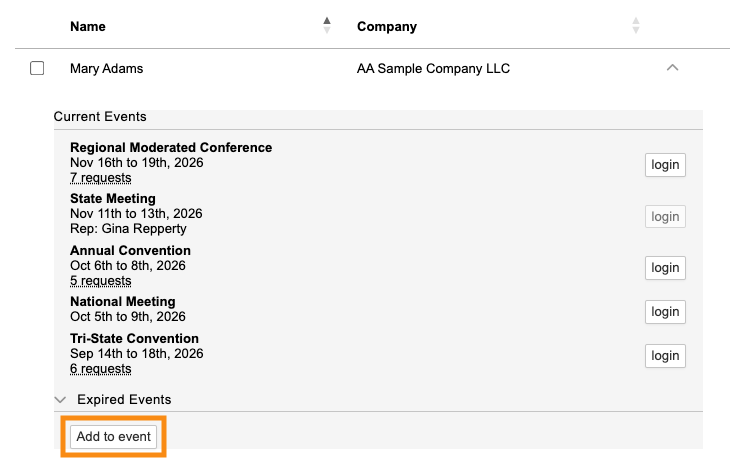
In the pop-up, they’ll see both an Invite button and an Add button. The Sales Rep can either send an invitation, or directly register the client.
If you have some events that aren’t using Invitee registration, you’ll see only the Add button, as shown below:
When the Rep clicks the Invite button, they’re taken to the event’s invitation form. The Rep can add additional details, then click Submit to send the invitation:
The Add to Event pop-up now shows an Invitee button, so the rep can keep track of who's been invited:
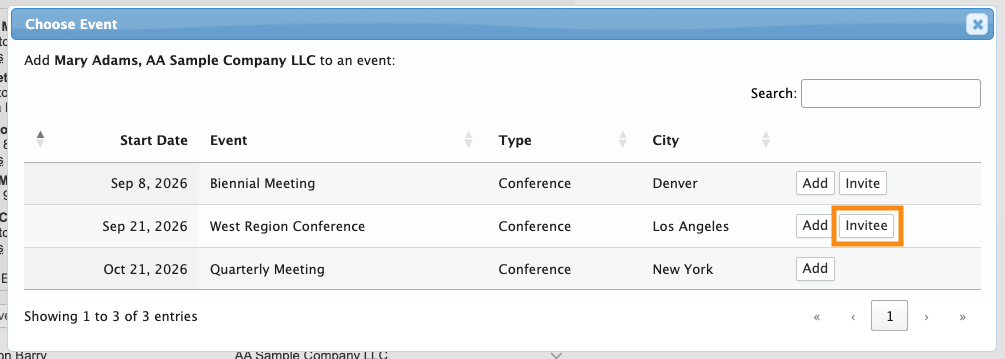
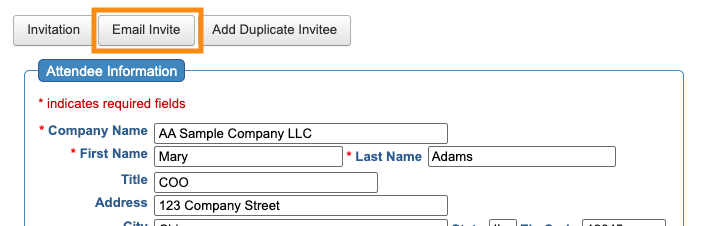
The Rep can also click the Invitee button to access the invitation form again.
Above the original invitation form, they can click Email Invite to re-send the invitation:
Merging client records
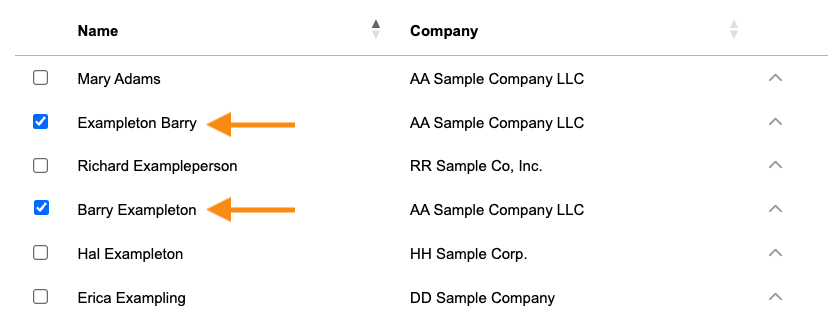
Sometimes, clients register for multiple events, but fill out the registration form slightly differently. That can cause them to appear multiple times in the Sales Rep’s list.
The Sales Rep can merge any two records into one. Click the checkboxes:
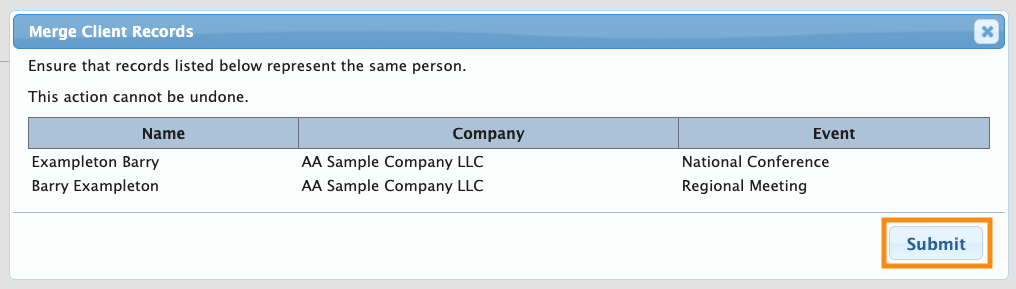
A pop-up will appear, showing an overview of the merge. Click Submit to complete:
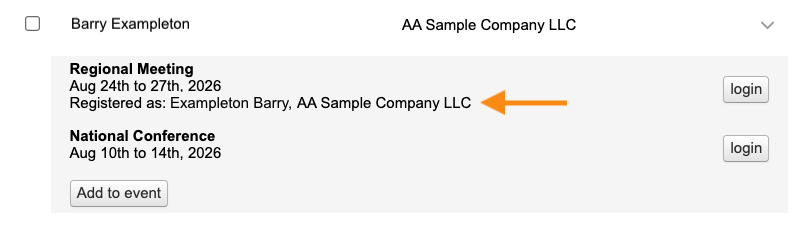
In the client’s newly-merged list of events, MeetMax shows the original registration details:
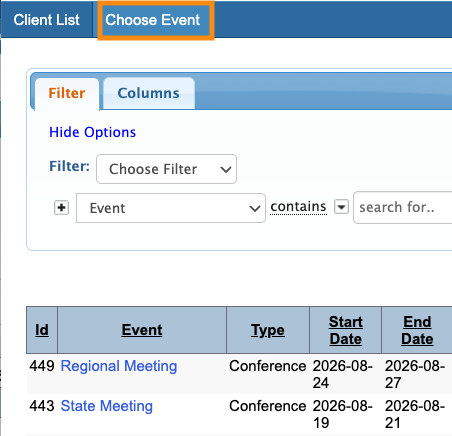
If the Rep needs to switch to the traditional MeetMax event list, they can click the Choose Event tab any time: