

How do I add a pop-up description to a presentation?

As an option, you can add a pop-up description display, with text and images, to any presentation.
In this article, we’ll add the pop-up to an existing presentation. You can also add it while you’re setting up a new presentation.
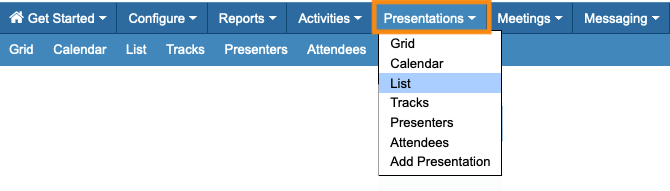
- Step 1. Head to the Presentations tab. Then choose List:
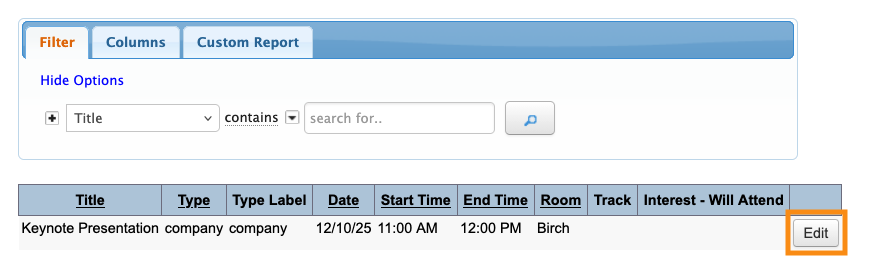
- Step 2. Locate the presentation you need to update, and click the Edit button:
- Step 3. Click on the Profile tab:
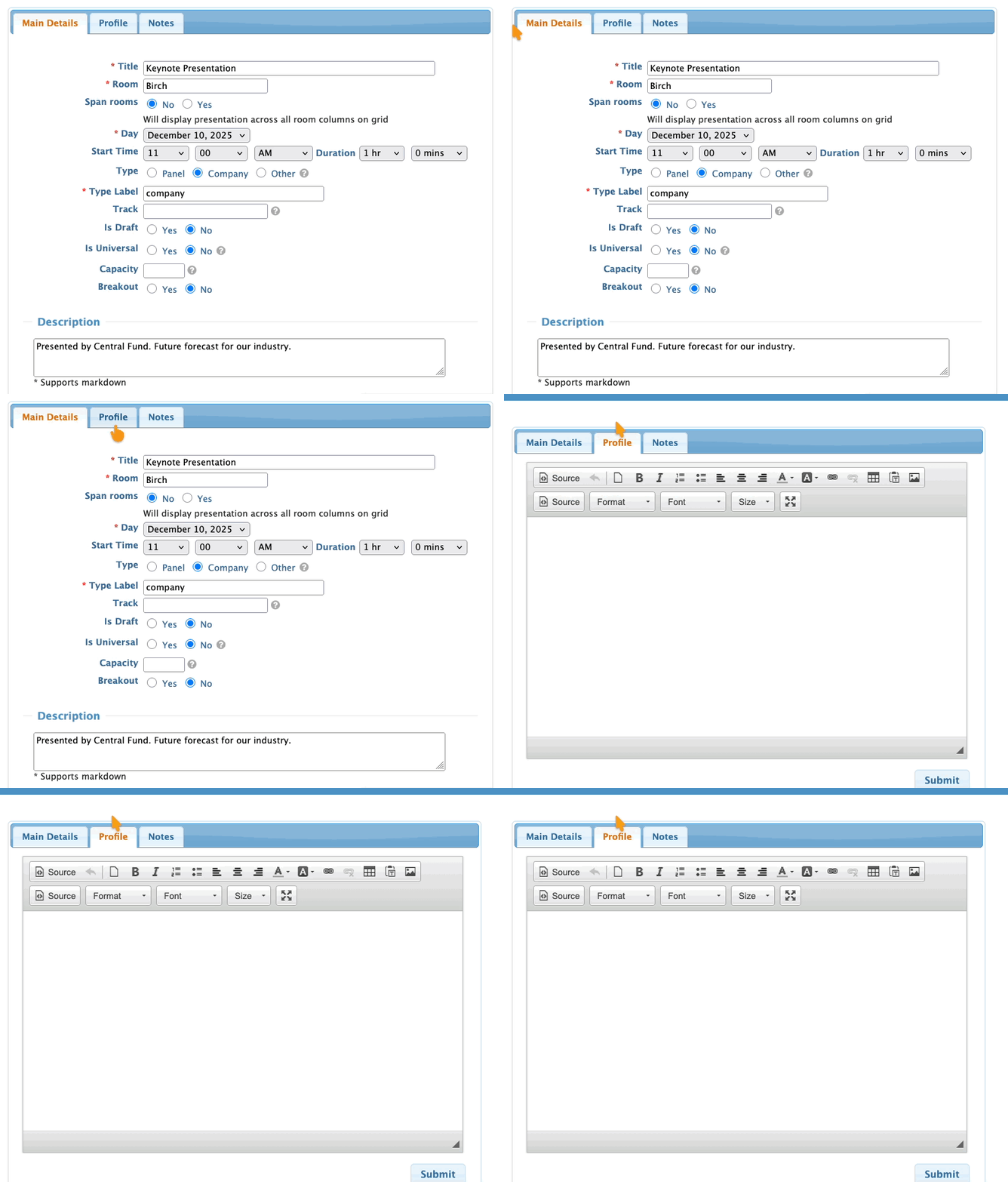
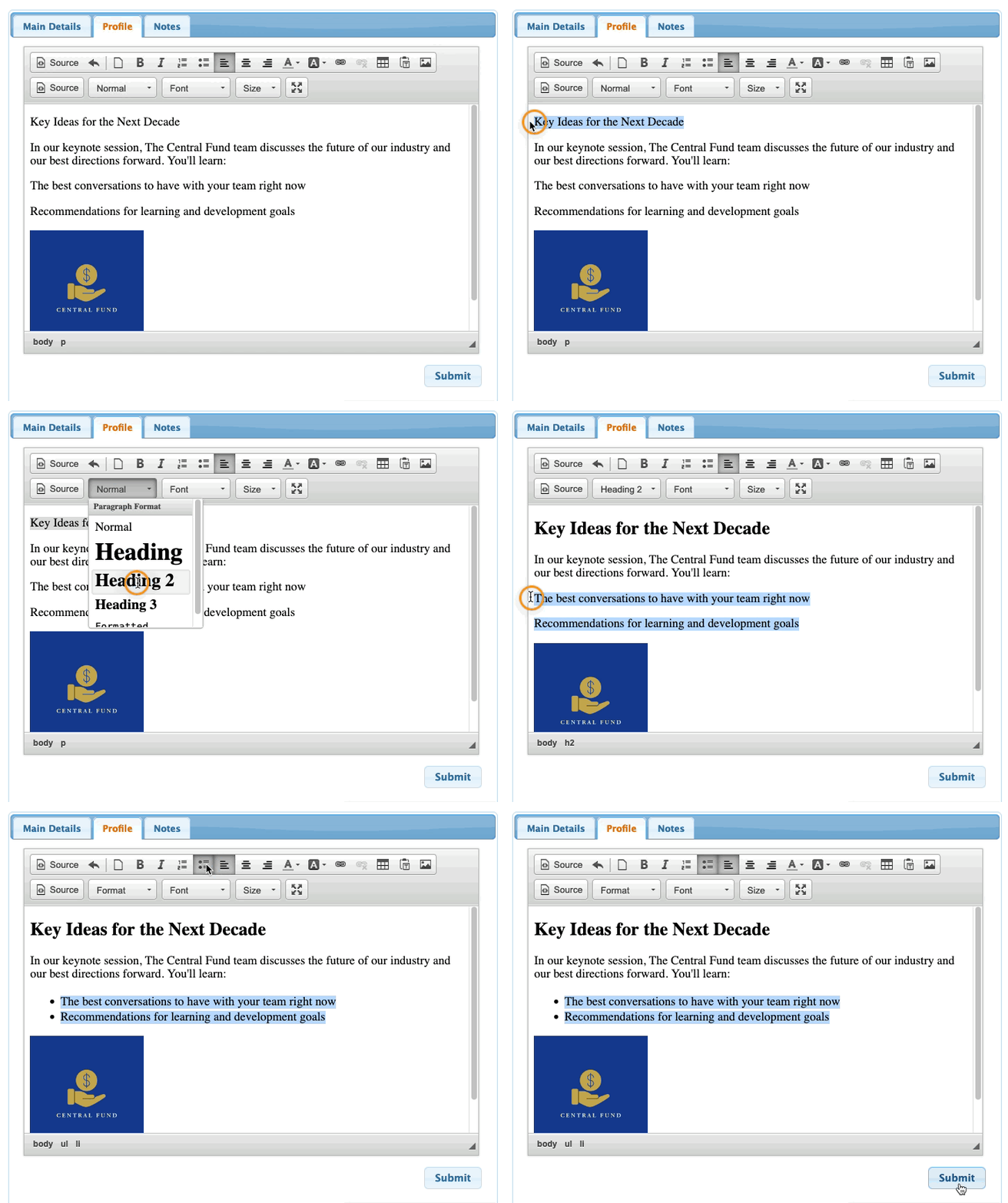
- Step 4. In this tab you can enter a detailed description of the presentation.
- Use the toolbar to add any formatting you like. You can also upload an image. Learn about the custom content editor here.
- Click Submit to save:
What Attendees see
When an Attendee logs into MeetMax, they can head to the Presentations page:
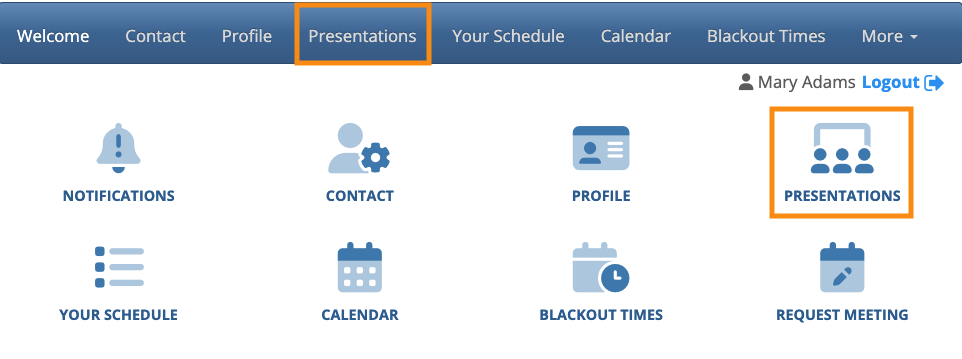
There, they can click on the presentation's title, and the pop-up opens:

Main description vs. pop-up
Keep in mind that when you’re creating a presentation, you’ll see an optional Description field:
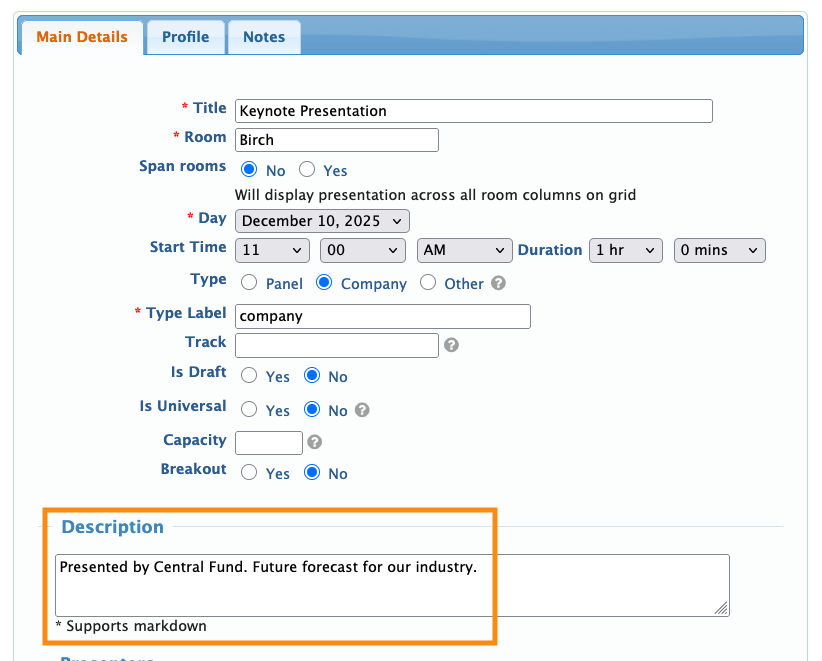
The text you enter here can also display on the Attendee’s Presentations page, depending on how you’ve configured it.
You can use both the Description field and the pop-up together, or separately.

