Looking up a PRISM record from MeetMax

In MeetMax, you can easily locate registrations that aren’t currently associated with a PRISM record. Then you can pull in the data from PRISM.
In this article:
Where is it?
We’re assuming here that you’ve already set up the PRISM integration.
To locate Company or organization, you’ll use the Company List:

To locate an attendee or Company Rep, you’ll use the Attendee List:

Adding the CRM ID column
Add this column to both lists. It facilitates record lookups in your connected PRISM account.
| We’ll show the Attendee List here, but the process is exactly the same in the Company List. |
- Step 1. Head to the List page:

- Step 2. Go to the Columns tab. Choose the CRM ID column, then click Add.
- Step 3. Click Apply to save:
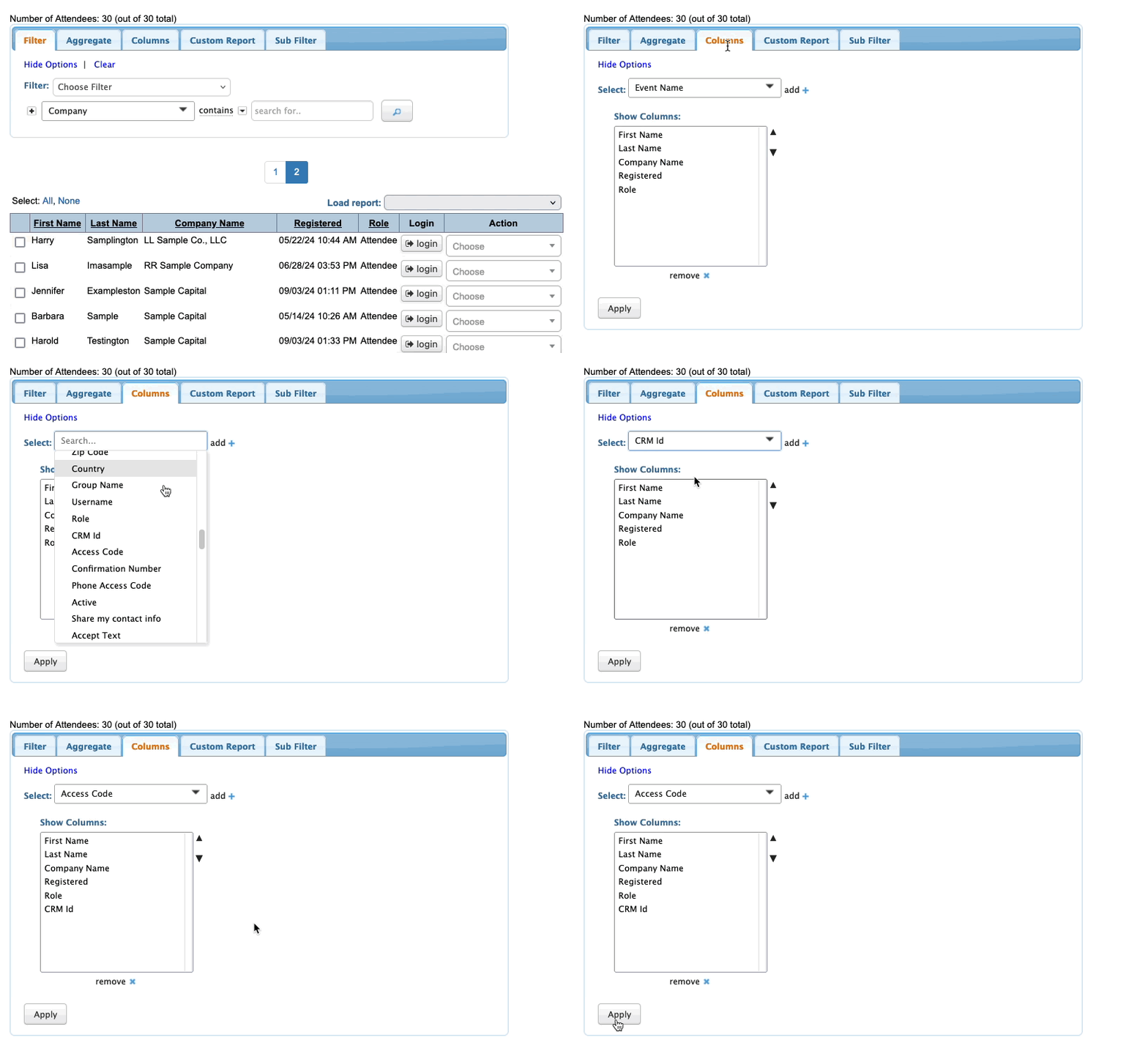
- Step 4. Go back to the Filter tab.
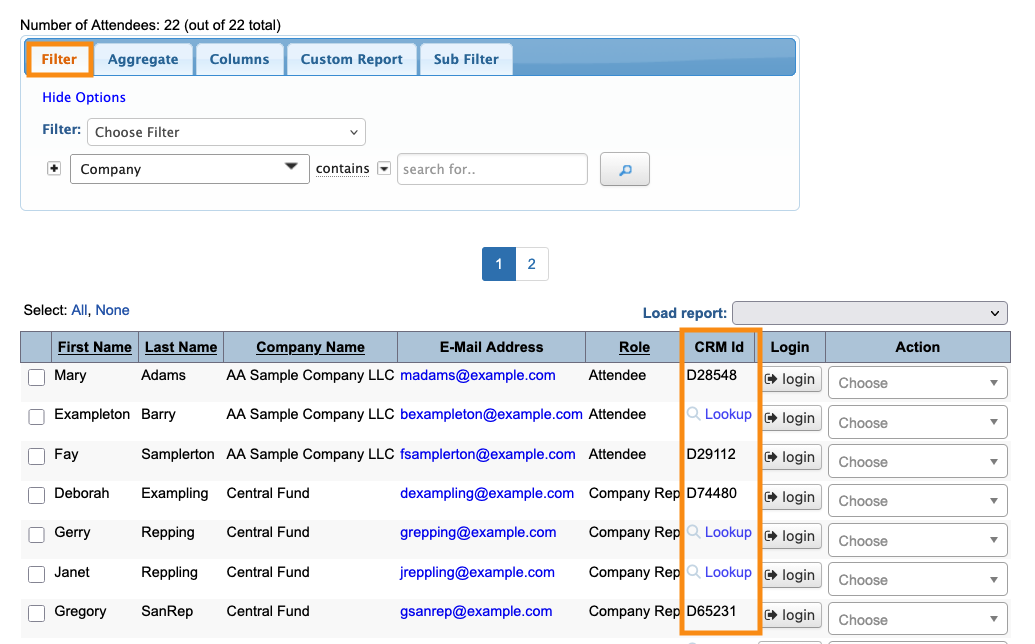
- • All paired records will now display their PRISM ID number.
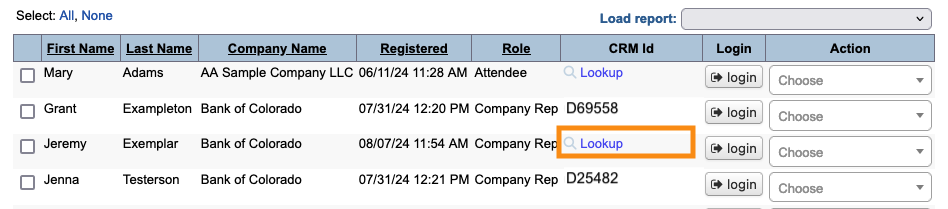
- • For unpaired records, you’ll see a Lookup link:
Filtering for unassociated records
Whether you’re in the Attendee List or Company List, you can filter to see all of the unconnected records at once.
Head to the Filter tab. Add a filter for CRM ID is blank:
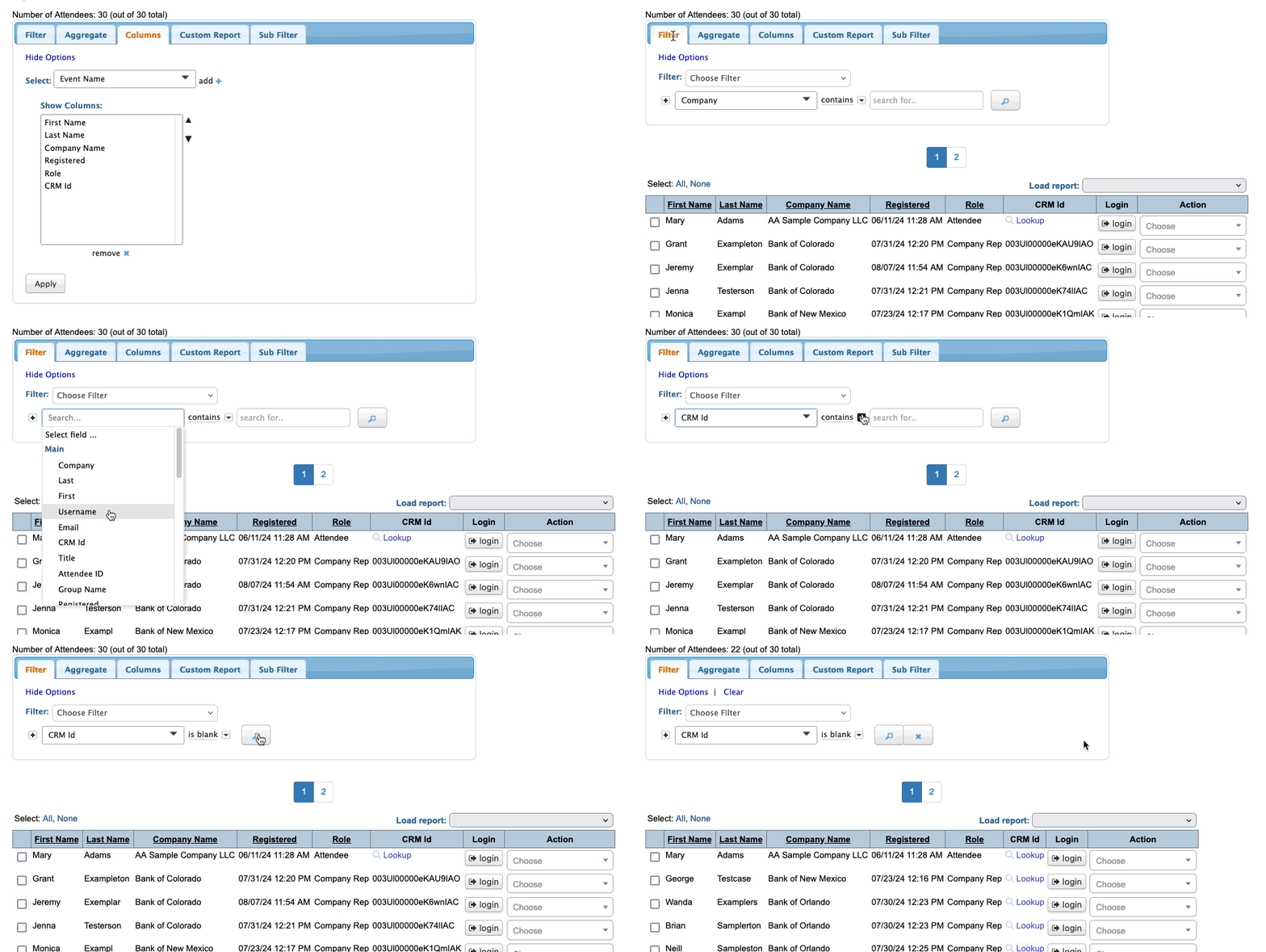
The resulting list contains only unconnected records. In the next section, you’ll connect them to PRISM.
Connecting a record
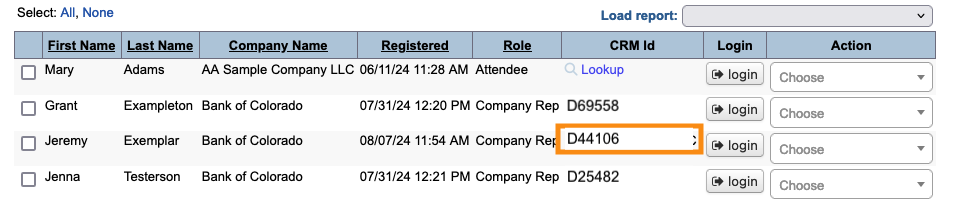
In this example, we’ll look up Jeremy Exemplar. In PRISM, Jeremy’s record is associated with the company record for Bank of Colorado.
- Step 1. Click the Lookup link:
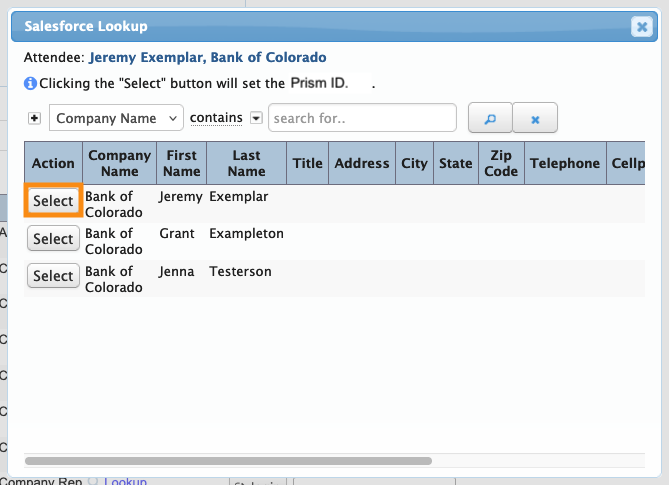
- Step 2. You’ll now see a pop-up, displaying the PRISM records that most likely match this MeetMax record.
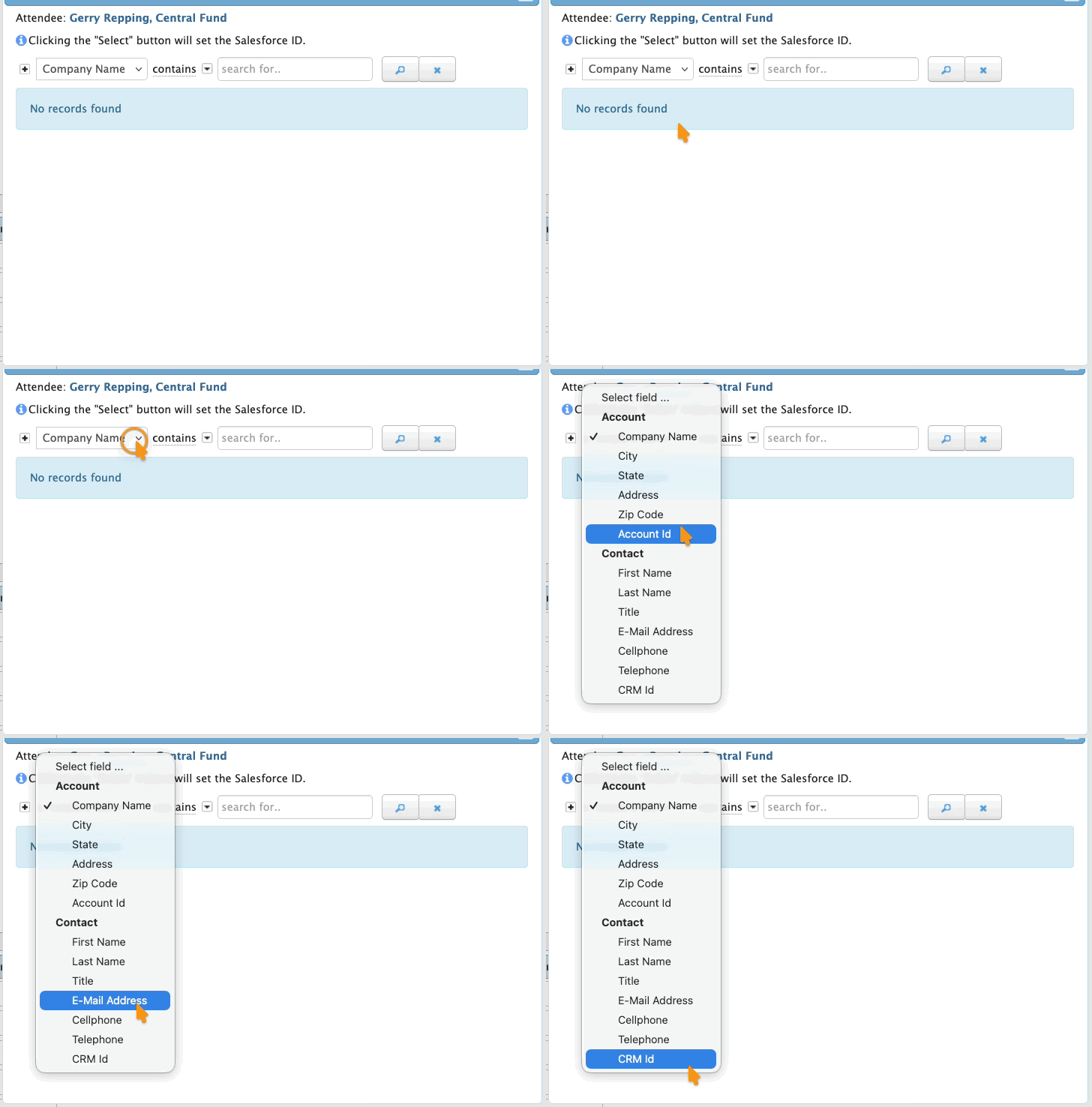
- If you don’t see the record you’re looking for here, try setting the filter to a different criteria and searching:
- Find the matching record and click the Select button:
-
Our integration searches for Company name matches first, then First/Last name, then email domain. This pop-up displays the best available matches for the record you’re looking up. - Step 3. This record now has a CRM ID number, so you know it’s connected to a PRISM record: