

Report: Open time slots for a location
How it’s used:
• You’ll see where you can fit an extra meeting into a specific location.
• You can run this report for all locations, one location, or a group of locations.
In this article:
Running the report
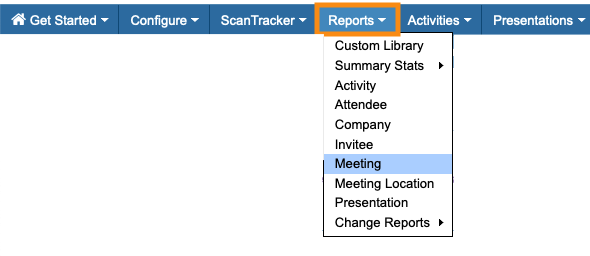
- Step 1. Head to the Reports tab. Choose Meeting:
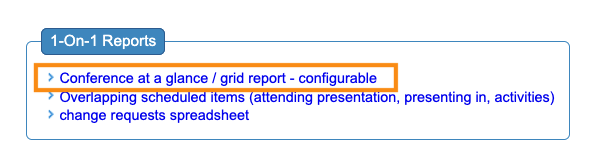
- Step 2. Click the link for Conference at a Glance:
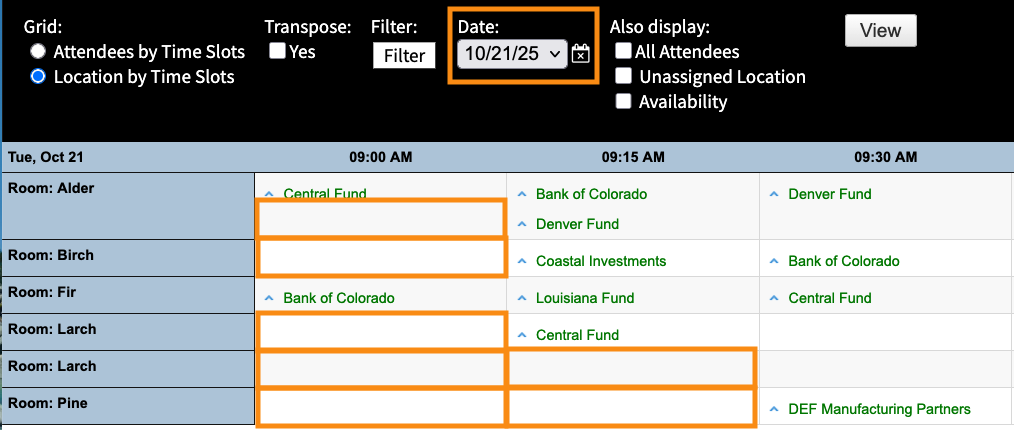
- Step 3. Choose the Location by Time Slots option. Then click View:

- The resulting report shows you all meeting locations at your event, and all time slots.
-
By default, you’ll see the first day of your event. Use the Date menu to choose a different day if needed. - You’ll see where meetings are already scheduled. The blank time slots are open:
Finding specific locations
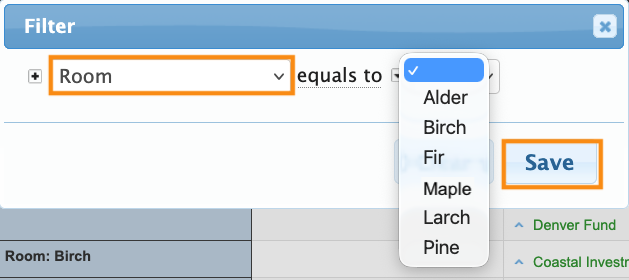
Want to narrow this report down to one or more specific locations? Click the Filter button:

Choose the Room filter, and you’ll see a menu of your current locations to choose from.
Be sure to click Save:
To include several locations, use the + icon to add more filters:
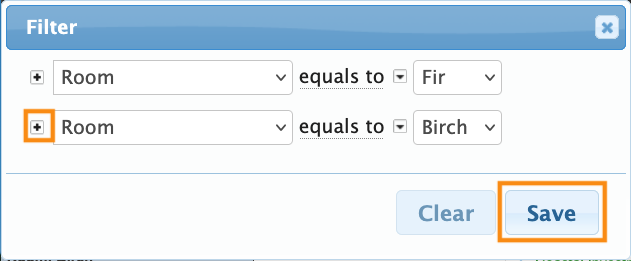
After you update filters, be sure to click the View button again:

Printing the report
When you have the view you need, click the Print button.
From there, you can either print copies, or save the view as a PDF:


