

Report: Locations open in a specific time slot
How it’s used:
• If you need to add a meeting at a particular time, here’s a quick way to see which locations are available.
• MeetMax also shows you this information automatically during scheduling. This report is helpful on-site at your event.
In this article:
Running the report
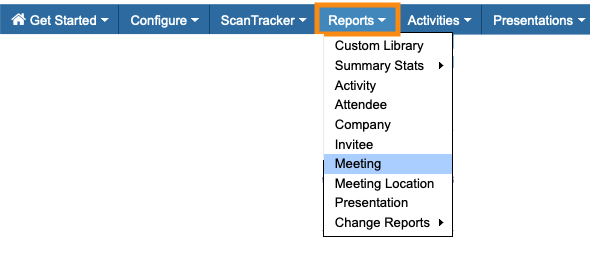
- Step 1. Head to the Reports tab. Choose Meeting:
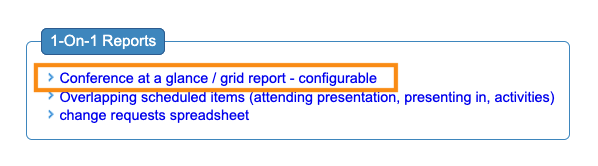
- Step 2. Click the link for Conference at a Glance:
- Step 3. Choose the Location by Time Slots option. Then click the Filter button:

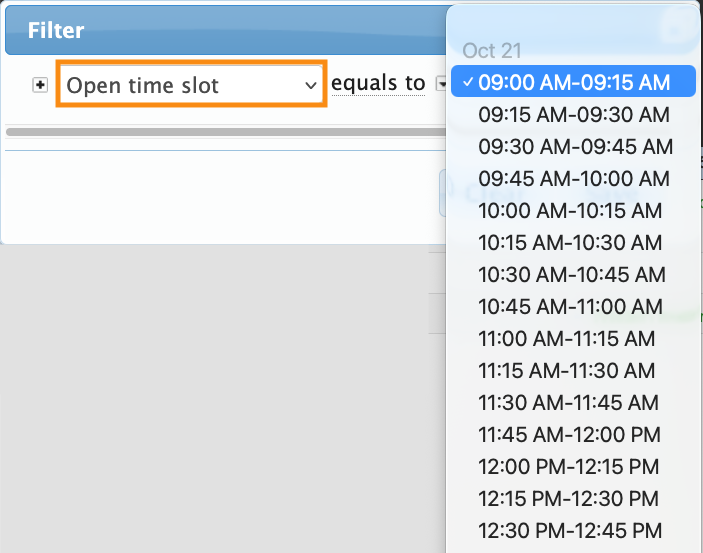
- Step 4. Set the filter to Open Time slot. Choose the time slot you need from the menu.
- Be sure to click Save:
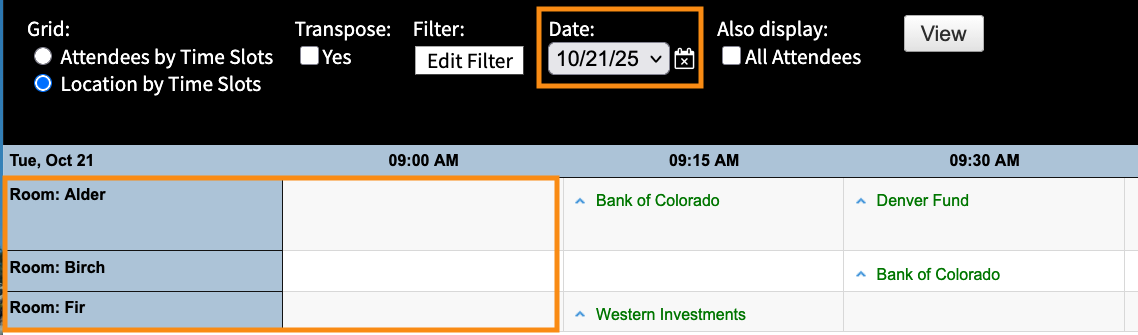
- Step 5. By default, this report is set to your first event day. If you need a different day, choose it from the Date menu:

- Step 6. Click the View button:

- The report now lists the meeting locations that are open during the time slot you chose:
-
If you need to see results for a different time slot, click the Filter button again to choose it.
Printing the report
When you have the view you need, click the Print button.
From there, you can either print copies, or save the view as a PDF:


