

How it’s used:
• If your event has participants arranged into groups, you might need an overview of the group’s scheduled meetings and available time slots.
• You can create this report for a Client Rep group, a single Client Rep’s assigned attendees, or a group your team has set up for internal tracking.
In this article:
Running the report
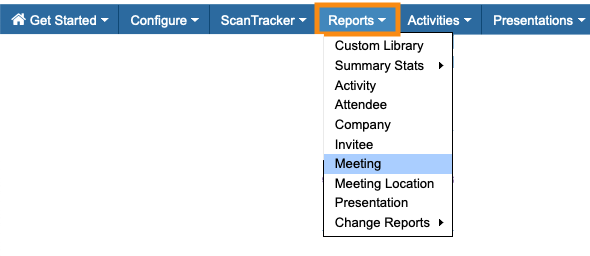
- Step 1. Head to the Reports tab. Choose Meetings:
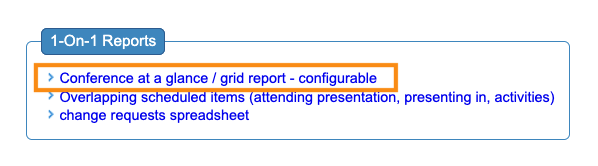
- Step 2. Click the link for Conference at a Glance:
- Step 3. By default, you’ll see the first day of your event. If you need a different day, choose it from the Date menu:

- Step 4. Choose the Attendees by Time Slots option. Then click the Filter button:

- Step 5. Open the Filter menu to see your options:
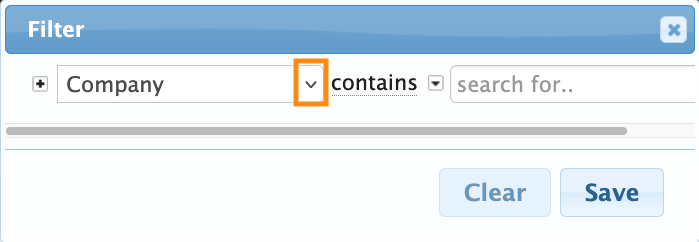
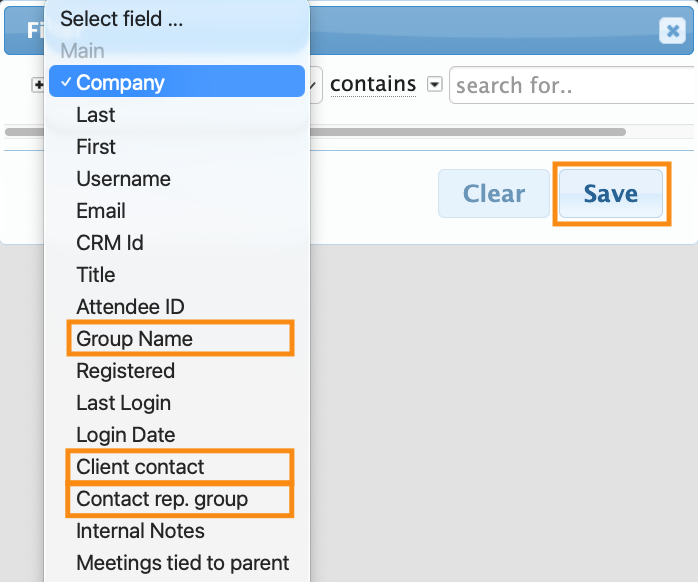
- Choose one of these filters, depending on how your event is set up:
- • Group Name: Use this if you’ve created internal groups to organize your Attendees.
- • Client Contact: Use this if your Attendees are assigned to individual Client Reps.
- • Contact Rep. Group: Use this if your Attendees are assigned to Client Rep Groups.
-
After making any of these selections, you’ll see a new menu to choose a specific group. - Step 6. Click Save as shown above.
- Then click View:

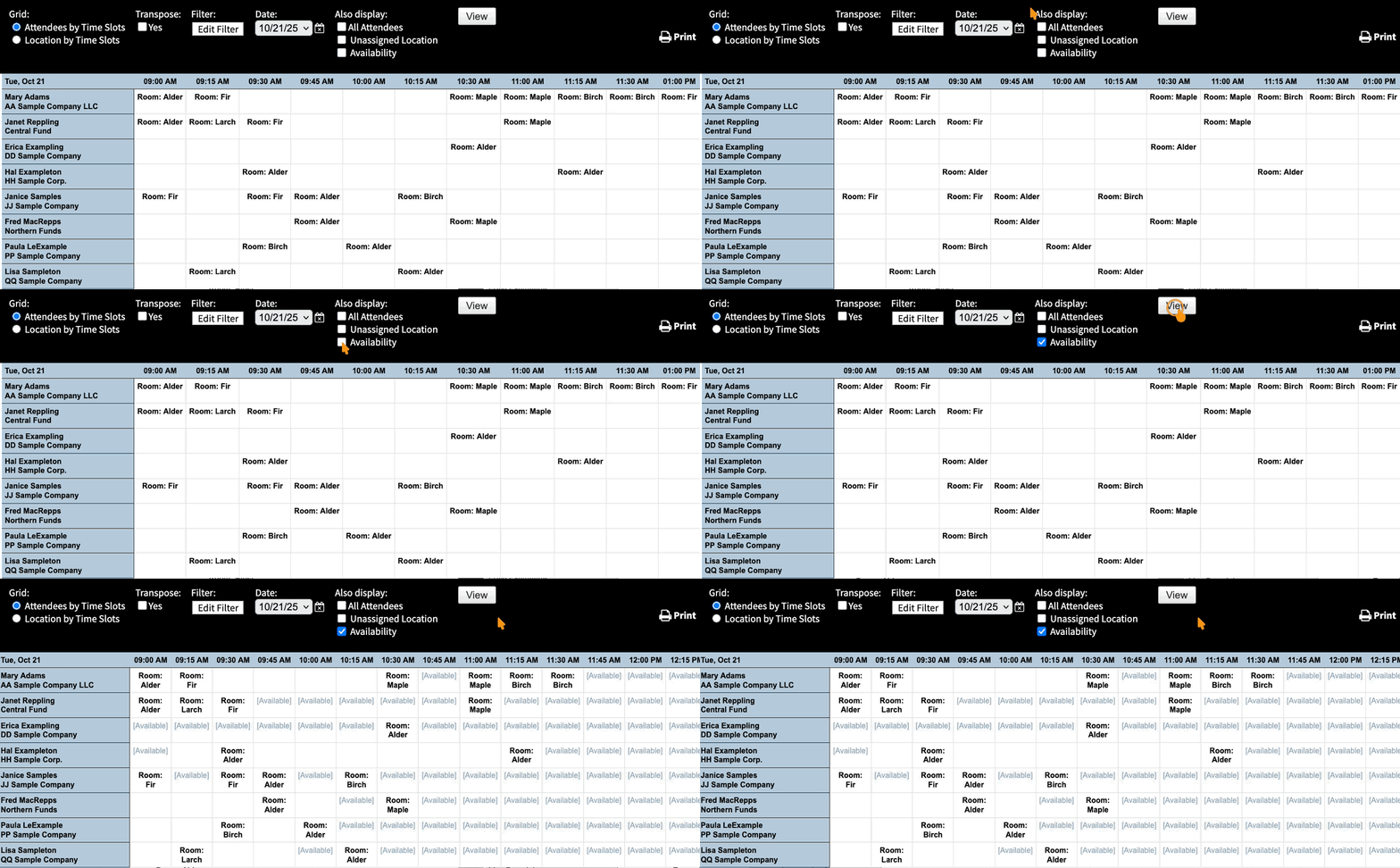
The resulting report shows you everyone in this group, and where they’re already scheduled for each time slot.
If these participants have also signed up for presentations and activities, however, those won’t show up here.
If you need to see where you can schedule meetings, click the Availability button, then click View again. That highlights the open time slots:
Printing the report
When you have the view you need, click the Print button.
From there, you can either print copies, or save the view as a PDF:

Learn more:

