


Report: Open time slots for one company’s participants

How it’s used:
• Sometimes you might want to look at scheduling for everyone from a particular company, so you can decide who can accommodate a last-minute meeting.
• You can create this report to see Company Reps from a participating Company, or Attendees from one company.
In this article:
Running the report
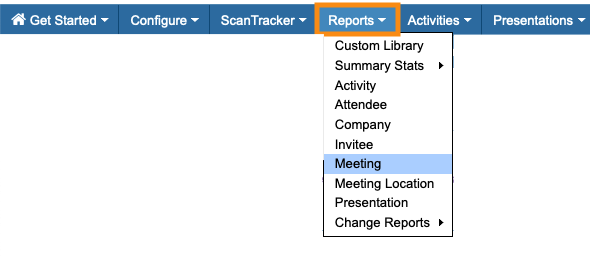
- Step 1. Head to the Reports tab. Choose Meeting:
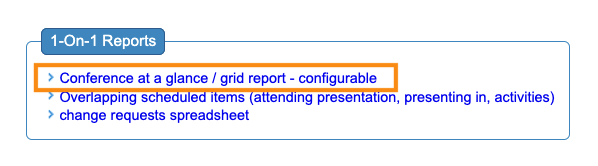
- Step 2. Click the link for Conference at a Glance:
- Step 3. By default, you’ll see the first day of your event. If you need a different day, choose it from the Date menu:

- Step 4. Choose the Attendees by Time Slots option. Then click the Filter button:

Attendees from one company
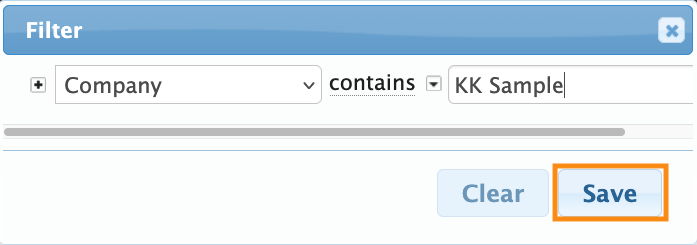
- Step 1. Use the default Company filter.
- Type in all or part of the company name. Then click Save:
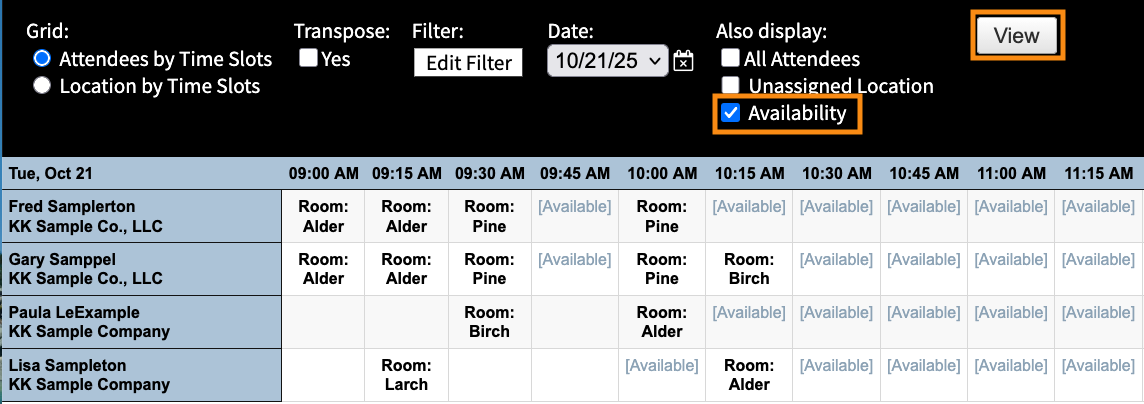
- Step 2. Click the Availability checkbox. Then click the View button.
- The resulting report shows all Attendees from this company, when they’re scheduled for meetings and when they’re available for meetings:
-
If an Attendee is signed up for a presentation or activity, it won’t be listed here. The time slot will display as blank, so you’ll know it’s not available.
Company Reps from one Company
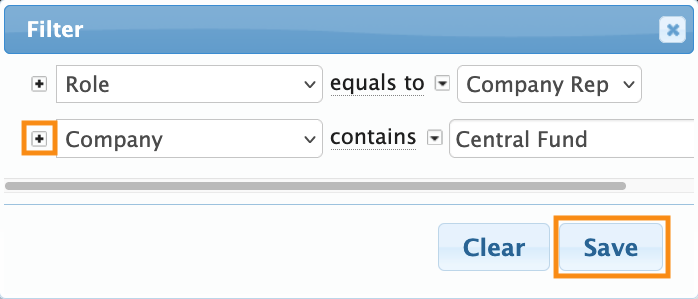
- Step 1. Use the default Company filter. Type in all or part of the Company name.
- Use the + icon to add a second filter. Set it to Role, and choose Company Rep. Then click Save:
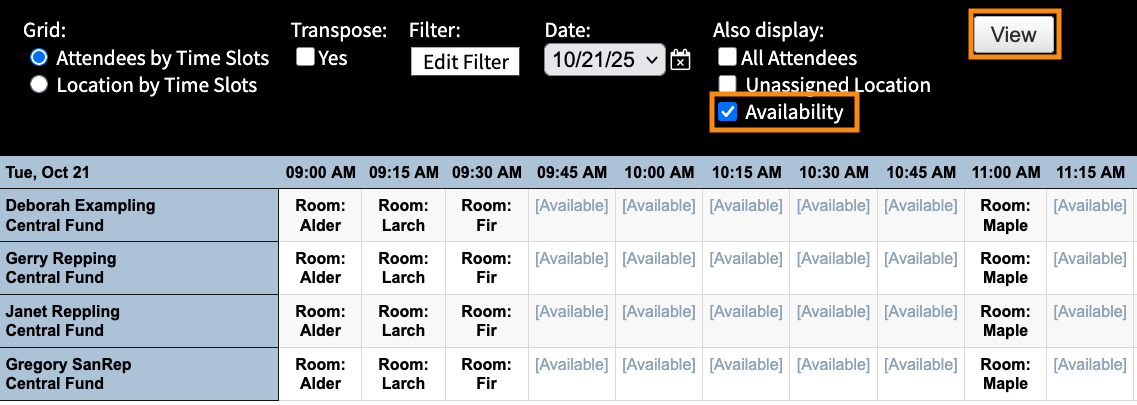
- Step 2. Click the Availability checkbox. Then click the View button.
- The resulting report shows all Company Reps for this Company. You’ll see when they’re scheduled for meetings and when they’re available for meetings:
-
In this example, all of the Company Reps are tied to their Company’s meetings. So you’ll see that they’re all scheduled in the same location at the same times. If any Company Rep has signed up for a presentation or activity, the time slot will display as blank, like in the Attendee example above.
Printing the report
When you have the view you need, click the Print button.
From there, you can either print copies, or save the view as a PDF:


