

How does MeetMax prompt Attendees to sign up for Activities?
By default, Attendees log into MeetMax and head to the Activities page:
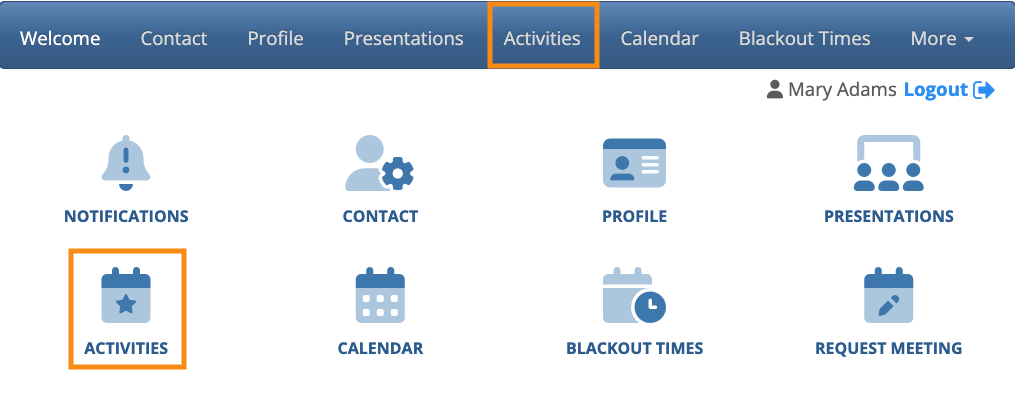
On that page, they can register for any Activities you’ve added to your event.
(Or they can opt out of all Activities.)
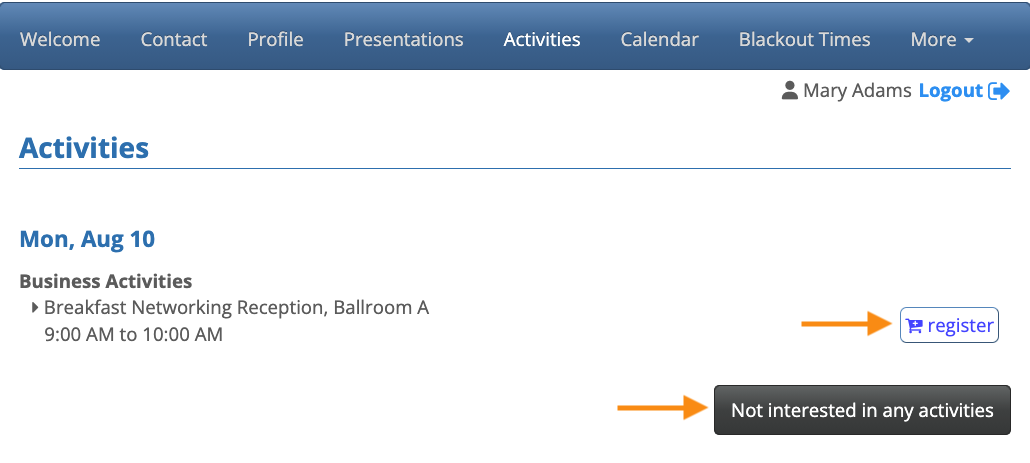
If they take no action and then try to leave this page, they’ll see a pop-up to remind them:
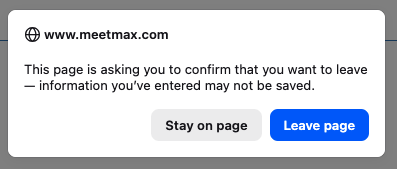
The Attendee can either:
- Return to the page to sign up/opt out.
- Leave the page without doing anything.
This pop-up continues to appear each time the Attendee leaves the Activity page without taking any action.
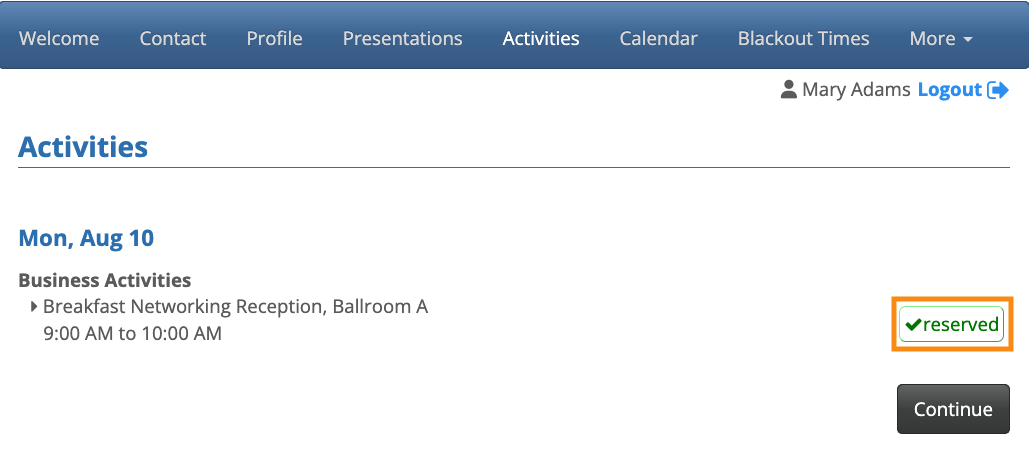
Once they’ve signed up for at least one Activity (or clicked the opt-out button), the pop-up disappears:
Disabling the pop-up
For some events, you might want to remove the pop-up. That does increase the chance that some Attendees won’t sign up for Activities at all.
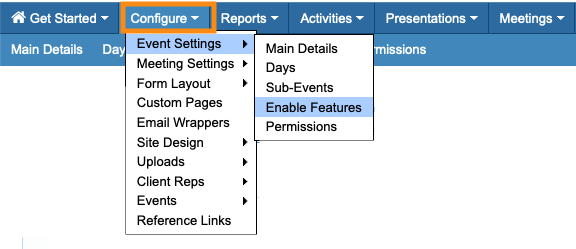
- Step 1. Head to the Configure tab. Choose Event Settings, then Enable Features:
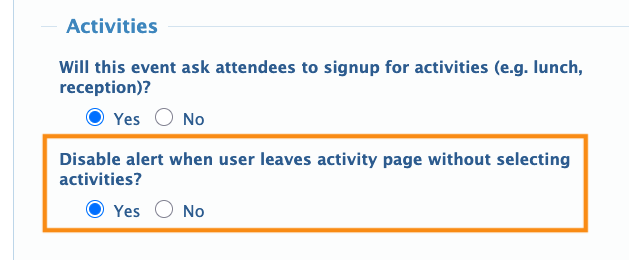
- Step 2. Scroll to the Activities section.
- For Disable alert when user leaves Activity page without selecting activities, choose Yes:
- Step 3. Scroll down and click the Save button:
Learn more:

