How do I edit an existing Activity?

You can update any Activity through the Activity List.
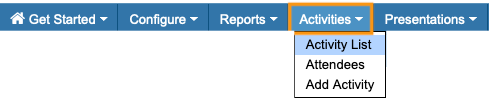
- Step 1. Head to the Activities tab. Choose Activity List:
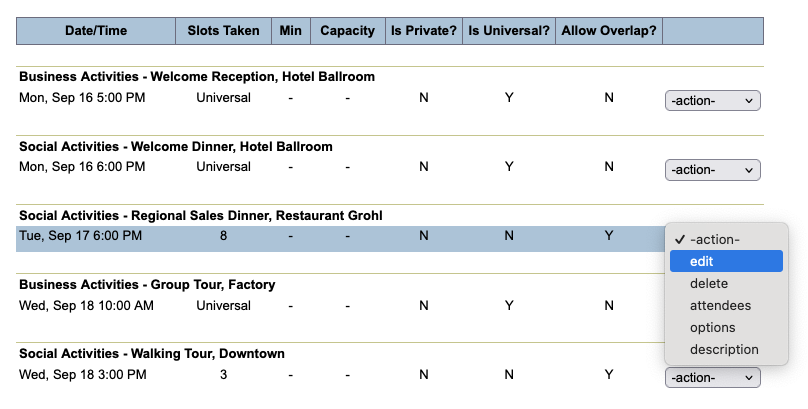
- Step 2. Locate the Activity you want to edit. Use the Action menu to choose Edit:
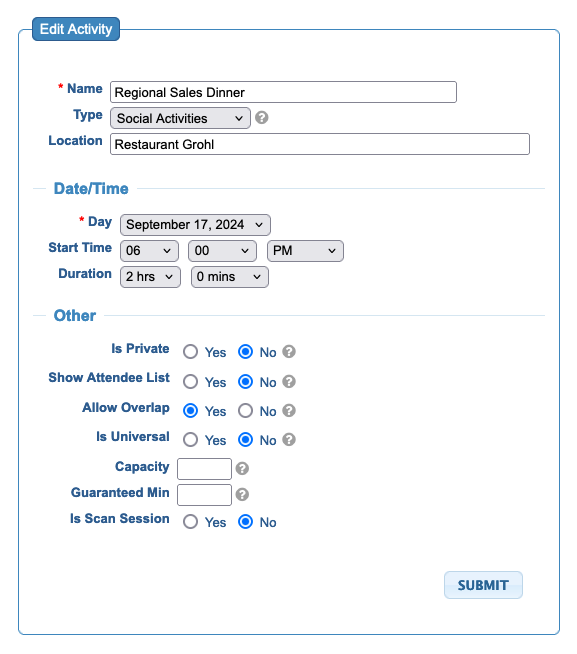
- Step 3. This takes you to the Activity form, where you can update any aspect. Learn more about the Activity form here.
-
If the Activity already has some sign-ups and you change the date or time, MeetMax might prompt you to resolve scheduling conflicts first. Learn more about conflict management here.
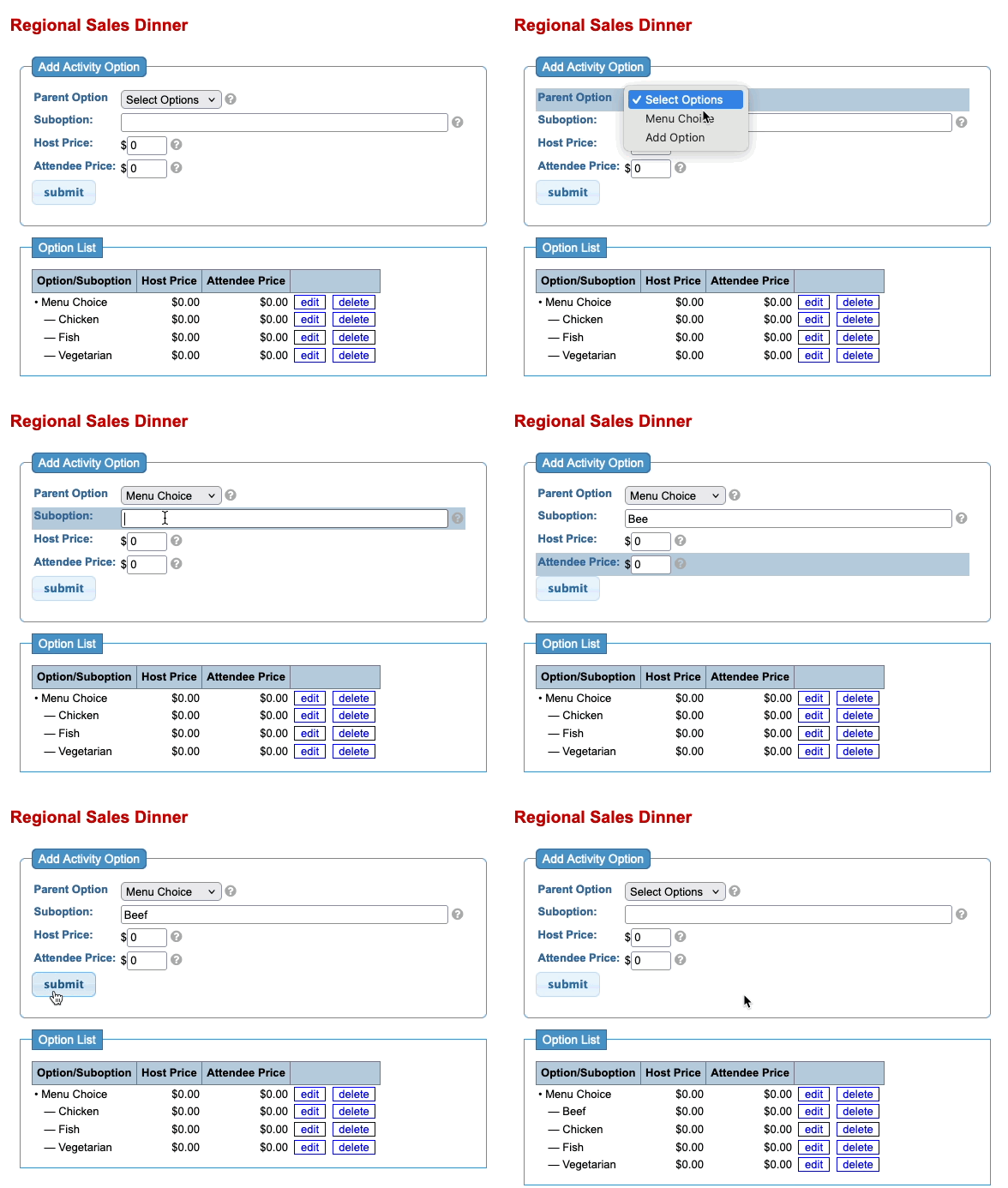
Updating Activity Options
If you’ve added Options to an Activity, such as menu choices, you can update those at any time.
In the Activity List, use the Action menu to choose Options:
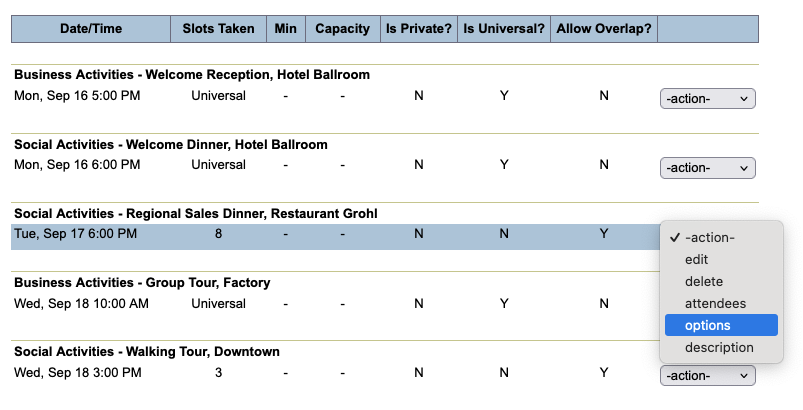
You can add more options, or edit or delete existing ones: