


In this article:
Where is it?
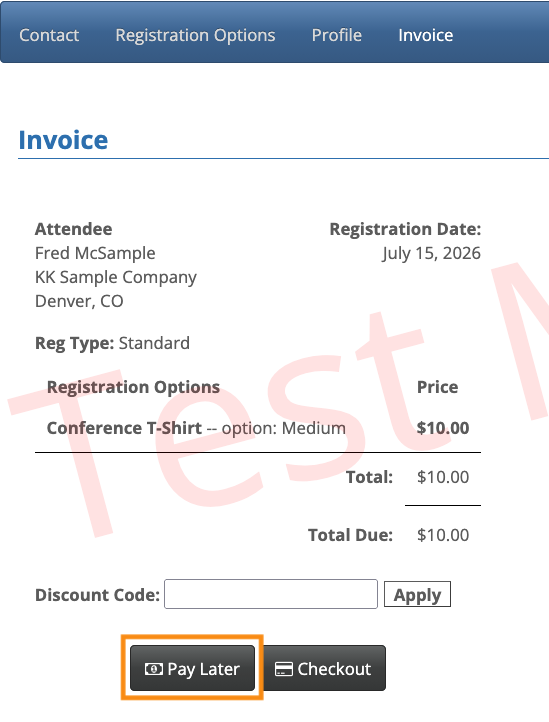
Once you’ve enabled this feature for your event, new registrants will see the Pay Later button on the MeetMax invoice:
Why is it useful?
In events with paid registration, by default everyone pays via credit card, through their MeetMax account.
There might be cases where you want to give participants the option to bypass in-app payment. For example:
- Some participants can only pay by check.
- Your event has levels of sponsorship, and you want your highest-tier sponsors to have flexibility about when and how they pay.
- You want to use MeetMax to generate invoices for registrants, but you plan to collect payments through a different platform.
| You can enable Pay Later for all participants, or participants who are paying more than a set amount. |
Enabling Pay Later
We’re assuming here that you’ve also enabled payments for your event, and set up one of the payment solutions MeetMax supports.
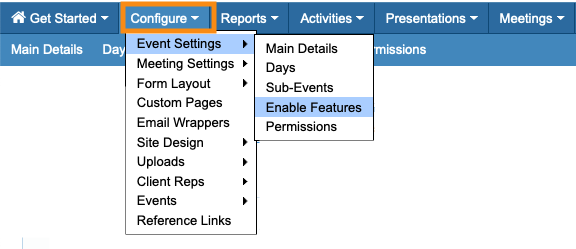
- Step 1. Head to the Configure tab. Choose Event Settings, then Enable Features:
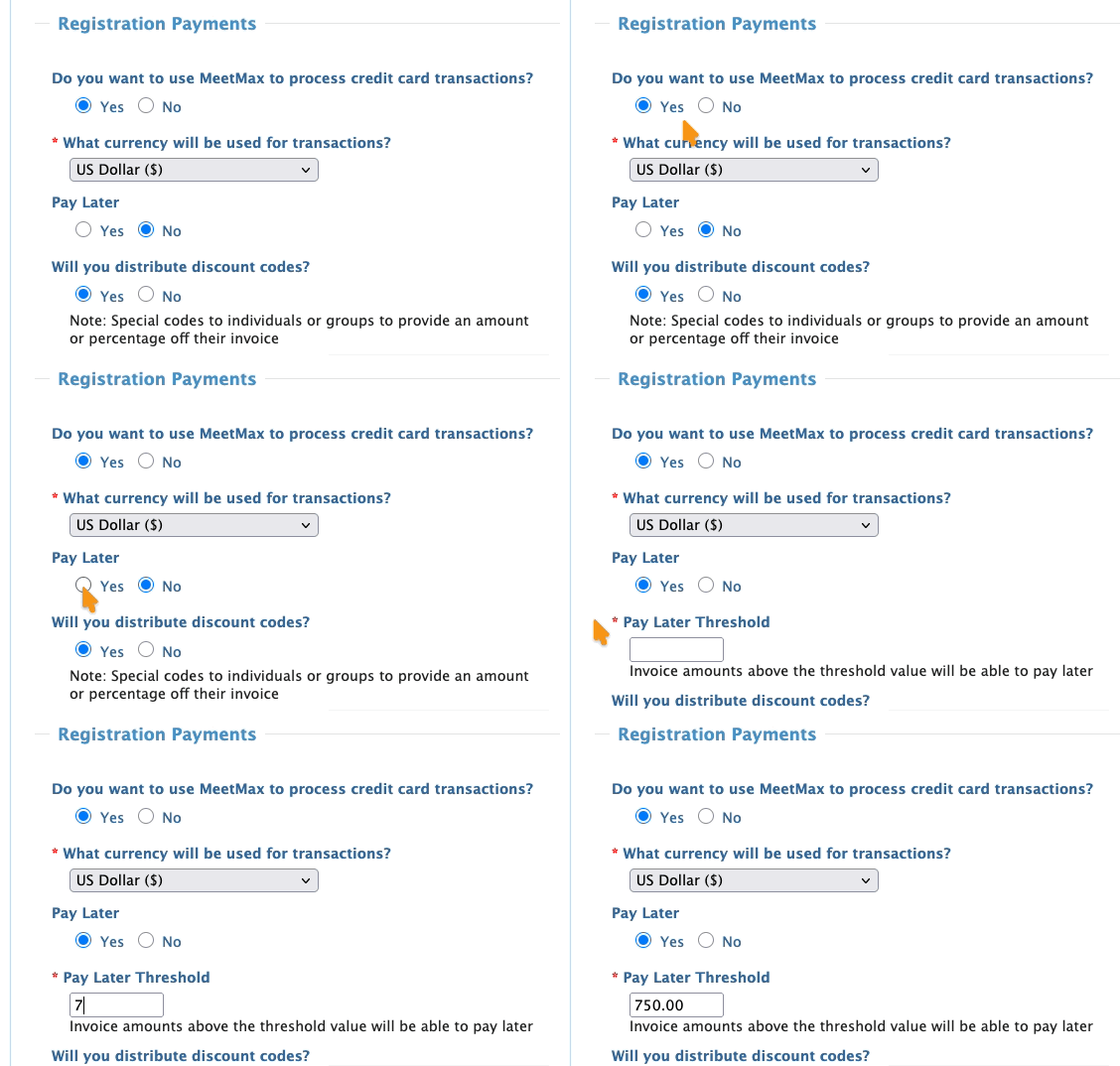
- Step 2. Head to the Registration Payments section.
- You’ll see the Pay Later setting once you’ve enabled payments for your event. Click Yes.
- Step 3. Set a Threshold amount. Anyone who’s paying above this amount will have the Pay Later option.
- • If you want everyone to Pay Later, enter zero.
- • If you want a specific group to Pay Later, enter a minimum amount. Everyone paying more than this amount can Pay Later.
- Step 4. Scroll to the bottom of the page and click Save:

What the registrant sees
When someone registers for a paid event, they’re taken to the MeetMax Invoice page.
There, they can choose one of these options:
- Pay Later: Process the registration payment outside MeetMax.
- Checkout: Process a credit card payment through MeetMax.
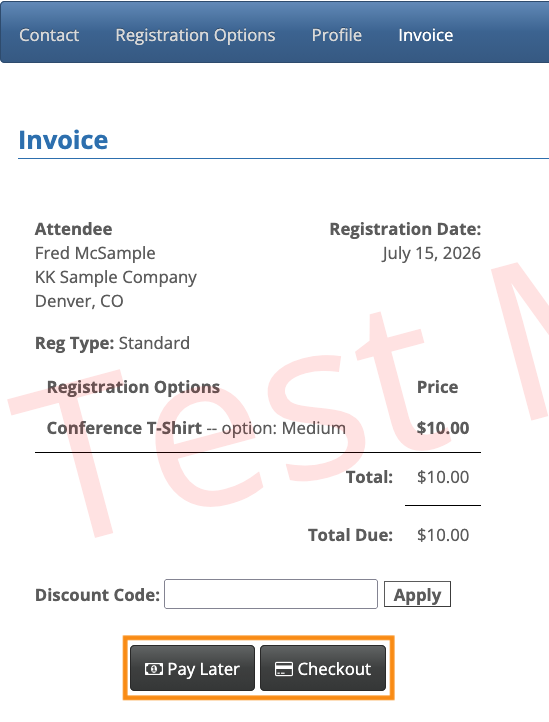
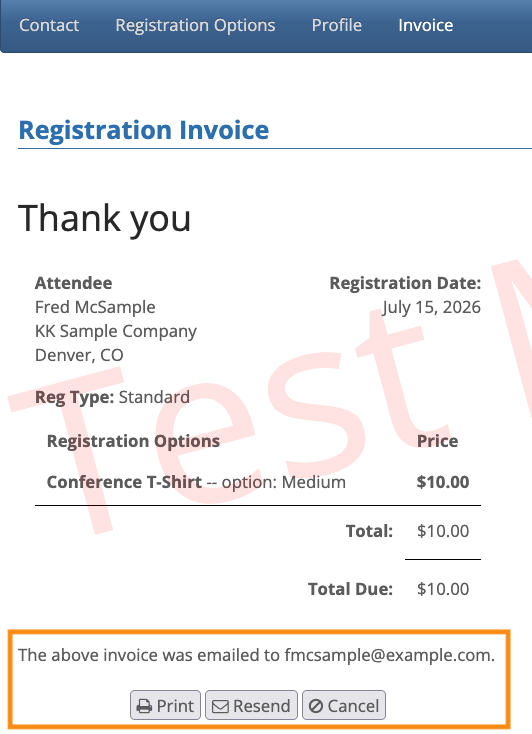
If they choose Pay Later, we’ll email the invoice to their account email address.
They can return to the Invoice page any time to take one of these options:
- Print a copy of the invoice
- Resend the invoice (or direct a copy to someone else, like their Accounts Payable team)
- Cancel the Pay Later request, and process a credit card payment through MeetMax.
When is the registration completed?
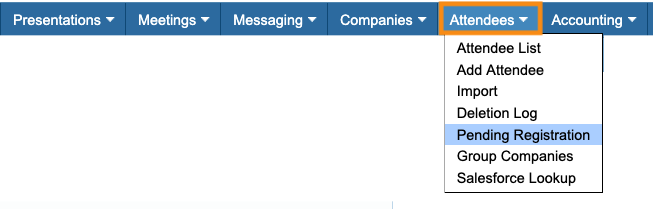
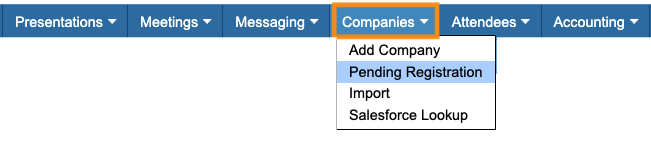
In paid events, a registration is Pending before payment. You’ll find it in the Pending Registration List:
While a registration is Pending, you can choose to:
- Give the participant access to all MeetMax features before payment
- Keep some or all features hidden until payment
Once the registrant pays, you’ll need to post a payment to their account. That triggers MeetMax to complete the registration:
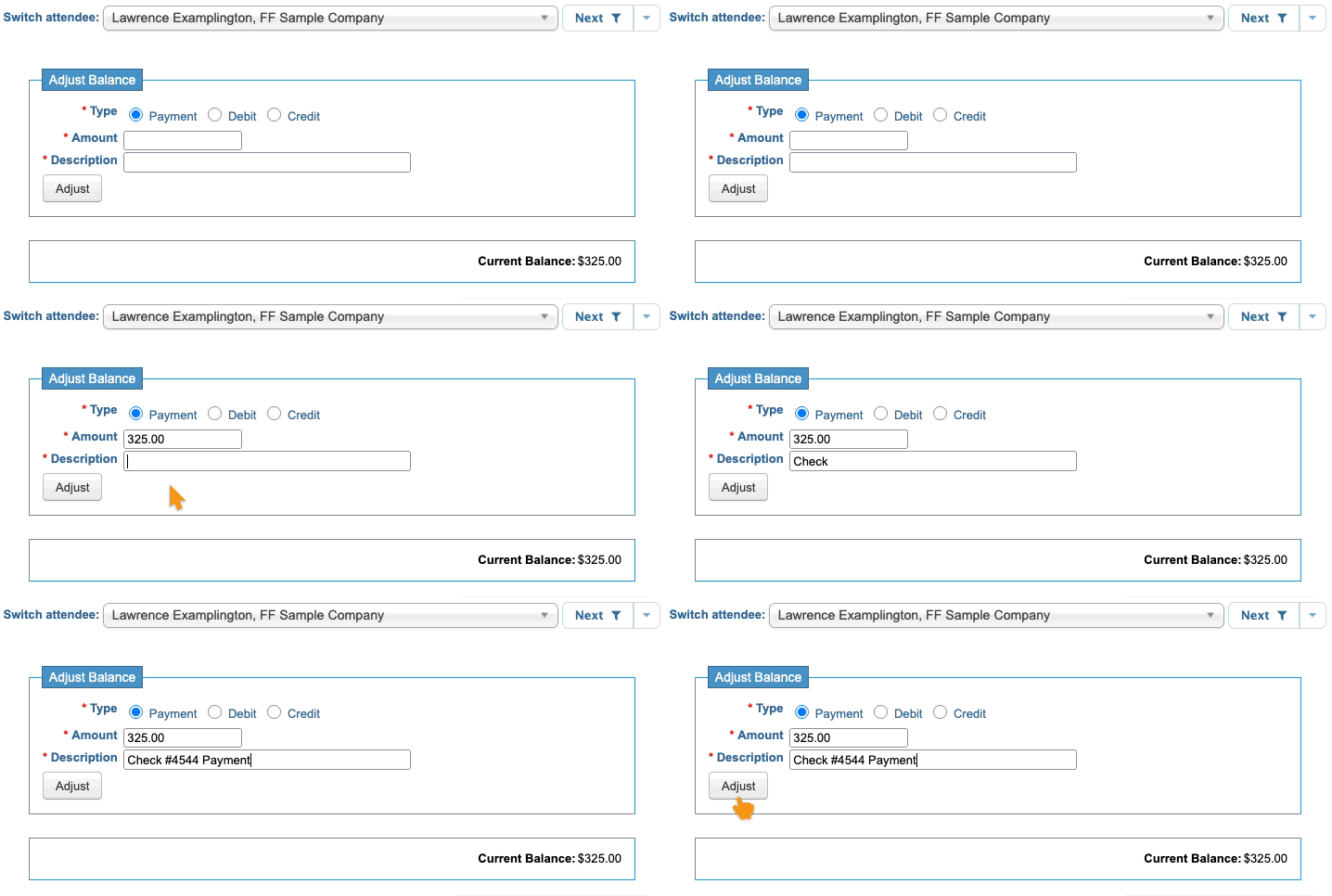
After you post a payment, the registrant moves to your Attendee List or Company List.

