Schedule Setting: Relabeling and reordering sections
| We’ll show the Admin view of an Attendee schedule here. Remember, you can also preview what the Attendee sees in their account. |
When to use this setting
This setting is useful if:
- Your event has custom names for specific types of programming, like using “Sponsor Demo” instead of “Presentation.”
- You want to emphasize different schedule sections at different points in your event. For example, maybe you want to show the My Requests section at the top initially, but then move it to the bottom once you’ve released schedules.
How it works
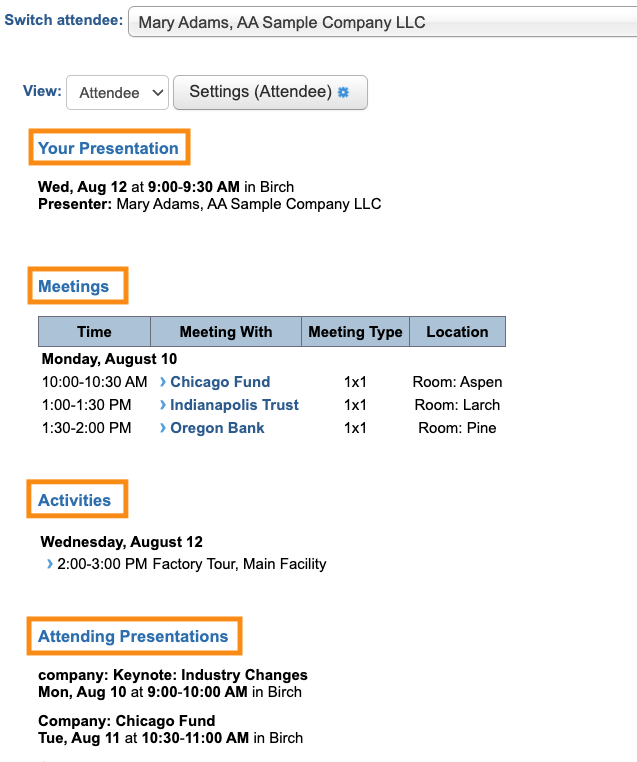
MeetMax has a variety of schedule sections, which you can show or hide as needed. When you enable a section to display on the schedule, it appears with a default heading, as shown below:
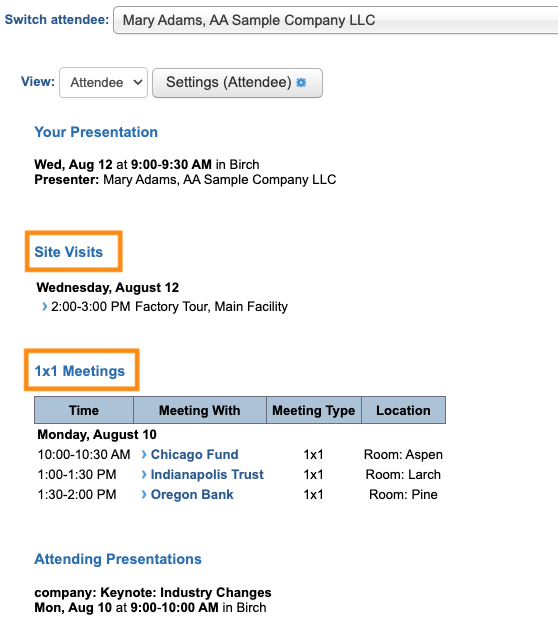
With this setting, you can change the label and display order of any sections you’re using, like this:
| This feature can only edit the main section headings. Within certain sections, like the Meetings section shown above, there are subheadings. If you need changes made to any subheadings, reach out to our Support team. |
Changing the setting
- Step 1. You can make this change on the Attendee List, or Company List, or both:
-


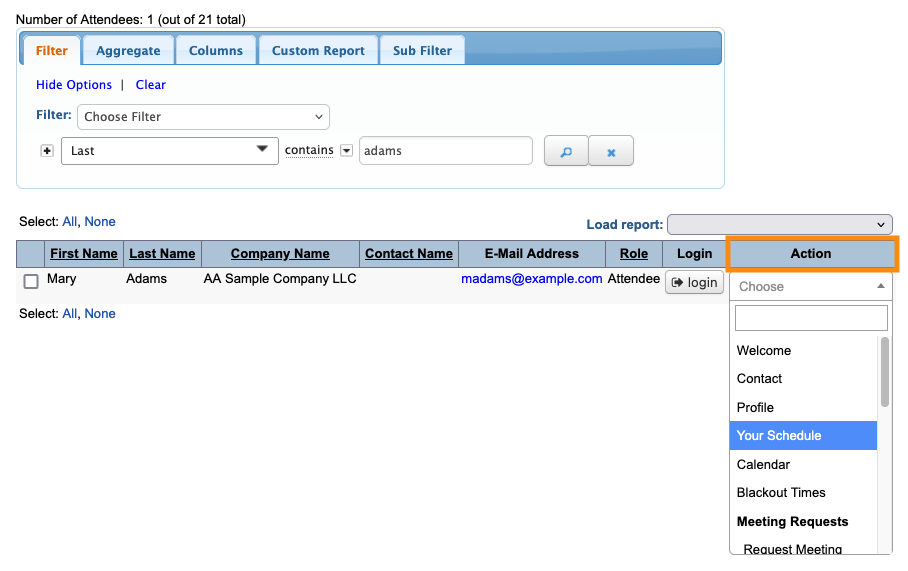
- Step 2. Use any record. Changes you save there will apply to all Attendees or Companies. (We’ll show the Attendee List here.)
- Use the Action menu to choose Your Schedule:
-
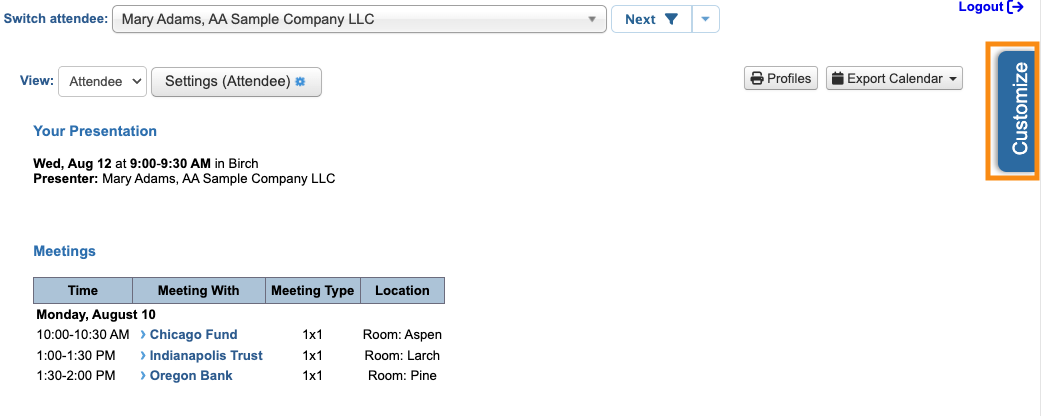
- Step 3. On the Your Schedule page, head to the right edge. Click the Customize tab:
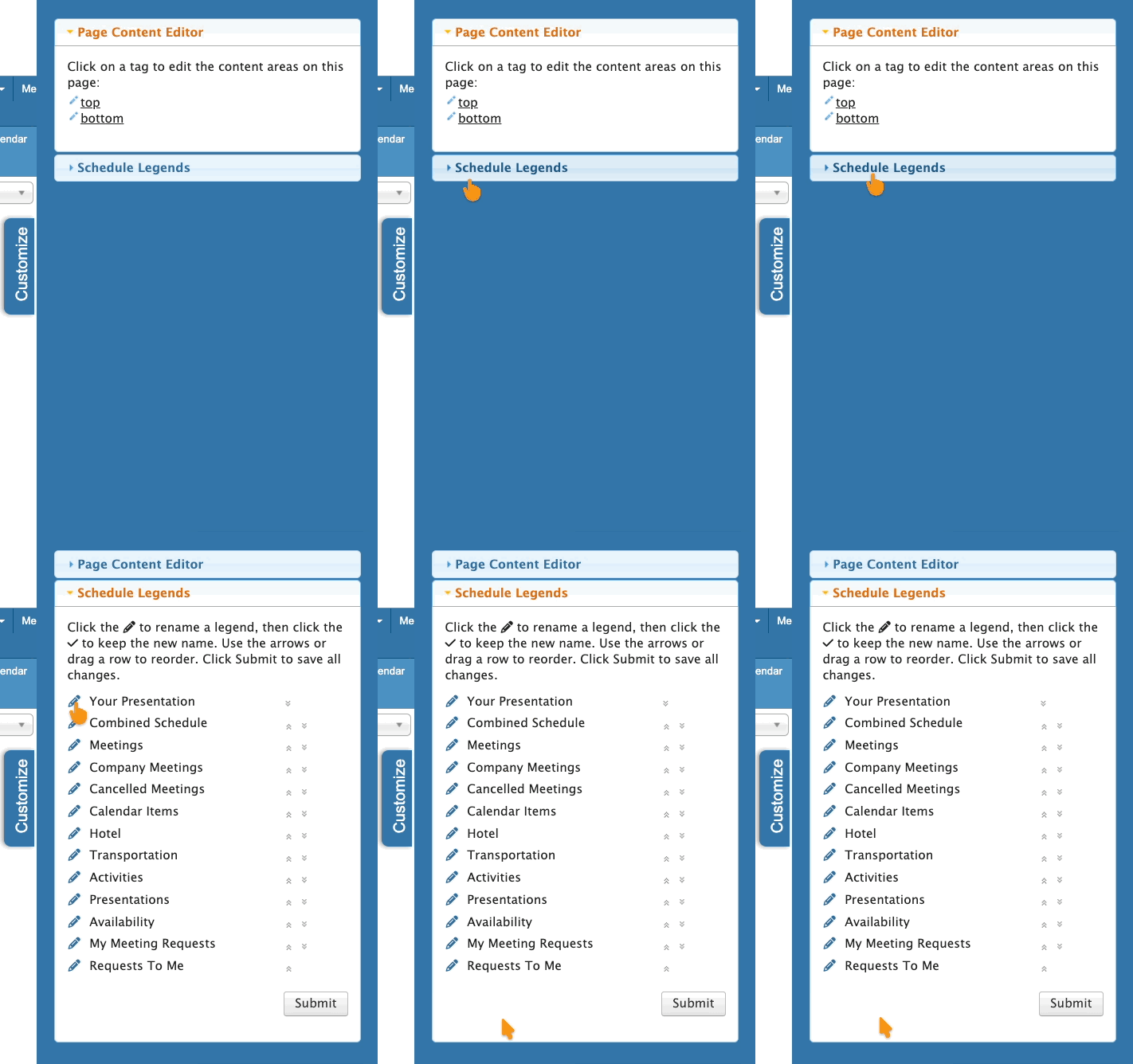
- Step 4. Click on the Schedule Legends section to open it.
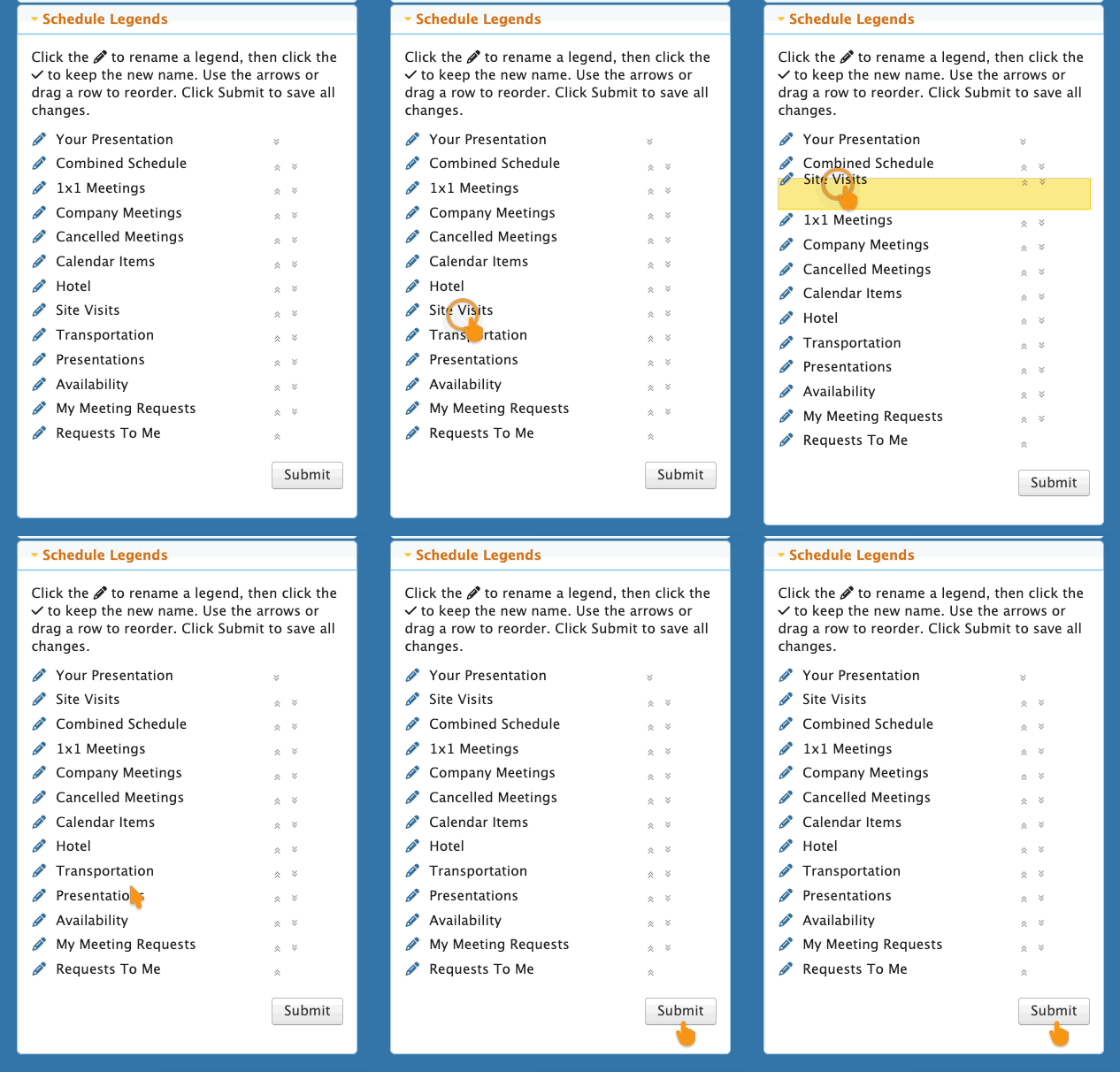
- You’ll see every available schedule heading here. Your event might not be displaying them all on schedules:
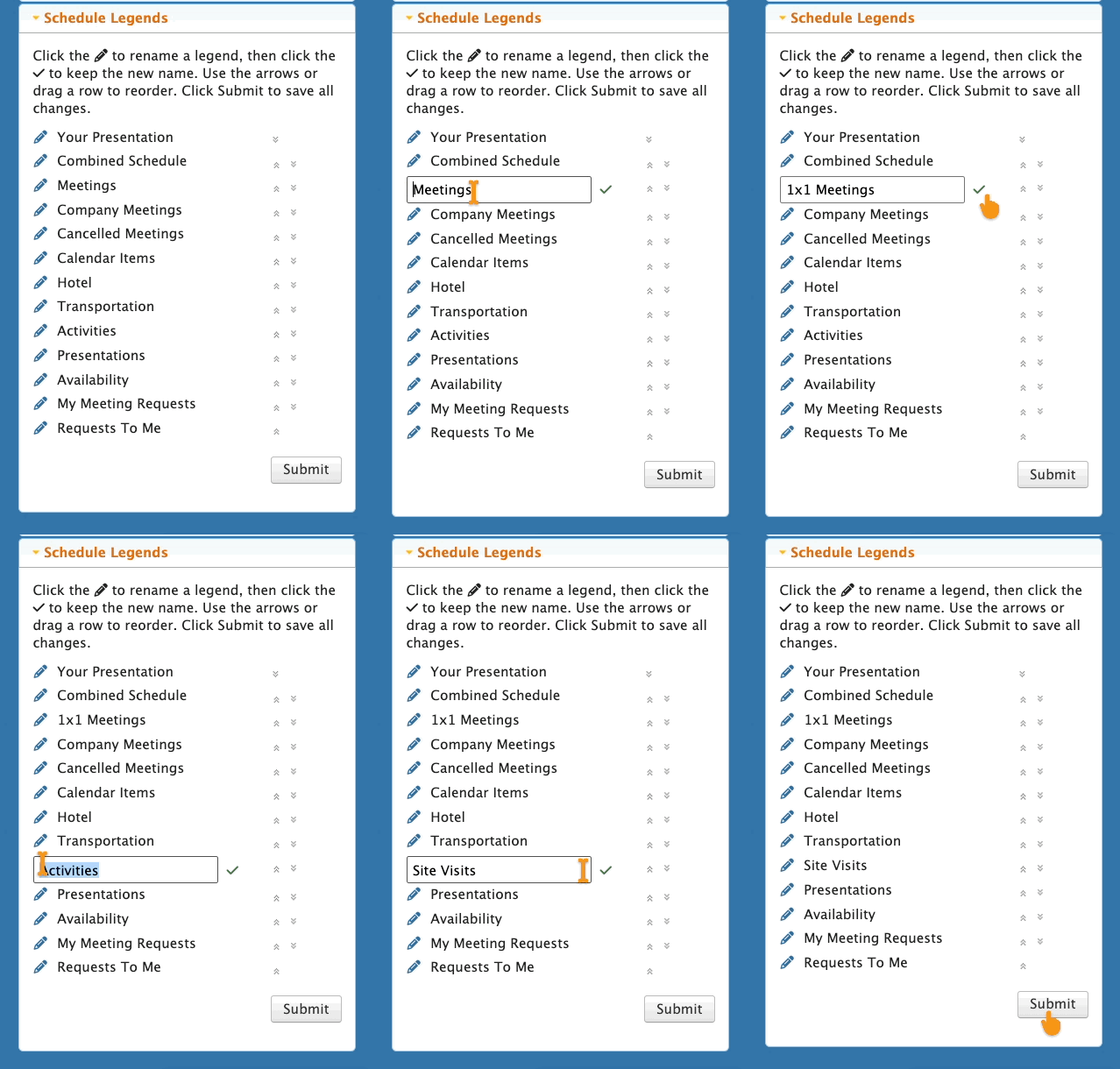
- Step 5. To change a heading, click the Edit icon. Type in the new name, and click the check mark.
- Change as many headings as you like. Be sure to click Submit:
-
Keep in mind that you’ll only see these changes if you’ve enabled those sections on your schedules.
Reordering schedule sections
If you want to move a section to a different location, click and drag it.
Be sure to click Submit: