Using the SummitCast Dashboards
Our partners at SummitCast have dashboard pages for virtual event hosts and presenters. Here’s what you can do there.
In this article:
- How is it useful?
- Who can access the Host Dashboard?
- Accessing the Host Dashboard
- Who can access the Presenter Dashboard?
- Accessing the Presenter Dashboard
How is it useful?
The SummitCast Dashboards are a great place to:
- Get links to your sessions.
- Support session presenters by managing Q&A.
- Check on attendance during and after a session.
- Download reports of who registered, who attended, and what questions were raised.
| The options you see on your Dashboards will depend on how your event is set up. |
Who can access the Host Dashboard?
As an event Admin, you’ll see the SummitCast Host Dashboard button if you’re:
- Working with our SummitCast team to host webcast presentations.
- Creating and hosting MeetMax Webinars on your own.
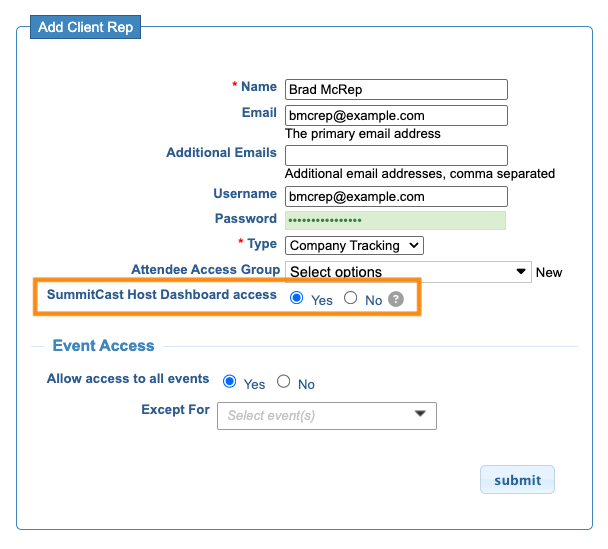
Once your event is enabled for virtual sessions, you can opt all members of your Client Rep team in or out of this access.
You’d either do this while setting up a new Client Rep account, or editing an existing one:
Accessing the Host Dashboard
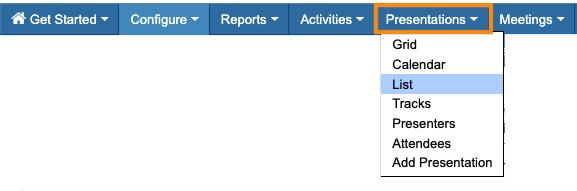
- Step 1. In your MeetMax event, head to the Presentations List:
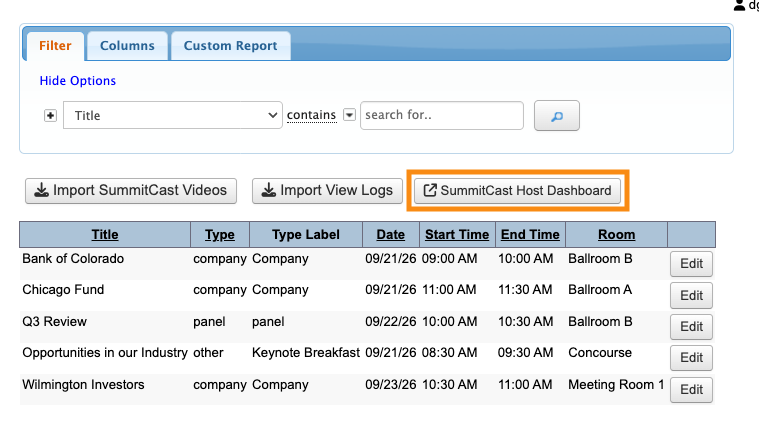
- Step 2. Click the SummitCast Host Dashboard button:
-
During set-up for your event, our team may have also given you a SummitCast login. If so, you can use that login and this Host Dashboard button interchangeably. - Step 3. Learn more about the Host Dashboard on our SummitCast knowledge base.
Who can access the Presenter Dashboard?
Anyone you’ve added as a Presenter for your session can access the Presenter Dashboard.
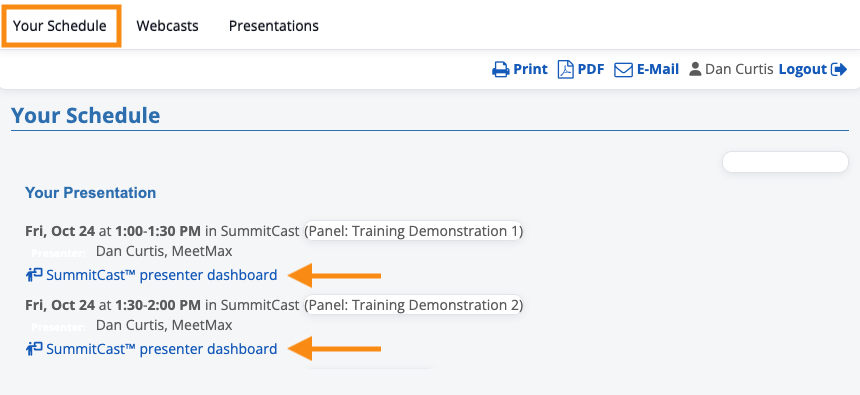
When you enable Presenter Dashboard links on schedules, only Presenters will see them (as shown below).
Accessing the Presenter Dashboard
Presenters can log into MeetMax, and head to the Your Schedule page.
For each session they’re presenting, there’s a SummitCast Presenter Dashboard link: