How do I import a Matrix form field?

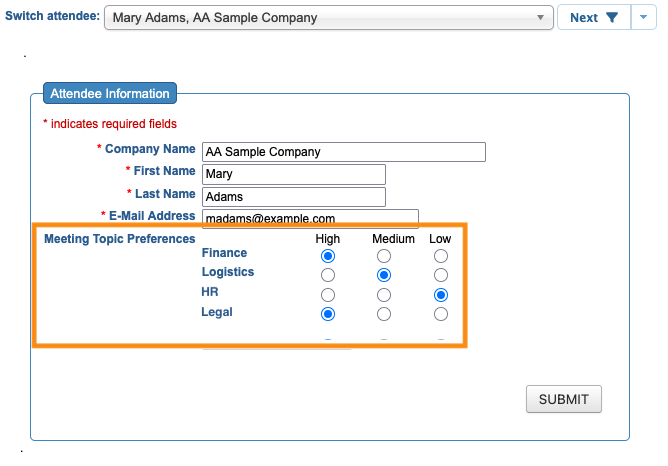
A Matrix field is a type of custom form field, where you can present a set of choices in a column-and-row format. Here’s an example:
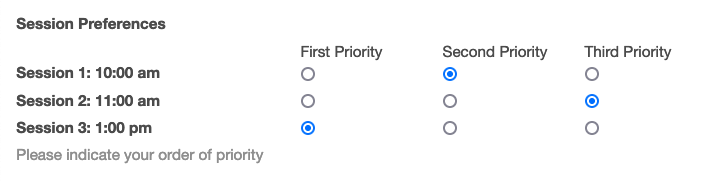
When you’re importing records to MeetMax, you can include Matrix fields and selections in the import.
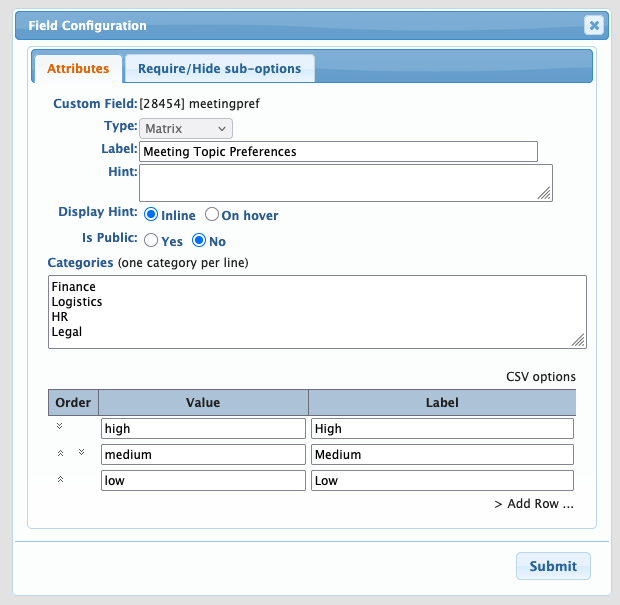
- Step 1. Create the Matrix field in your form. In this example, we’re importing Attendee records, and our registration form contains this Matrix field:
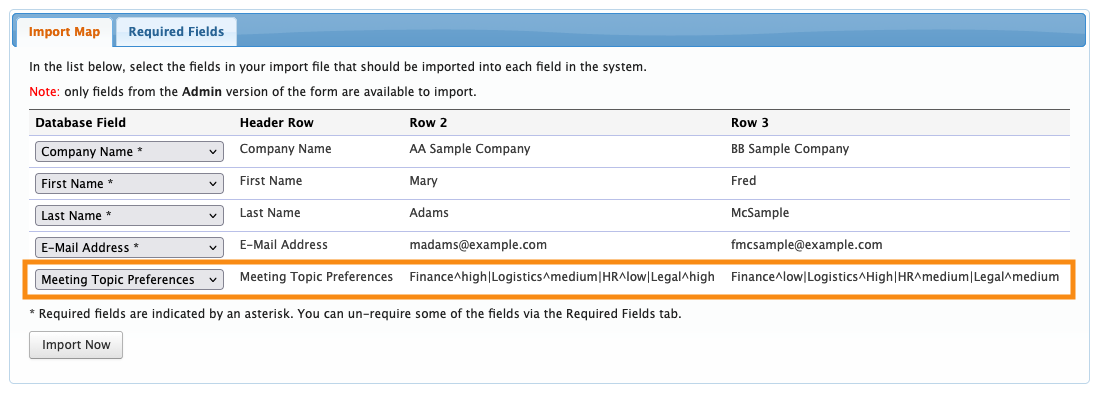
- Step 2. Prepare a spreadsheet for import. You’ll need a column for each field in your form.
- For the Matrix field, you’ll need specific formatting to capture each imported participant’s selections.
- • Separate the row labels with a “pipe” (Shift+backslash keys).
- • Separate each row label and its selection with a caret (^).

-
Use the responses in the Value column of your field here. Look at the matrix field's set-up above. Notice how our Values aren't capitalized? We've matched that here in the spreadsheet.
Match the spelling and case of each Value exactly. - Step 3. Export your spreadsheet as a CSV file. Be sure to use UTF-8 encoding.
- Step 4. Proceed with your chosen import.
- During the mapping step, make sure your Matrix field is mapped to the Matrix data:
When the import completes, each imported record will reflect the choices you indicated in your spreadsheet: