How do I show my meeting types on schedules?
If your event has different kinds of meetings (1x1, 2x1, small group, fireside chat, etc.), you might want to display those types on Attendee and Company schedules.
Meeting Type Rules
When our team set up your event, we configured Meeting Type Rules. These define the various kinds of meetings at your event, and help MeetMax automatically assign the right type to each meeting:
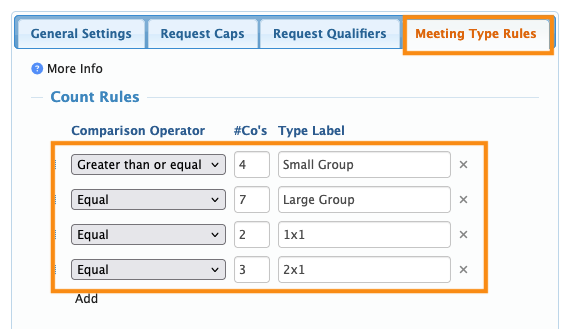
MeetMax also uses this set of rules to display meeting types on schedules.
If you need a meeting type to show on schedules, it needs to be set up as a Meeting Type Rule.
Adding meeting types to schedules
We’ll show the process for the Attendee schedule here. The process for Company schedules is the same, but you’d begin in the Company List instead.
- Step 1. Head to the Attendee List:

- Step 2. Use any record. Changes you make here will apply to everyone on the list.
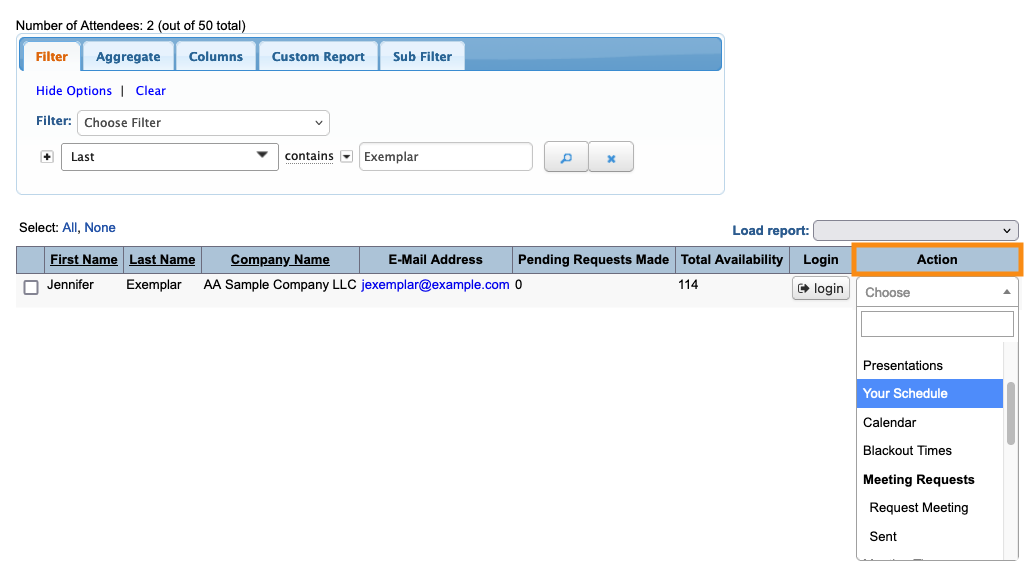
- Use the Action menu to choose Your Schedule:
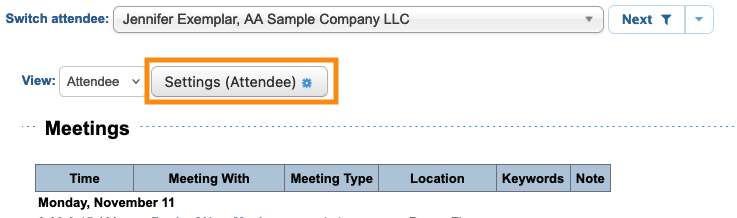
- Step 3. Make sure the View menu is set to Attendee. Then click Settings:
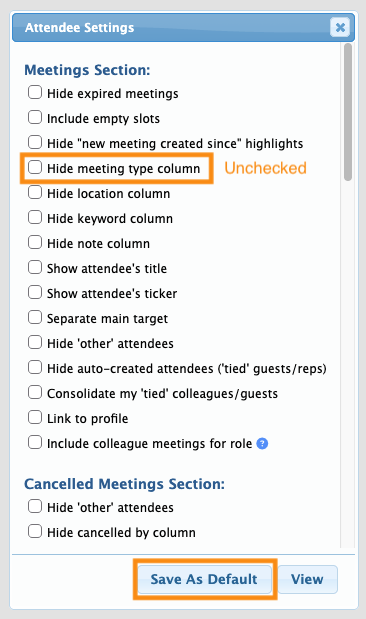
- Step 4. In the pop-up, scroll down to the Meetings section.
- Make sure the Hide meeting type column checkbox is unchecked. Then click Save as Default:
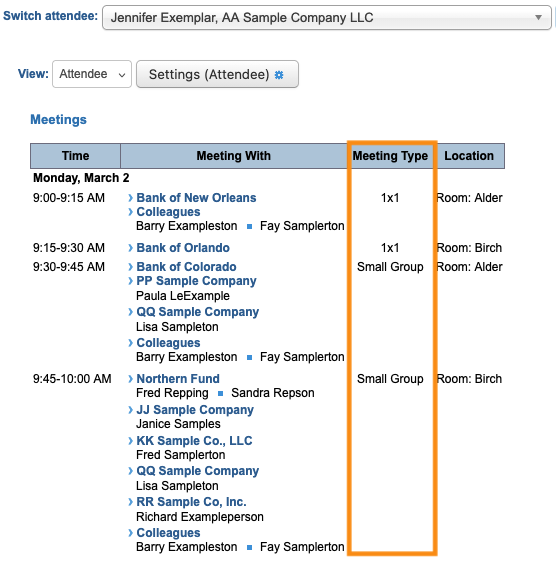
- With this setting in place, an Attendee schedule shows the type of each meeting: