

How do I update an uploaded file?
Sometimes, you might need to replace a file you’ve uploaded to MeetMax. The way you do this depends on how it was uploaded.
In this article:
How an Admin updates an upload
If your internal team uploaded the file, they can replace it any time.
You don’t have to be the original uploader to update a file.
| If you need to update an uploaded bulk import, see this article instead. |
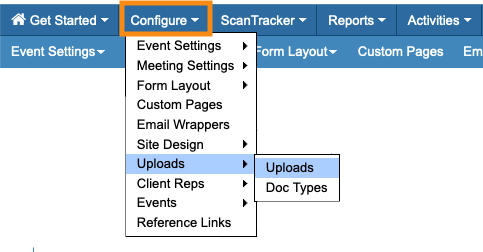
- Step 1. Head to the Uploads page:
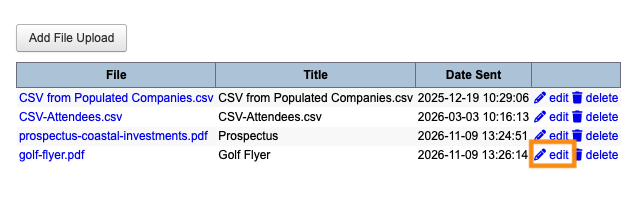
- Step 2. You’ll see all files that Admins have previously uploaded to this event. Locate the one you need, and click Edit:
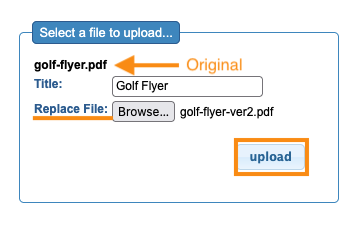
- Step 3. In the pop-up, click Browse to choose the replacement file from your computer. Then click Upload:
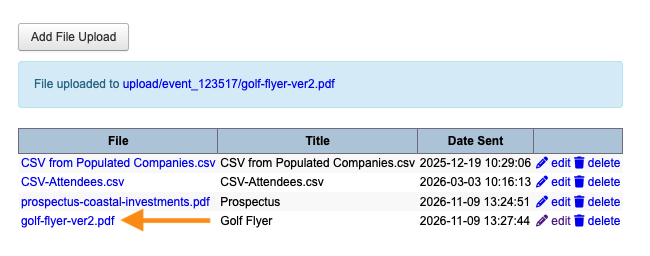
- Step 4. The Uploads list now shows the new file:
How a Company updates an upload
If a participating Company has uploaded a file, they can log into MeetMax and update it.
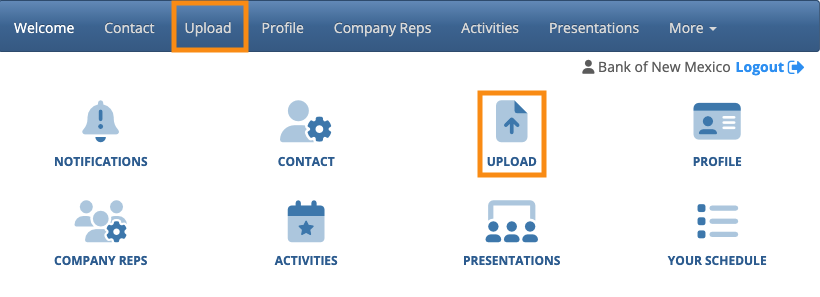
- Step 1. After logging in, the Company contact heads to the Uploads page:
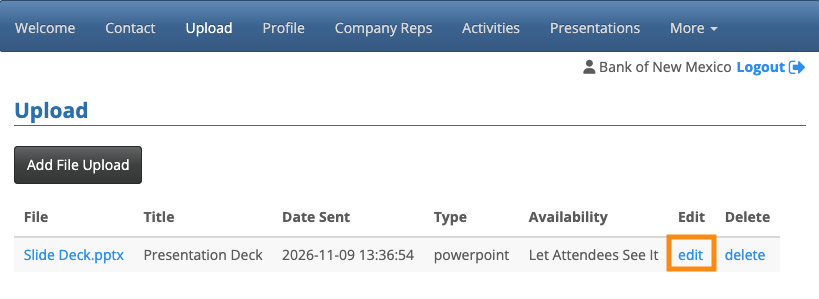
- Step 2. They’ll see a list of all the files they’ve uploaded to MeetMax.
- To replace any of these, click the Edit link:
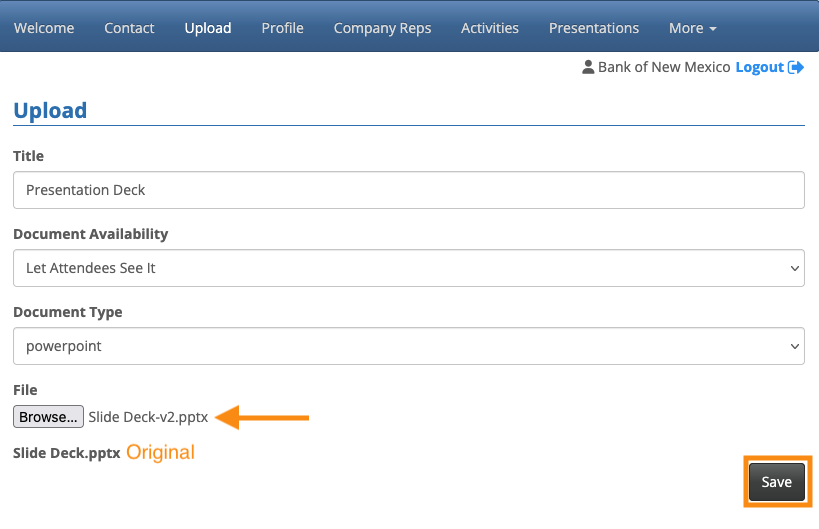
- Step 3. The Company contact then clicks Browse to choose the new file from their computer.
- Click Save to start the new upload:
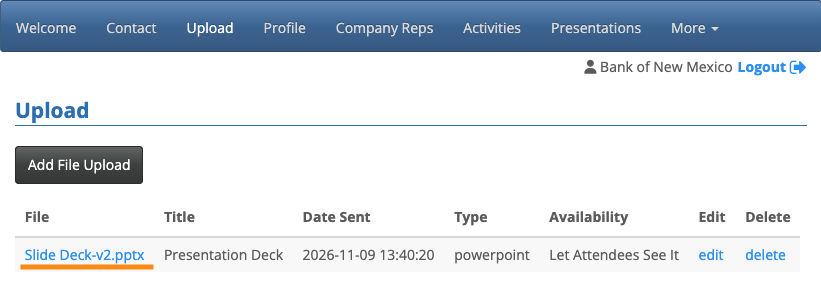
- Step 4. The updated file is now visible on the Uploads page:
Updating a Custom PDF page
If you’ve created a Custom Page to display a PDF to your participants, you can replace that PDF anytime.
Learn how to update a PDF Custom page here.
Learn more:

