


How do I create a new Event?

You can create an event from scratch, but you’ll likely want to copy your customizations from a past event.
Creating an event
With this method, you have two options:
- Create a new event completely from scratch, with none of the customizations you have in other events. (This is rare.)
- Create a new event that’s a copy of one of your Template Events.
- Step 1.You can use either of these two starting places:
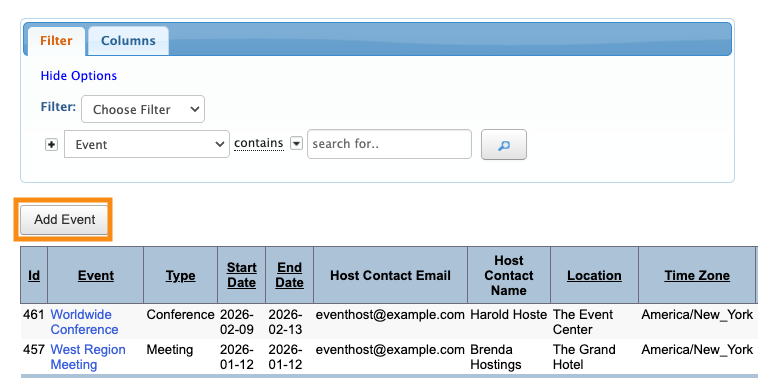
- • If you’re on your main list of events page, click the Add Event button:
- • If you're in any event, head to the Configure tab. Choose Events, then Create Event:

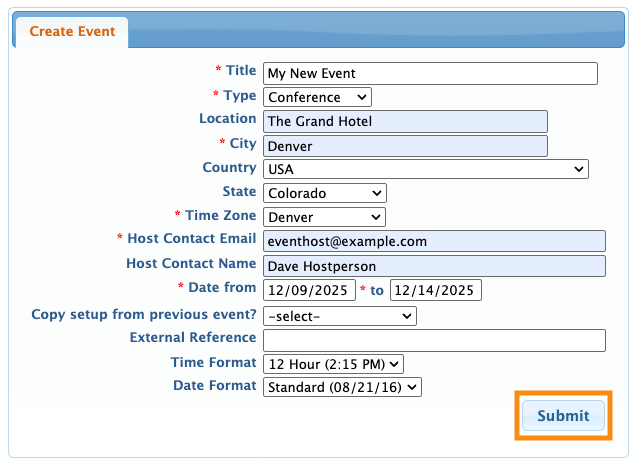
- Step 2. Complete the form fields with all the details of your event - the event type, dates, location, and time zone:
-
The Role Group field will only appear if your past events have used different kinds of role groups. Reach out to our Support team if you’re not sure of the best choice. - Step 3. If you’ve had our Support team set up one or more Template Events for you, you can access them from this form. That will copy all of the custom set-up from your template to the new event.
- Use the Copy setup for previous event menu to choose your template:

- Step 4. Click Submit to save the event:

- You'll then be in the new event, so you can start working!
Copying from a past event
In addition to copying a Template Event as shown above, you can also copy individual elements from any of your past events.
For example, maybe you want to copy all of the customized email wrappers and registration forms from a past event, but you don’t want to copy the custom messages:

Learn how to copy settings from a past event here.

