


In this article:
- Where is it?
- Steps participants must take
- Messaging Attendees or all Companies
- Messaging a single Attendee or Company
- How many participants received this message?
Where is it?
Depending on the type of participant you want to message, you’ll start in the Attendee List or Company List:


|
MeetMax also supports text reminders of upcoming meetings. |
Steps participants must take
To receive mobile notifications, an Attendee or Company needs to:
- Install the MeetMax mobile app (whichever version you’re using for your event).
- Log into their MeetMax on the account on the app.
- Opt in to receiving notifications from MeetMax (if their device prompts them).
Once the participant has taken these steps, they can still use their device settings to disable MeetMax notifications at any time.
| All notifications show MeetMax as the sender, even if your event uses our Branded Standalone app. |
Messaging Attendees or all Companies
- Step 1. To send a mobile message to Attendees, start in the Attendee List:

- To message Companies, start in the Company List:

- Step 2. You can message your entire list, or add filters so the list includes only a specific group.
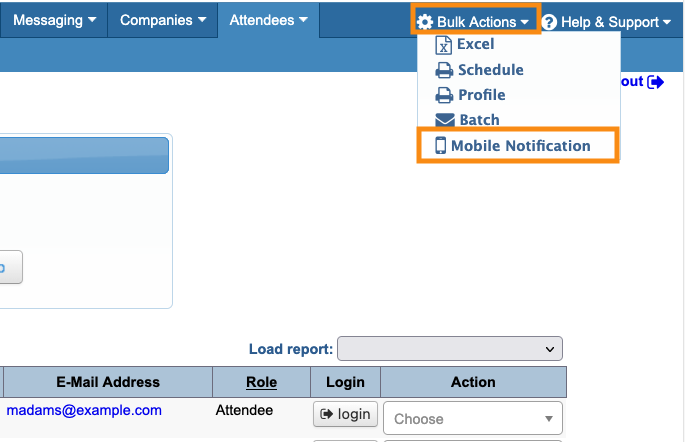
- Step 3. When the list is displaying everyone you need to message, head to the top right corner of the page. Use the Bulk Actions menu to choose Mobile Notifications:
- Step 4. The first time you send a notification, you'll see the message editor. Type in your notification text, then click Submit:

- After the first time, you'll click the New Message button to start a new notification:

- Step 5. The notification then delivers to all participants who’ve taken the steps to receive mobile notifications.
- Depending on network activity, it could take a few seconds.
-
All mobile messages are sent instantly. Currently, MeetMax doesn’t support scheduling notifications in advance.
Messaging a single Attendee or Company
We’re assuming here that the recipient has already taken the necessary steps to receive mobile notifications.
- Step 1. To send a mobile notification to one participant, start in either the Attendee List or Company List:


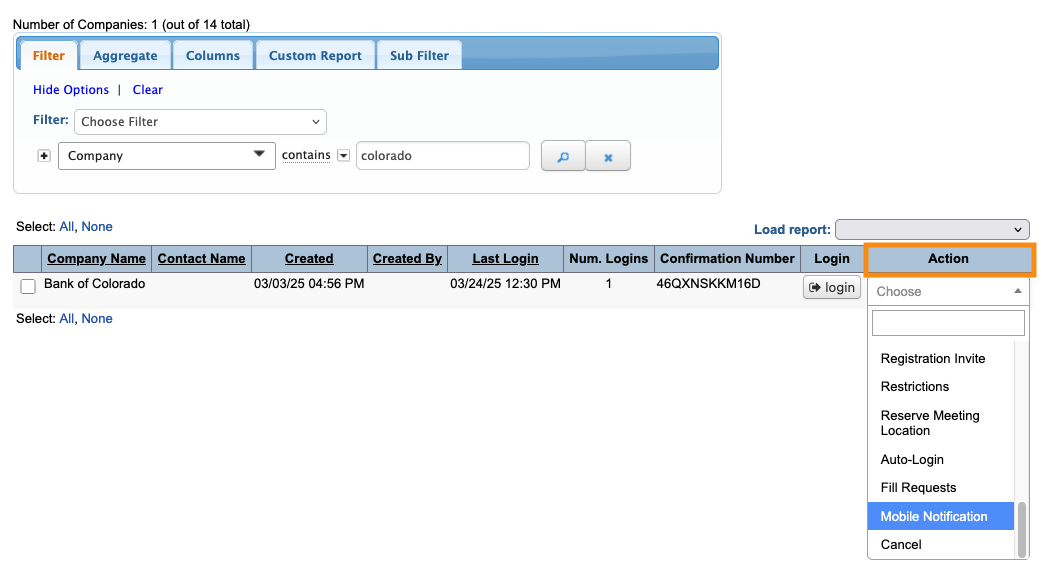
- Step 2. Filter the list to locate the participant. Then use the Action menu to choose Mobile Notification:
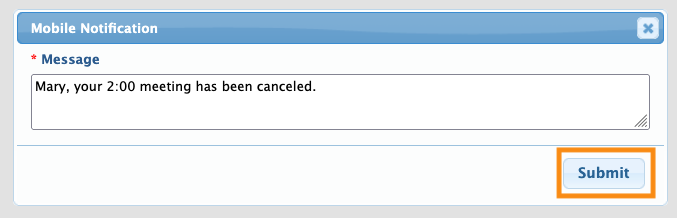
- Step 3. Type in your message, then click Submit:
- The notification sends instantly. Depending on network activity, it could take a few seconds to receive.
How many participants received this message?
Once you’ve sent a mobile notification and at least one person has received it, you’ll see a recipient log.
Head back to the Mobile Messages page:

The log shows the date and time each notification was sent, and how many devices received it:

Other notification options:
MeetMax offers these other ways to reach participants:

