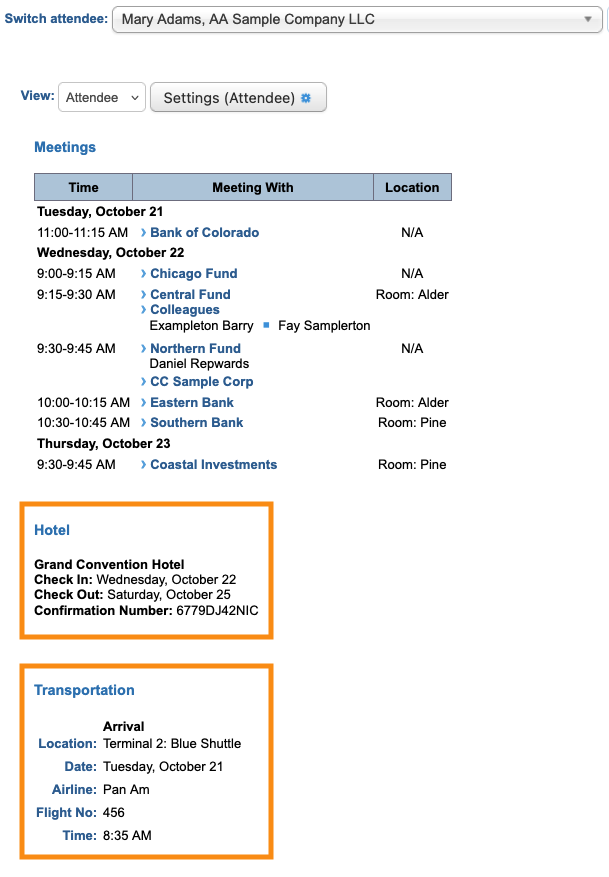
Schedule Setting: Hotel and Transportation details

| In this article, we're adjusting how the schedule displays. You can also use the Menu Editor to show or hide schedules in your participants' MeetMax accounts. | |
| This option is available if you’re using MeetMax's Hotel and Transportation modules. |
- Step 1. We’re assuming here that you’ve already enabled the modules you need and collected reservations from your Attendees. Use the links above for more details.
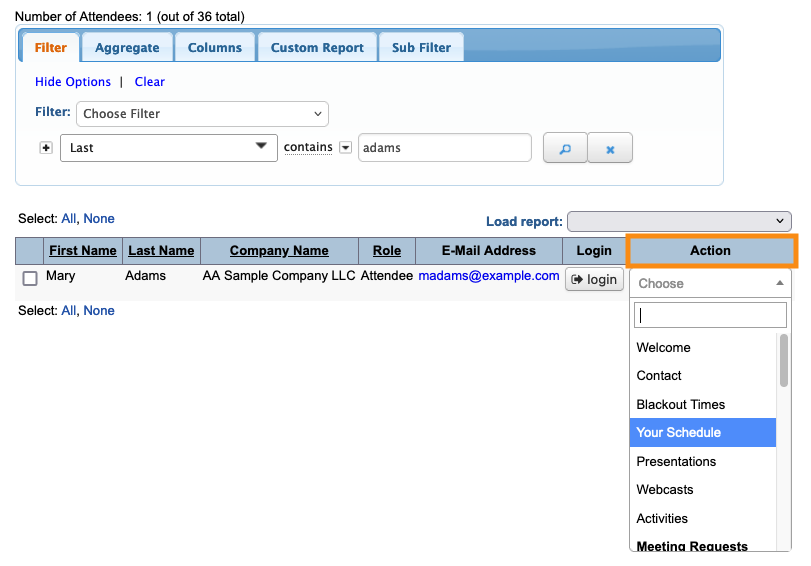
- Step 2. Head to the Attendee List:

- Step 3. Use any Attendee’s record. Changes you make here will apply to all Attendee schedules.
- Use the Action menu to choose Your Schedule:
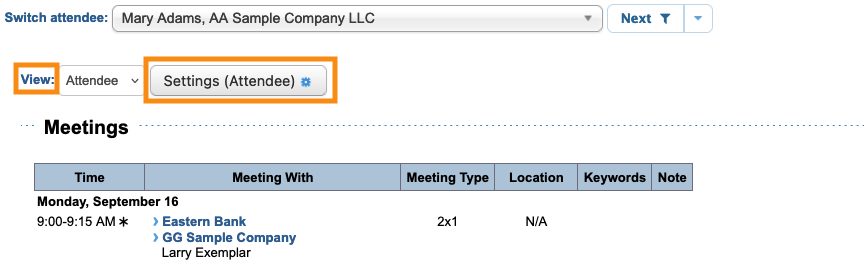
- Step 4. On the Your Schedule page, make sure the View menu is set to Attendee.
- Then, click the Settings button:
- Step 5. In the Attendee Settings pop-up, scroll down to Hide Section.
- The Hotel and Transportation options are hidden by default. Un-check the boxes for either or both:
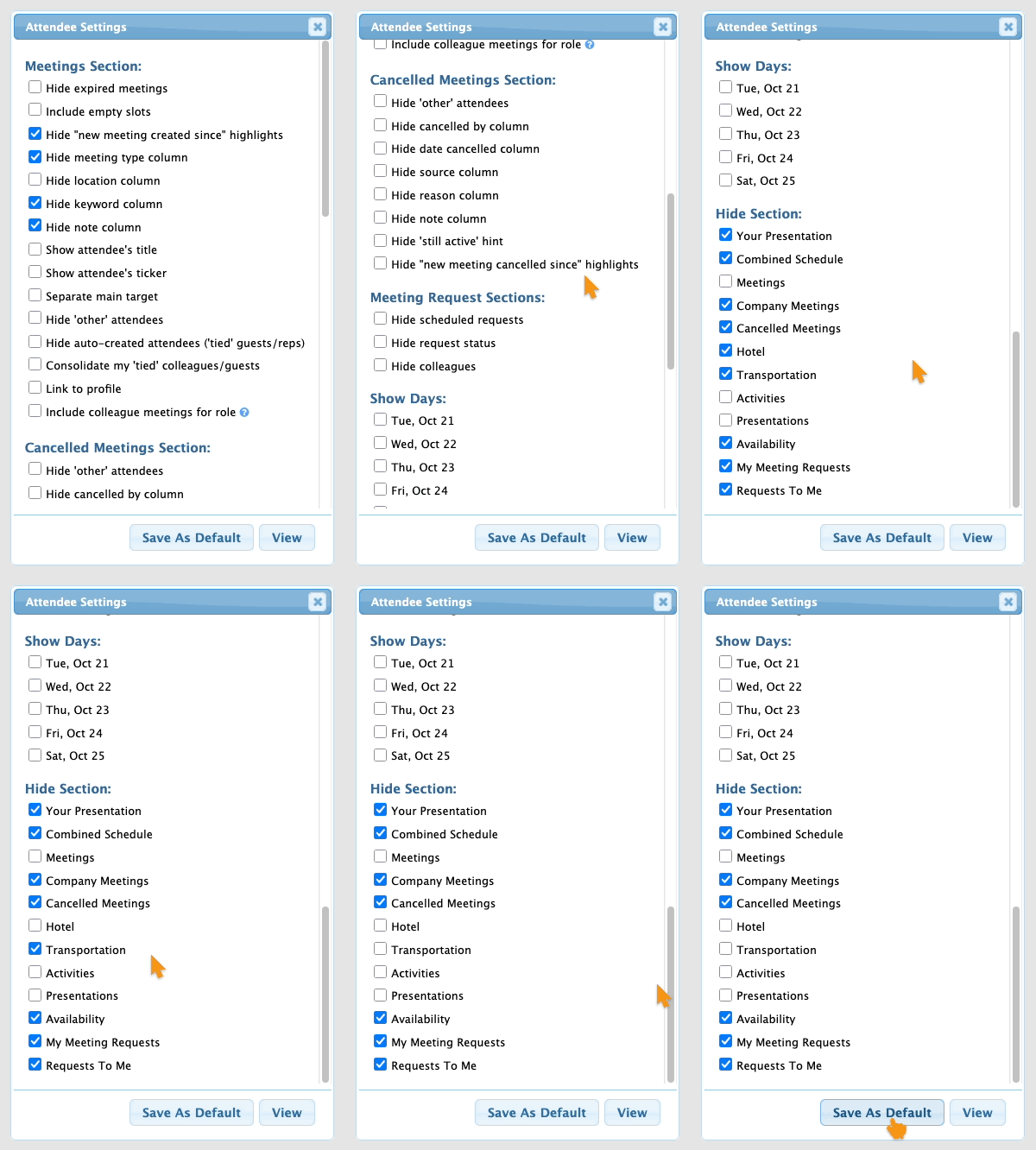
- Step 6. Click Save as Default.
- The schedule now includes the reservation details tracked in MeetMax: