


Report: Declined meeting requests with reasons

How it’s used:
• If your event must decline some meeting requests, this report helps you keep track of decline reasons.
• You’ll be able to analyze the most common reasons meeting requests are being declined.
• You can also see at a glance which Attendees have had more requests declined.
Running the report
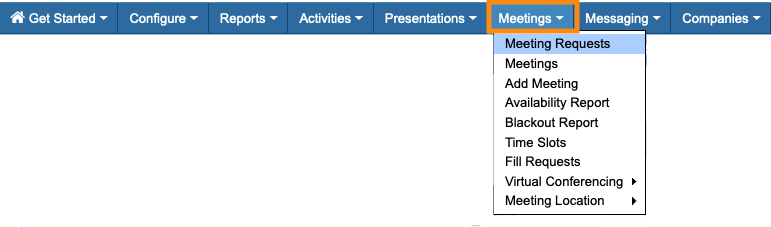
- Step 1. Head to the Meetings tab. Choose Meeting Requests:
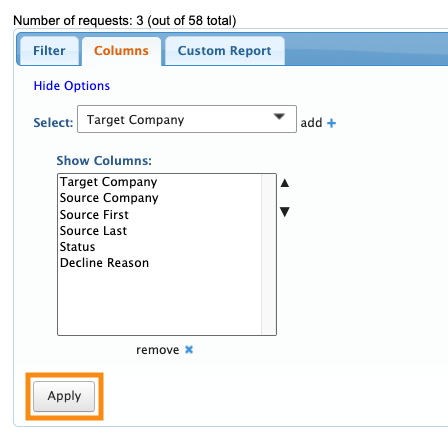
- Step 2. Go to the Columns tab. Here, you can add and remove columns. Click Apply to save the changes.
- We recommend including these columns as a starting point. There may be others you want to add:
-
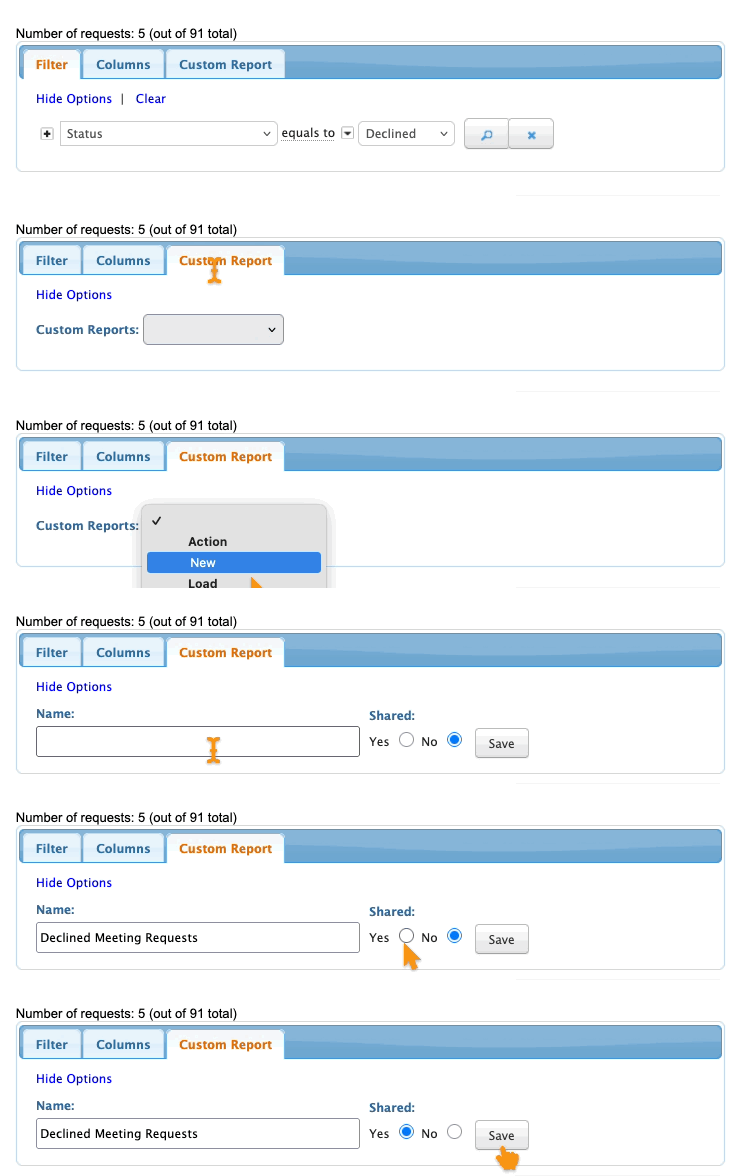
Your event might have slightly different names for these columns. The Source is the person who requested the meeting. The Target is the person who receives that request. - Step 3. Now, head to the Filter tab. Set the filter by Status, and choose Declined:

Exporting the report
To export the report in spreadsheet form, head to the top right corner of the page. Click Excel.
You can open the exported file in any spreadsheet software:

Saving the report
Want to save this report so you can quickly access it later?
Head to the Custom Report tab. Choose New from the menu.
Then give the report a title, choose whether to share it with your team, and click Save:
Learn more:

