


How do I customize the display order for Company Reps?

When a registered Company adds its Company Reps to MeetMax, by default they display in alphabetical order by last name, then first name.
For your event, you might want to customize that order - to place a key Rep at the top of the list, for example.
Updating the display order
We’re assuming here that the Company has already added its Reps to MeetMax.
- Step 1. Head to the Company List:

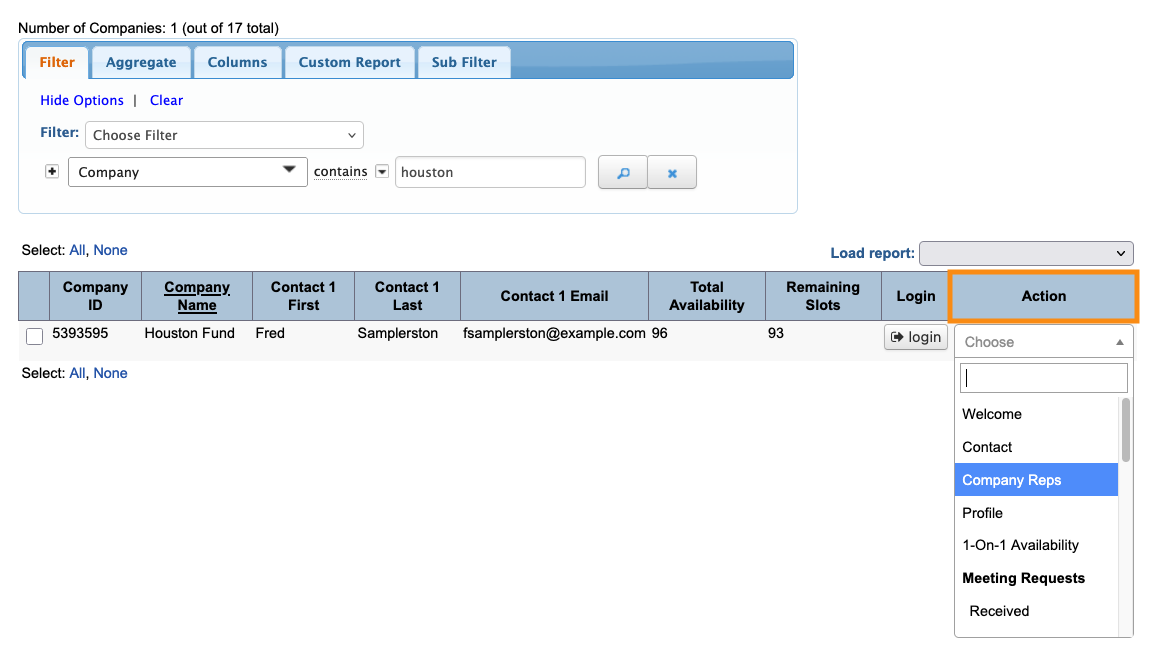
- Step 2. Filter the list to find the Company you want to update. Use the Action menu to choose Company Reps:
- Step 3. On the Company Reps page, click the Manage Display Order button:

- Step 4. In the pop-up, you’ll see two sections:
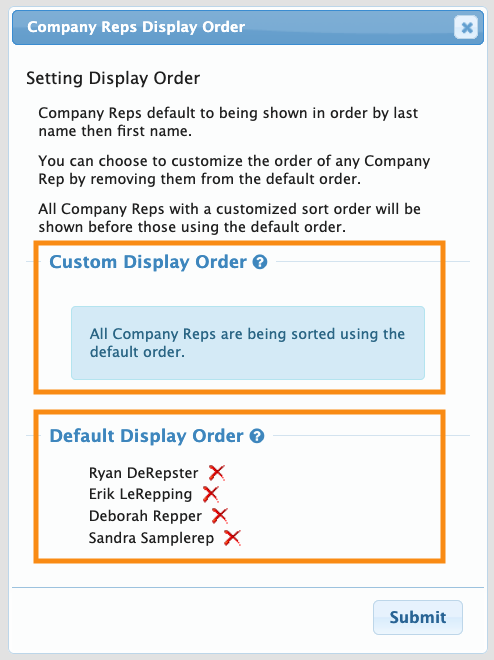
- • Custom Display Order: A blank section for creating your custom order
- • Default Display Order: A list of Reps in the default alphabetical order
- This set-up allows you to customize specific Reps, but leave the rest of the list in default order. (You can also re-order the entire list.)
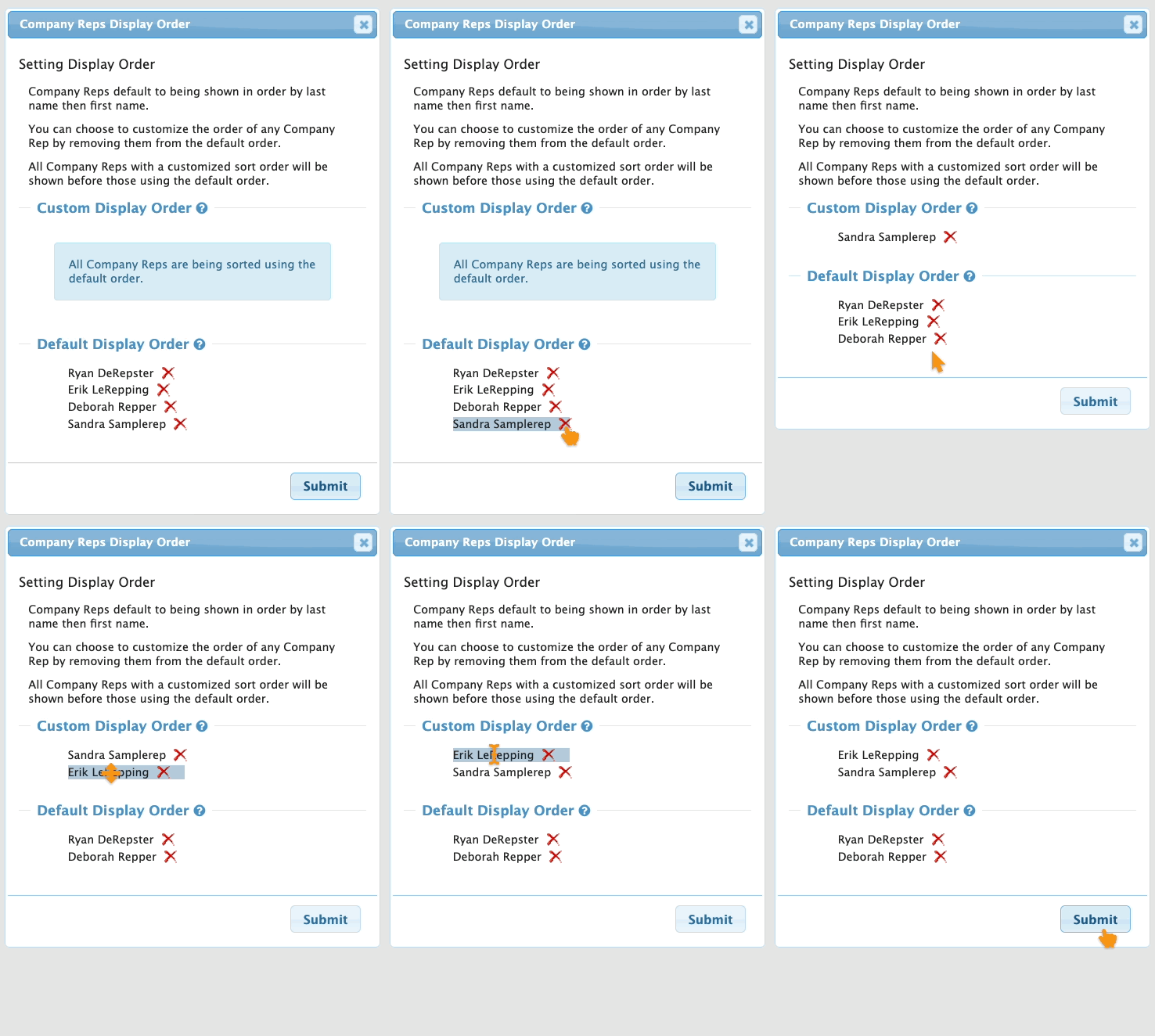
- Step 5. To enable a Rep for custom display order, click the X icon next to their name.
- Once you’ve enabled all the reps you need for custom ordering, you can also click and drag the names to reorder them:
-
If you want to customize the order of the entire list, click the X icon for every Rep, so they all move up to the Custom Display Order section. - Step 6. Click Submit to save.
- Your backend Admin pages will still show Reps in the default alphabetical order.
- All participant-facing pages will show your custom order. Depending on your event, that can include:
- • Attendee and Company schedules
- • Presentation page and schedules
- • Custom List pages that include Company Reps
-
If the Company adds more Reps after you’ve customized the list, those new Reps will appear in the default alphabetical order. You can repeat these steps to update their display order.

