

Schedule Setting: New meeting created since

| In this article, we're adjusting how the schedule displays. You can also use the Menu Editor to show or hide schedules in your participants' MeetMax accounts. |
When to use this setting
This setting is useful if:
- You’ve already sent out Attendee schedules, but there were last-minute changes.
- You want to make it clear to everyone exactly which meetings have changed.
How it works
This feature will use one of these starting points - whichever has happened most recently:
- The date and time of each participant’s most recent login to MeetMax - before today. (For example, if you add meetings today, the soonest you can highlight them on an emailed schedule is tomorrow.)
- The date and time you last batch emailed participant schedules
Once either event has happened, this setting will highlight any meetings that were added or changed since then.
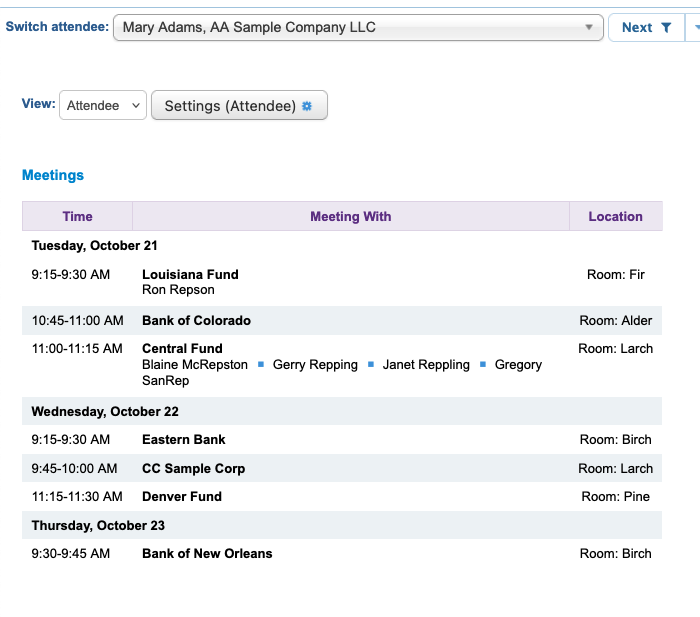
Here’s a default schedule:
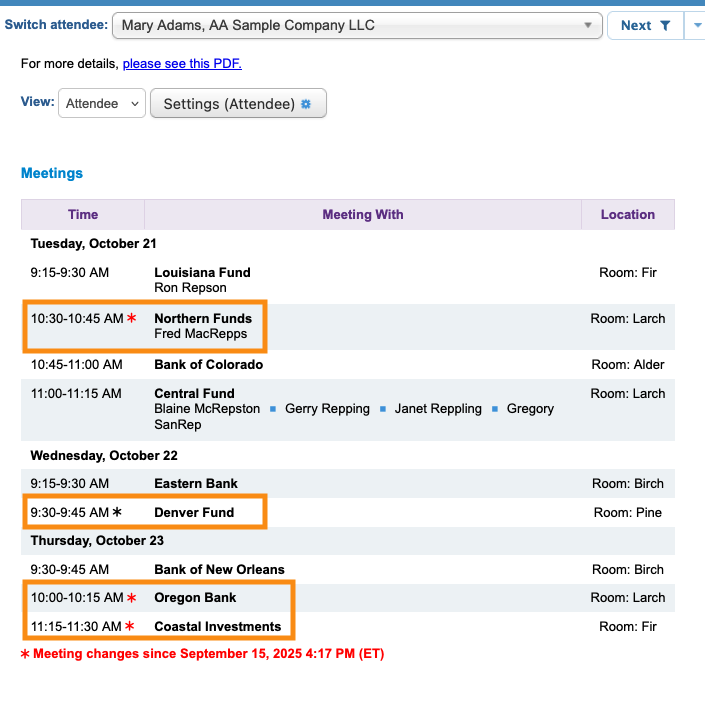
Here’s the same Attendee’s schedule, with recent changes highlighted:
- New meetings have a red mark.
- Rescheduled meetings have a green mark.
Changing the setting
Remember, with this setting in place, meeting changes will only appear once you’ve batch emailed schedules.
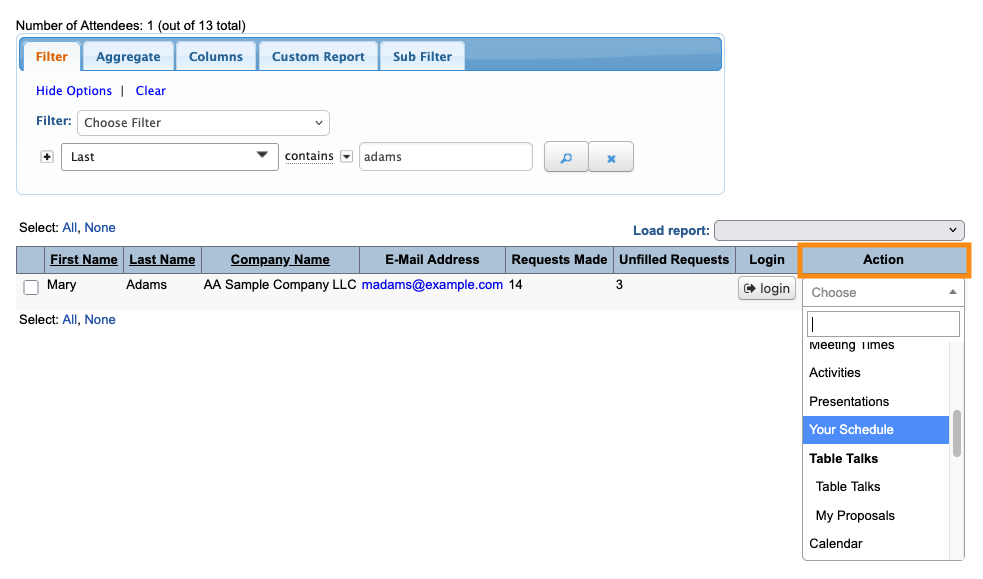
- Step 1. Head to the Attendee List:

- Step 2. You can use any Attendee’s record. Changes you save there will apply to all Attendees.
- Use the Action menu to choose Your Schedule:
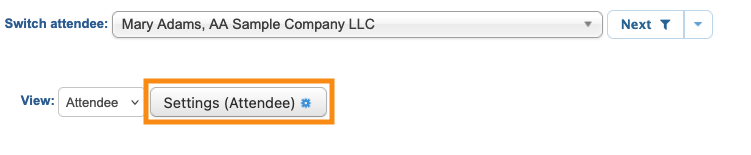
- Step 3. Click the Settings button:
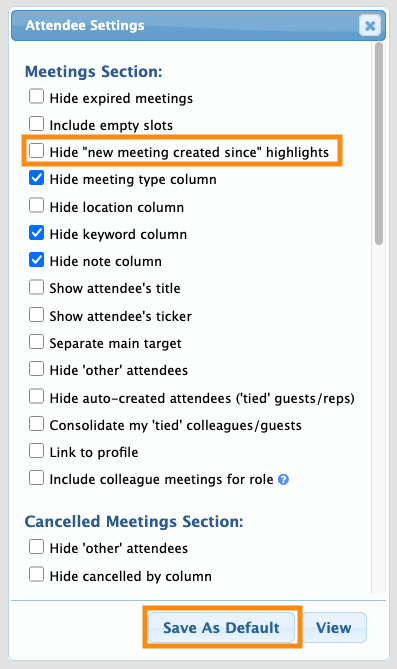
- Step 4. In the Attendee Settings pop-up, make sure Hide “new meeting created since” highlights is unchecked.
- Then click Save as Default:
-
You can use this setting in Moderated and Unmoderated meeting programs.

