


Customizing the Profile form

Your event’s Profile form can be customized to capture exactly the details you need from your participants.
In this article:
Where is it?
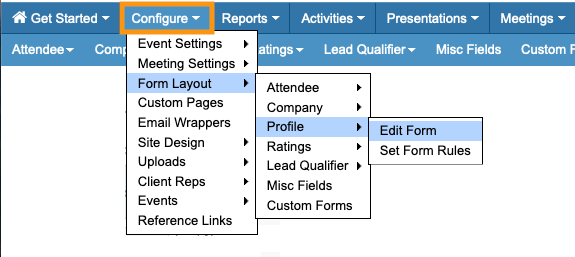
You’ll set up your Profile form from the Configure tab:
Your event’s participants will log into MeetMax, and access the form from the Profile tab:
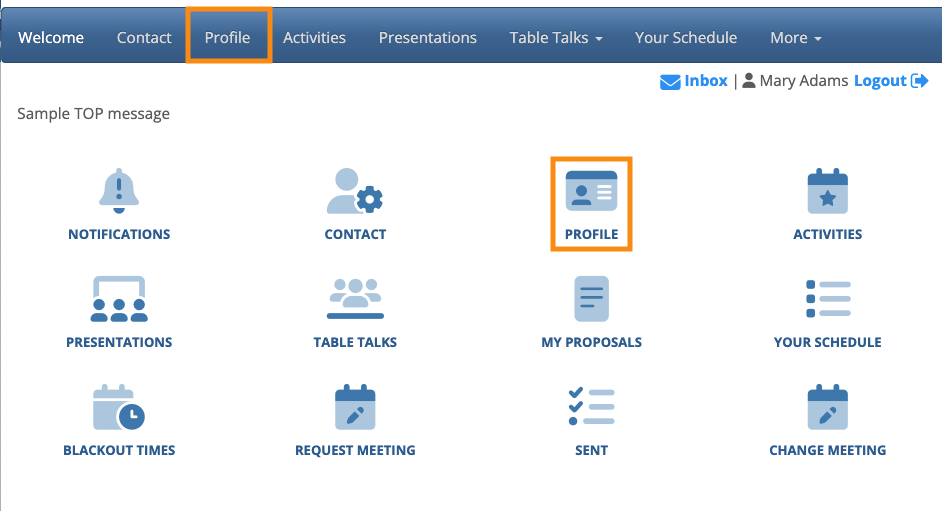
| This page will be branded for your event, and contain the menu options you’ve enabled. |
Adding and removing form fields
Your Profile form can be as detailed as you need. MeetMax has a short list of default fields, and you can create custom fields too.
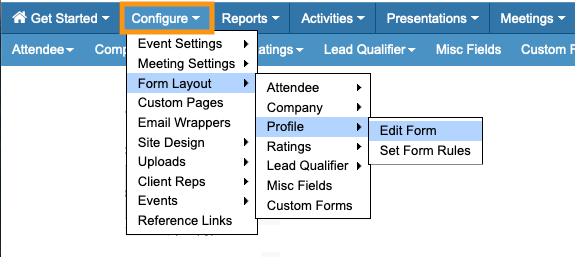
- Step 1. Head to the Configure tab. Choose Form Layout, then Profile, then Edit Form:
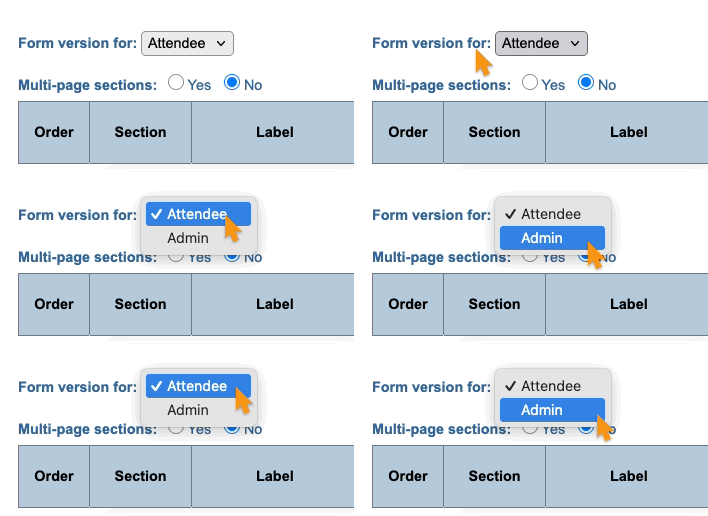
- Step 2. You’re now in the Form Editor. MeetMax has two versions of the Profile form:
- • The participant’s view (Attendee or Company)
- • The Admin’s backend view
- Use the Form Version menu to choose the one you need:
-
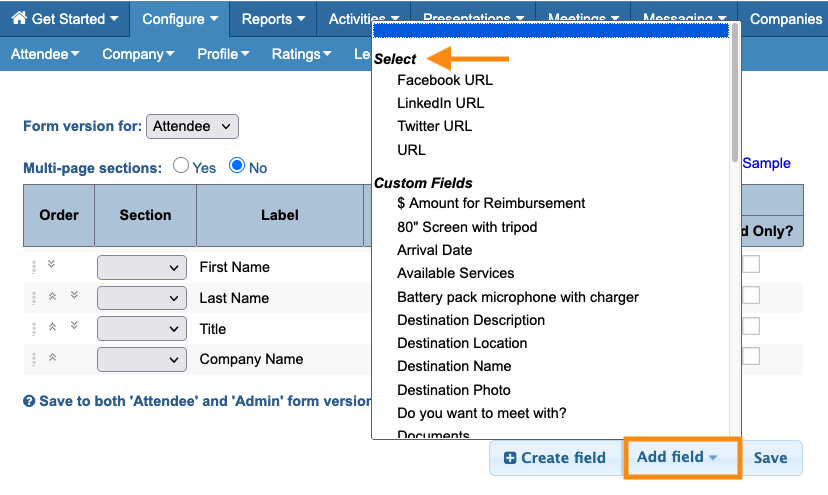
Your public and Admin forms can be the same, or different. If your team wants to capture some internal-only details about each participant, the Admin form is a great place to do that. - Step 3. At the bottom right corner of the form, click the Add field button.
- You’ll see a short list of available default fields. Below that, you’ll see a list of any custom form fields you’ve already created:
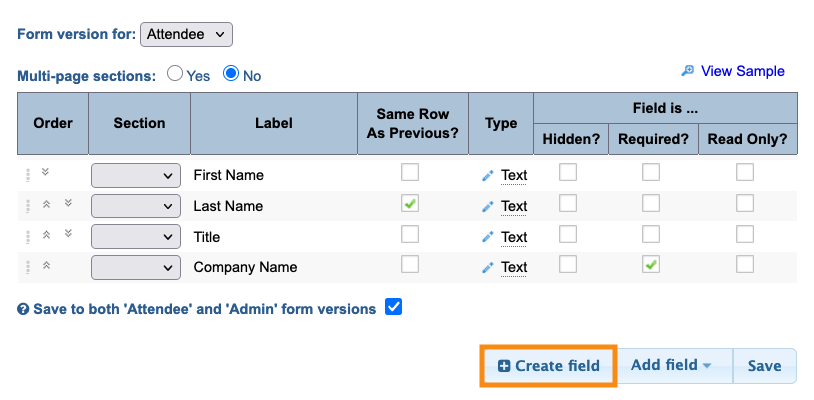
- Need a field that’s not on this list? Click the Create field button. Learn more about creating custom fields here:
-
One custom field you might need is a Headshot and/or Logo field, so participants can upload theirs. Learn more about Headshot/Logo fields here. - Step 4. Click the Save button:
- • If you want to save your changes to both the participant and Admin versions of the form, click the checkbox.
- • If you only want to save changes to the version you’re currently editing, un-check the box.
Other form customizations
MeetMax forms are very flexible. Depending on your event, you might:
- Break your form into sections, or even separate pages.
- Set certain fields to be visible only to specific user roles.
- Create rules that show or hide fields when a participant takes a particular action.

