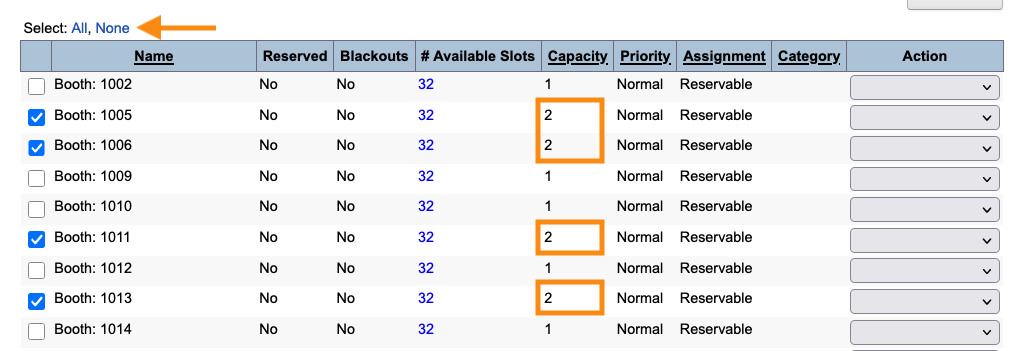
How do I edit meeting locations in bulk?

If you need to make the same change to multiple meeting locations, The Bulk Editor saves you time.
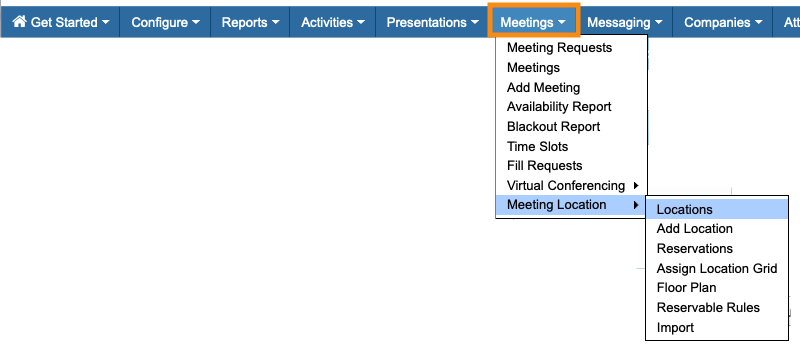
- Step 1. Head to the Meetings tab. Choose Meeting Location, then Locations:
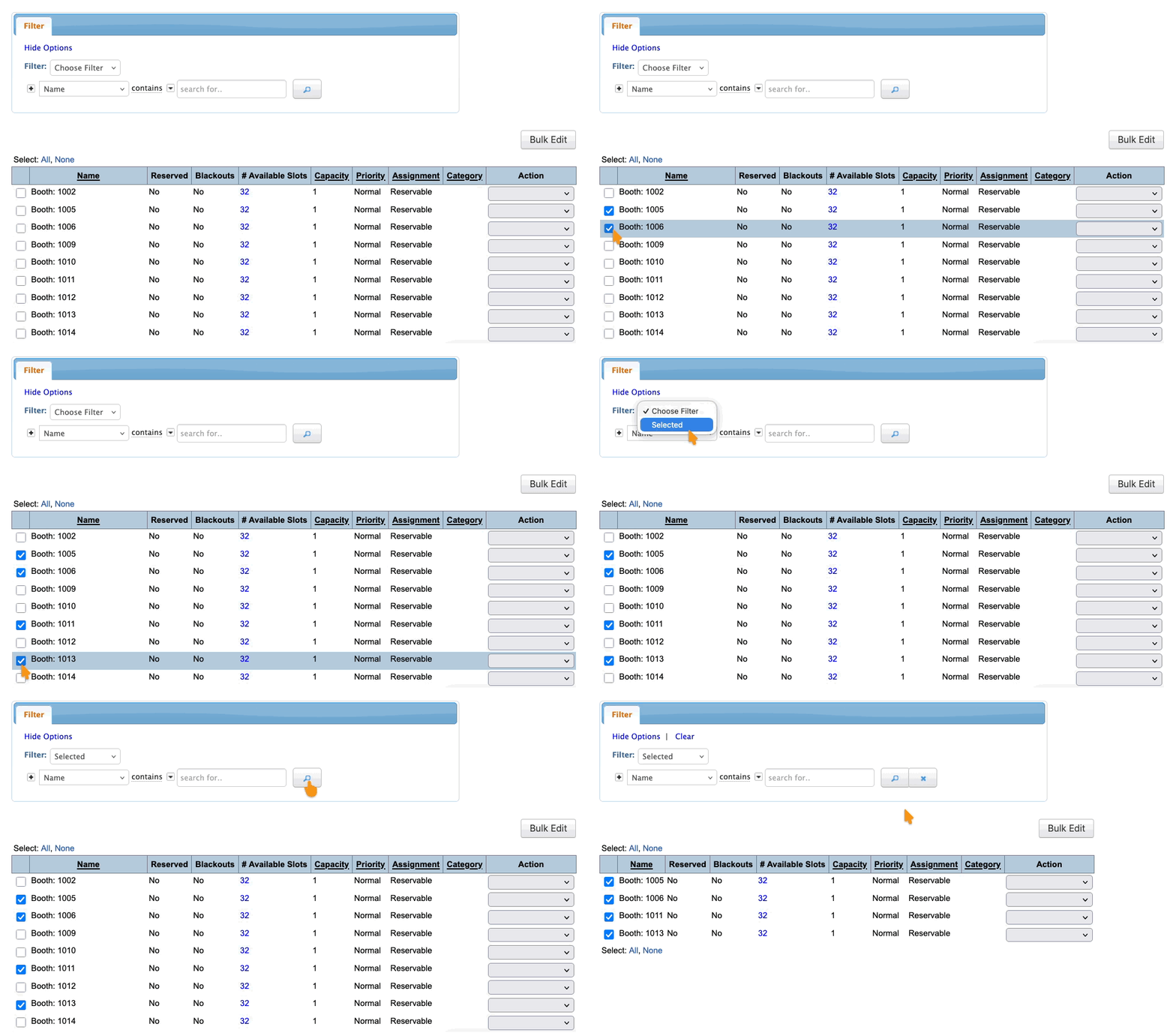
- Step 2. On the Locations List, click the checkbox for each location you want to update..
- (If you’re editing every location in your list, you can skip this step.)
- Then set the Filter menu to Selected, and click the magnifying glass icon to narrow the list:
- Step 3. Now, click the Bulk Edit button:
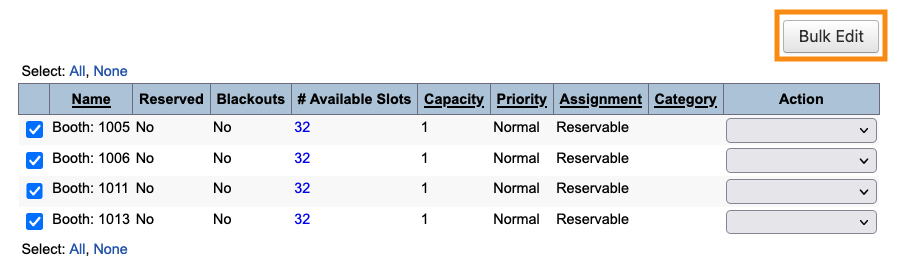
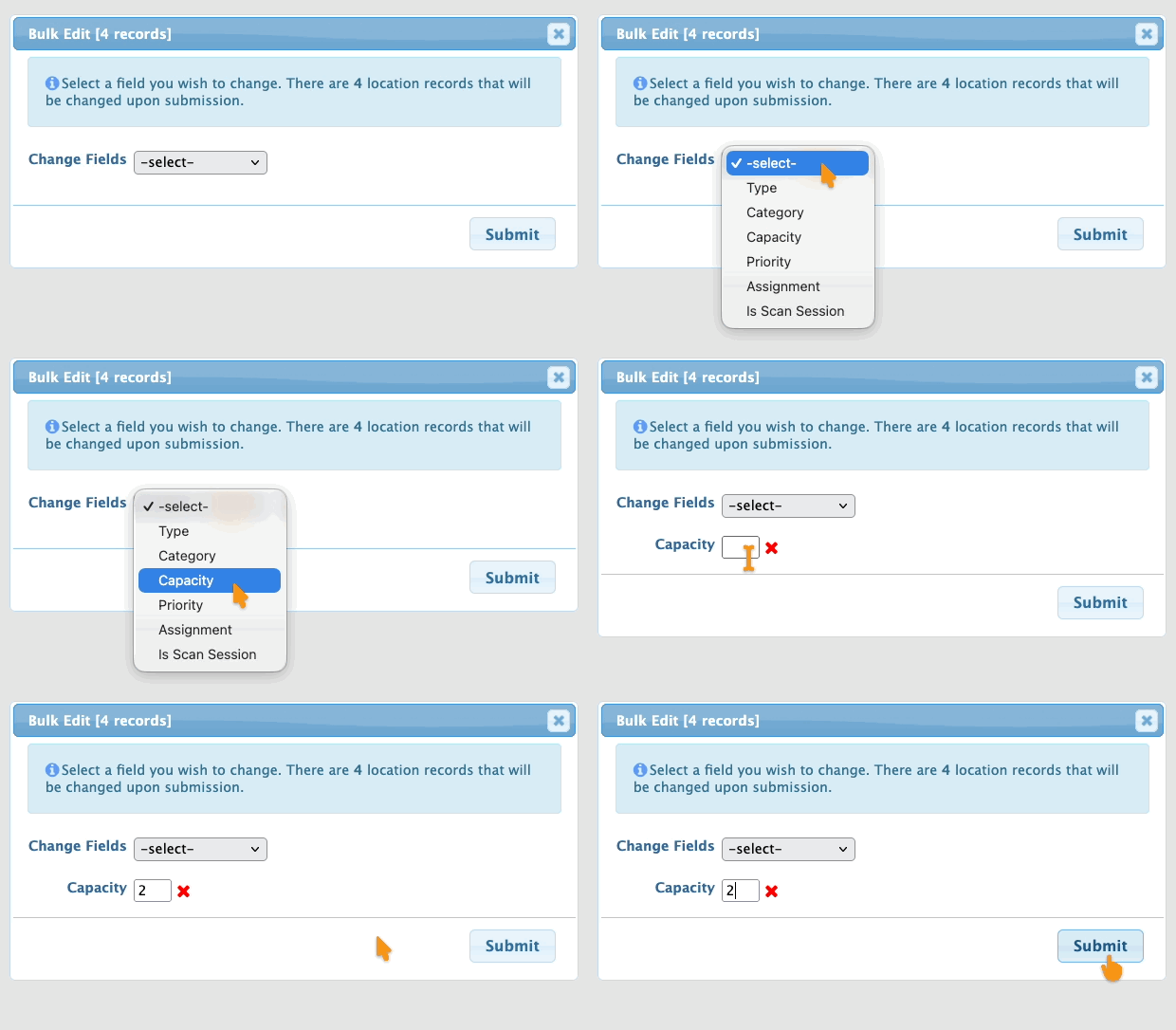
- Step 4. The pop-up shows you how many records are about to be updated. Make sure that matches the number of records you selected above.
- Step 5. Choose which field you want to change for all of these locations.
- In this example, we’re increasing the meeting Capacity. Be sure to click Submit!
- Step 6. The Locations List now reflects your bulk change.
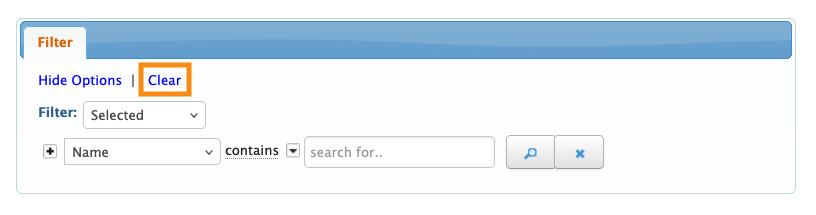
- Clear the Selected filter:
- To remove the selections, click None: