

Can I schedule a Calendar Item before or after my event?

Calendar Items are great for scheduling travel events, like transportation pick-ups or hotel check-ins.
If your participants are traveling on days before or after your event, you can still add these Calendar Items to MeetMax schedules.
In this example:
- Our event takes place May 13-15.
- We’ve arranged a limo pick-up at the airport for each person.
- Many of our Attendees are traveling the day before the event, on May 12. We want them to have their pick-up time on their event schedules.
| We’re assuming here that you’ve already enabled Calendar Items for your event. |
- Step 1. From your Admin account, head to the Attendee List:

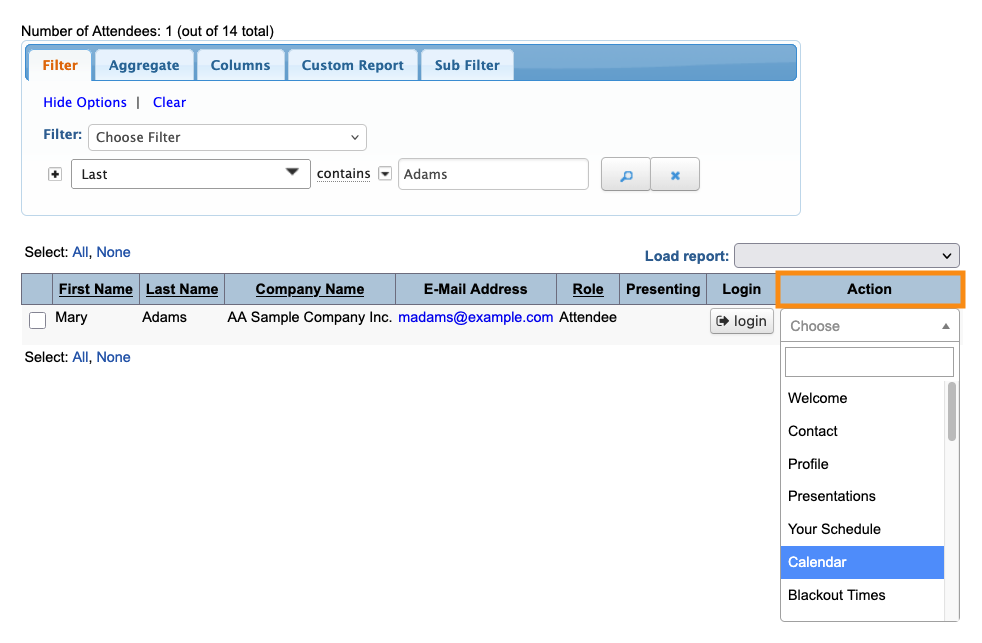
- Step 2. Filter the list to locate the person you need to schedule. Then use the Action menu to choose Calendar:
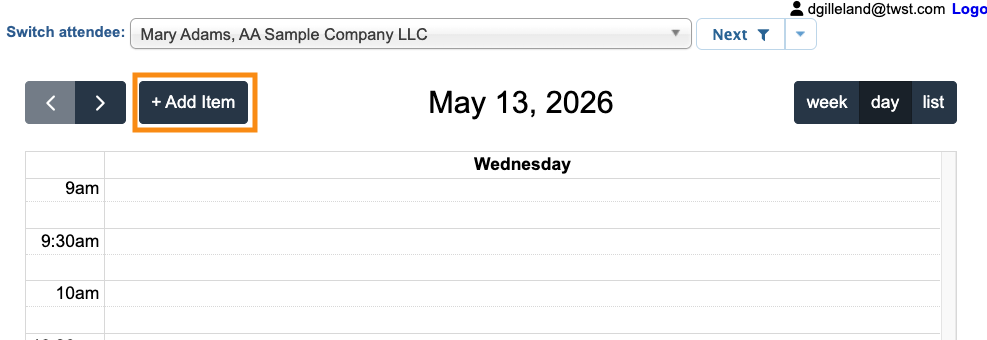
- Step 3. On the Calendar page, click the Add Item button:
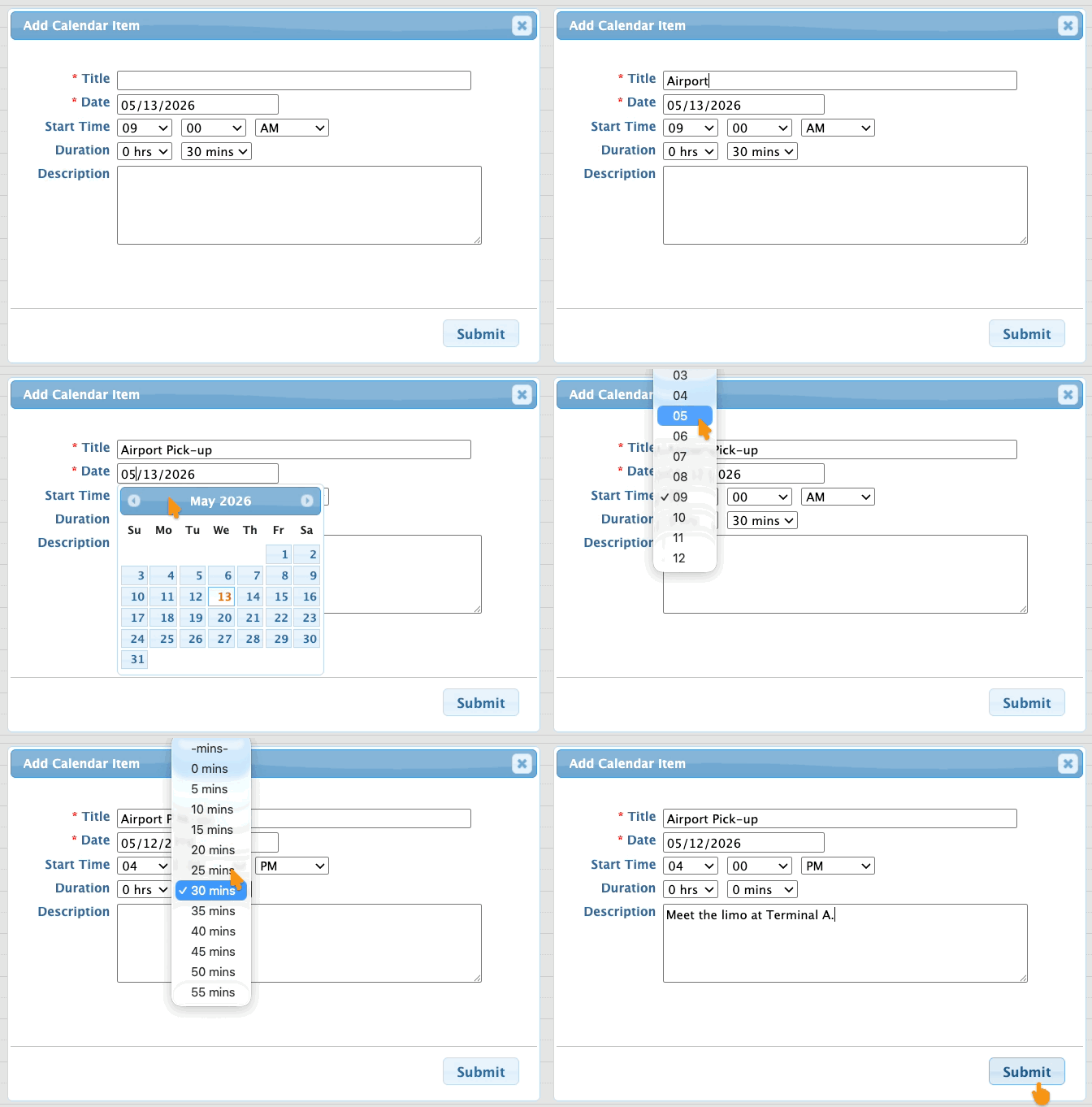
- Step 4. Enter the date. In this example, it’s the day before our event officially starts.
- Step 5. Enter a time and any other details you need. Then click Submit:
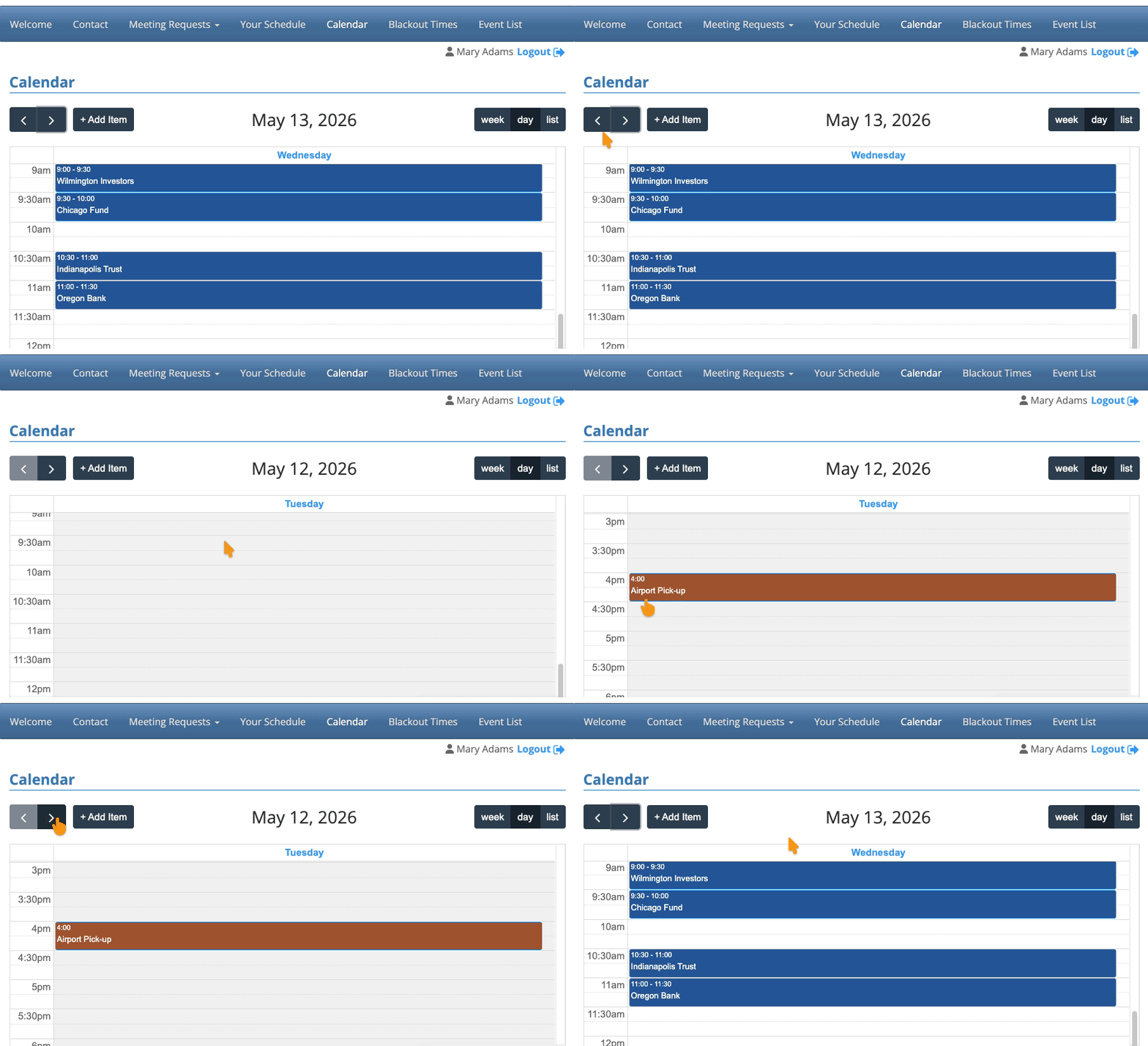
- Step 6. Refresh the page.
- Step 7. You’ll now see that MeetMax has added a day to this calendar, so it can display your new Calendar Item.
-
You can also make this date change while you’re editing any existing Calendar item.
What participants see
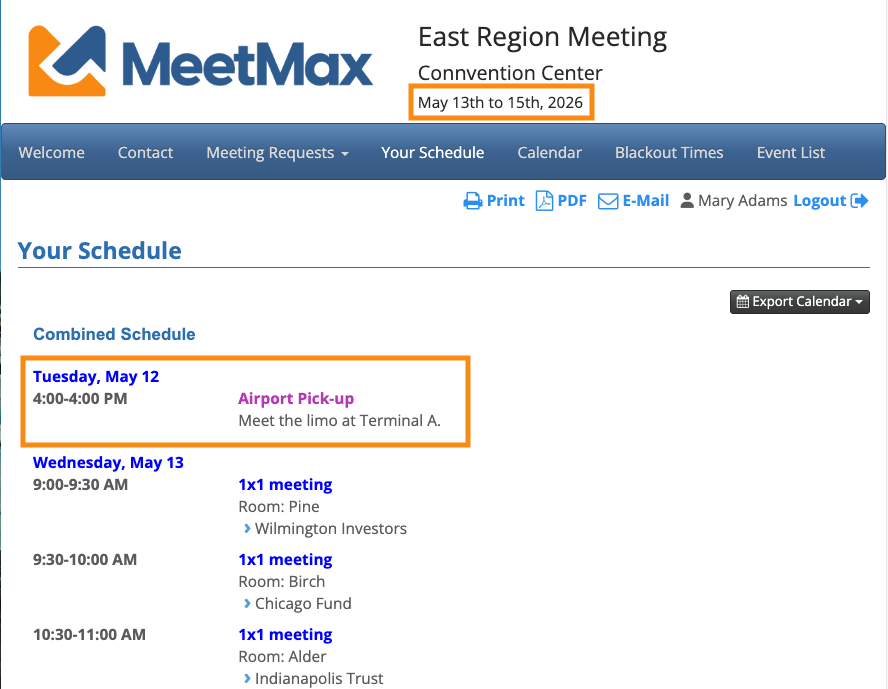
MeetMax doesn’t actually add days to your event here! We just add the new date to the Calendar and event schedule:
| If your event is using time zone conversions, MeetMax will automatically convert the scheduled time to each participant’s preferred time zone. | |
| If your event is using a different time zone for each event day, MeetMax adds a field so you can choose a time zone for this Calendar Item. We’ll then show the time zone for this item on the Calendar and schedule. |

