

How do I set time slots for all Companies? (Use Availability)
For some events, you might require all participating Companies to have the same meeting availability. MeetMax can set your event’s time slots to be a Company’s available times.
| You can opt individual Companies out of this setting. See below for details. | |
| This setting is also available for Attendees, but not commonly used there. | |
| Not all events use this feature. Reach out to our Support team if you have questions about whether to use it for your event. |
Adding the Use Availability field
- Step 1. Head to the Company Form Editor:
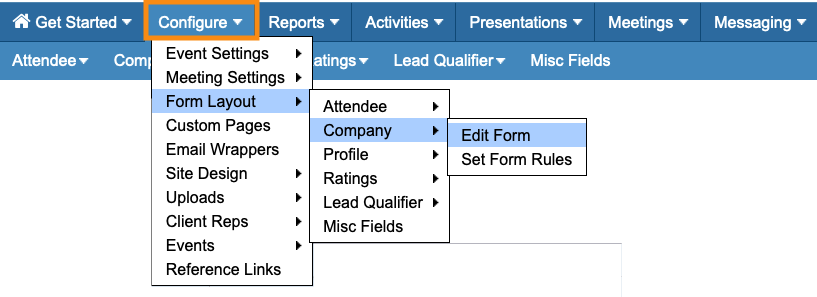
- Learn more about editing forms here.
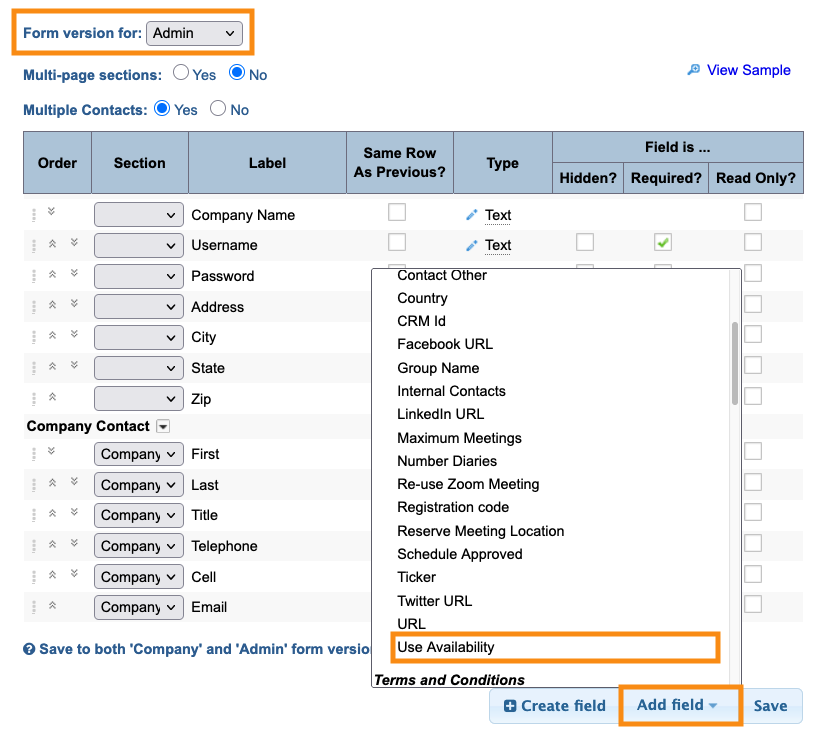
- Step 2. Set the form to its Admin version.
- Add the Use Availability form field:
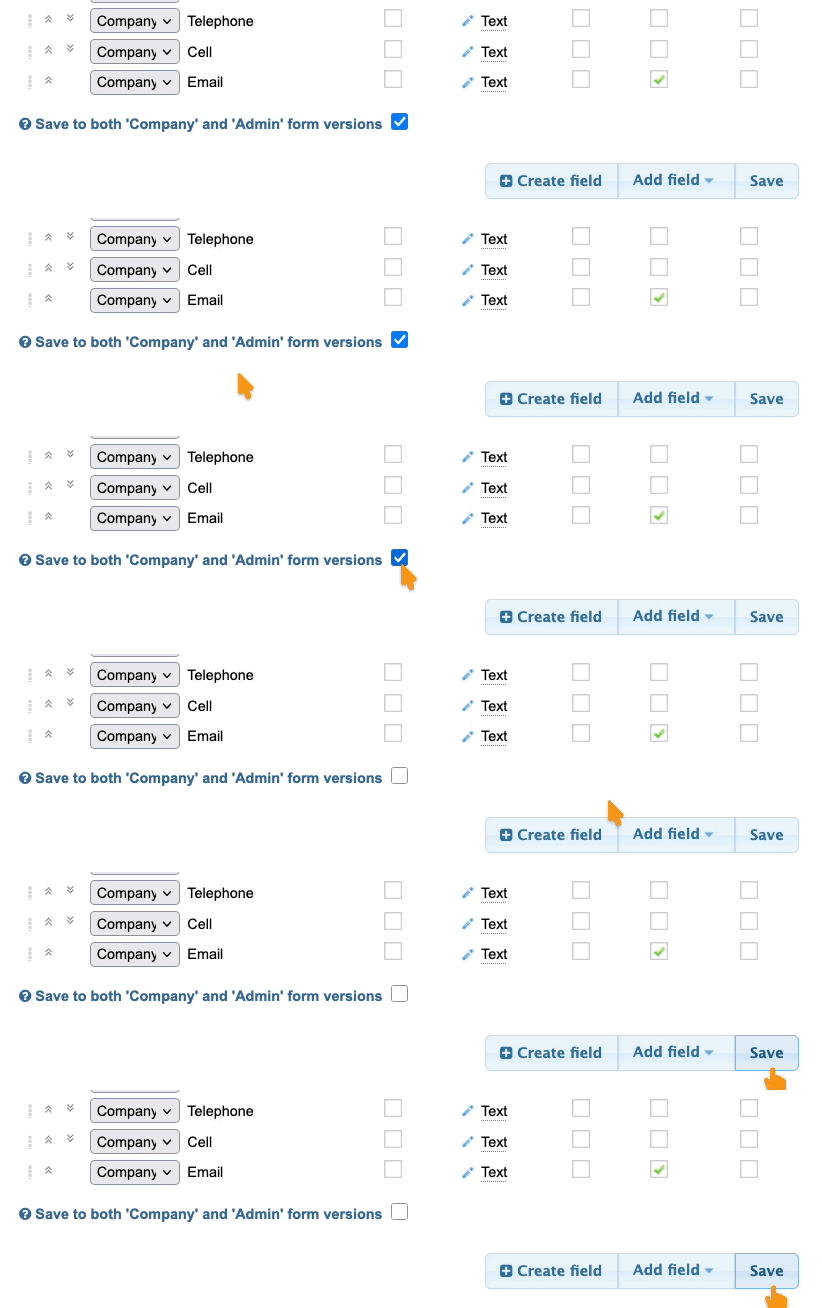
- Step 3. Make sure the box is unchecked, then click Save:
Using the field
Your Admin team will then use this form field to set Company availability:
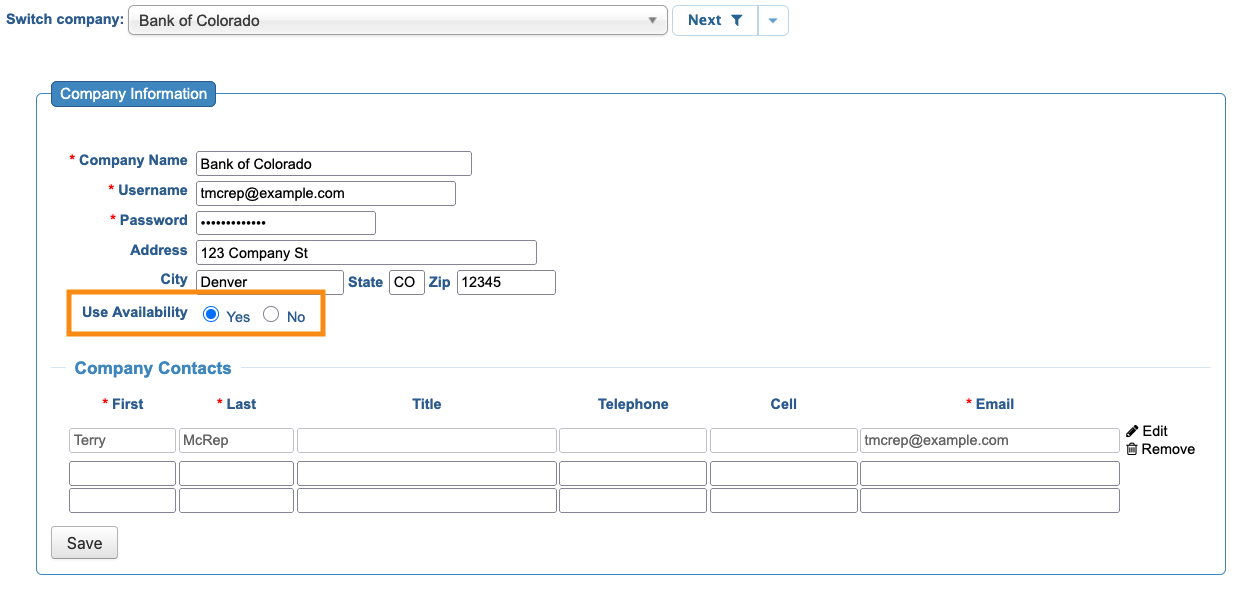
- Yes (default option): This Company’s availability will match your event’s time slots exactly. The Company won’t be able to make any adjustments.
- No: This Company can set meeting availability that doesn’t match your event’s time slots.
Learn more about updating Company records from the Admin side here.
Updating the Company menu
If no Companies will be setting their own availability at your event, you’ll want to hide that option.
- Step 1. Head to the Company Menu Editor:
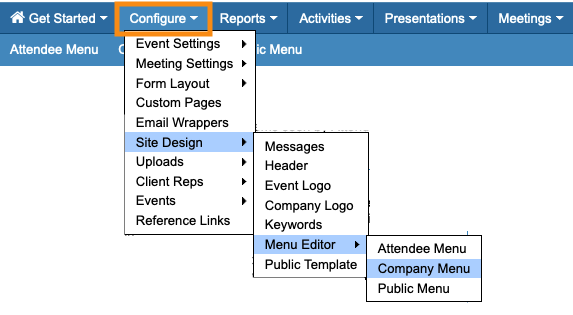
- Learn more about the Menu Editor here.
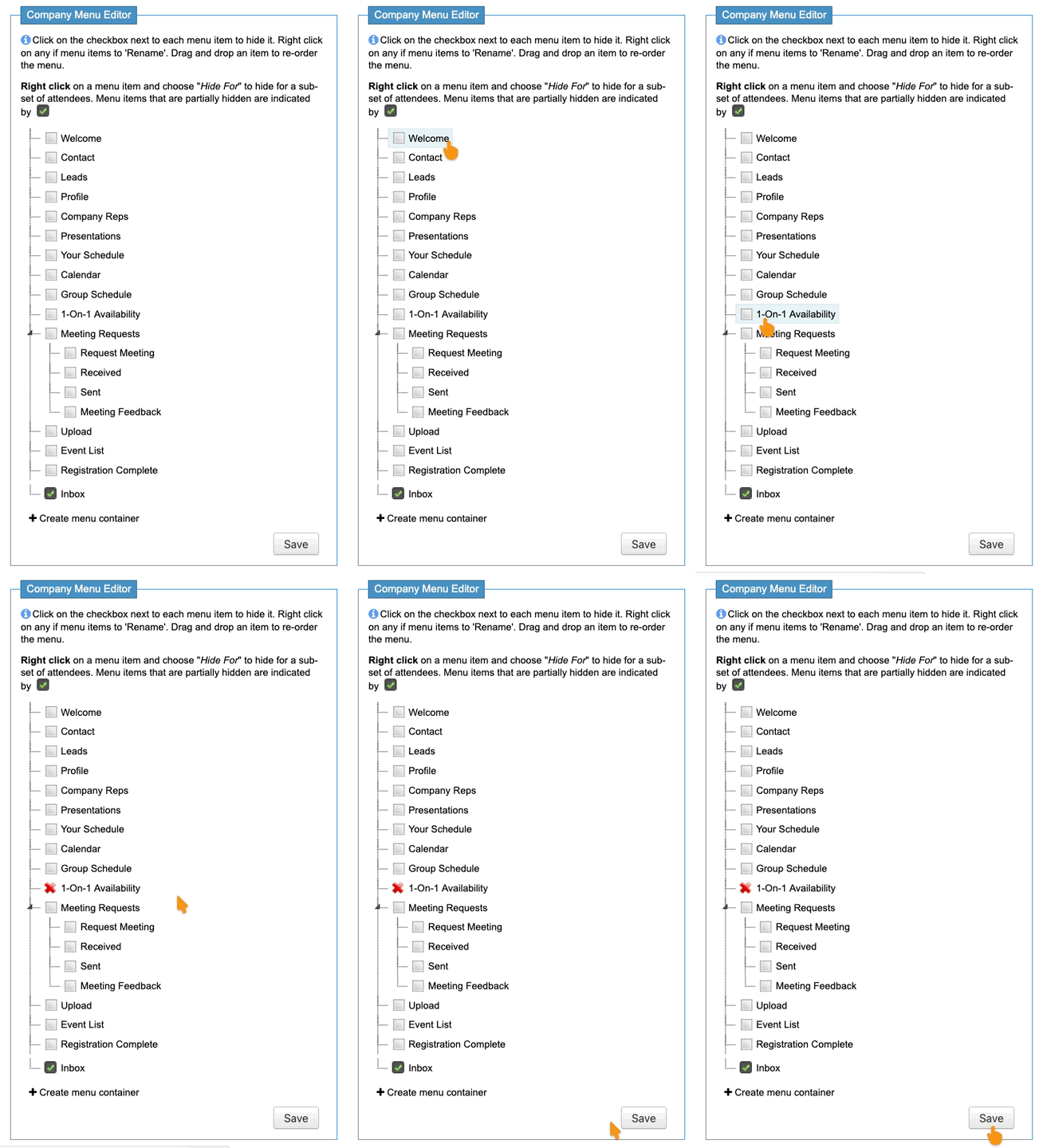
- Step 2. Click the 1-on-1 Availability menu option. It should display a red X, meaning it’s hidden.
- Then click Save:
-
If you need to allow some Companies to set their own availability, reach out to our Support team for the best options for your event.

