


In this article:
- Where is it?
- When is it useful?
- What participants see
- Showing or hiding the Calendar tab
- Using the Calendar: Moderated meeting programs
- Using the Calendar: Unmoderated meeting programs
Where is it?
As an Admin, you can access the Calendar display from the Attendee List and Company List:


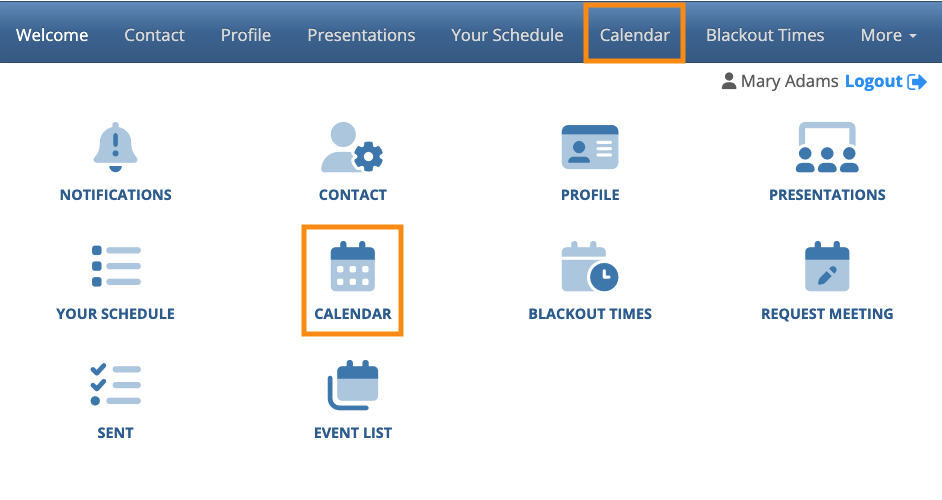
Participants can log into MeetMax and see the Calendar tab:
When is it useful?
A participant’s Calendar tab contains:
- Scheduled meetings
- Presentations they’re presenting
- Presentations they’ve signed up to attend
- Activities they’ve signed up to attend
- Ad hoc events (if your event is using them)
The content is the same as the Your Schedule tab, but the Calendar offers a more visual interface.
- If your event is using one of the MeetMax mobile apps, the Calendar tab adds convenience. Participants won’t have to switch between the mobile app and their personal calendars.
- If you want to be able to schedule ad hoc events, like transportation pick-ups, coffee, or conference calls, both you and the participant can do this through the Calendar tab.
What participants see
When an Attendee or Company logs into MeetMax, the Calendar page shows different kinds of events in different colors. Our Support team can help customize these for your event.
| For presentations, MeetMax displays sessions you’re attending in a separate color from sessions you’re presenting, as shown below. |
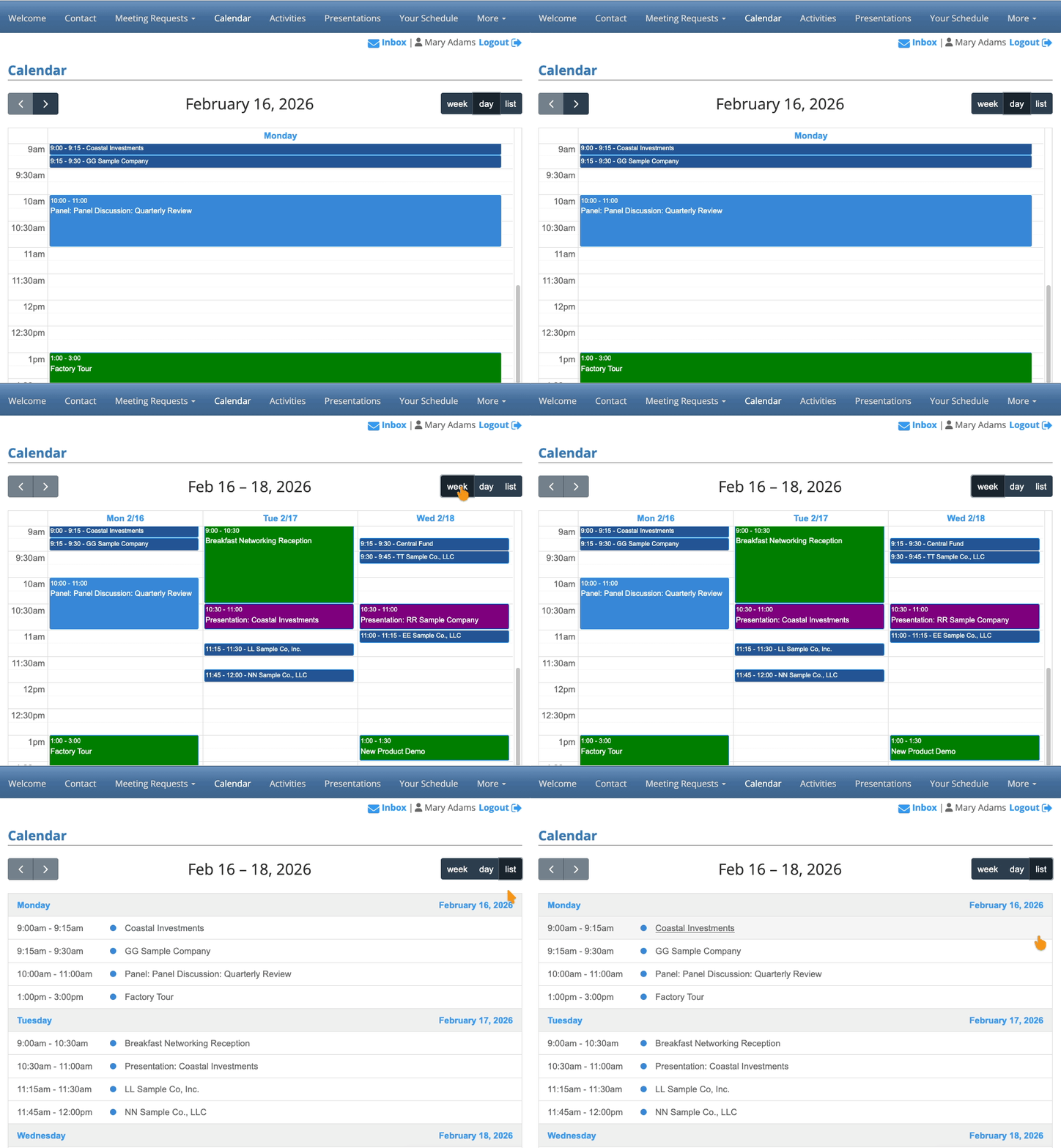
Participants can toggle their Calendar between three views: Day, Week, and List:
| Keep in mind that you can also allow each participant to export their event schedule to their own personal calendar. |
Showing or hiding the Calendar tab
You can reveal the Calendar tab to participants at any point in your event.
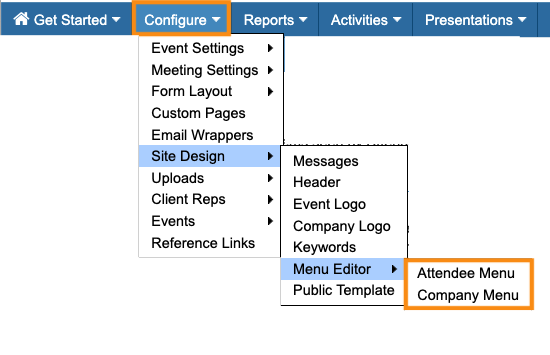
To show or hide this tab, head to the Menu Editor and choose either the Attendee or Company version:
| You can make this update in either or both menus. |
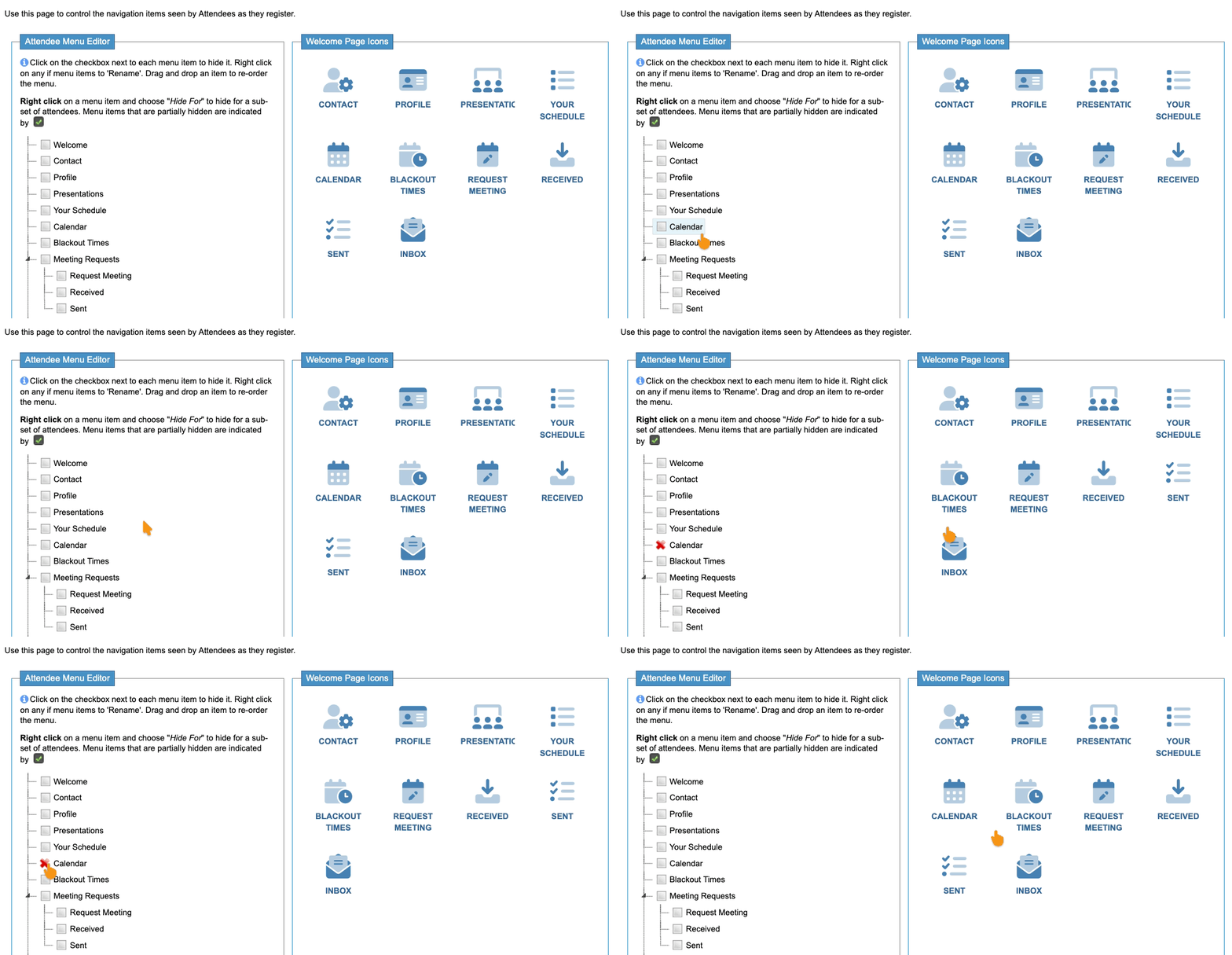
Click on the Calendar option. That adds a red X, meaning the Calendar is currently hidden.
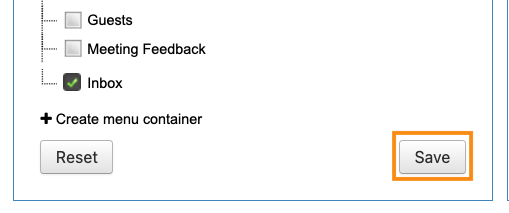
When you’re ready to make the Calendar visible, click again to show it in the menu:
Be sure to click Save!
Using the Calendar: Moderated meeting program
If your meeting program is Moderated, Admins schedule and manage 1x1 meetings for participants.
Participant view
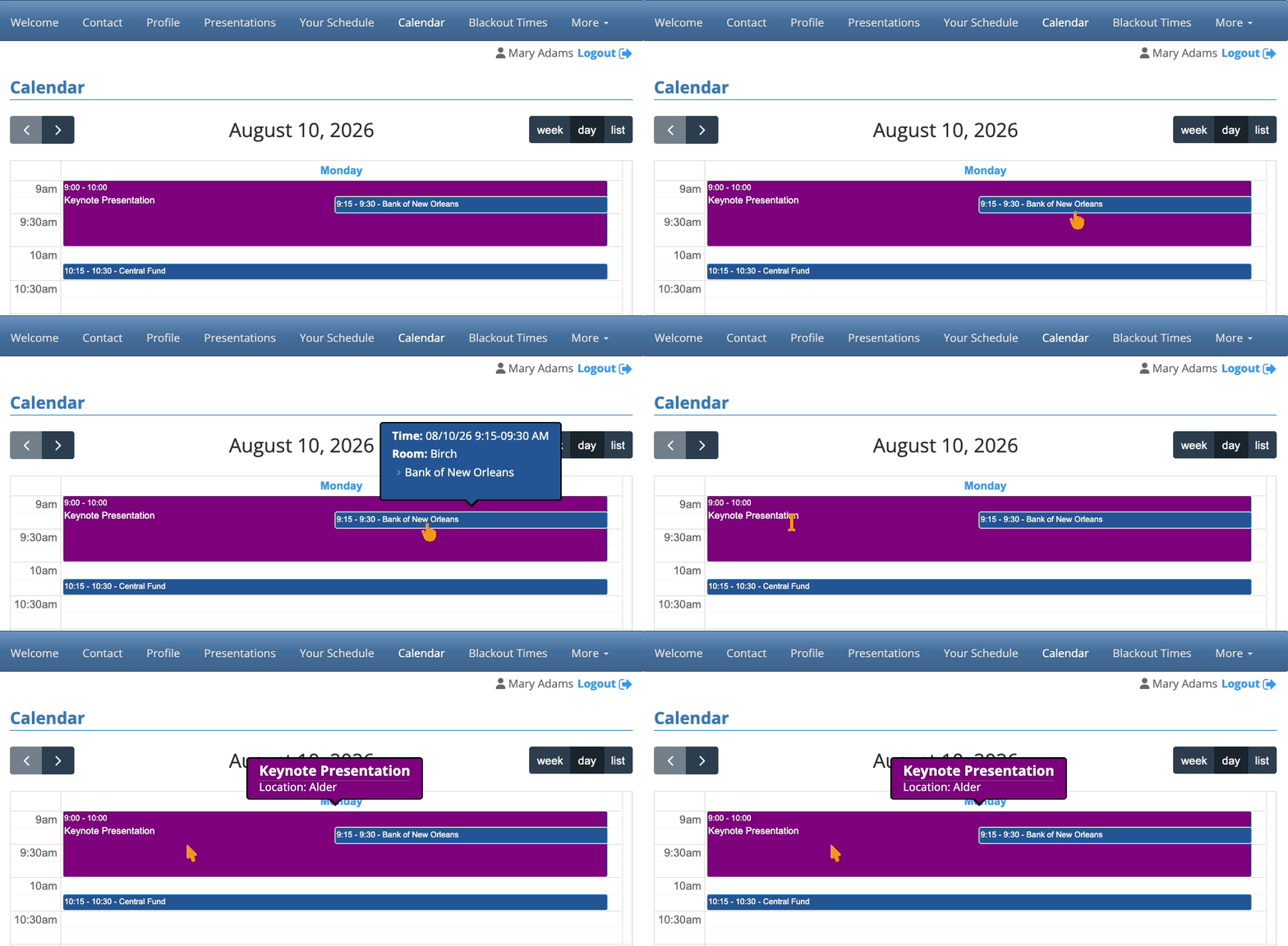
Event participants can log into MeetMax and access the Calendar tab. There, they can click on any scheduled item to see more details:
Participants can’t make changes to any programming from the Calendar. Instead, they would:
- Go to the Presentations tab to change presentation sign-ups.
- Go to the Activities tabs to change activity sign-ups.
- Ask an Admin to update any scheduled meetings.
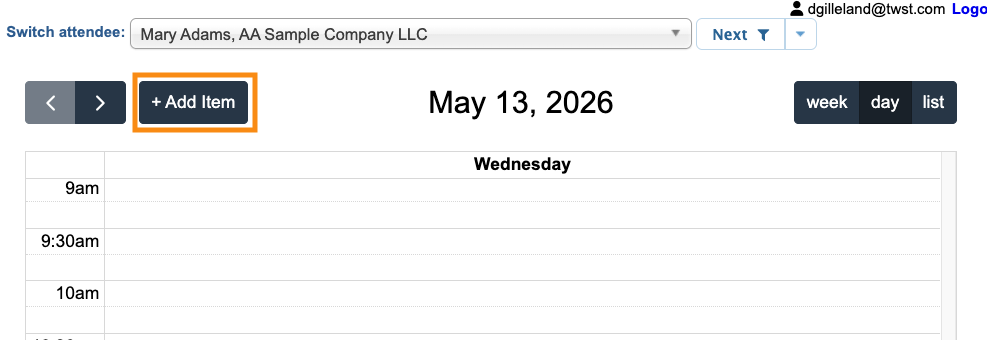
If your event is using our Calendar Items feature, participants also have access to the Add Item button shown below.
They can use it to schedule their own ad hoc meetings and other events:
Admin view
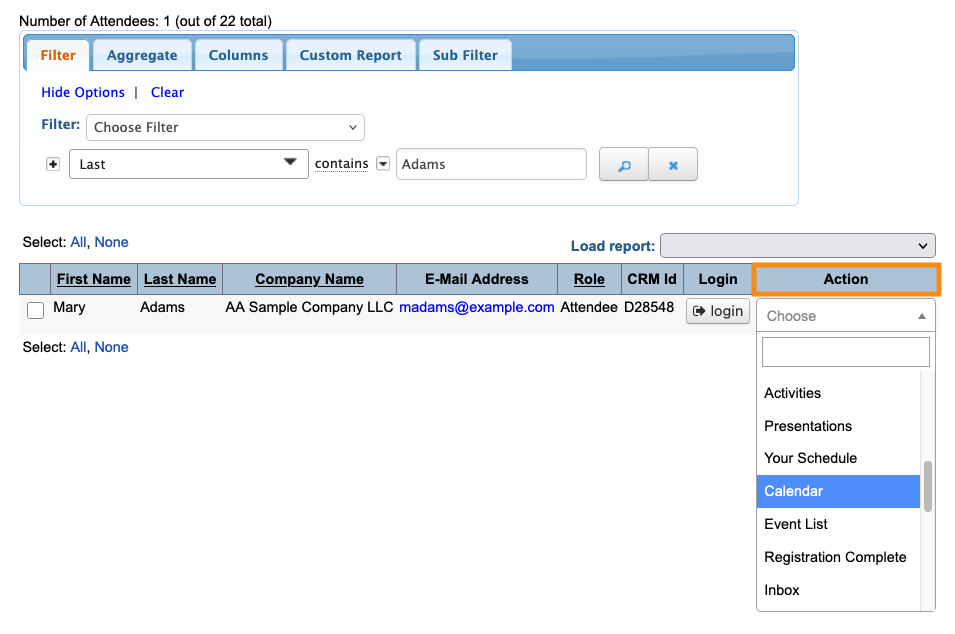
Event Admins can access any participant’s Calendar page, using the Attendee List or Company List:
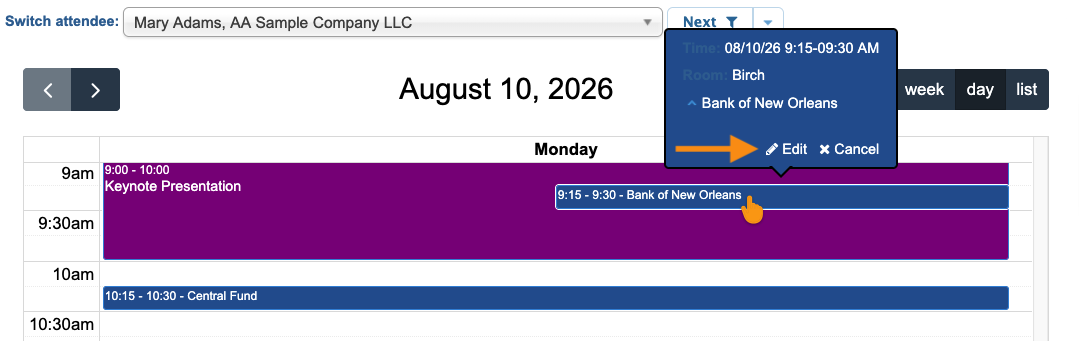
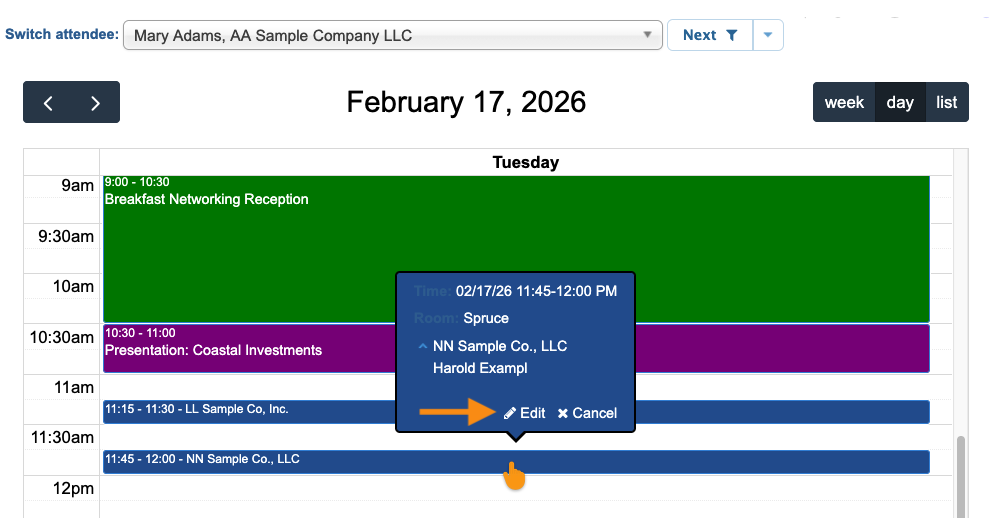
Admins can click on any scheduled meeting. They’ll have access to edit or cancel from there:
| Presentations and Activities can’t be edited from the Calendar page. Instead, you’d go to the Presentations List or Activities List. |
Using the Calendar: Unmoderated meeting program
If your program is Unmoderated, Attendees schedule and manage their own 1x1 meetings.
Attendee view
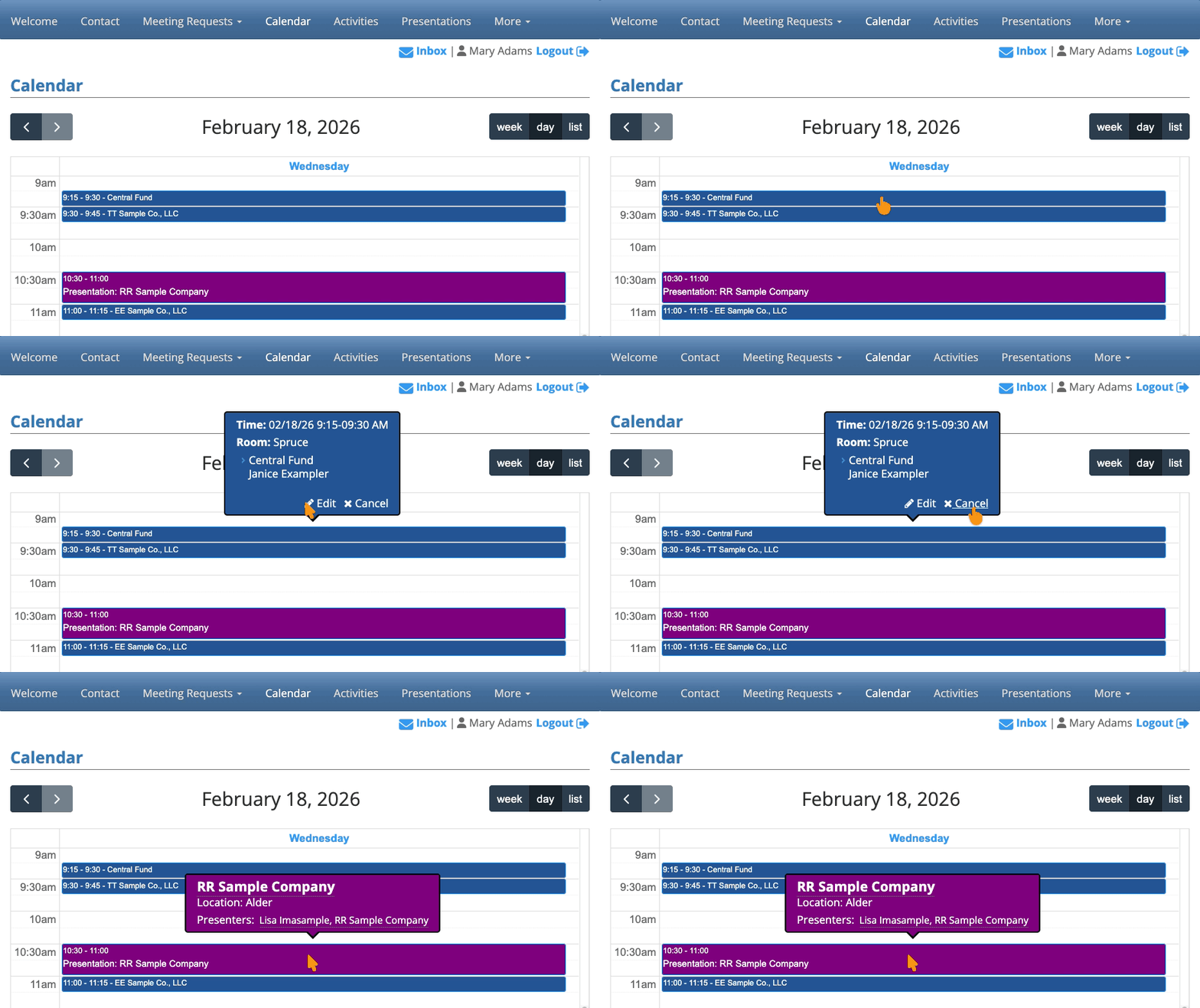
Attendees can head to the Calendar page, and click on any meeting. They’ll have access to either make changes or cancel it:
Attendees can’t update presentations or activities from this view. Instead, they would:
- Go to the Presentations tab to change presentation sign-ups.
- Go to the Activities tabs to change activity sign-ups.
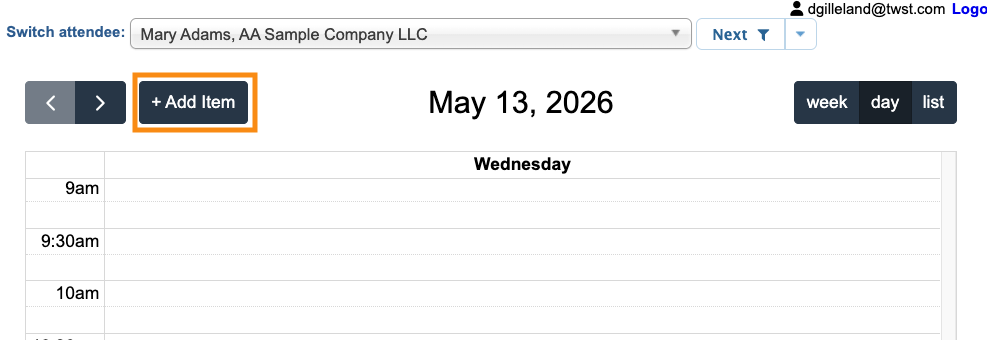
- If your event is using our Calendar Items feature, Attendees also have access to the Add Item button shown below.
They can use it to schedule their own ad hoc meetings and other events:
Admin view
Admins of an Unmoderated program can also access the Calendar, via the Attendee List:
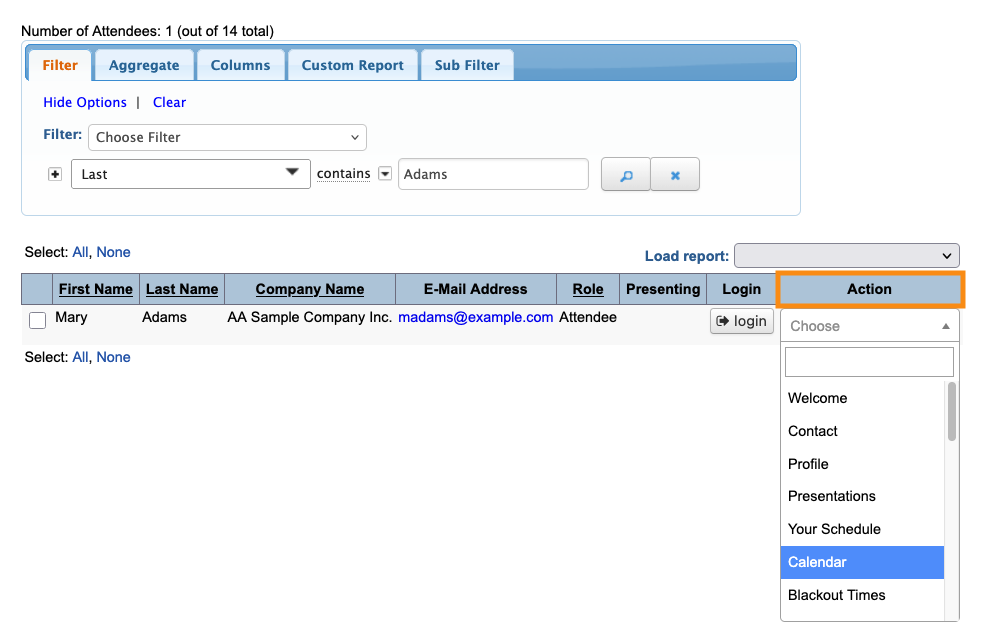
They have access to change or cancel meetings on the Attendee’s behalf:
| Presentations and Activities can’t be edited from the Calendar page. Instead, you’d go to the Presentations List or Activities List. |

