In this article:
- Which emails are copied?
- CC an Attendee’s colleague
- CC batch emails to internal Company contacts
- CC automated emails to Company contacts
- CC a Client Rep’s colleagues
- CC Client Reps on Attendee registration emails
Which emails are copied?
In the sections below, you’ll find several ways to set up additional email addresses for both event participants and your internal team.
Depending on the option, MeetMax will either CC:
- Automated emails MeetMax sends, like scheduled meeting notifications.
- Batch emails you send from MeetMax.
Some CCs are automatic, and some you can choose to include or not. See the sections below for details.
CC an Attendee’s colleagues
An Attendee at your event might want to have all of their MeetMax emails copied to an assistant or other colleague.
They can designate an email address to be copied on all communications, including:
- Registration confirmations
- Batch emails
- Schedules
To set up this CC, you’ll add a field to your Attendee registration form.
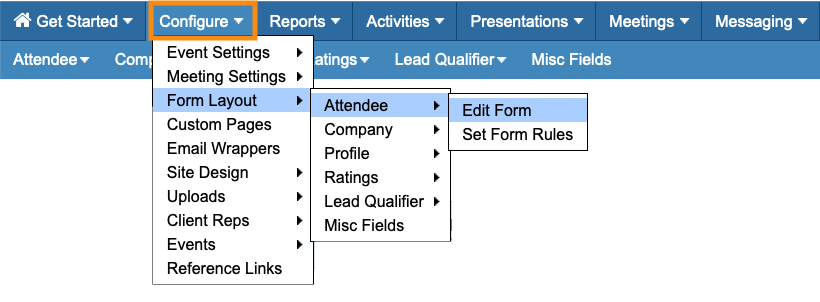
- Step 1. Head to the Attendee Form Editor:
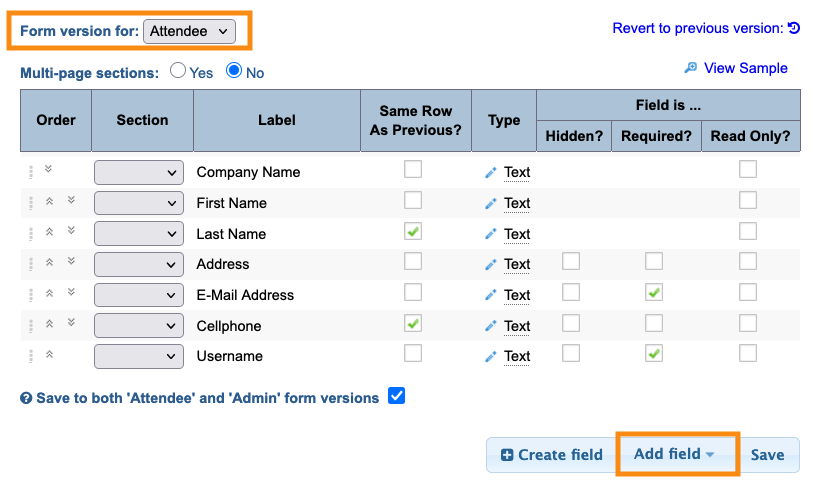
- Step 2. Make sure the Form Version menu is set to Attendee. Then click the Add field button:
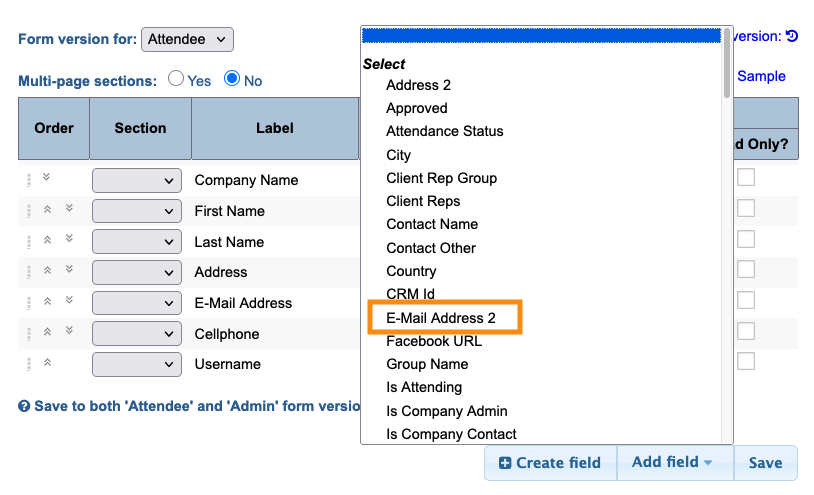
- Step 3. Choose the Email Address 2 field. You can move it to any position on the form:
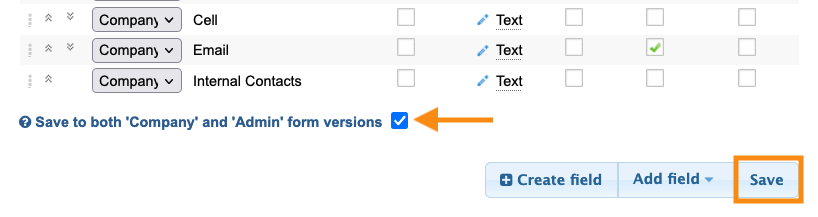
- Step 4. Make sure the checkbox is checked as shown below. Then click Save:
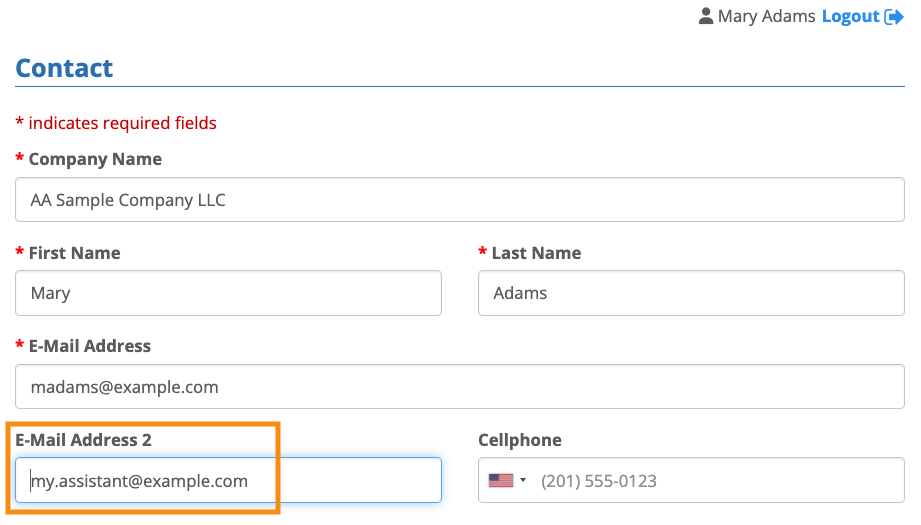
- When an Attendee registers for your event, they can now enter another email address:
CC batch emails to internal Company contacts
By default, when a Company registers for your event, that account has one main contact person.
Some Companies might want more than one contact to receive batch emails - whether they’re registered for your event or not.
To capture these contacts, you’ll add a field to your Company registration form.
- Step 1. Head to the Company Form Editor:
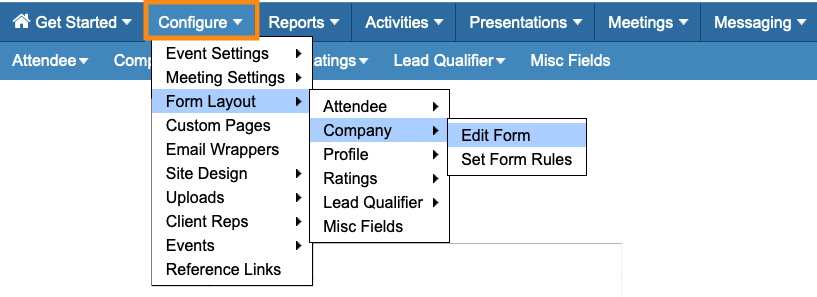
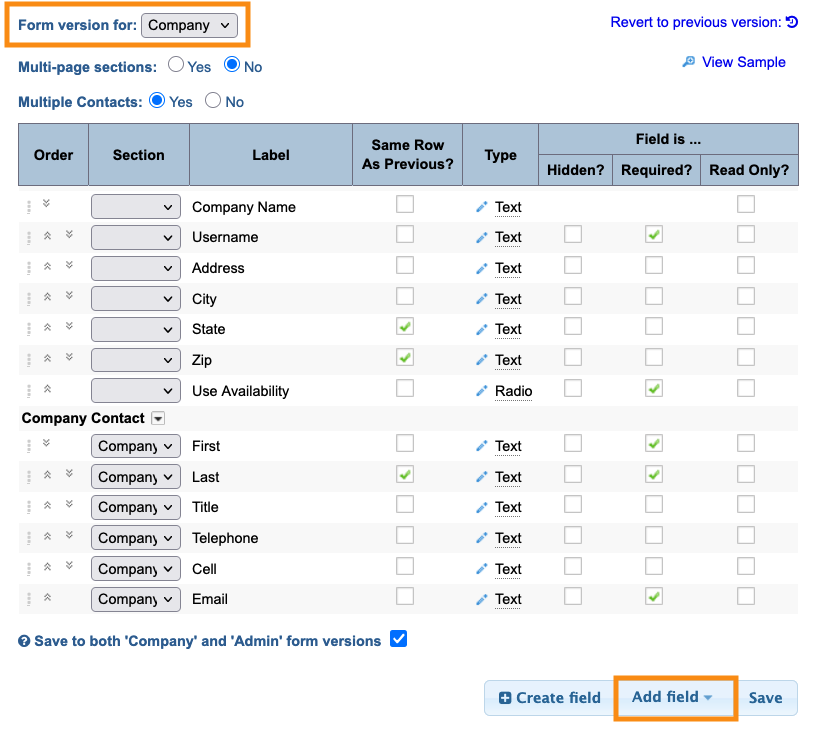
- Step 2. Make sure the Form Version menu is set to Company. Then click the Add field button:
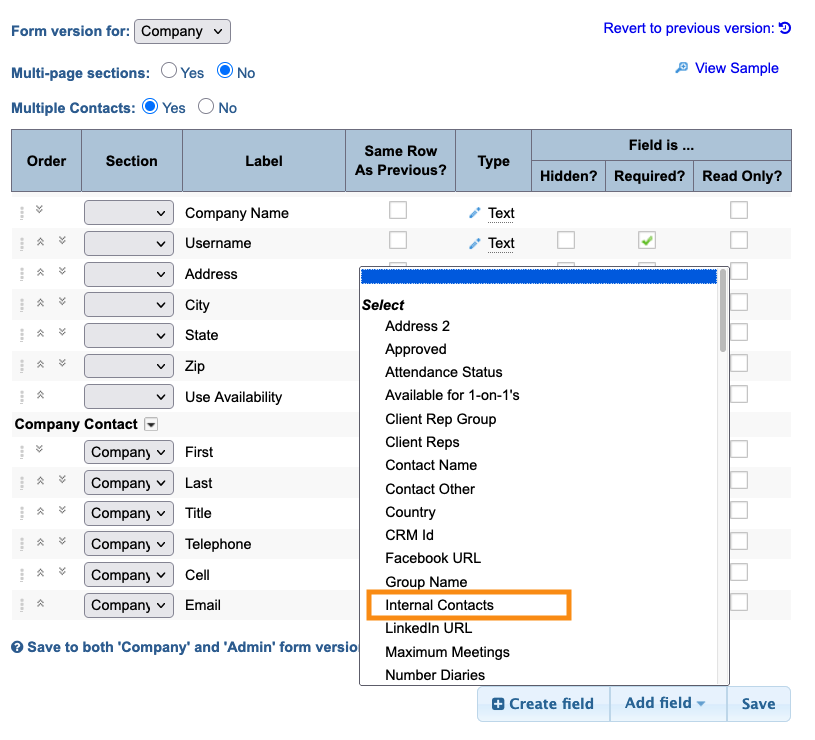
- Step 3. Choose the Internal Contacts field. You can move it to any position on the form:
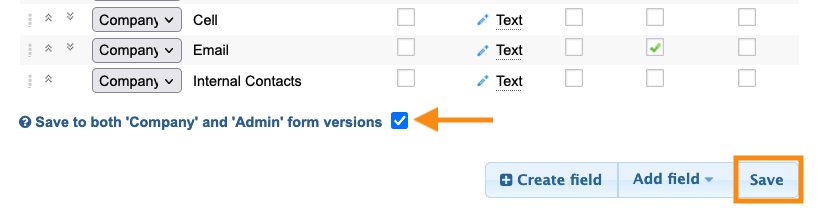
- Step 4. Make sure the checkbox is checked as shown below. Then click Save:
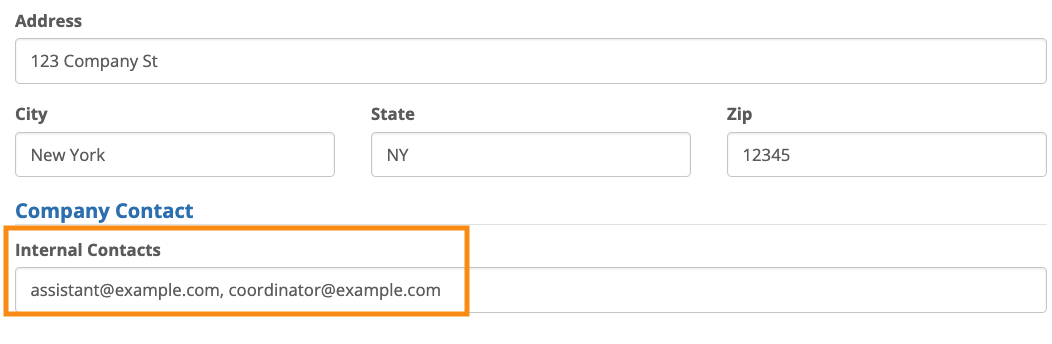
- As a Company registers for your event, they can add one or more email addresses to the Internal Contacts field. Separate them by commas:
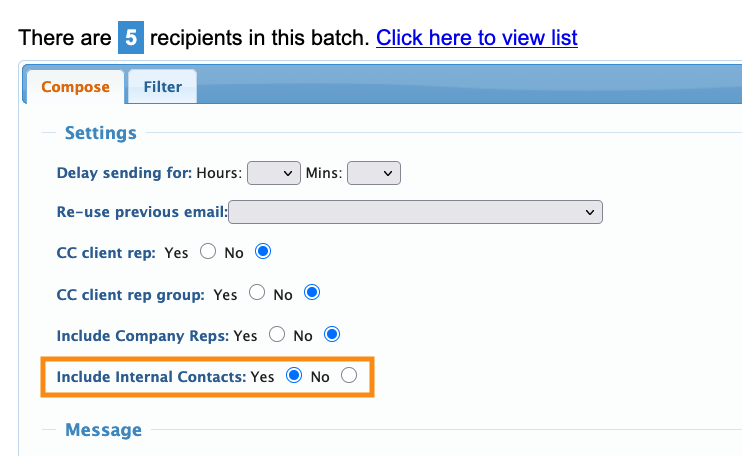
- When you send a batch email to Companies, you can set it to CC all Internal Contacts:
CC automated emails to Company contacts
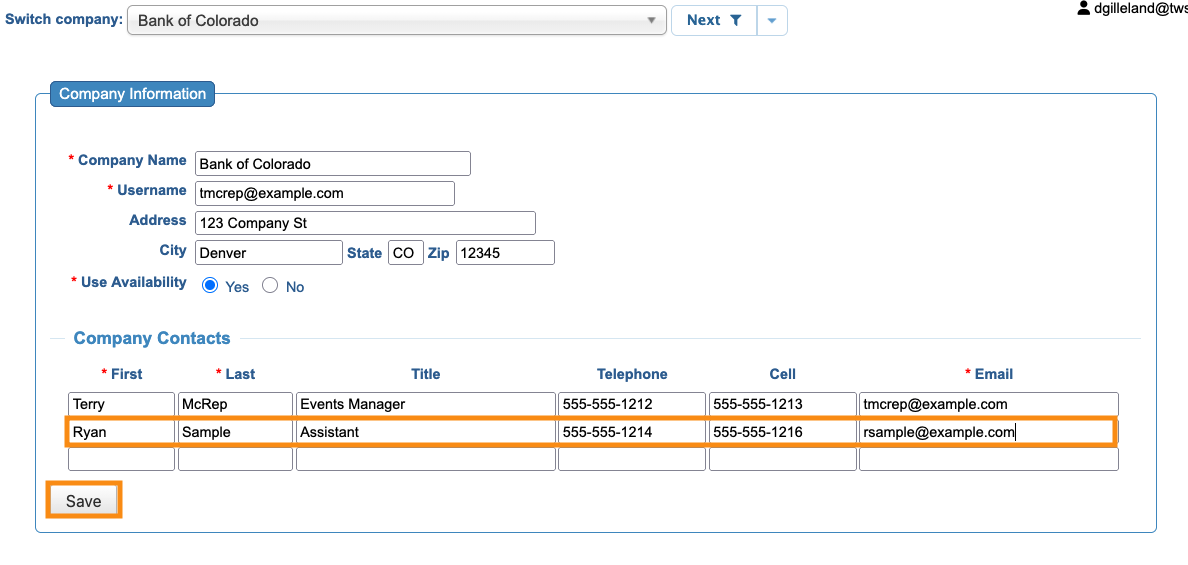
If a Company wants to CC another person on automated MeetMax emails, you can add them to the Company’s registration as an extra Contact.
| These steps also give the extra contact access to log into the Company MeetMax account. |
- Step 1. Head to the Company List:

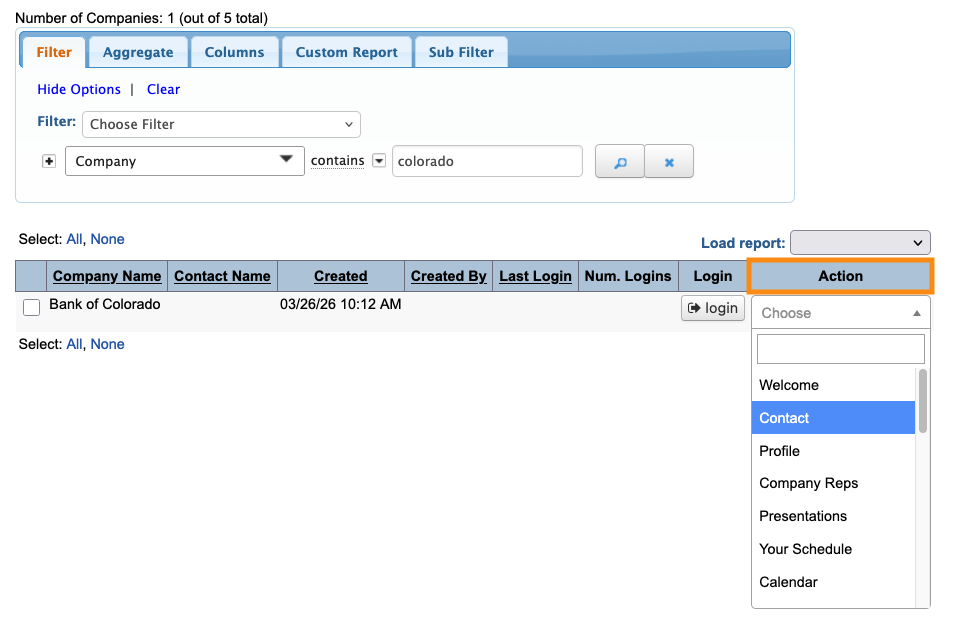
- Step 2. Filter the list to locate the Company. Then use the Action menu to choose Contact:
- Step 3. You’re now in the Admin view of this Company’s registration form.
- In the Contacts section, add the additional person:
CC a Client Rep’s colleagues
Members of your Admin team (known as Client Reps in MeetMax) often need to share event information with their colleagues.
- This setting copies all automated emails to these colleagues.
- If you CC a Client Rep on any batch email, we’ll also send the colleagues a copy.
When you’re adding a Client Rep to MeetMax, use the Additional Emails field to add as many secondary addresses as you need. Separate them by commas:
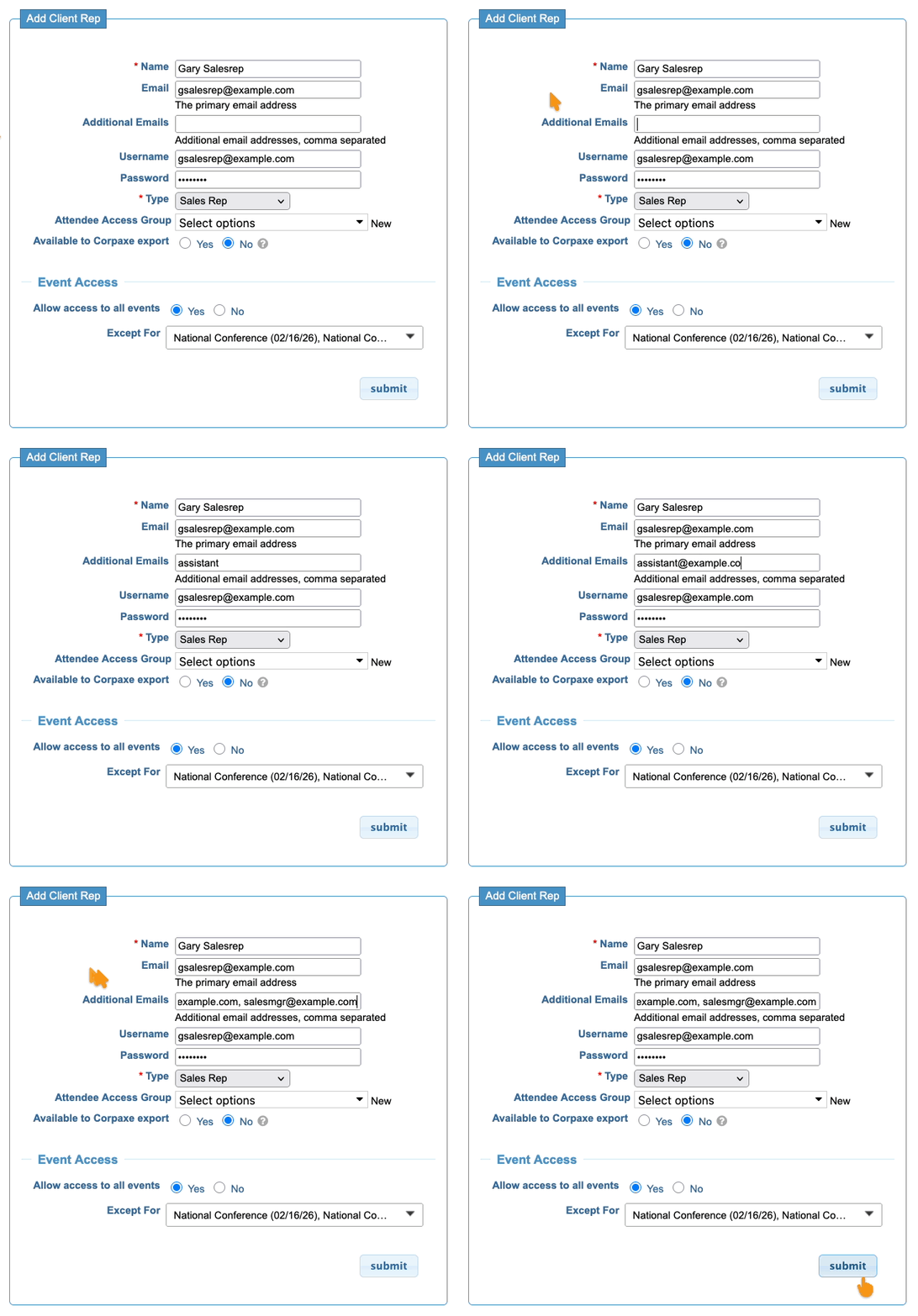
| You can also edit any existing Client Rep to add these emails. |
CC Client Reps on Attendee registration emails
Some events assign Attendees to specific Client Reps. You can:
- Assign one Attendee to one Client Rep
- Assign one Attendee to many Reps
- Create Client Reps Groups, and assign Attendees to them
You can then set MeetMax to cc registration-related emails to all assigned Client Reps.
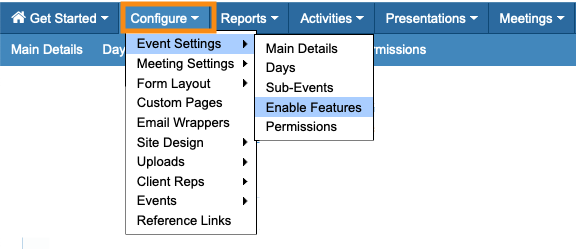
- Step 1. Head to the Configure tab. Choose Event Settings, then Enable Features:
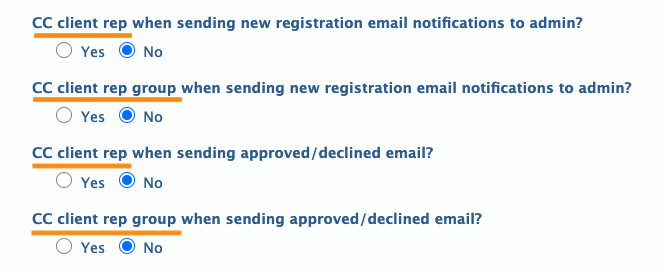
- Step 2. Choose the settings that apply to your event, and set it to Yes:
- • New registration email notifications: You can cc individual Client Reps, or a Client Rep group.
- • Approved/declined email: If your event is using registration approvals, you can cc these notifications to individual Reps or a Client Rep group.
- Step 3. Scroll to the bottom of the page and click Save: