

In this article:
- Where is it?
- How does it work?
- Sending a batch of calendar invitations
- Updating calendar invitations
- Canceling a calendar invitations
- What Attendees see
Where is it?
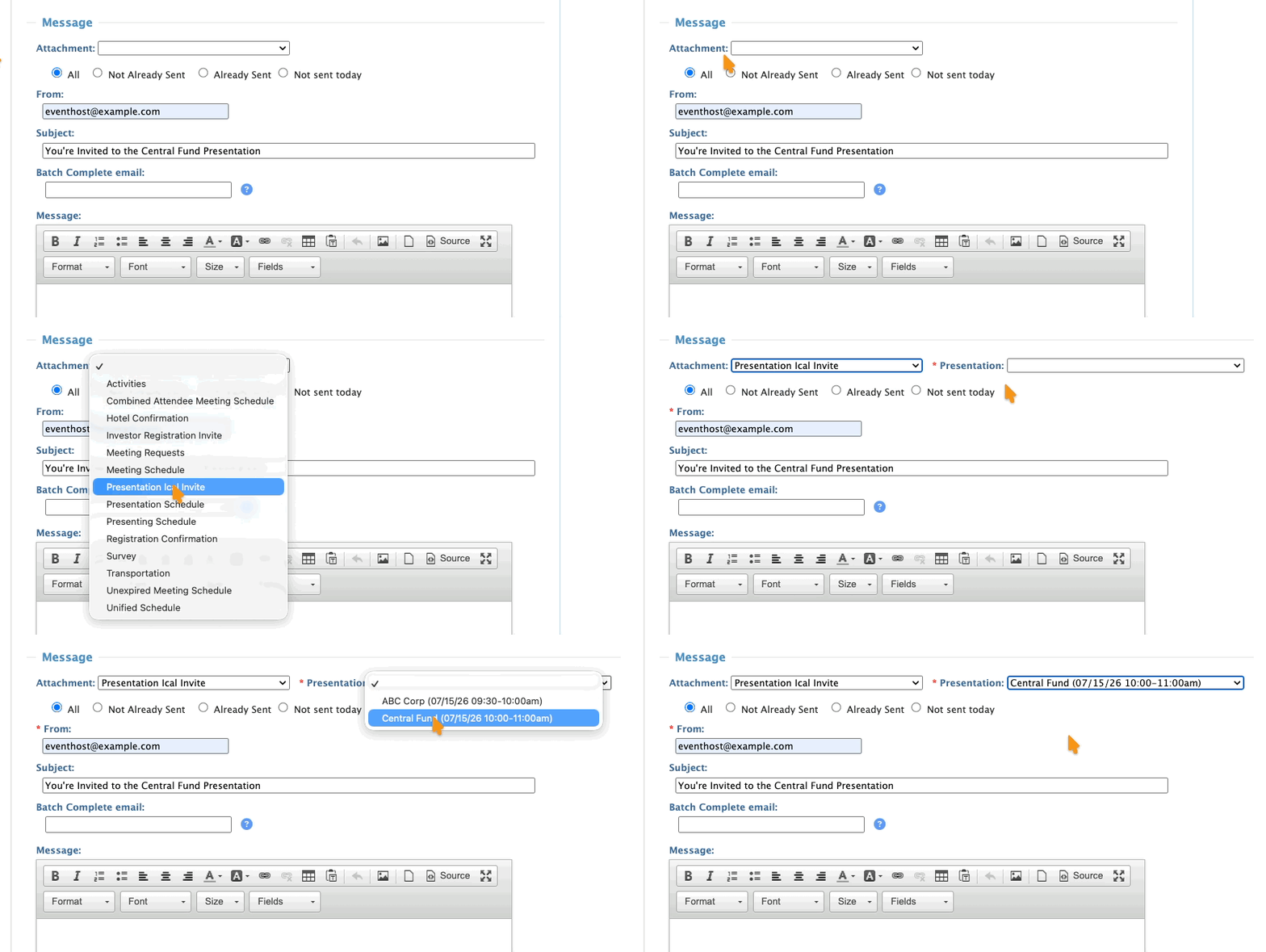
Once you’ve created a Presentation, you’ll be able to send calendar invitations via the batch emailer:
How does it work?
This feature is designed to make your MeetMax presentations more easily visible to the participants who’ve signed up.
You’d first collect sign-ups for the Presentation in MeetMax. Then you’d send those people a calendar invite.
That way, they’ll see the session they’ve committed to, without having to log into MeetMax. Now it’s easier for them to remember to attend!
- Calendar invites are available for both in-person and virtual presentations.
- Each invitation represents one presentation. Currently, MeetMax doesn't support invites for multiple presentations at once.
- You can send invitations to presentations on any future date.
- You can send invitations to all Attendees, or filter the Attendee List to a specific group - just like you would with any batch email.
MeetMax then sends the invitation in two ways:
- Email notice: Contains the date and time, and any other message you add. (See a sample below.)
- Calendar invitation: The presentation also appears as a proposed event on the participant’s external calendar. They can accept, decline, or respond with a “Maybe.”
| To receive these invitations, an Attendee must be using the same business email address on their MeetMax account and external calendar. | |
| While MeetMax will send the invitation, it’s possible that an Attendee has configured their external calendar not to accept incoming invitations. The email notification will reach the Attendee in that case, but they won’t receive any calendar entry. |
Sending a batch of calendar invitations
We’re assuming here that you’ve already added the presentation to MeetMax - whether it’s in-person, a webcast, or a MeetMax Webinar.
- Step 1. Head to the Attendee List:

- Step 2. Choose the recipients for this invitation. There are two approaches:
- • Inviting all registered Attendees: If your event is hosting one presentation or a few, this is a good option.
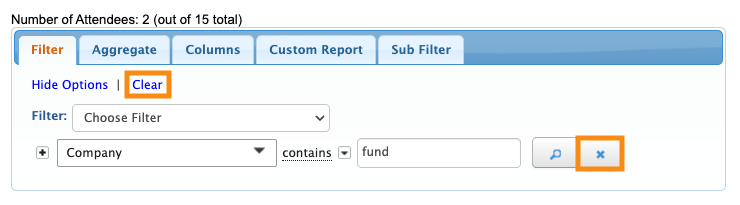
- In the Filter tab, make sure all filters are cleared so you’re sending to the entire Attendee List:
-
- • Inviting Attendees who’ve expressed interest in the presentation: If your event has multiple presentations, your attendees can express interest ahead of time via MeetMax.
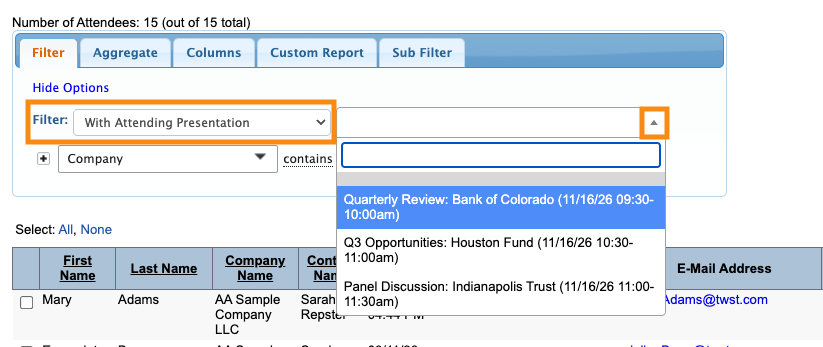
- If you’re sending to those who’ve expressed interest, set the Filter menu to With Attending Presentation. Then choose the presentation from the menu:
-
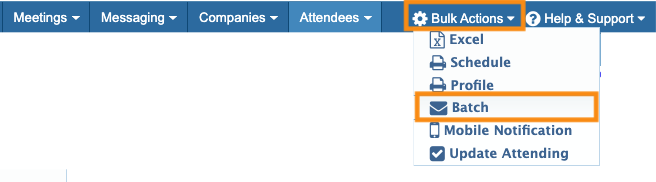
- Step 3. When you have the view of the Attendee List you need, head to the top right corner of the page.
- Use the Bulk Actions menu to choose Batch:
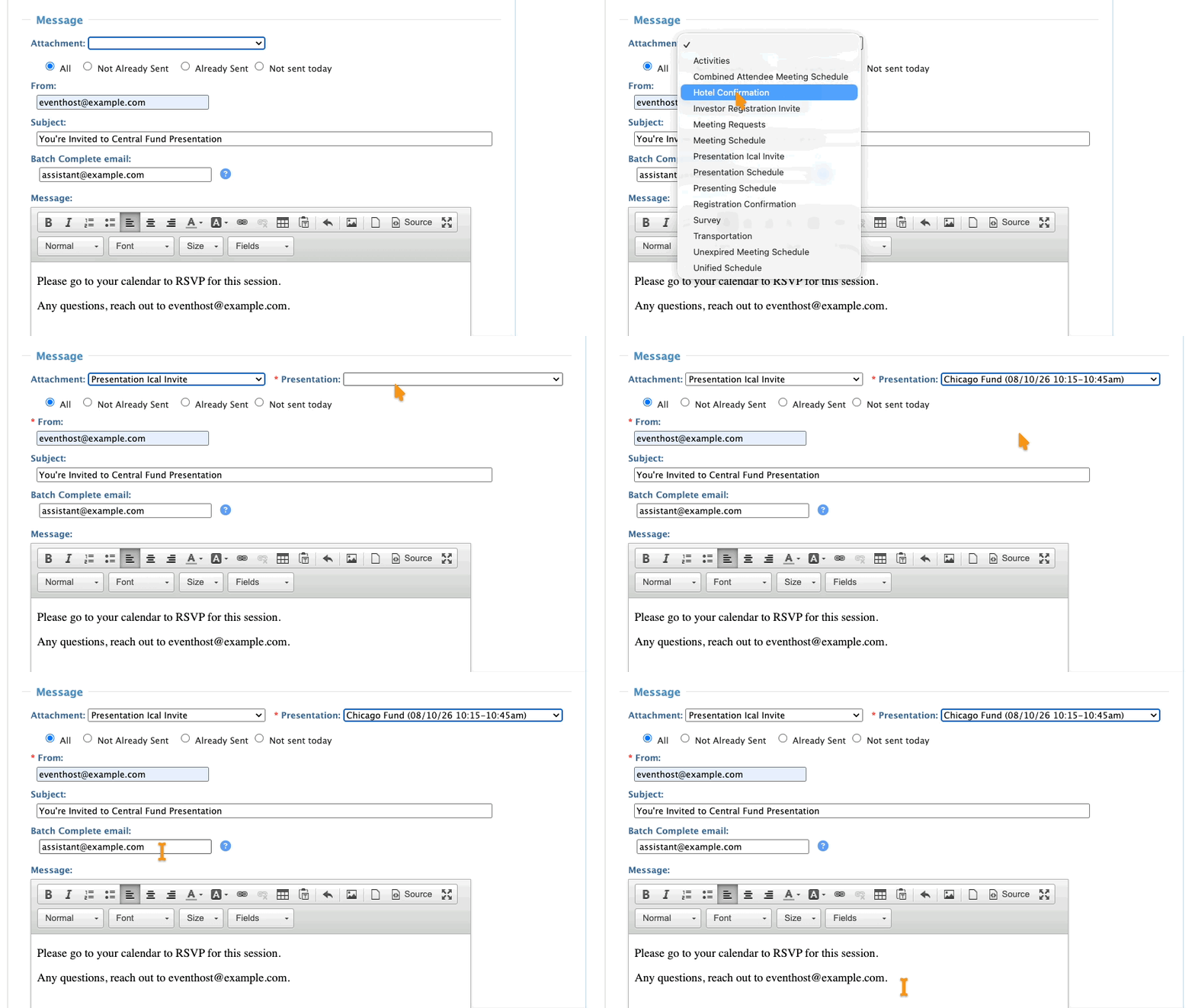
- Step 4. You’re now in the batch emailer. Head to the Attachments menu, and choose Presentation iCal Invite. Then choose the presentation you want to send invitations for.
- Step 5. Add a Subject line.
- If you’d like a notification when the batch send is finished, add an email address to the Batch Complete email field.
- Add an additional Message if you like:
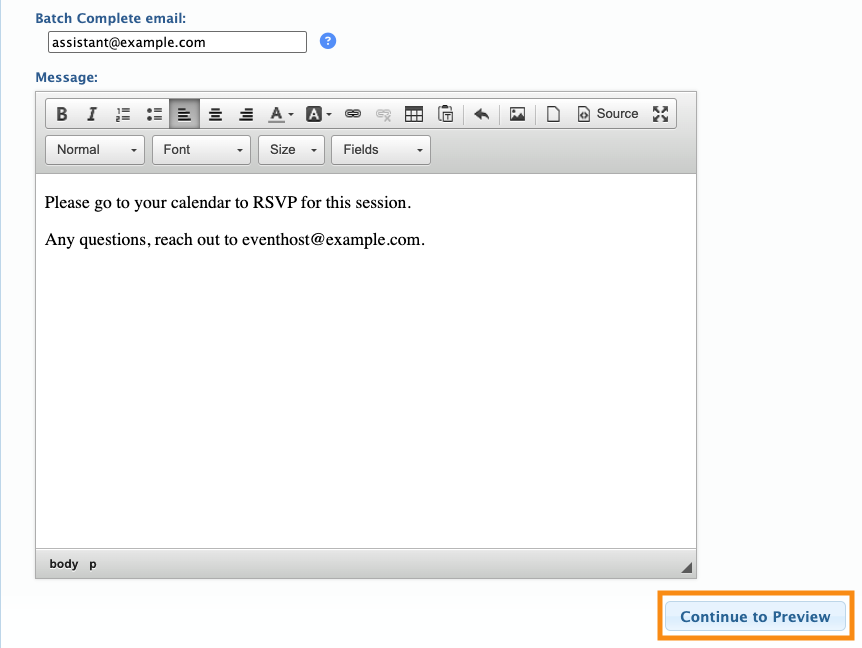
- Step 6. Click Continue to Preview:
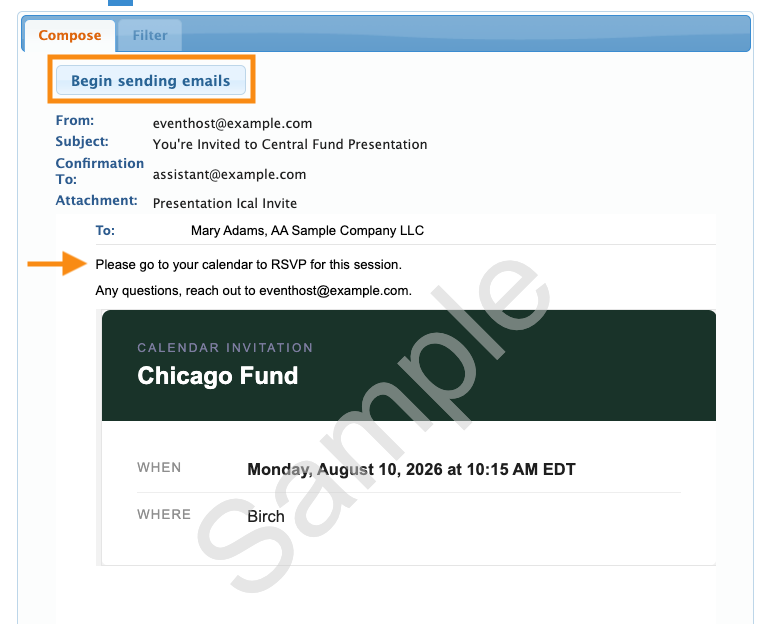
- Step 7. You’ll see a preview of each invitation email. If all looks correct, click Begin Sending:
- MeetMax sends emails in batches of 50. At the end of each batch, you’ll be prompted to send the next one:
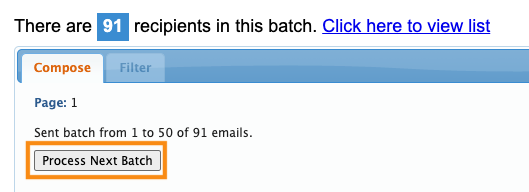
- If you’ve added an address to receive the Batch Complete email, MeetMax will email a notification for each batch of 50.
-
This email will include your event's email wrapper.
Updating calendar invitations
If you change the date/time of a presentation, keep in mind that external calendars won't update automatically.
You'll need to re-send the Presentation iCal Invite attachment to the same Attendees. Use the same steps in the section above.
This send will:
- Notify everyone of the change by email.
- Update everyone’s external calendar (assuming they haven’t already declined the invitation).
Canceling a calendar invitation
If you need to cancel a presentation and you’ve already sent calendar invitations, we recommend these steps:
- Step 1. Edit the Presentation to include the word “Canceled” in its title. Leave it in place for now.
- Step 2. Use the batch emailer to re-send the Presentation iCal Invite attachment. That causes everyone’s calendar entry to reflect the updated title.
- Include a note in the batch email about the cancellation as well. That way, all Attendees will see a clear cancellation message in both email and their calendar.
- Step 3. After allowing some time for everyone to see the message, delete the Presentation from MeetMax.
What Participants see
In addition to the email notice shown above, each Attendee will see the proposed event on their external calendar.
The calendar event automatically includes these details:
- Date
- Start and end times
- Location (virtual or in-person)
Adding a presentation description
While you’re creating the presentation in MeetMax, you can add information to the Description field.
If you want to add some formatting, this field supports Markdown:
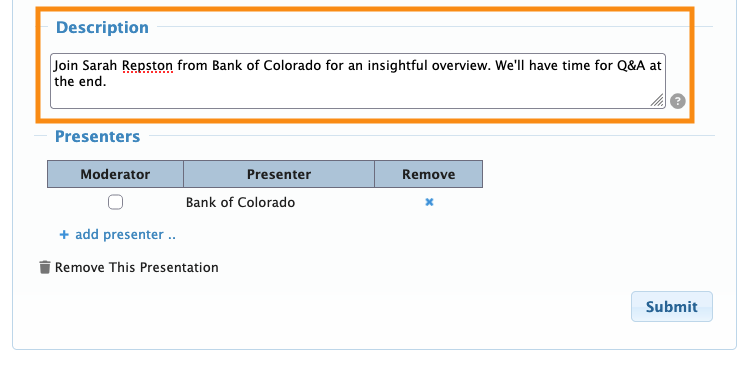
The description appears in the calendar invitation participants receive:
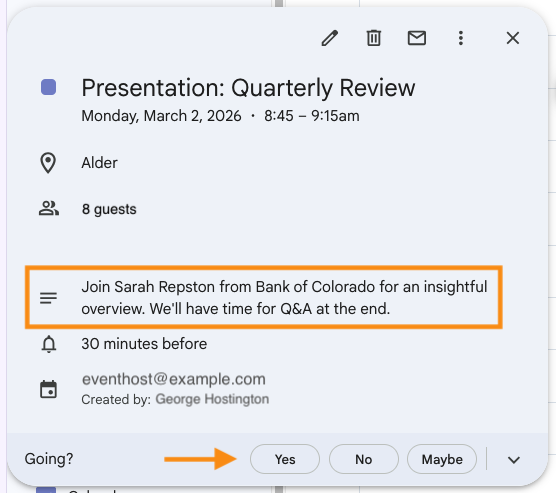
The Attendee then indicates whether they’ll attend or decline the invitation. (Different calendar software will present these options a bit differently.)
| When the Attendee accepts or declines, this reflects only in their external calendar. The choice does not transmit to MeetMax. | |
| When you send an invitation, it reflects your event’s time zone. When an Attendee receives the invitation, their calendar provider will convert the time to their local time automatically. |
Access links for virtual presentations
If your presentation is virtual, participants will log into MeetMax to find the webcast or Zoom link.
The Calendar invite doesn’t contain any access links, but you can always add instructions to:
- Your presentation description.
- The email notification that accompanies the invite.

