

How can I see group meeting attendance?
MeetMax offers several ways to see who attended group meetings. Choose the one that best meets your needs.
| We’re assuming here that you’re running a Moderated meeting program, where Attendees request meetings with Companies. | |
| We’re also assuming that you’ve taken attendance manually in MeetMax. |
Meetings List (broadest report)
This option shows you the attendance for all meetings at your event. Once you export the report, you can filter it to see only the group meetings.
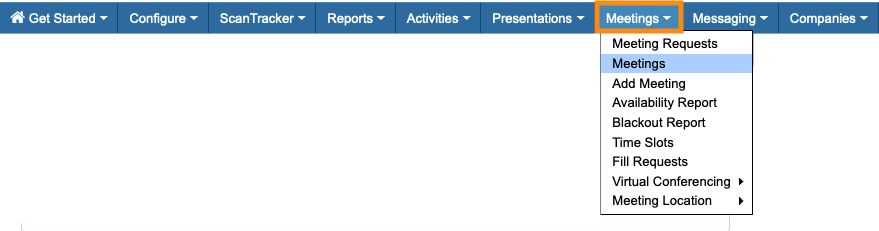
- Step 1. Head to the Meetings List:
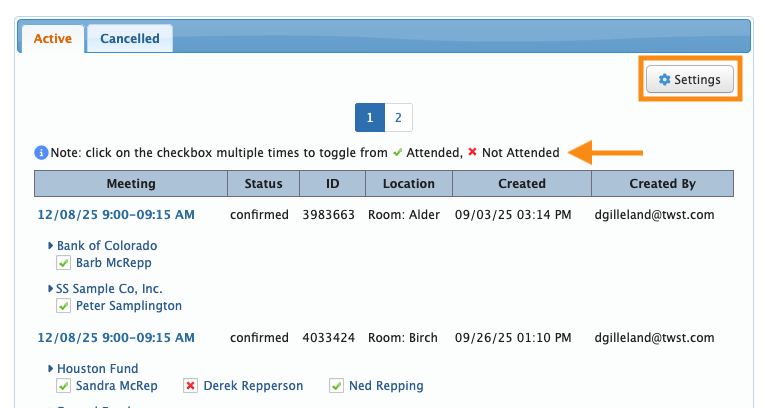
- Step 2. You should see the check marks and X marks indicating attendance.
- You’ll need to add some data to your exported report. Click the Settings button:
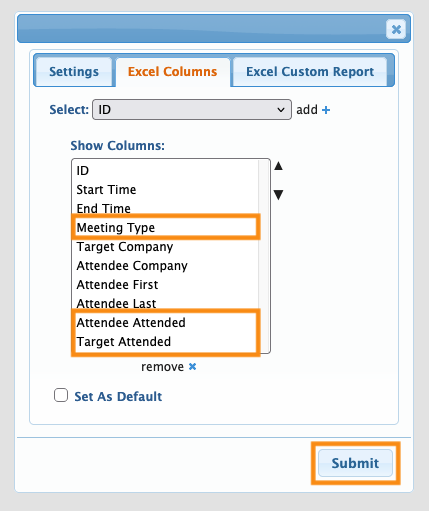
- Step 3. In the pop-up, head to the Excel Columns tab. Add any columns you need, but be sure to use the three highlighted below. Click Submit:
-
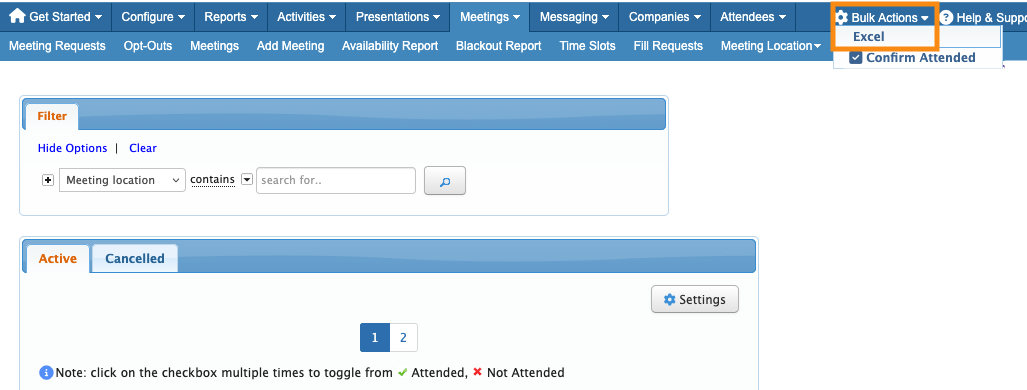
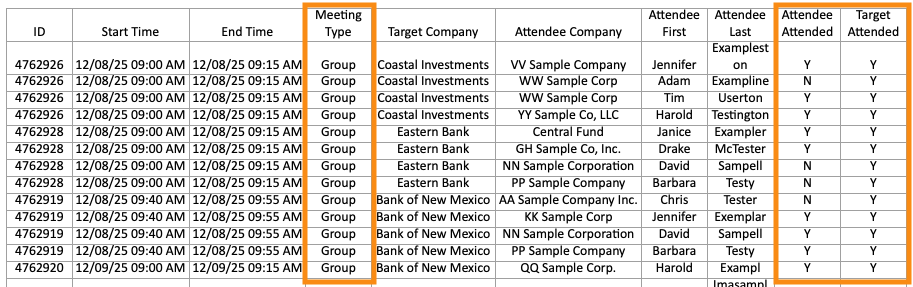
In this report, the Attendee is the person who requested the meeting. The Target is the person or organization that received the request. The Attendee Attended and Target Attended columns give you a detailed view of who attended the meeting. - Step 4. Now, head to the top right corner of the page. In the Bulk Actions menu, choose Excel.
- You can open the downloaded file in any spreadsheet software:
- Step 5. In your spreadsheet software, sort by Meeting Type. That gives you a view of your group meetings:
Individual Company schedules
If you just want to see one Company, and how well their group meetings were attended, use this method.
- Step 1. Head to the Company List:

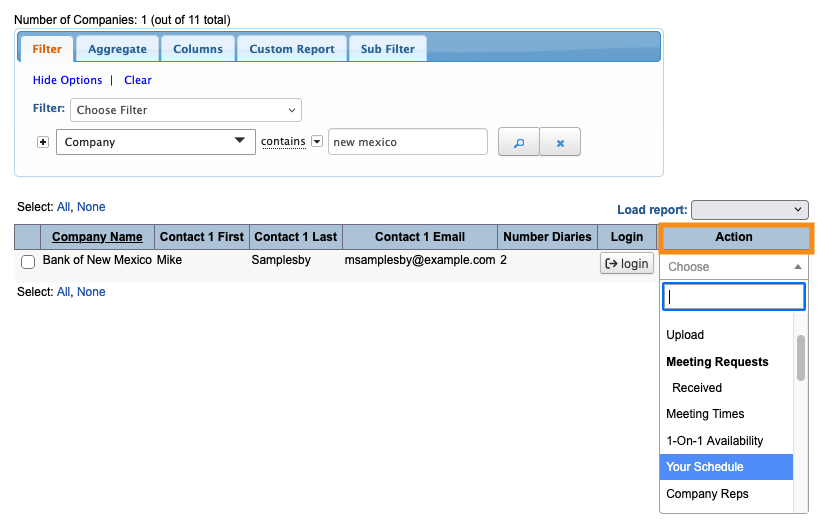
- Step 2. Filter the list to locate the Company you need.
- Use the Action menu to choose Your Schedule:
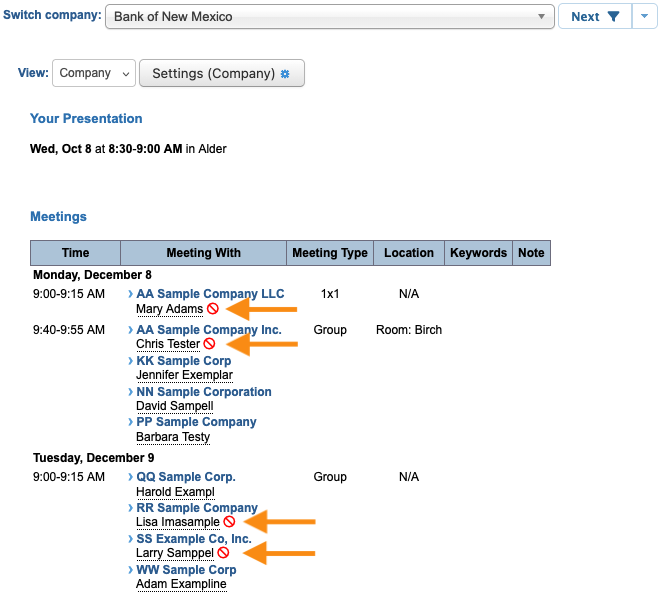
- Step 3. On the Your Schedule page, you’ll see no-shows clearly marked:
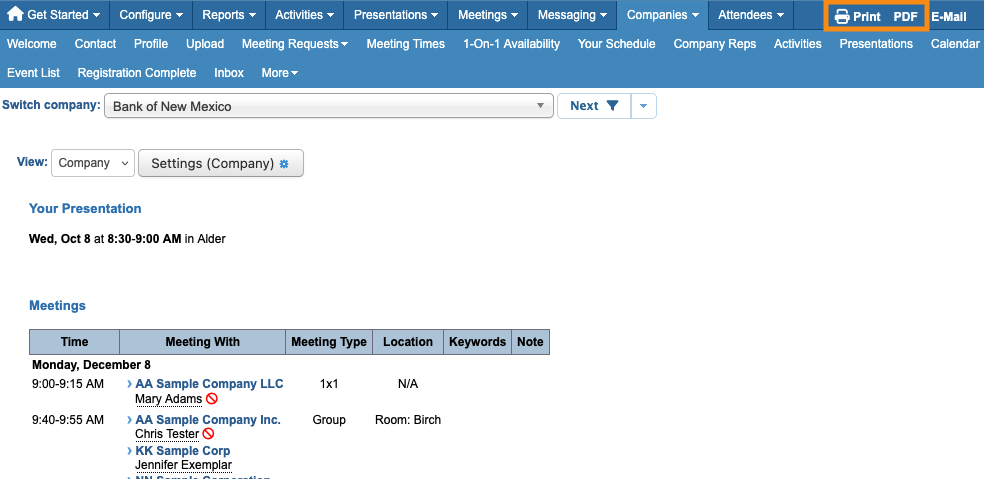
- Step 4. Head to the top right corner of the page. You can print the schedule or save it as a PDF:
Attendee/Company List Filters
You can also monitor a participant’s overall attendance from the Company and Attendee Lists.
- Step 1. We’ll show this process in the Attendee List here, but you can also do this from the Company List:

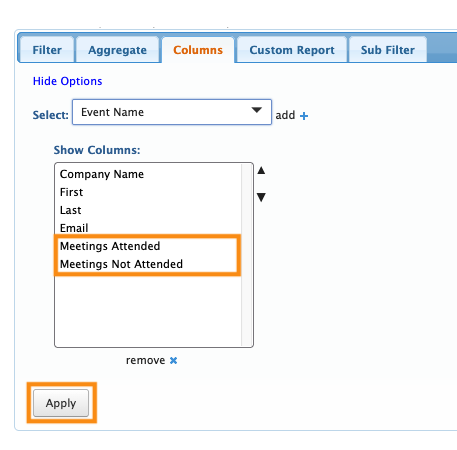
- Step 2. Head to the Columns tab. Add any columns you like, but be sure to include the two highlighted below.
- Click Apply to save:
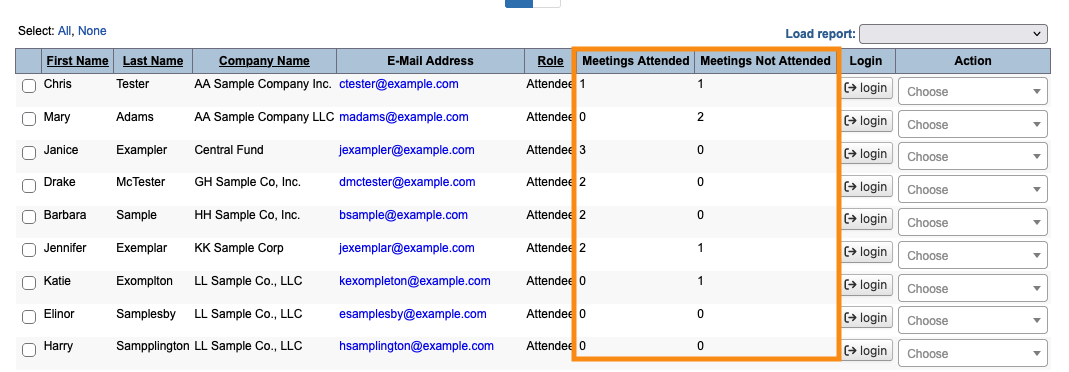
- Step 3. Head back to the Filter tab. You’ll now see the total number of meetings each Attendee attended, and the total number where they were no-shows:
Learn more:
- Tracking meeting attendance
- Working with the Meetings List
- Working with the Company List
- Working with the Attendee List

