


In this article:
- Where is it?
- Grid view vs. Row view
- Accessing the display settings
- Show tracks and Show track colors
- Show description
- Show room
- Show type label
- Show Webinar button
- Show Rate button
- Show presenters
- Hide past presentations
- Company presentations
Where is it?
Participants see the Presentations page when they log into MeetMax:
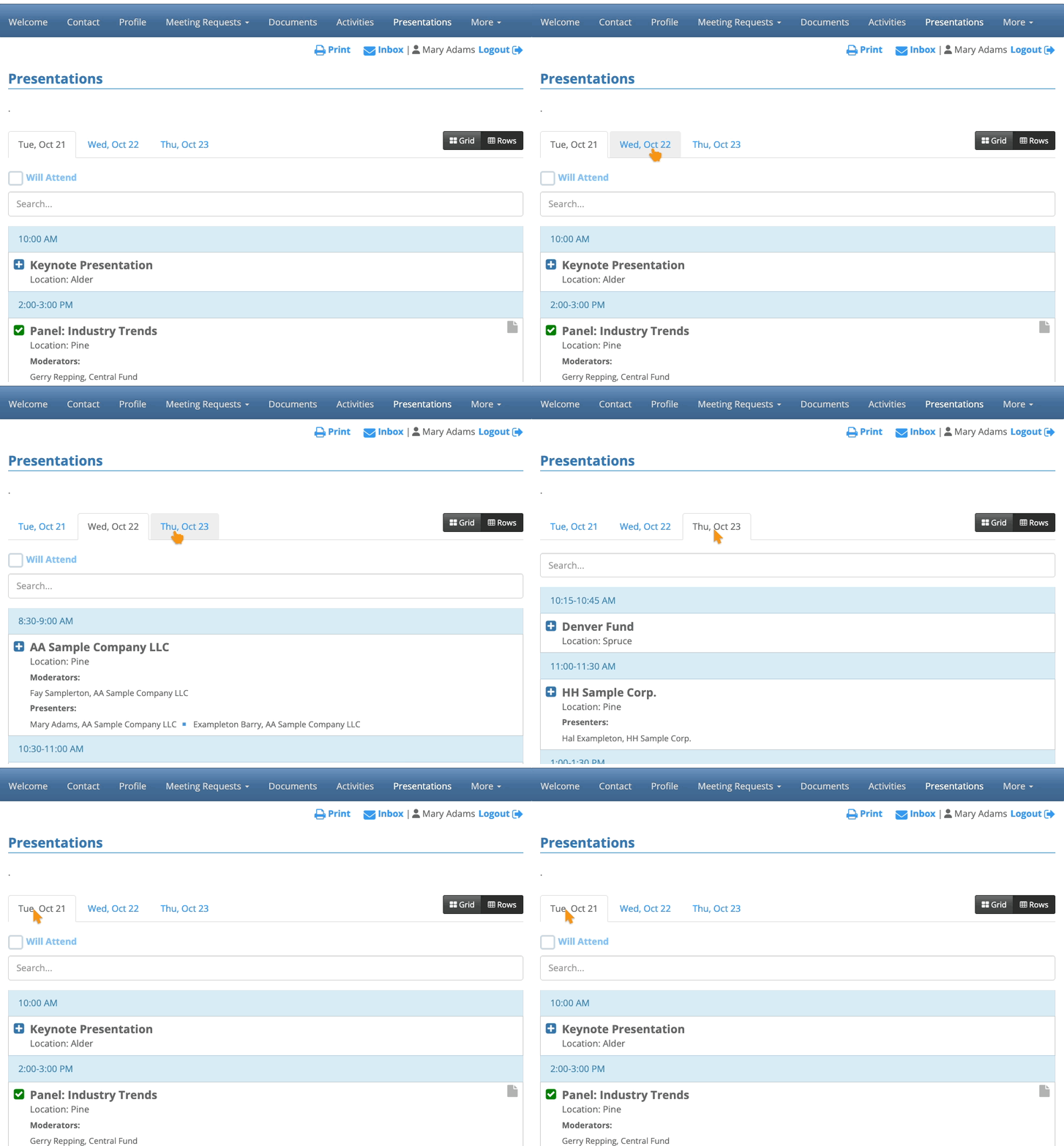
| This page will be branded for your event, and contain the menu options you’ve enabled. |
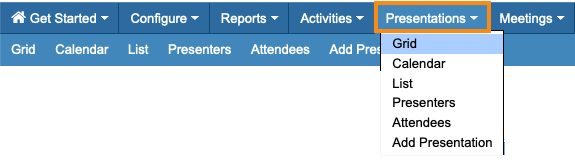
As an event Admin, you can access this page’s settings via the Presentation Grid:
Grid view vs. Rows view
The Presentations page has two layout options. Depending on your event, participants will have access to one or both of them.
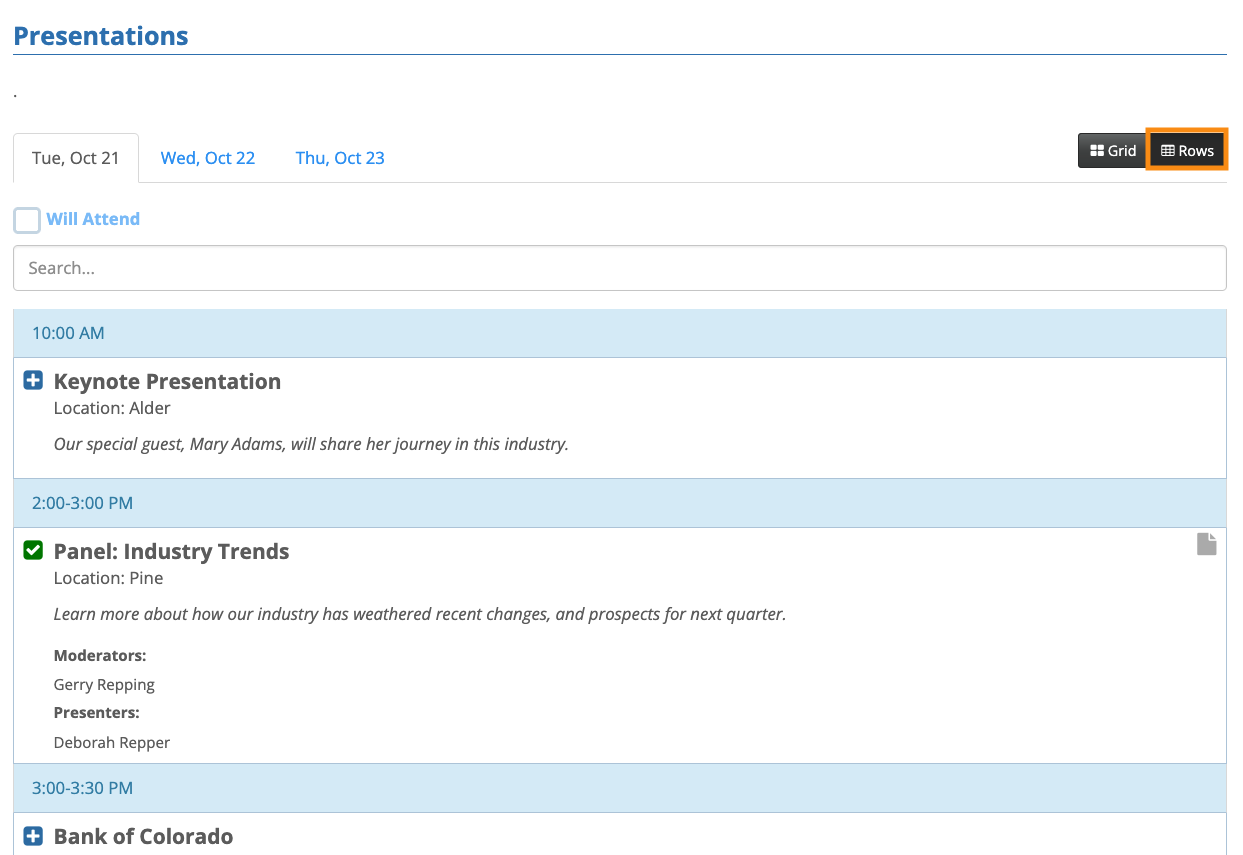
- Rows View: This is a more detailed layout, with each day’s presentations arranged in a separate tab:
- Grid View: This is a more compact view, arranging presentations by room. Each event day has a separate tab:

| Most of the customizations below apply only to the Rows view, except where noted. |
Accessing the display settings
All of these settings are optional. You can use as many or few of them as you like.
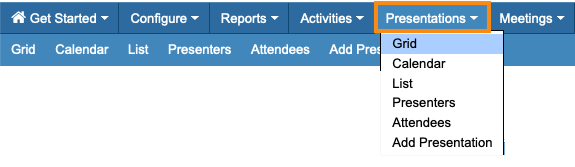
- Step 1. Head to the Presentations tab. Choose Grid:
- Step 2. On the Presentation Grid page, click the Settings button:

- Step 3. You’ll see a pop-up of settings. We’ll cover each one below.
Show tracks and Show track colors
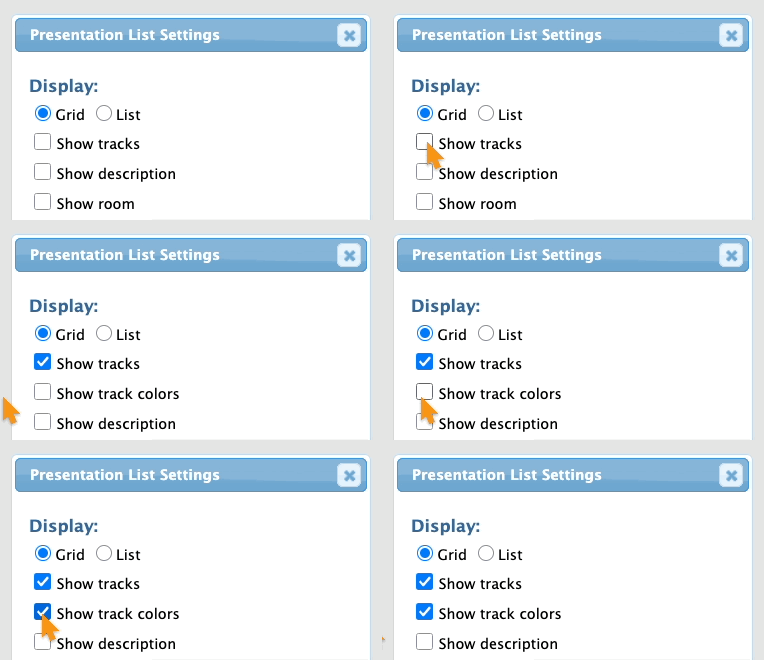
If your event has presentations organized into tracks, this setting makes those tracks visible to participants.
You can choose to include the tracks, and optionally assign a color to each track. (Our Support team can customize these colors to your brand.)
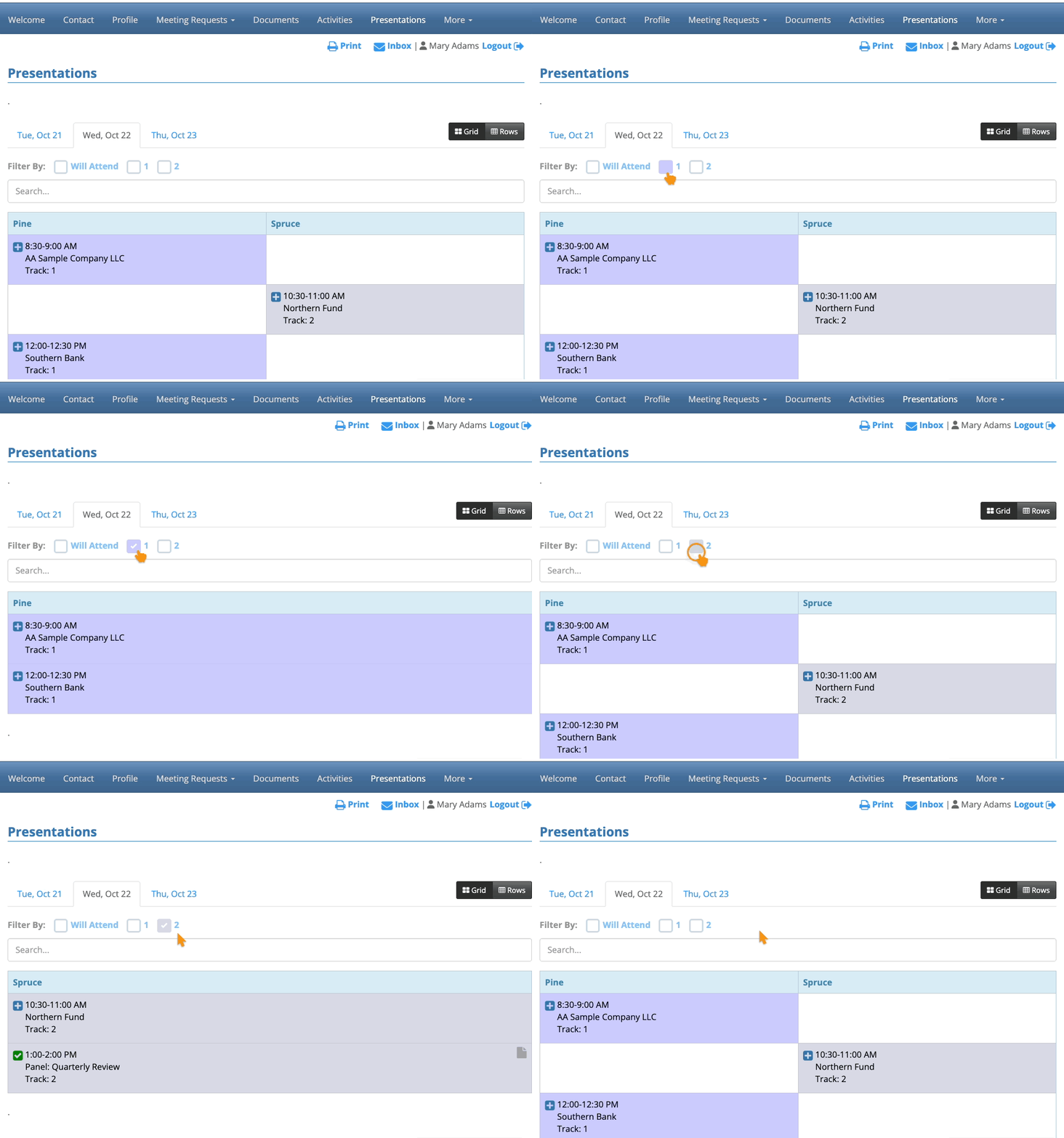
Logged-in participants can then sort both the Grid and Rows view by track:
Show description
If you want participants to see description text about each presentation, enable this setting:
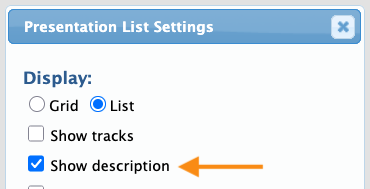
On the Rows view, you’ll see the descriptions you entered for each presentation. This setting doesn’t appear on the Grid view:

Show room
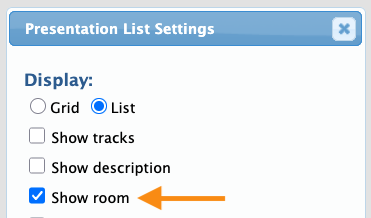
The Grid view always displays the rooms your presentations are in - as column headings. (See the examples in the sections above.)
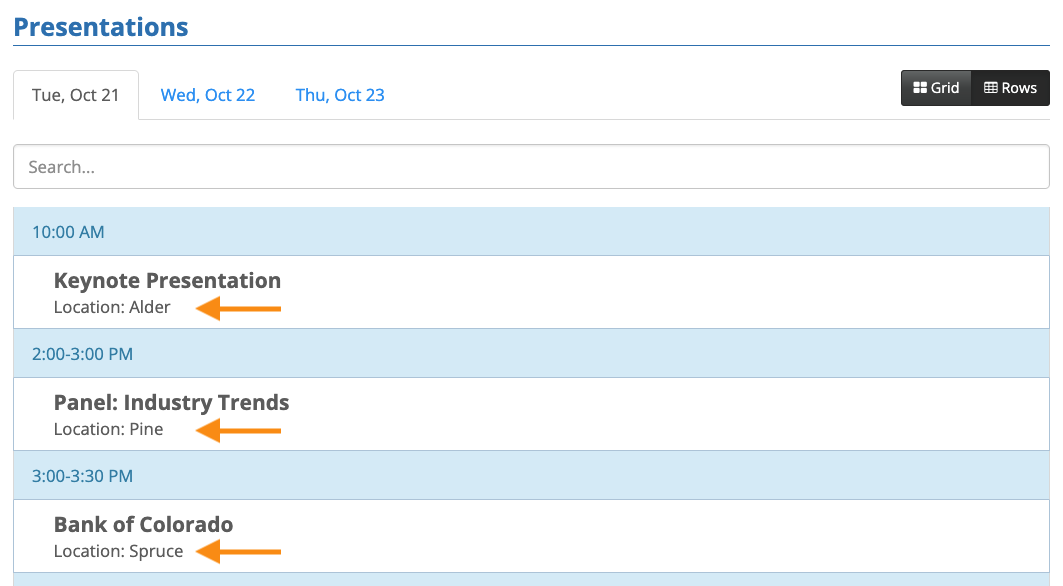
If you want to list the locations in the Rows view, enable this setting:
Show type label
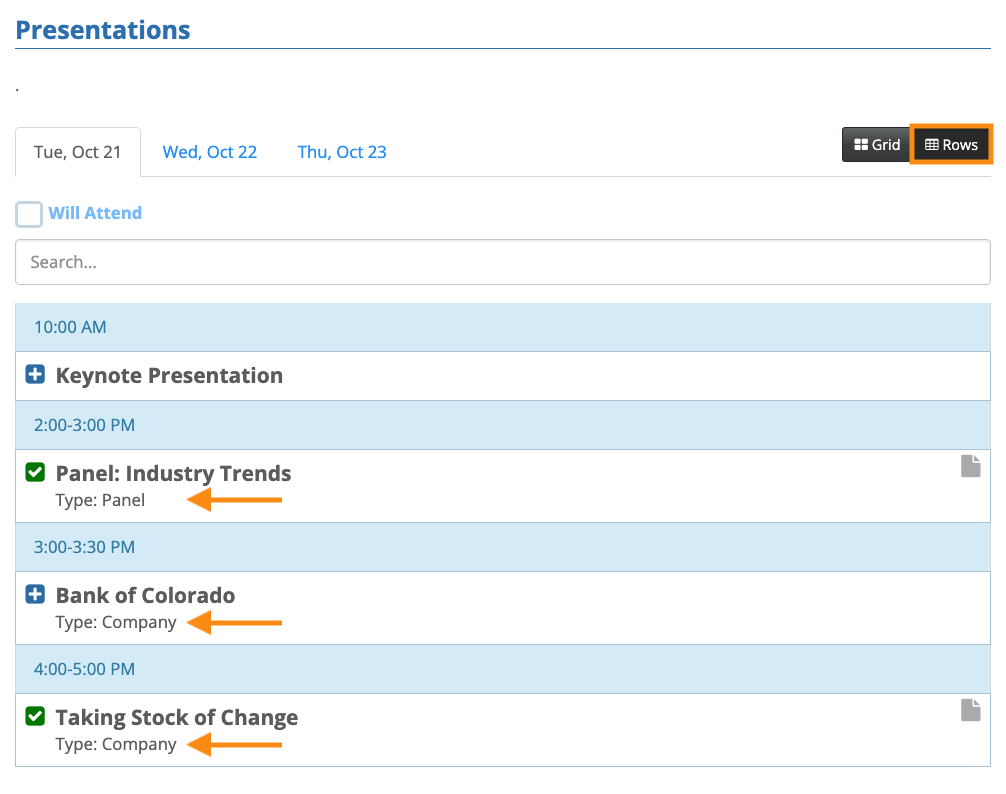
When you add presentations to MeetMax, you have the option to create Type labels. These are useful if you want to organize your event’s presentations into different types, like panel discussions, slide presentations, facilitated discussions, and so on.
If your event is using type labels, you can opt to display them in the Rows view. When you click the Show type label checkbox, you’ll then see options to enable any of your existing type labels:

Show Webinar button
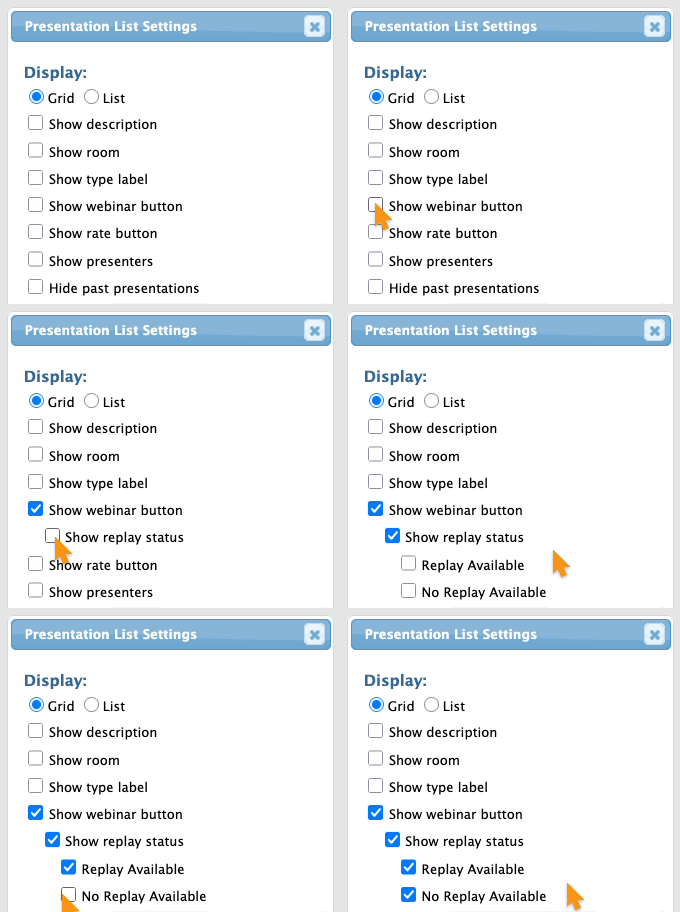
If your event is enabled for webcast presentations, you’ll see this setting. You can choose whether to display a Webinar button on the Presentations page, and whether to indicate availability of replays:
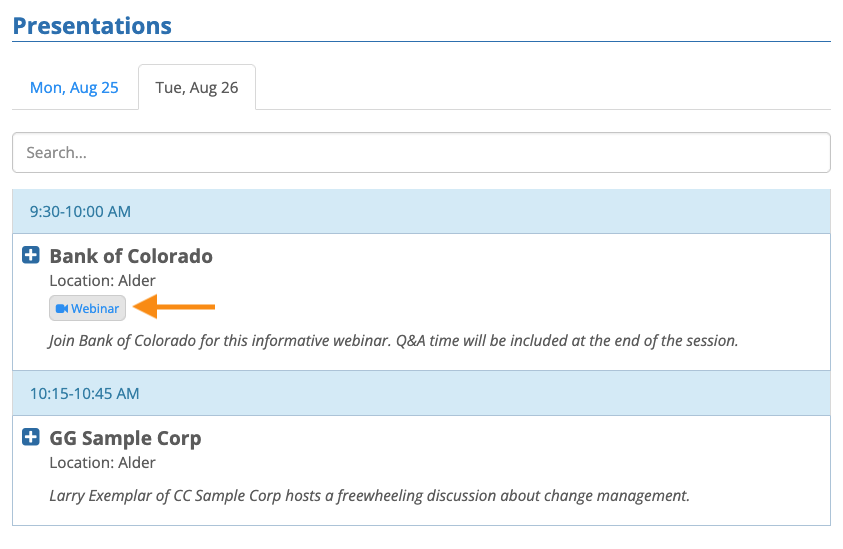
Keep in mind that your participants may also have a Webcasts page visible in MeetMax. The Show Webinar button would point to that page, and serve as a secondary entry point:
Show Rate button
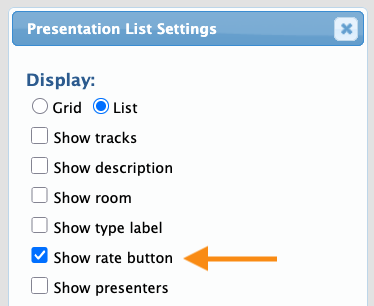
If you want to use Presentation Ratings at your event, use this setting to make them visible:
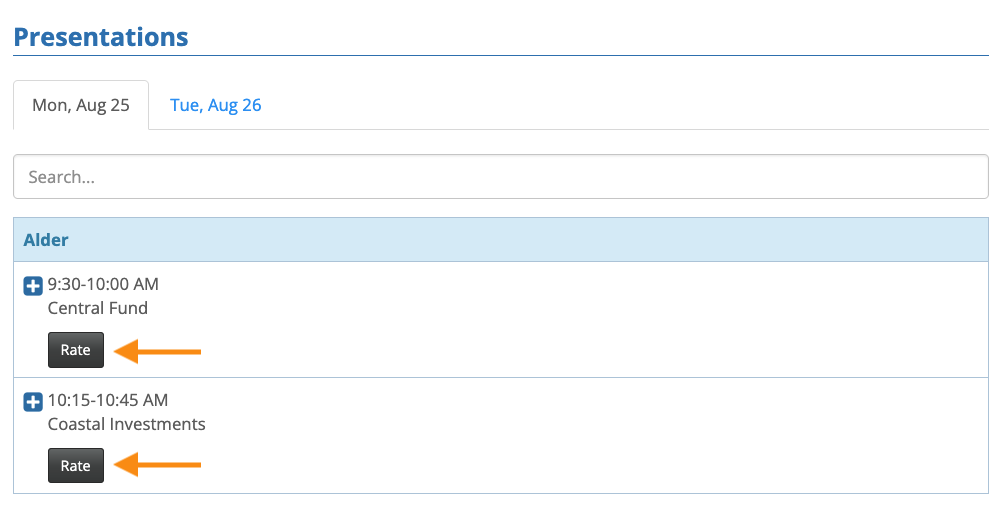
Then, once a presentation has started, the Rows view will show a Rate button. Participants can click to leave a rating:
Show presenters
For many events, you’ll want to include more details about who’s presenting. When you enable this setting, it opens a new menu of options:
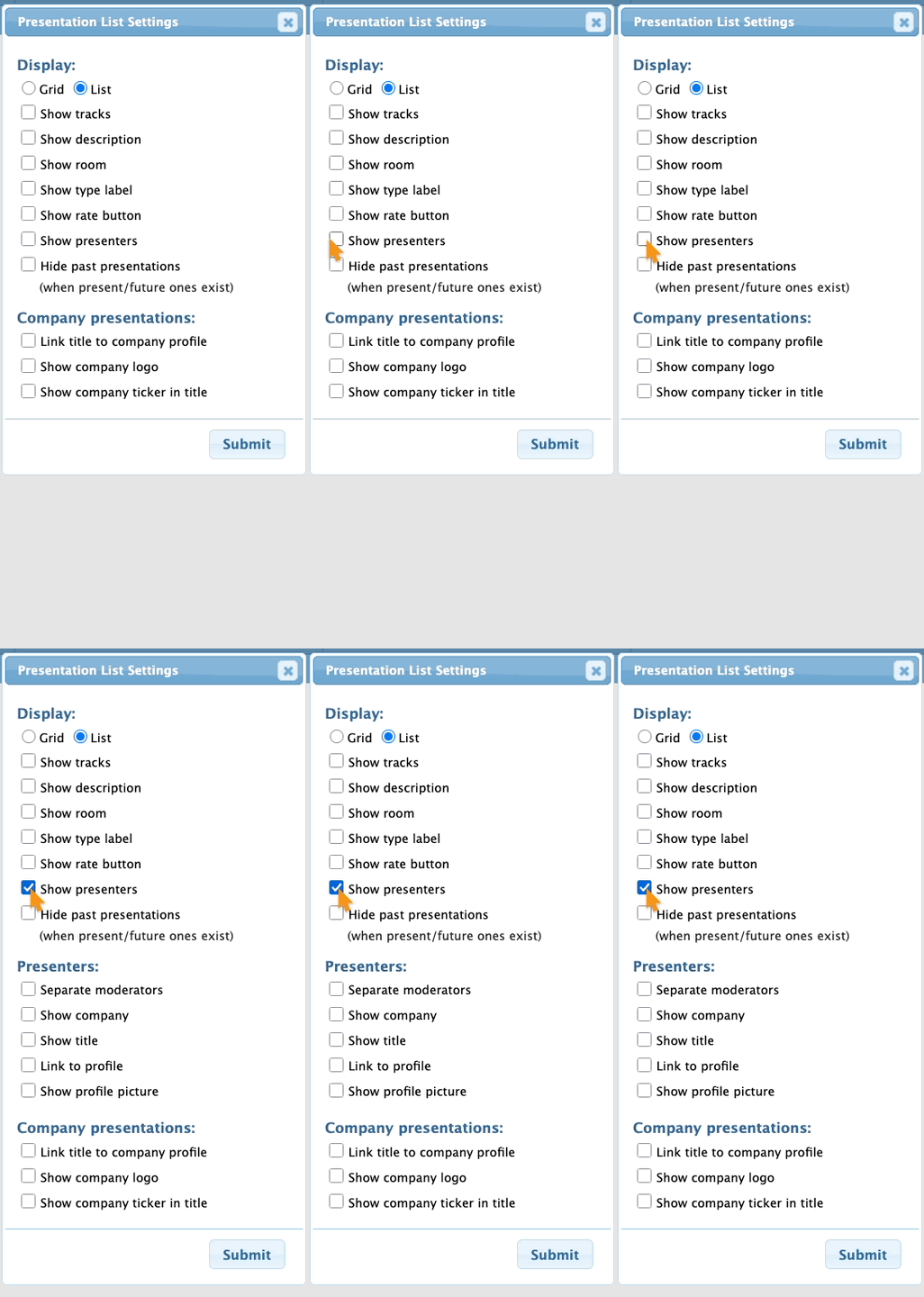
These options are often used together, so let’s enable them all to see the results. You’ll see them on the Rows view, but not the Grid view:
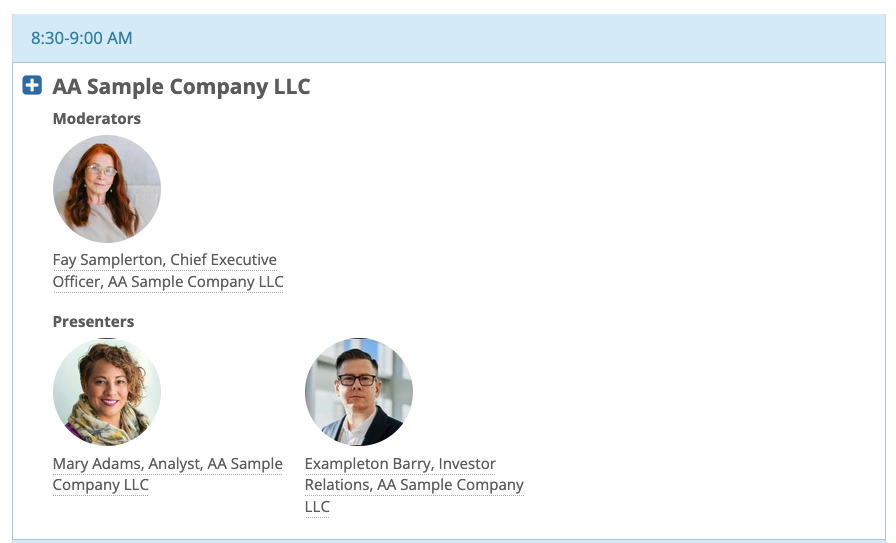
- Separate moderators: If you want to highlight presentation moderators as shown above, use this setting. If you don’t, moderators appear on the same row as the other presenters.
- Showing presenter details: MeetMax pulls the company name, title, and profile picture from the Profile form.
- Show profile picture: Once you enable this setting, you can enable or disable it for specific presentation types.
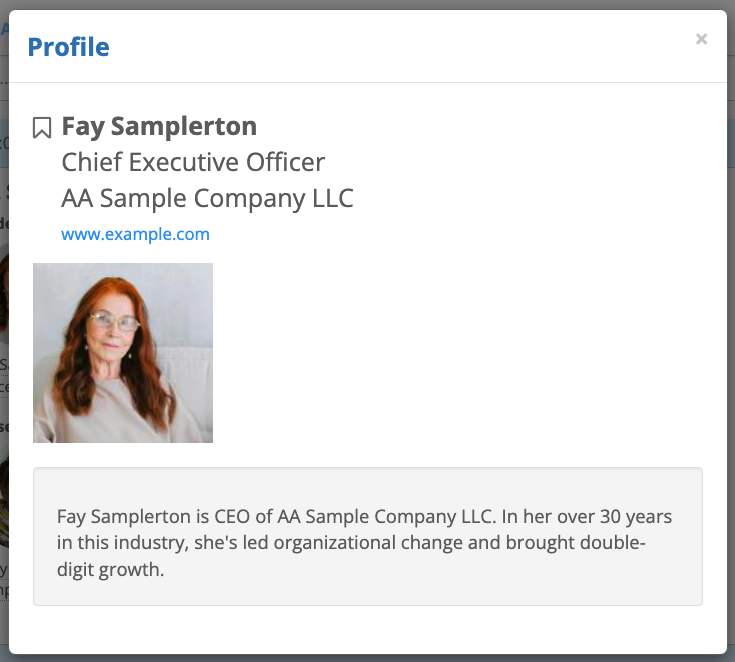
- Link to profile: This setting makes each presenter’s name a link. Participants can click it to open their profile in a pop-up, as shown below.
Hide past presentations
If your event takes place over multiple days, this setting helps keep the presentation calendar simpler for participants. It operates in both the Rows and Grid views:
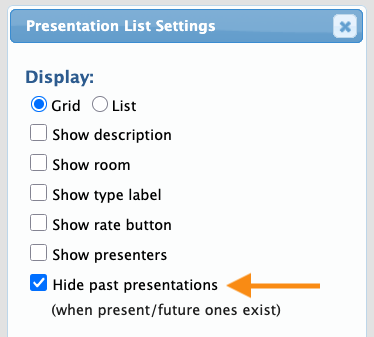
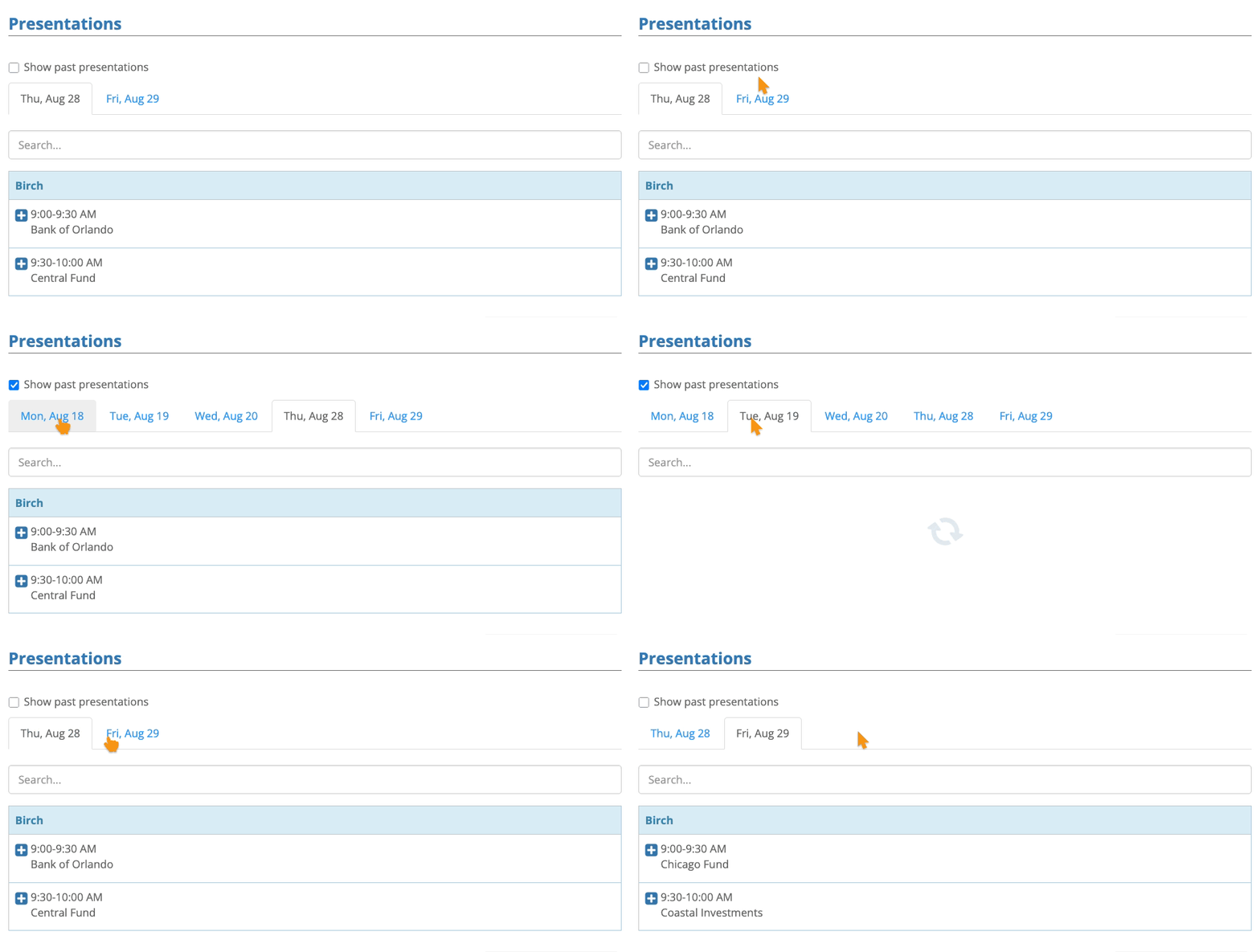
MeetMax will hide the tabs for past event days, and display only present and future days.
Participants can enable the past dates any time, as shown below:
Company presentations
For presentations where an organization is the presenter, you can enable these display settings in any combination. They appear in the Rows view:
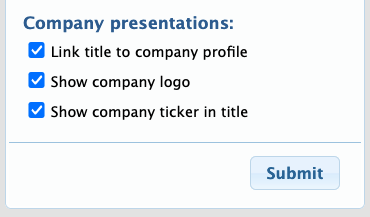
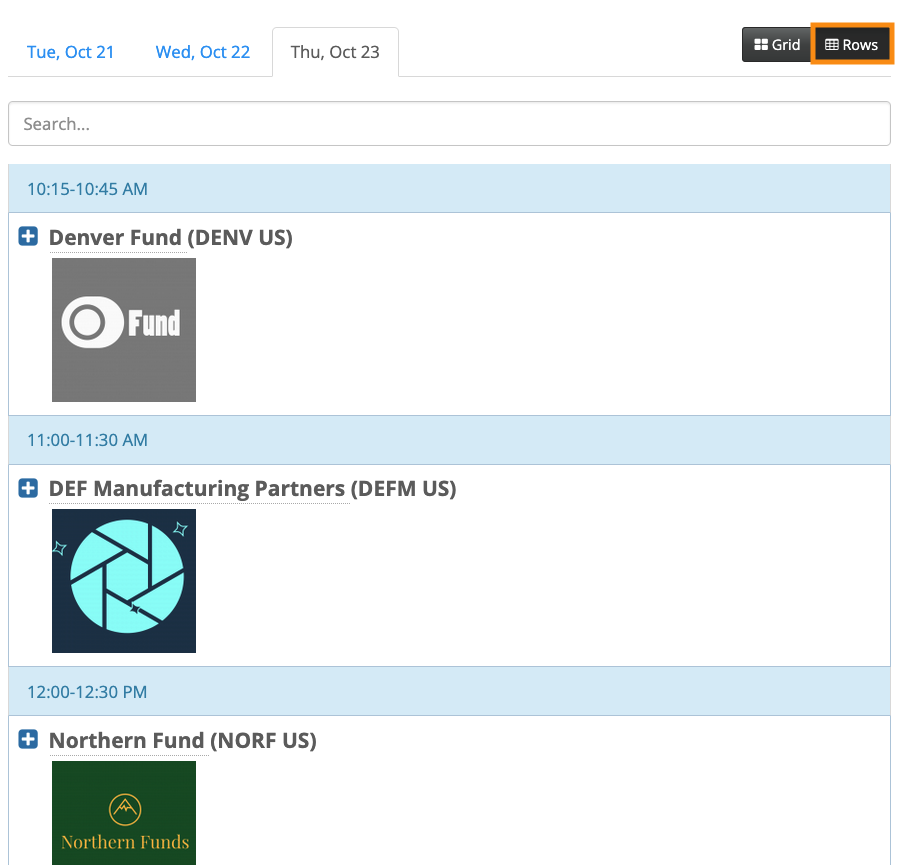
- MeetMax pulls the logo and stock ticker from the Profile form.
- Link title to company profile: This setting makes each presenter’s name a link. Participants can click it to open their profile in a pop-up, as shown below.


