How do I show or hide my Custom Page to participants?

Once you’ve created a Custom Page (including a Custom List or Custom Form), you can choose when it’s visible to your participants.
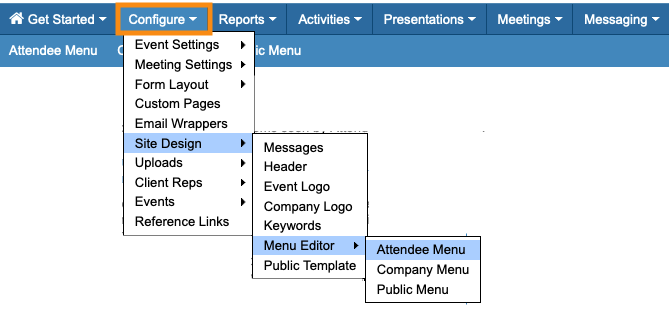
- Step 1. Head to the Configure tab. Choose Site Design, then Menu Editor. Then choose the menu you want to update:
-
We’re working with the Attendee menu here. If you want to show or hide a page for Companies, choose the Company Menu Editor instead. - Step 2. In the Menu Editor, you’ll see your Custom Page. (In this example, ours is titled Event Feedback Survey.)
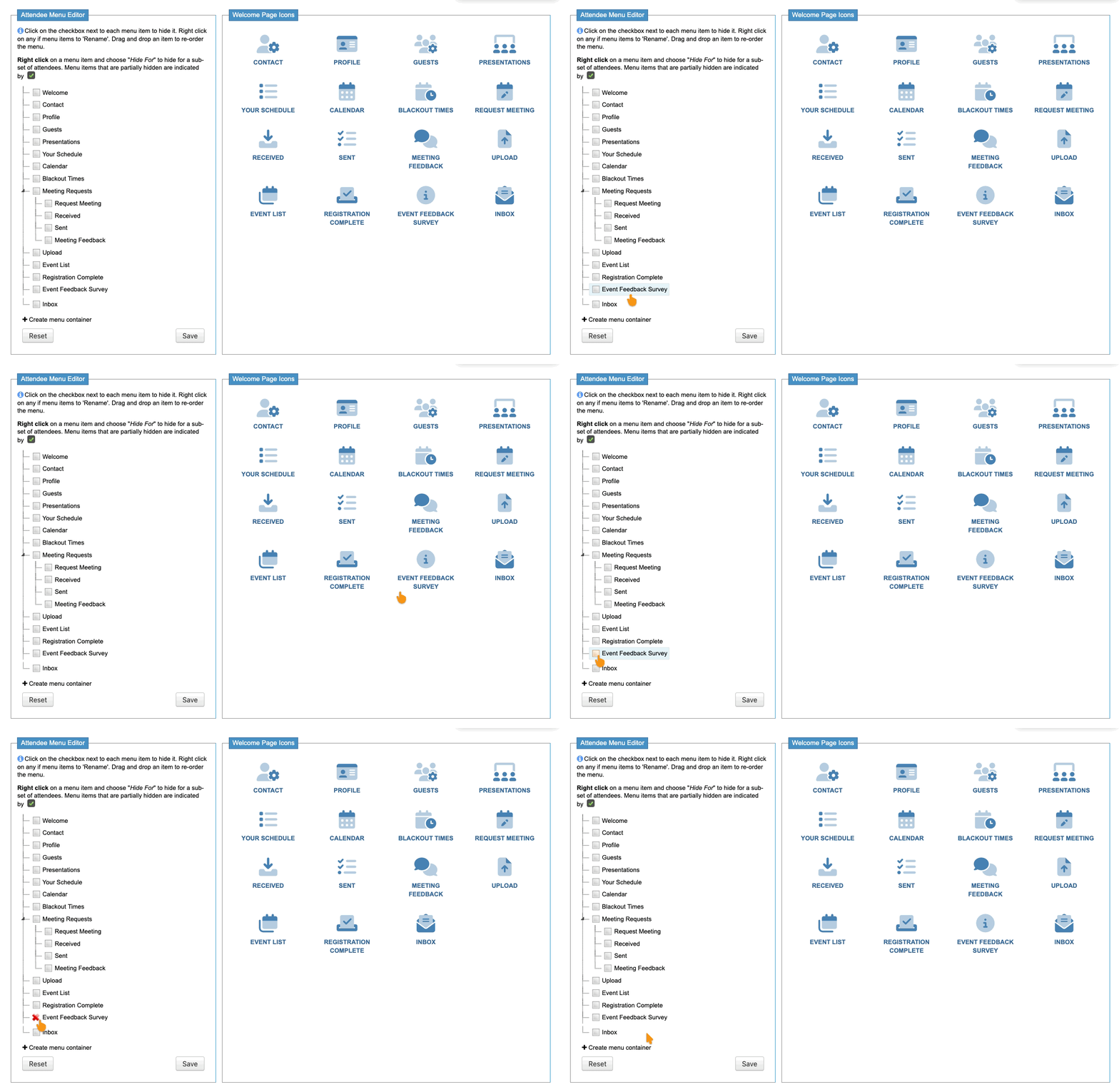
- To Show or hide the page click the box. A red X means the page is currently hidden:
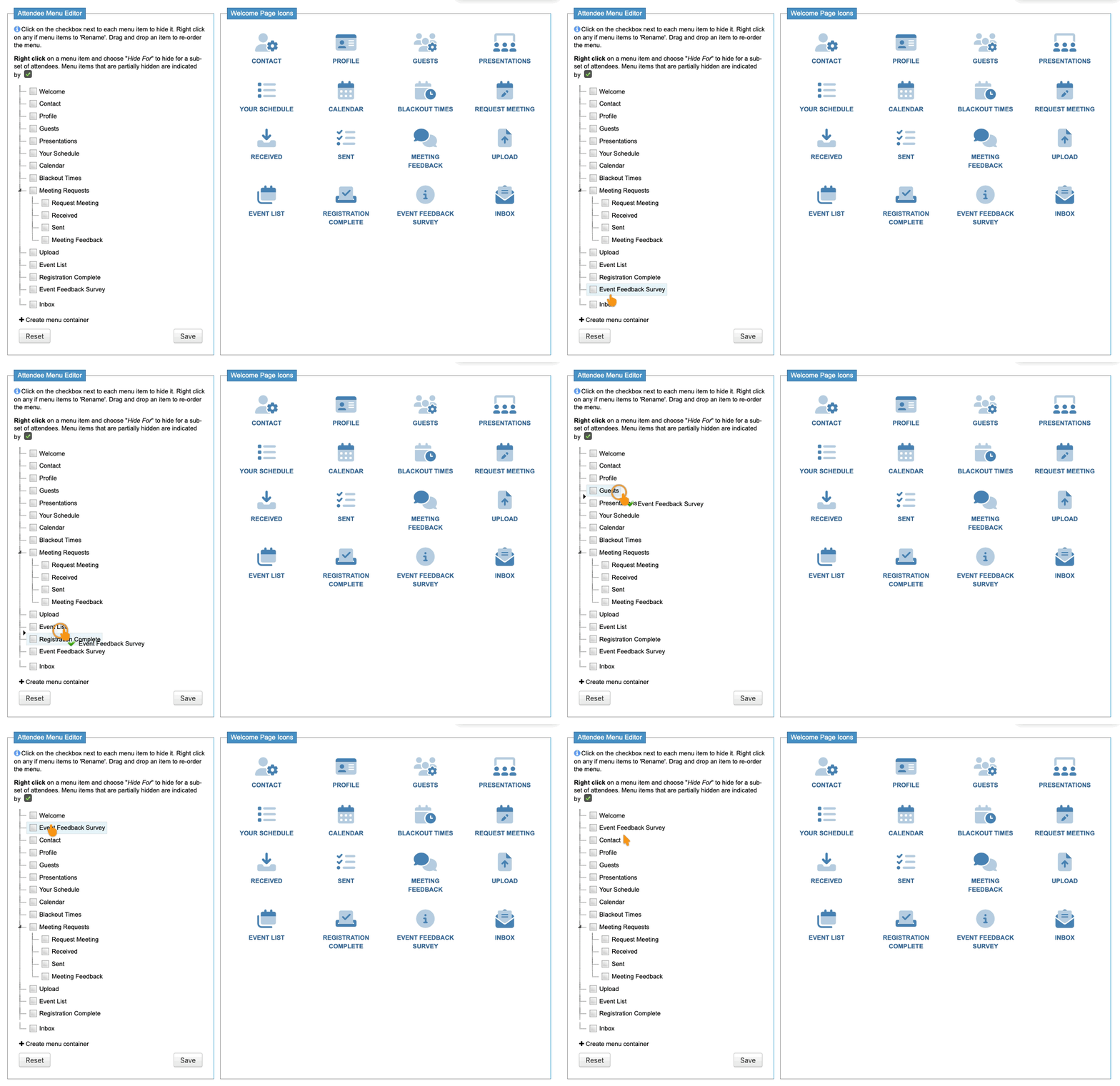
- Step 3. Want to move the page to another location in the menu bar? Click and drag it:
- Step 4. Sometimes, you might want some participants to see this page but not others.
- To customize the permissions, right-click on the page name. Choose Hide/Show For:
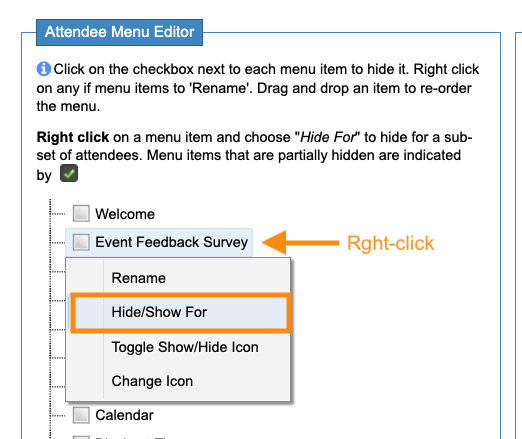
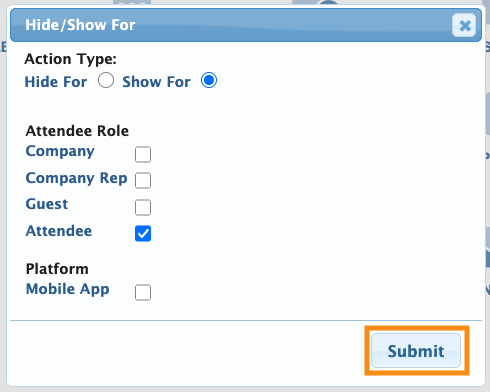
- You’ll see a pop-up where you can hide or show the page to specific user roles:
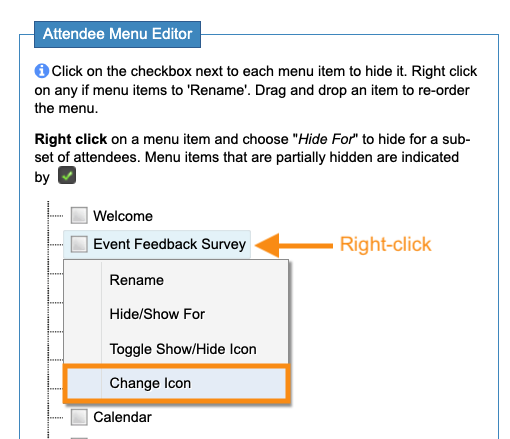
- Step 5. If you like, you can also update the icon for this page:
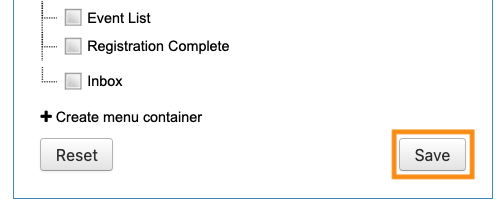
- Step 6. Be sure to click Save!
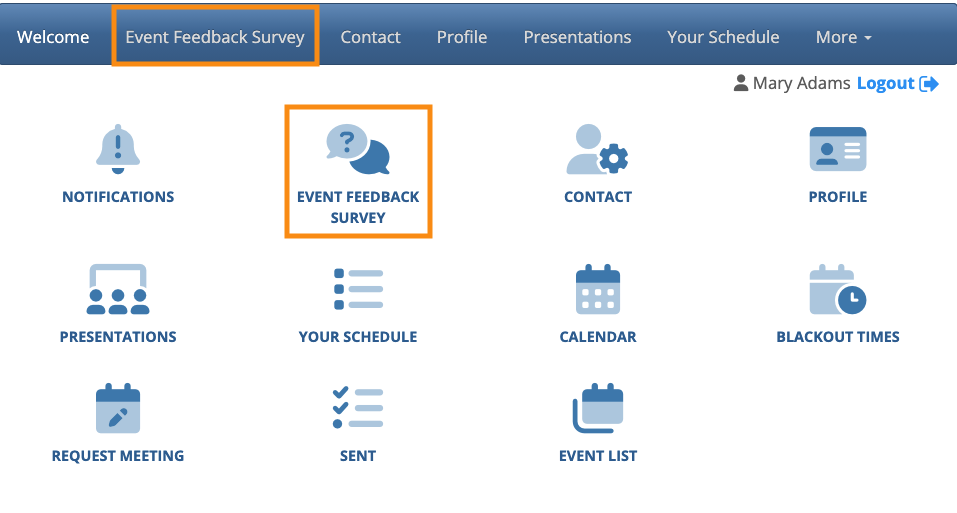
- When your Custom Page is enabled, participants can log into MeetMax and see it in the menu bar: