In this article:
- Where is it?
- Why is it useful?
- Adding the Client Reps field to registration forms
- Assigning Client Reps to an Attendee
- What the Client Rep sees
- Copying batch emails to assigned Client Reps
Where is it?
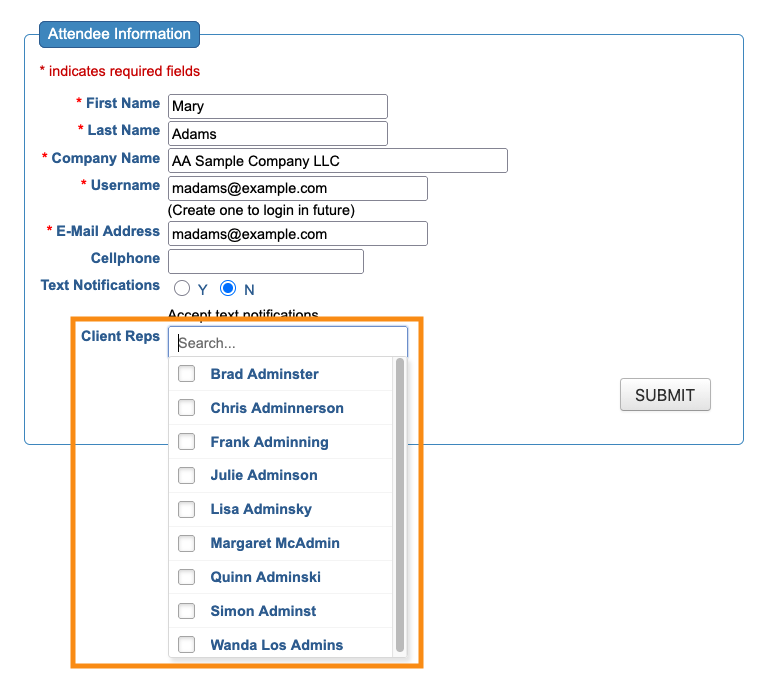
The Client Reps field appears on the Admin version of your Attendee or Company registration forms:
Why is it useful?
In MeetMax, a Client Rep is a member of your internal team. Client Reps can have a range of responsibilities.
For some events, each Client Rep is assigned to a specific group of event Attendees. That allows two things to happen:
- Visibility: The Client Rep’s view of MeetMax is restricted to only their assigned Attendees. That makes it easier to monitor registrations, meetings, and engagement.
- Communications: The Client Rep can be cc-ed on any batch email that’s sent to their assigned Attendees.
If your internal team isn’t structured into any specific groups (such as sales territories), the Client Reps field gives you the flexibility to assign multiple people to an Attendee.
| If your Client Reps are organized into specific groups, use the Client Rep Group field instead. It lets you assign one group to each Attendee. | |
| If you only need to assign one Client Rep to each Attendee, use the Contact Name field instead. |
Adding the Client Reps field to registration forms
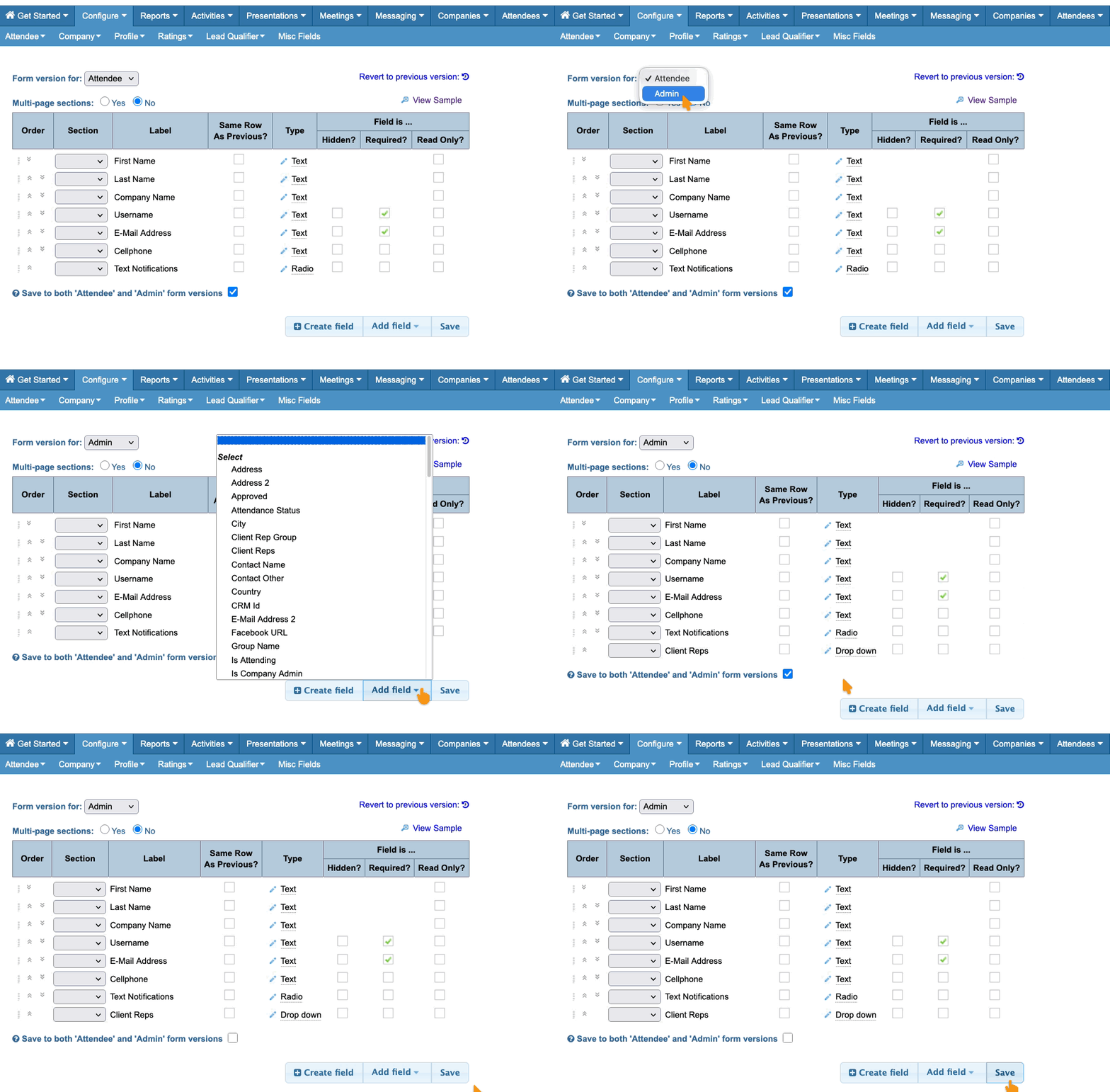
You’ll add this field to the Admin version of your registration form. You can add it to the Attendee form, or the Company form, or both - depending on who has assigned Client Reps at your event.
In the Form Editor, you’ll add the Client Reps field from the menu of default fields:
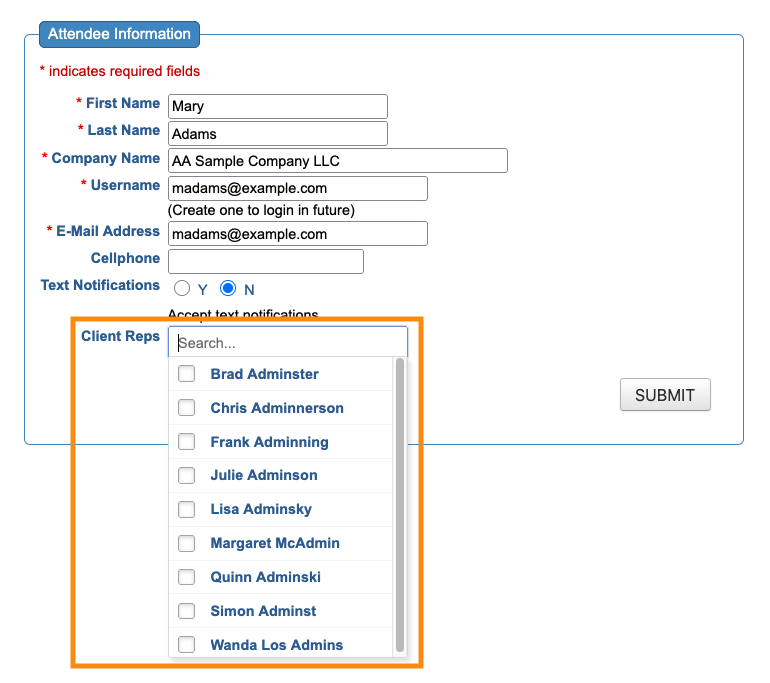
Client Reps is a drop-down field. MeetMax automatically includes all of your Client Reps who have the correct role and event access:
Assigning Client Reps to an Attendee
With the form field in place on the Admin form, your Admin team can now choose which Client Reps to assign to each Attendee or Company.
- Step 1. Head to the Attendee List:

-
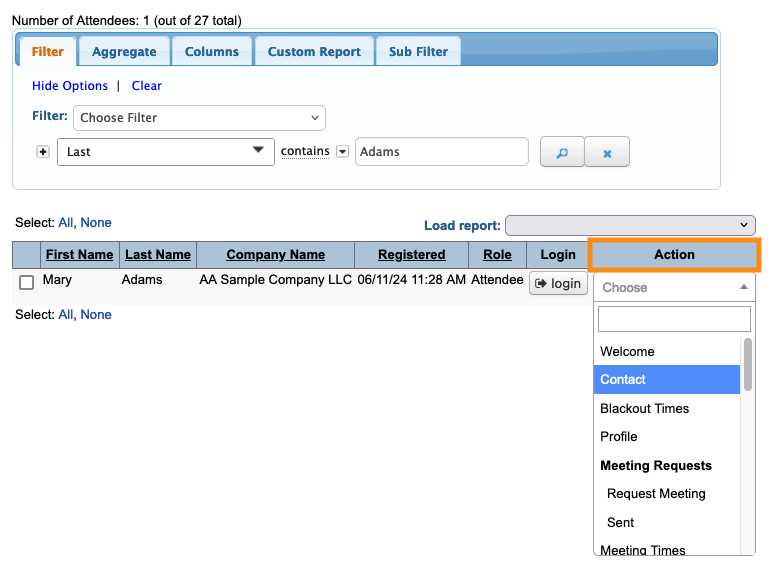
If you’re assigning Client Reps to Companies, the process is the same but you’d begin in the Company List instead. - Step 2. Filter the list to locate the Attendee you need. Then use the Action menu to choose Contact:
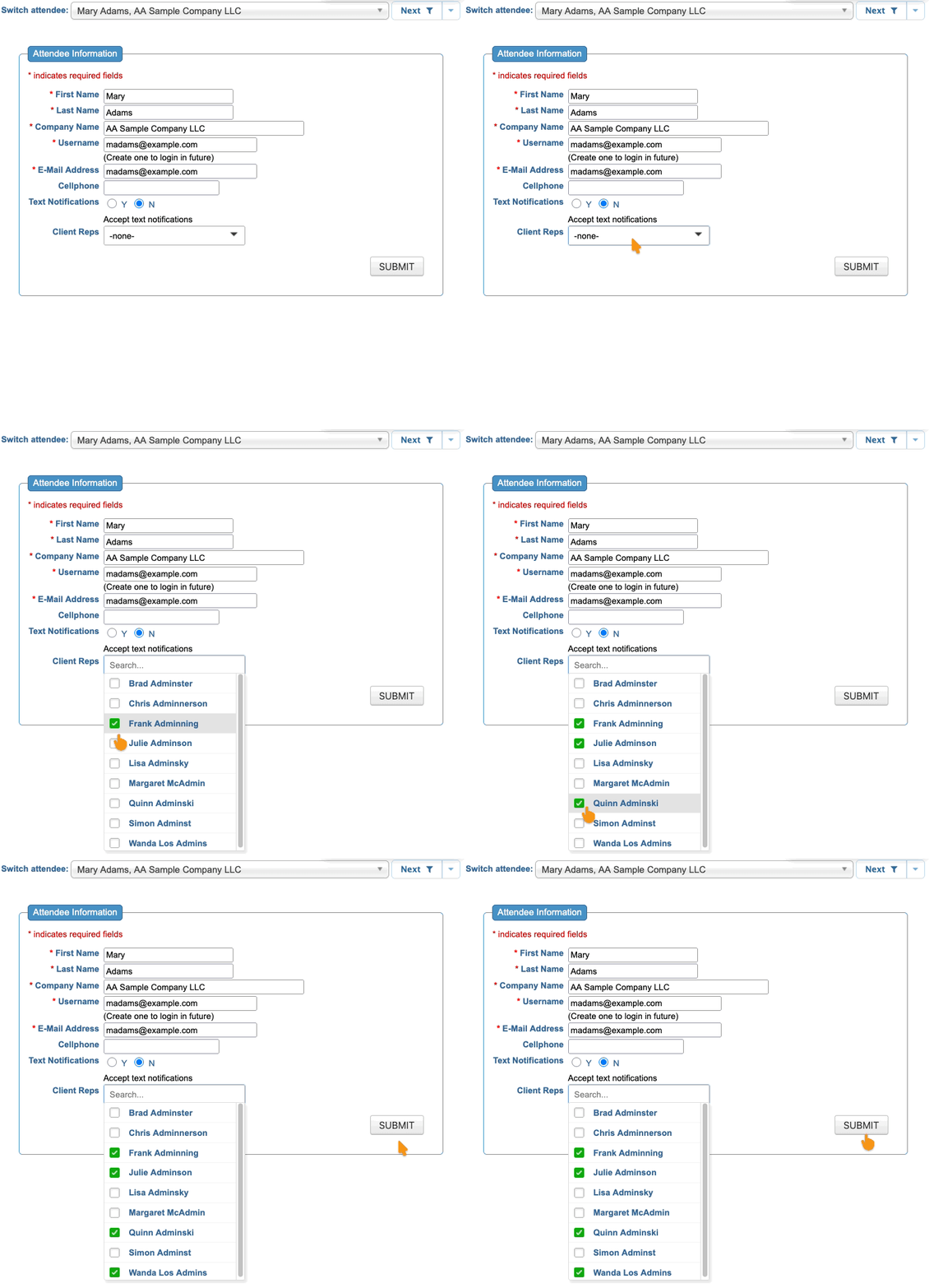
- Step 3. In the Client Reps field, choose any Reps to assign to this Attendee. Click Submit to save:
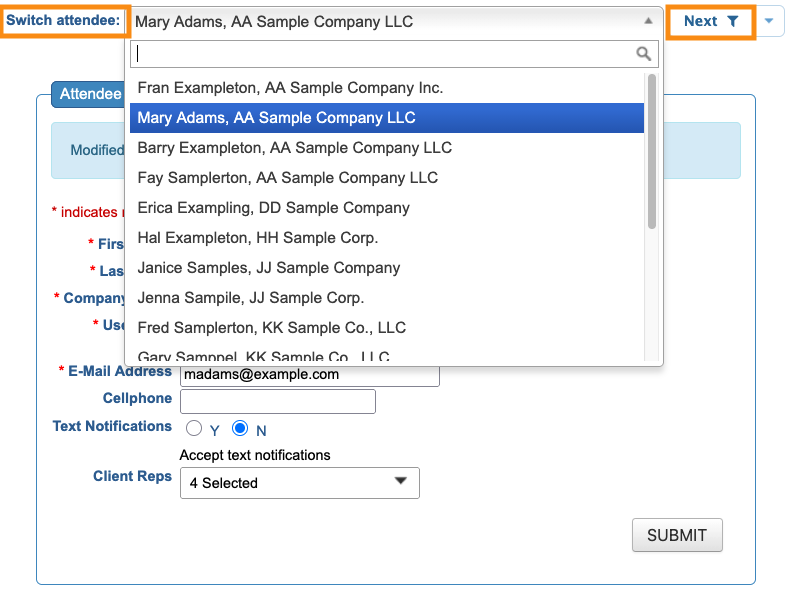
- Step 4. To change to another Attendee’s record, use the Switch Attendee menu.
- Or, if you’re making this change to all Attendee records, click the Next button to move to the next person:
What the Client Rep sees
Once you’ve assigned Attendees to Client Reps, that updates what a Client Rep sees in their MeetMax account.
- If the Client Rep has sales rep-level permissions, they’ll see only their assigned Attendees or Companies.
- If the Client Rep has event admin permissions, they’ll see all Attendees and Companies.
Copying batch emails to assigned Client Reps
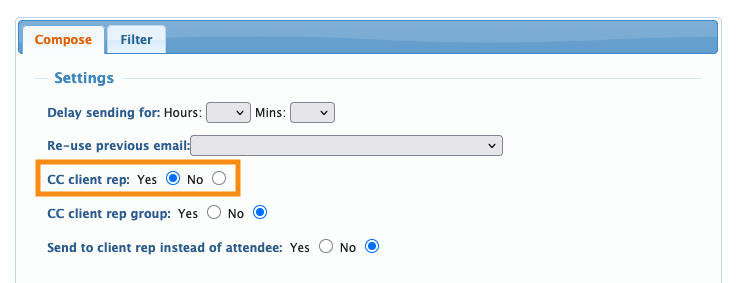
When your team is sending batch emails to Attendees or Companies, MeetMax can automatically copy all assigned Client Reps as well: