

How do I add presenter headshots or logos?

When you add or import a presentation to MeetMax, you’ll add one or more presenters. Here’s how to attach headshots and other profile details.
In this article:
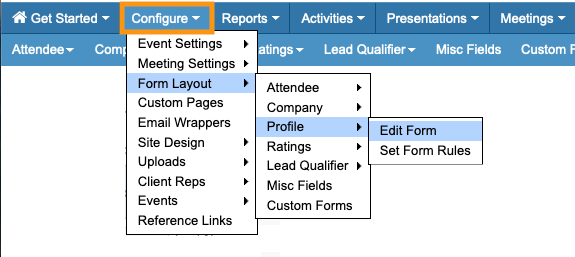
Using the Profile form
In MeetMax, the Profile form houses headshots and bio details. Learn more about the Profile form here:
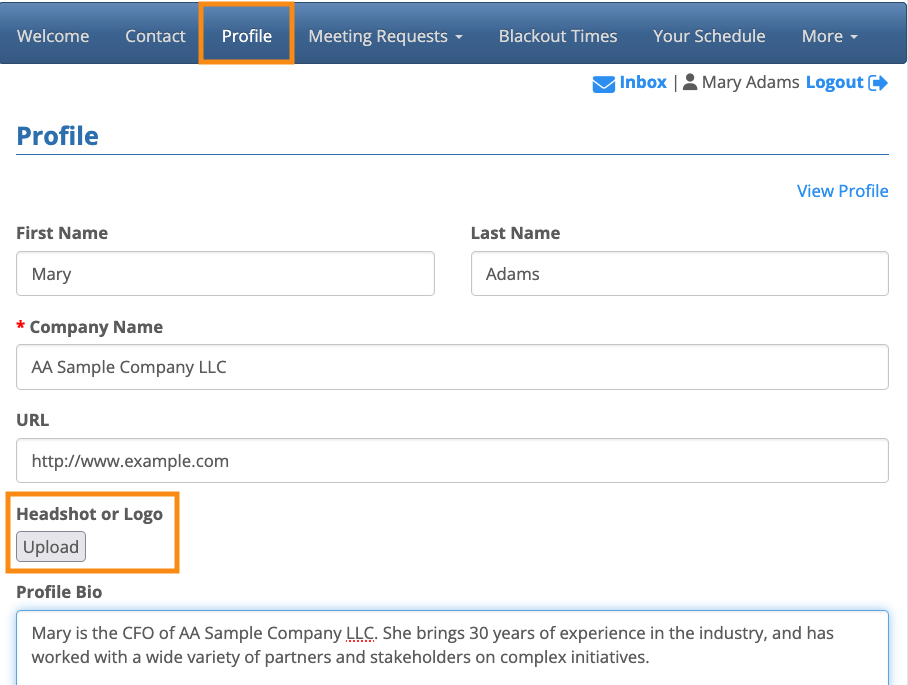
You can have your presenters log into MeetMax and complete this form, uploading their headshot in the process:
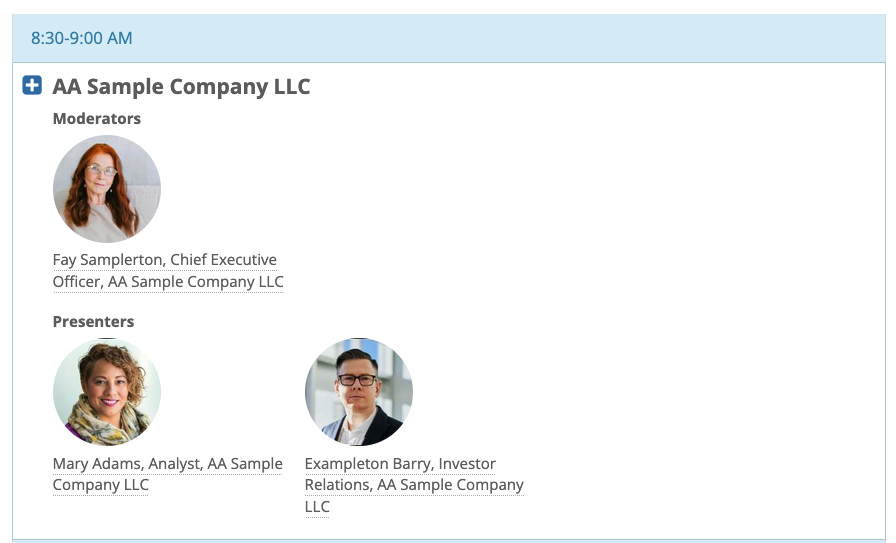
Making headshots visible on the Presentations page
You might need to customize the layout of your Presentations page to display presenter headshots:
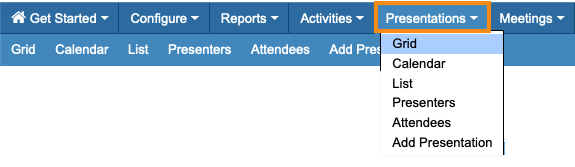
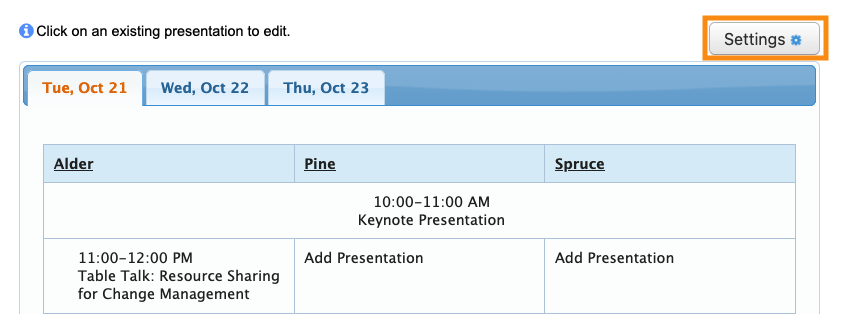
Learn more about customizing the Presentations page here.
Alternate option: Pop-up Description
If you’re not using the Profile form for participants at your event, you add an optional profile to any presentation. This option becomes visible after you’ve added a presentation to MeetMax.
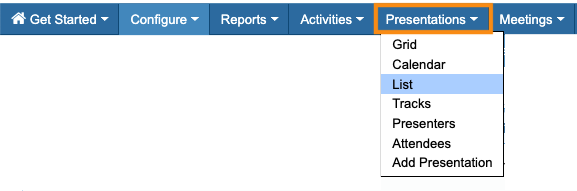
- Step 1. Head to the Presentations List:
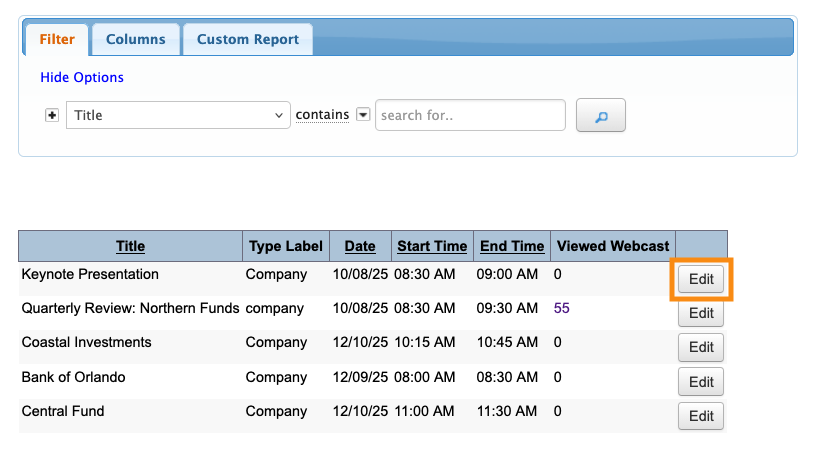
- Step 2. Locate the presentation you need, and click the Edit button:
- Step 3. Click on the Profile tab:
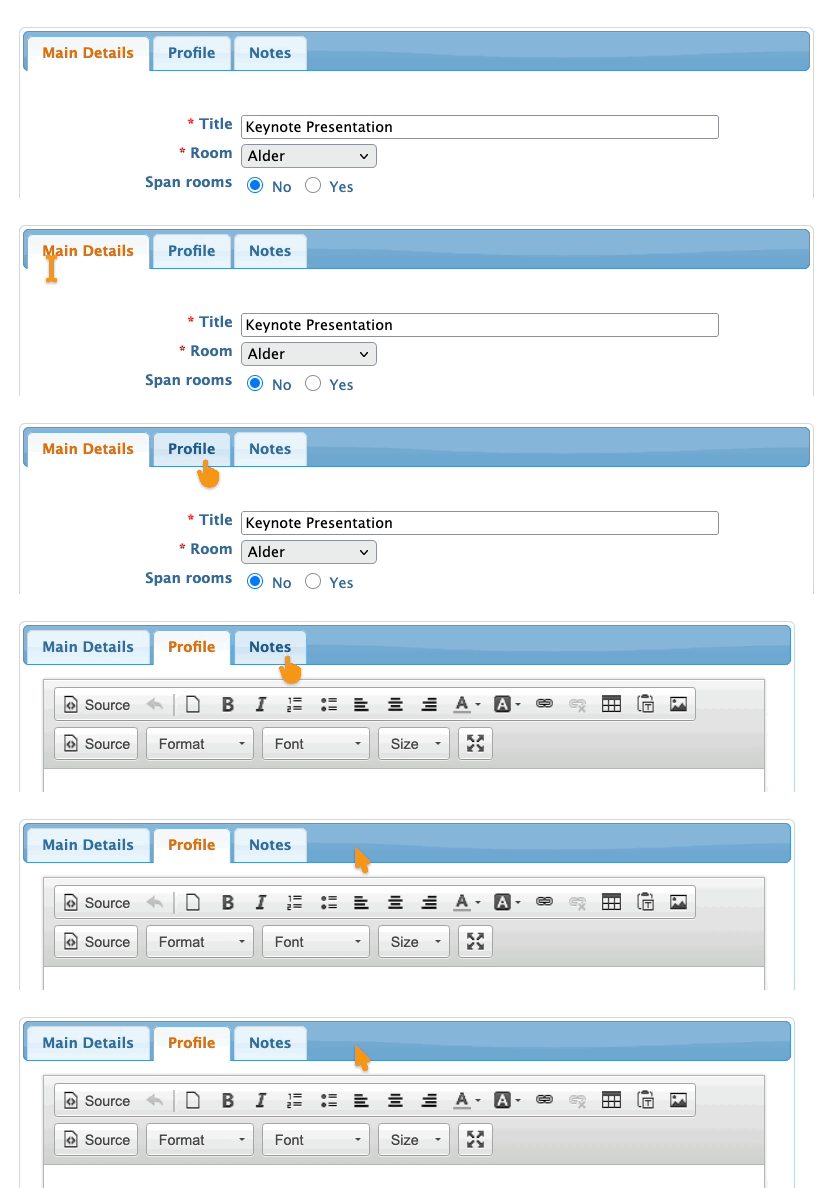
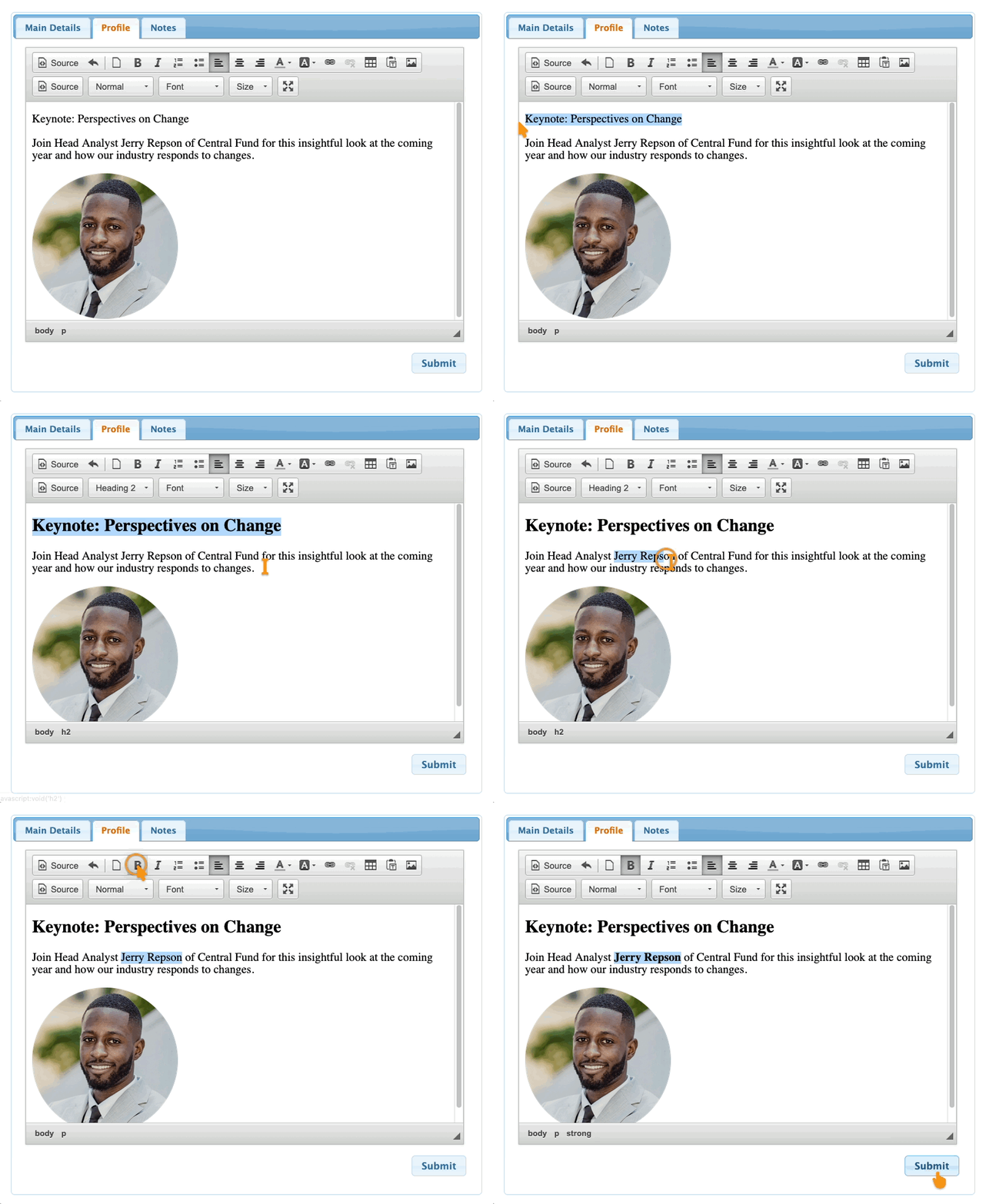
- Step 4. Here, you can add custom text and images for this presentation. You can add presenter headshots and bios here, or any other content you like.
- Click Submit to save:
- Step 5. Attendees log into MeetMax and visit the Presentations tab. There, they can click on the session title to see the pop-up:
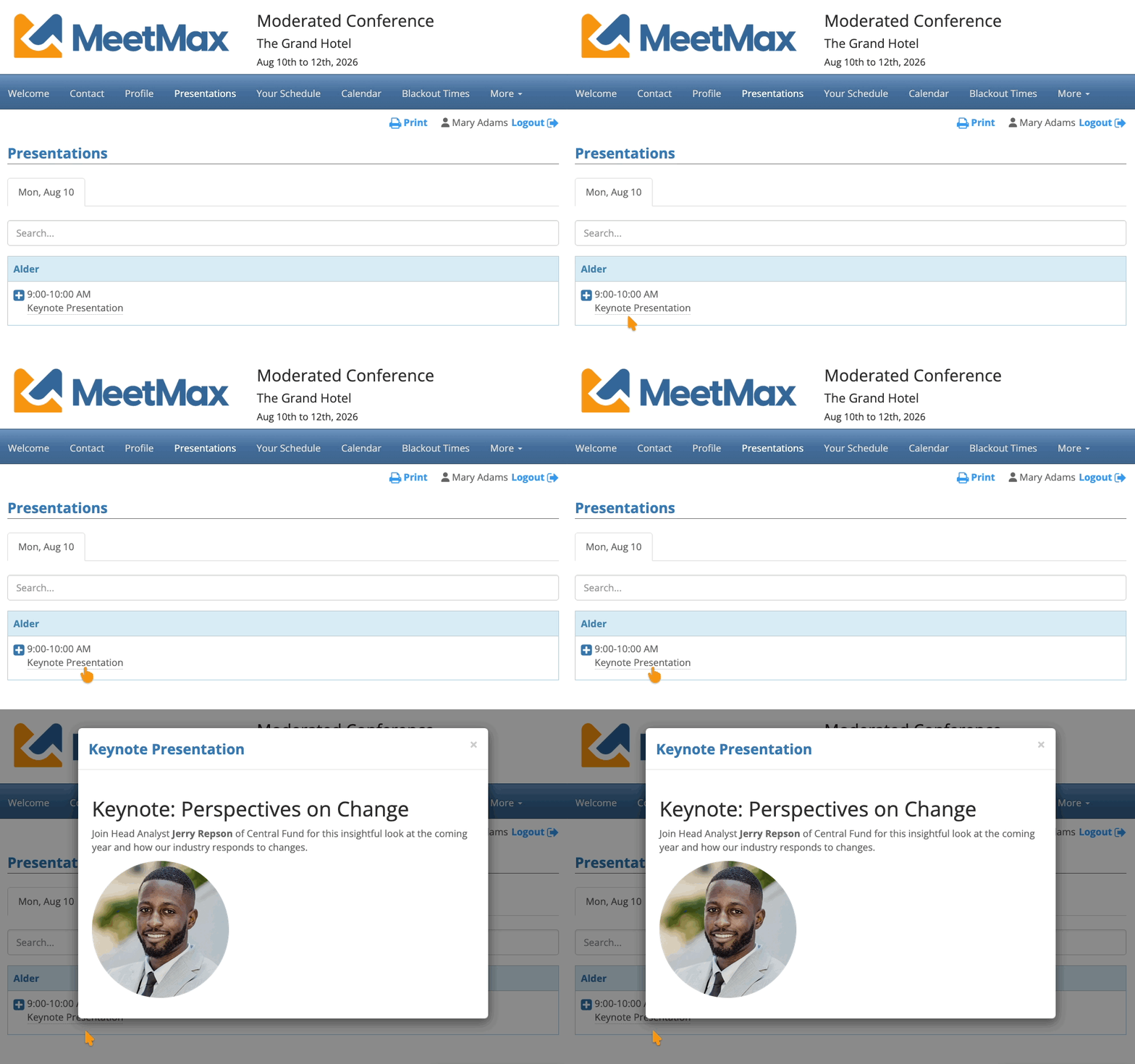
| This page will be branded for your event. |

