

PRISM Integration: Adding supplemental Attendees or Companies

As a supplement to your main event registration, you can also add individual participants to MeetMax. The integration pulls in their record data from PRISM.
In this article:
- Where is it?
- Adding an Attendee from PRISM
- Adding a Company from PRISM
- Adding a Company Rep from PRISM
Where is it?
Once the integration is enabled, you’ll see a PRISM Lookup option in both the Attendees and Companies tabs:
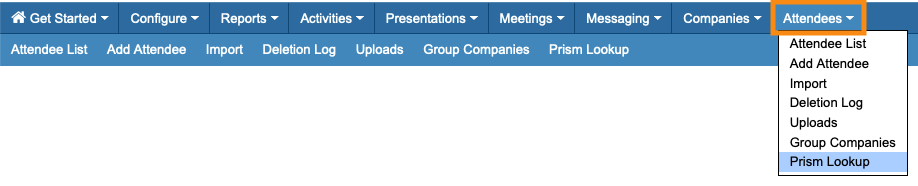

| We’re assuming here that you’ve already set up the PRISM integration. |
Adding an Attendee from PRISM
From the Attendees tab in MeetMax, you can look up a record from your PRISM account. Then you can use it to register that person for your event.
- Step 1. Head to the Attendee PRISM Lookup page:

- Step 2. Choose how you want to search your PRISM database. You can use one criteria, like a company name or email address. You can also use multiple criteria together, like a first and last name:

- Step 3. MeetMax then displays any PRISM records that match your criteria. You might see one record or many. In this example, since we searched by first and last name, we have one record.
- Click the Import button to bring this record into MeetMax:

- Step 4. You’ll now see your event's Attendee registration form, with all the details added from the PRISM record.
- You can add other information here if you like. In this example, we'll add a Username so that this Attendee will be able to log into MeetMax. Since we couldn’t have pulled that in from PRISM, you’d add it here.
- Click Submit to complete the registration:

- Step 5. This Attendee is now registered! You’ll see them in your Attendee List, where you can perform all of MeetMax’s backend tasks:

Adding a Company from PRISM
You can also register Companies or organizations for your event. Learn more about user types here.
- Step 1. Head to the Companies tab, then choose PRISM Lookup:

- Step 2. Choose how you want to search your PRISM database. For a company record, using Company Name works well:

- Step 3. You’ll see one or more PRISM records that match your criteria. (Here, we searched “Federal.”)
- Choose the company you want to register, and click the Import button:

- Step 4. You’ll now see your event's Company registration form, with all the details filled out from the PRISM record.
- You may need to add other information here, like adding a username to log into MeetMax.
- Click Submit to complete the registration:

- Step 5. This Company is now registered! You’ll see them in your Company List, where you can perform all of MeetMax’s backend tasks:

Adding a Company Rep from PRISM
A Company's main contact will add Company Reps to MeetMax.
As long as the Rep’s record is connected to the Company’s record in PRISM, those connections will import to MeetMax.

