In this article:
- CC an Attendee’s colleagues
- CC additional Company contacts
- CC a Client Rep’s colleagues
- CC Client Reps on Attendee registration emails
- CC a batch email
| If you need to Bcc emails, reach out to our Support team. |
CC an Attendee’s colleagues
An Attendee at your event might want to have their MeetMax emails copied to an assistant or other colleague.
You can add a field to your Attendee registration form for this.
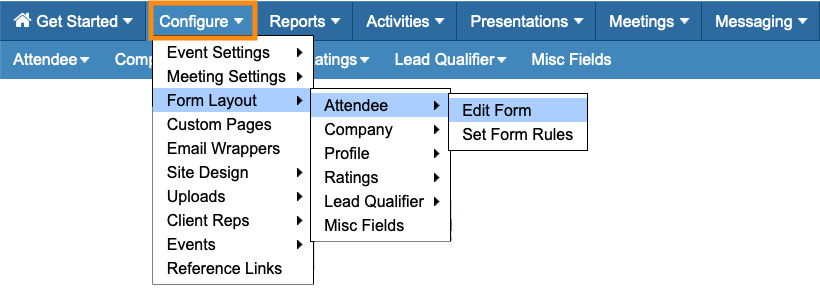
- Step 1. Head to the Attendee Form Editor:
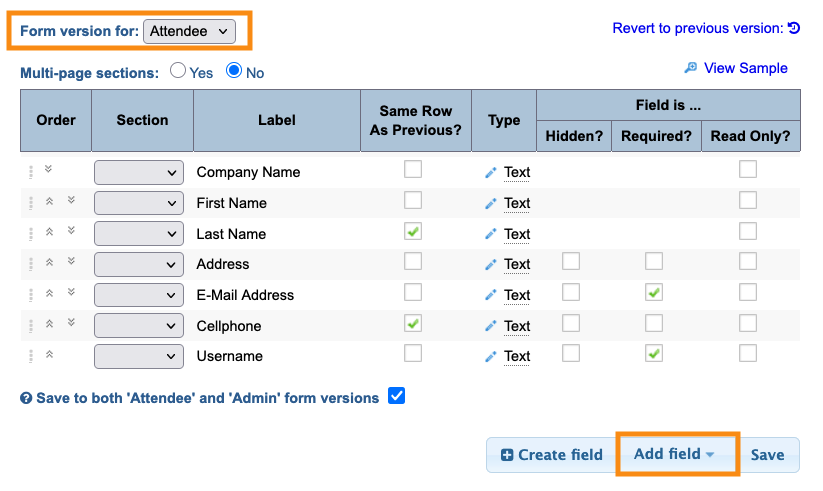
- Step 2. Make sure the Form Version menu is set to Attendee. Then click the Add field button:
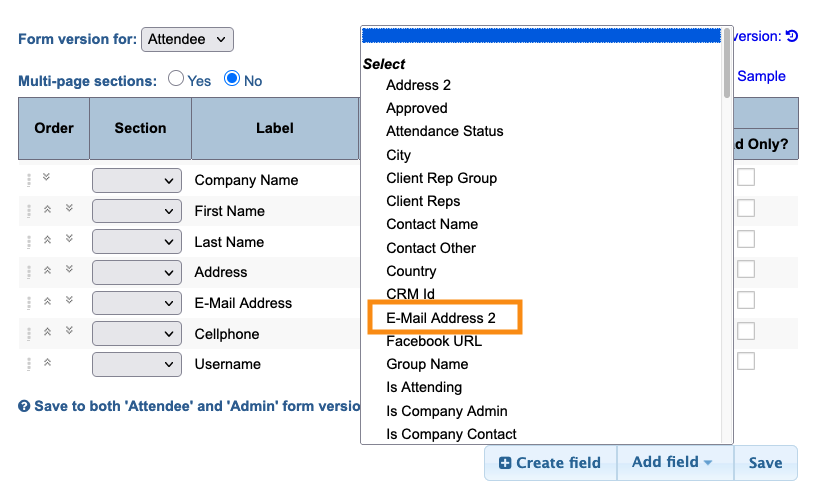
- Step 3. Choose the Email Address 2 field. You can move it to any position on the form:
- Step 4. Make sure the checkbot is checked as shown below. Then click Save:
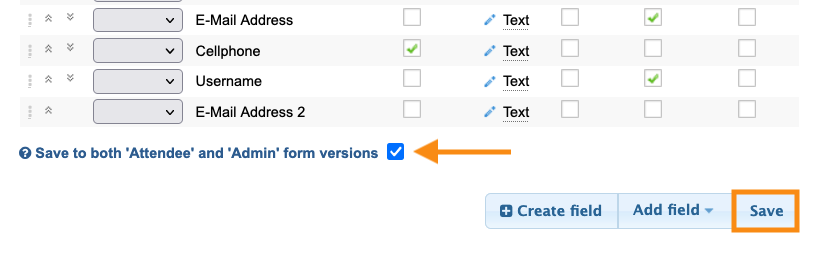
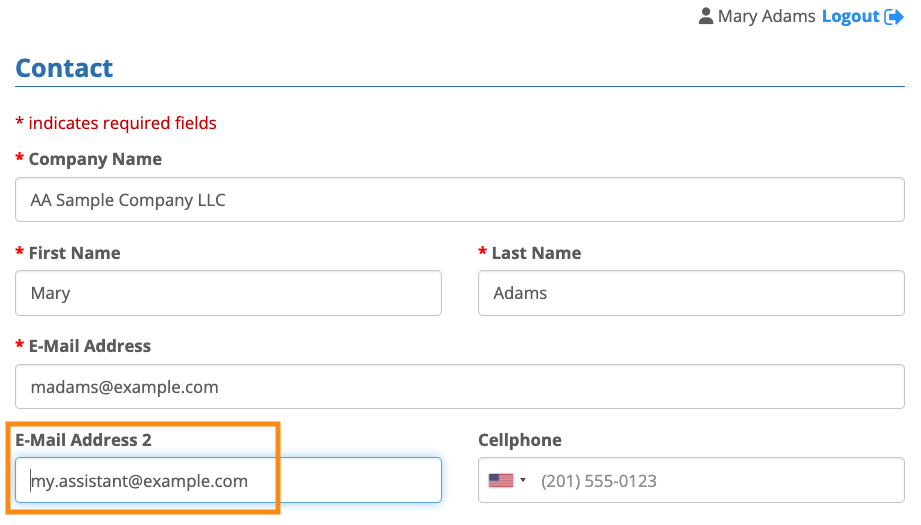
- Step 5. When an Attendee registers for your event, they can now enter another email address. MeetMax automatically copies this address on all communications, including:
- • Registration confirmations
- • Batch emails
- • Schedules
CC additional Company contacts
By default, when a Company registers for your event, that account has one main contact person. Some Companies might want more than one contact to receive emails.
Batch email cc
If certain people at a Company need to get copies of batch emails (without registering for your event), you can add a field to your Company registration form.
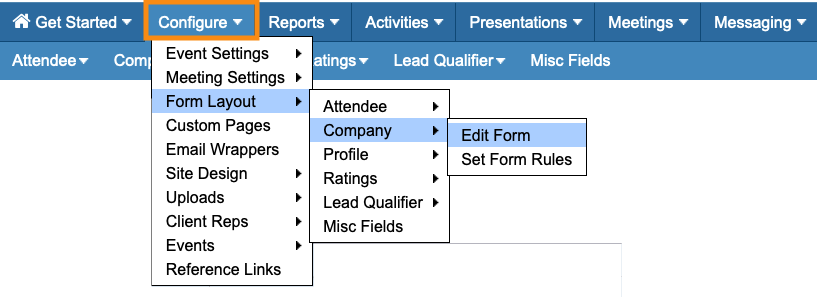
- Step 1. Head to the Company Form Editor:
- Step 2. Make sure the Form Version menu is set to Company. Then click the Add field button:
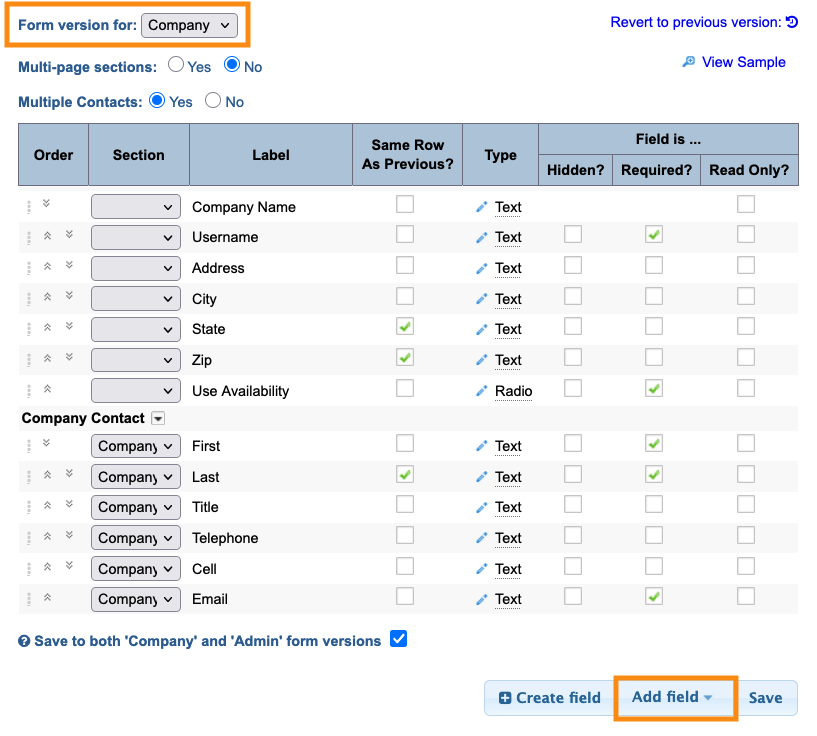
- Step 3. Choose the Internal Contacts field. You can move it to any position on the form:
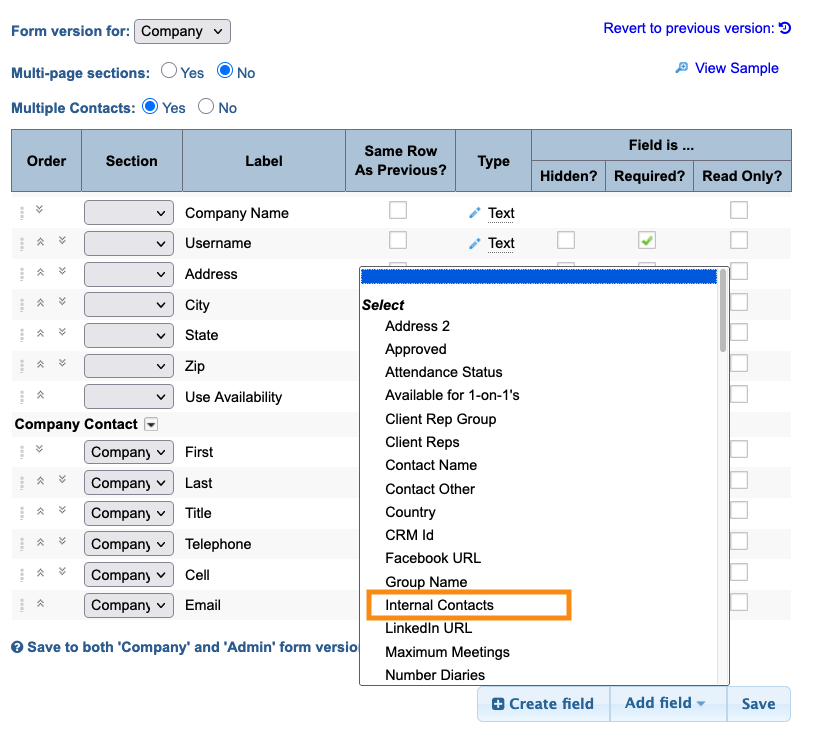
- Step 4. Make sure the checkbot is checked as shown below. Then click Save:
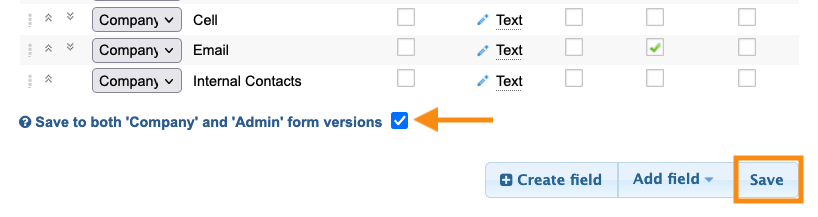
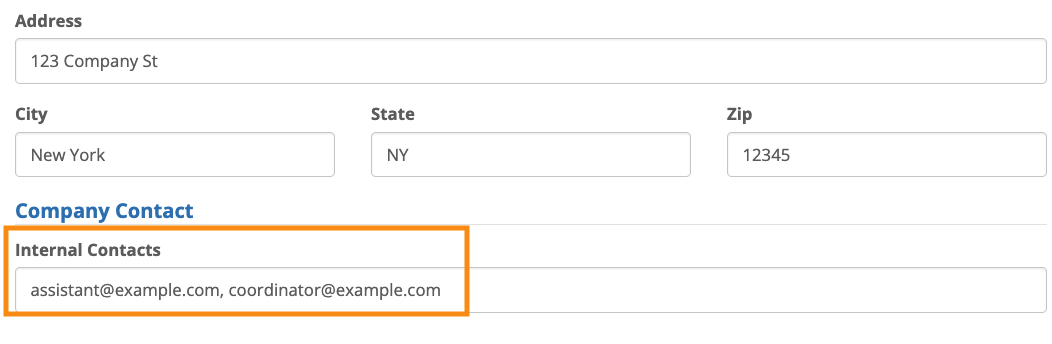
- As a Company registers for your event, they can add one or more email addresses to the Internal Contacts field. Separate them by commas:
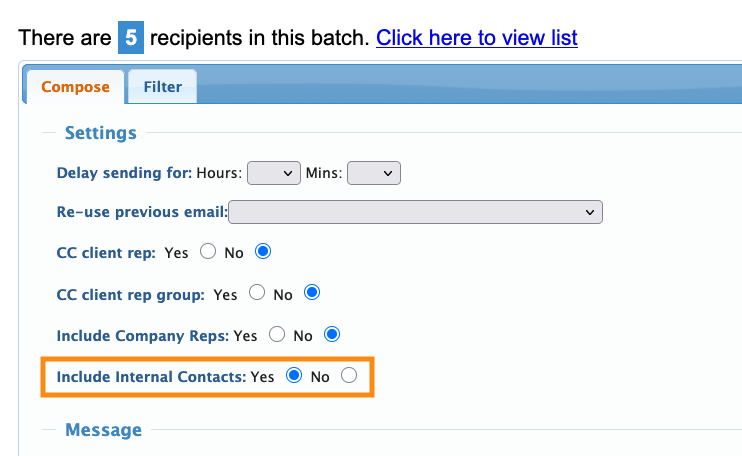
- When you send a batch email to Companies, you can set it to CC all Internal Contacts:
Automated email CC
If a Company wants to CC another person on automated MeetMax emails, you can add them to the Company’s registration as an extra Contact.
- Step 1. Head to the Company List:

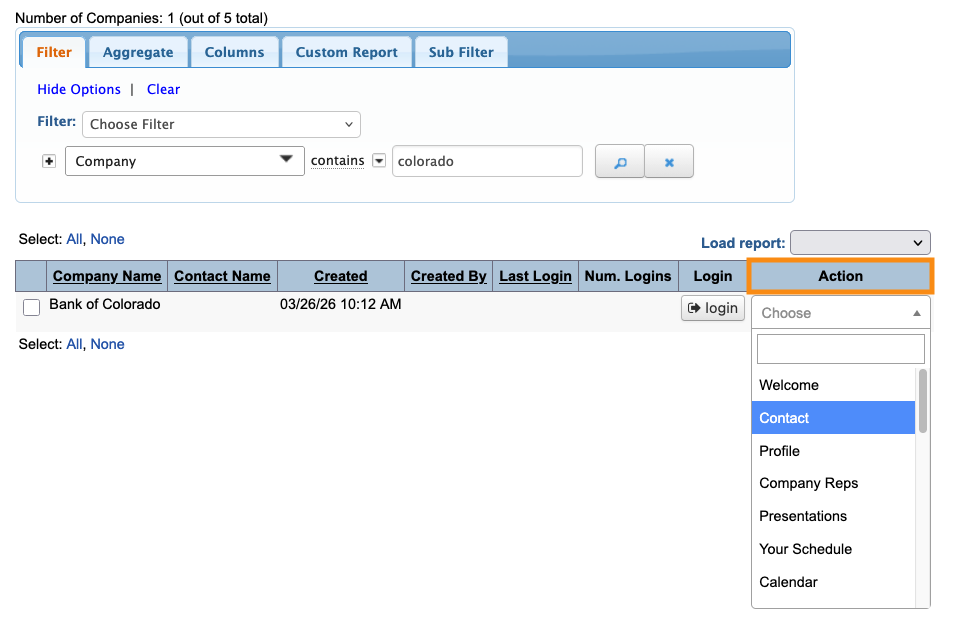
- Step 2. Filter the list to locate the Company. Then use the Action menu to choose Contact:
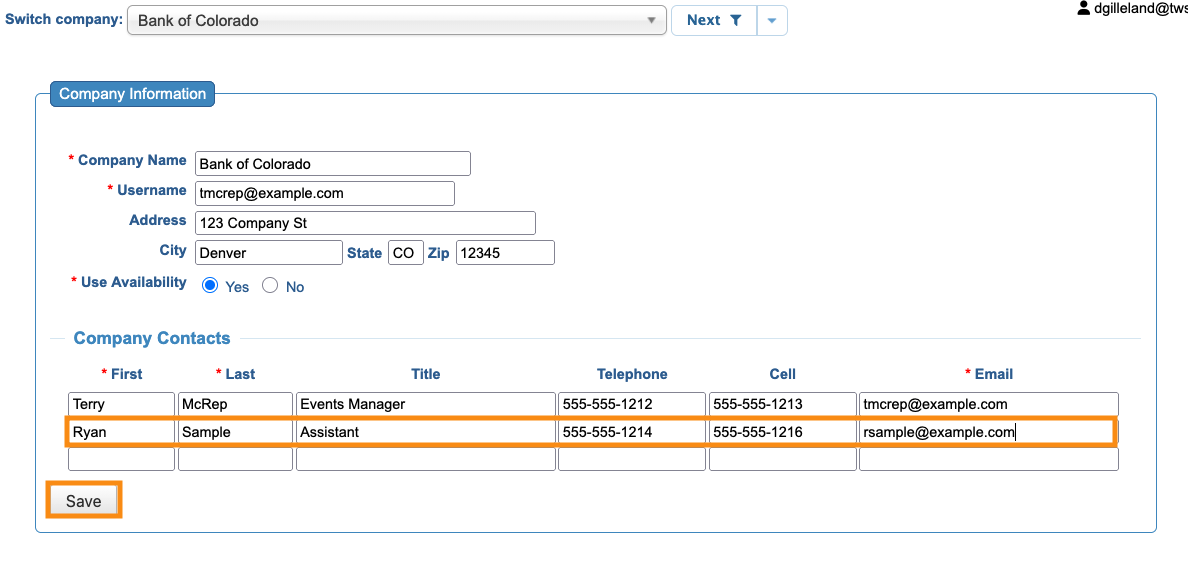
- Step 3. You’re now in the Admin view of this Company’s registration form.
- In the Contacts section, add the additional person:
-
These steps also give the extra contact access to log into MeetMax. If you want them to use this login, you can use the batch emailer to send them their credentials.
CC a Client Rep’s colleagues
Members of your Admin team (known as Client Reps in MeetMax) often need to share event information with their colleagues.
When you’re adding a Client Rep to MeetMax, use the Additional Emails field to add as many secondary addresses as you need. Separate them by commas:
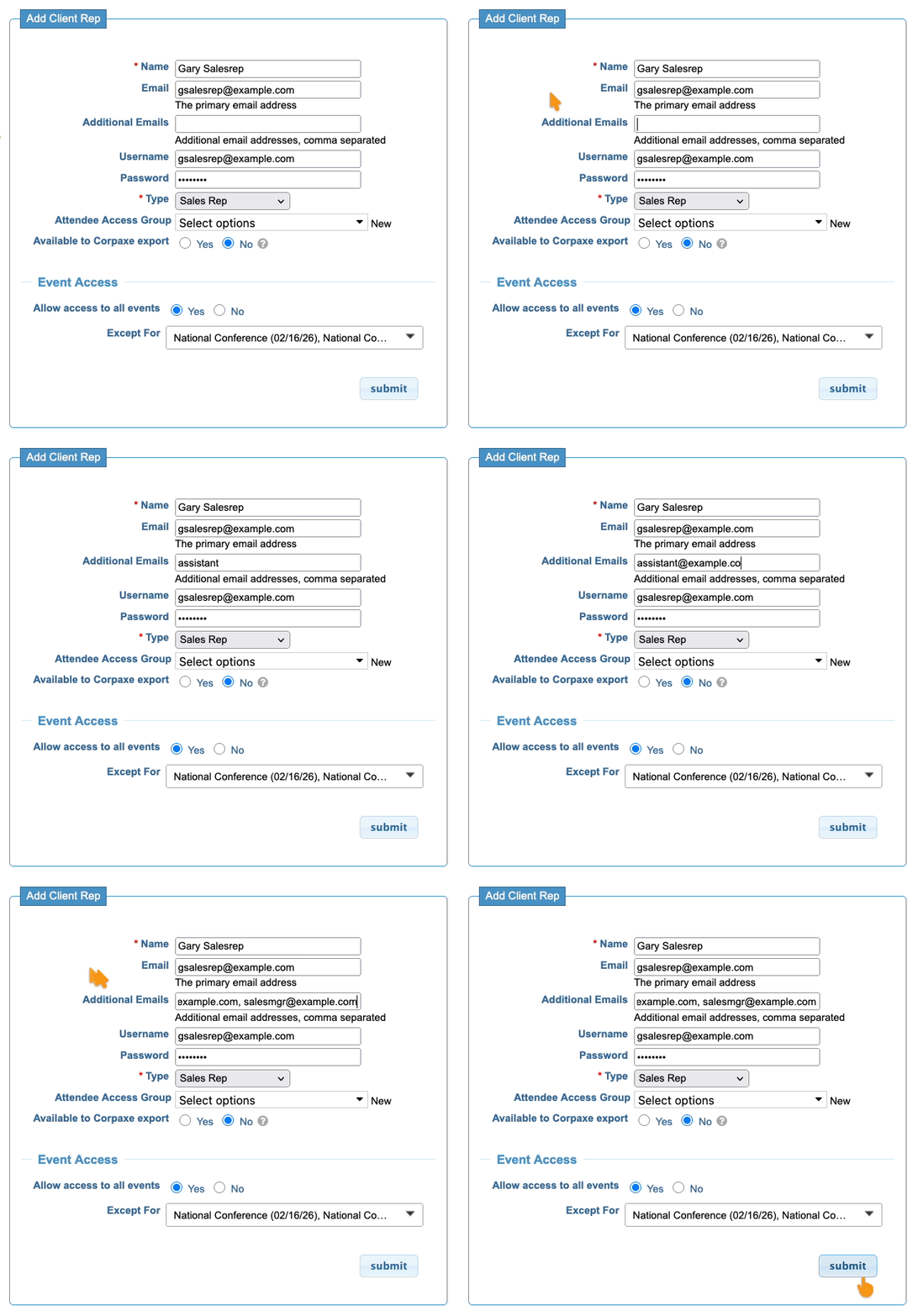
| You can also edit any existing Client Rep to add these emails. |
When any MeetMax communication is cc-ed to this Client Rep, MeetMax also copies all additional email addresses.
CC Client Reps on Attendee registration emails
Some events assign Attendees to specific Client Reps. You can:
- Assign one Attendee to one Client Rep
- Assign one Attendee to many Reps
- Create Client Reps Groups, and assign Attendees to them
You can then set MeetMax to cc registration-related emails to all assigned Client Reps.
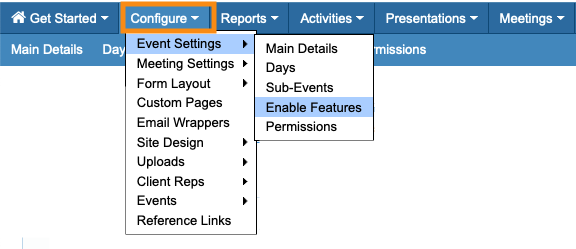
- Step 1. Head to the Configure tab. Choose Event Settings, then Enable Features:
- Step 2. Choose the setting that applies to your event, and set it to Yes:
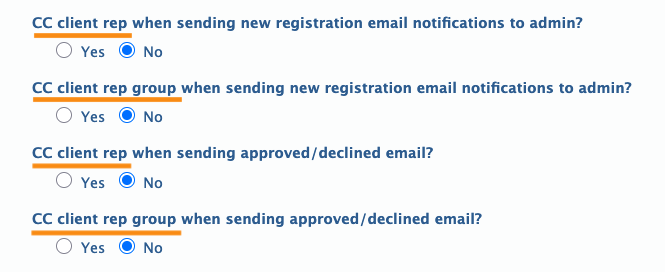
- • New registration email notifications: You can cc individual Client Reps, or a Client Rep group.
- • Approved/declined email: If your event is using registration approvals, you can cc these notifications to individual Reps or a Client Rep group.
- Step 3. Scroll to the bottom of the page and click Save:

CC a batch email
You’ll send batch emails throughout your event - announcements, reminders, schedules, and so on.
Here’s how cc works for these:
- If any Attendee in the batch has an Email Address 2 set, MeetMax automatically copies that address.
- If any Company in the batch has Internal Contacts set, you can set the batch to cc them, or not.
- If you cc the batch to any Client Rep, and they have Additional Emails set, MeetMax automatically copies those addresses.
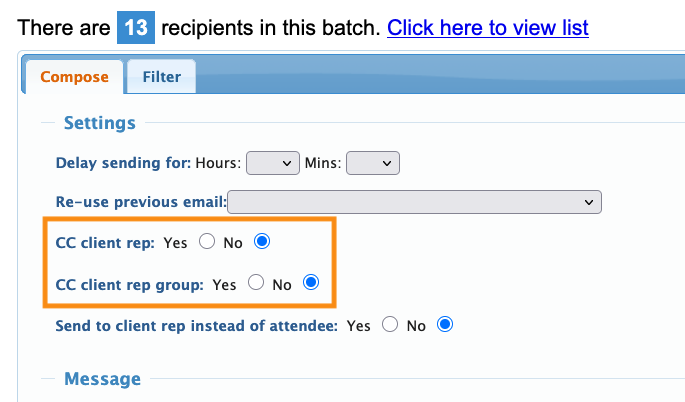
- If your event uses assigned Client Reps or Client Rep Groups, you can set any batch to cc to them, or not - as shown below: