


This feature is typically used for events using MeetMax alongside our event check-in and badging service. You can also use it while manually marking people as checked in.
You can set custom check-in alerts that email anyone you designate.
In this article:
Enabling Check-in Alerts
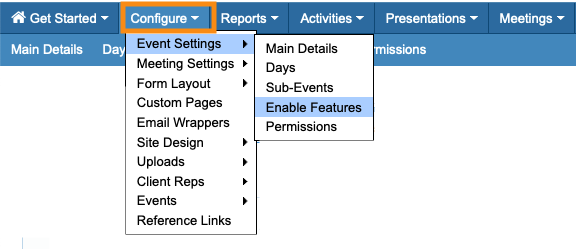
- Step 1. Head to the Configure tab. Choose Event Settings, then Enable Features:
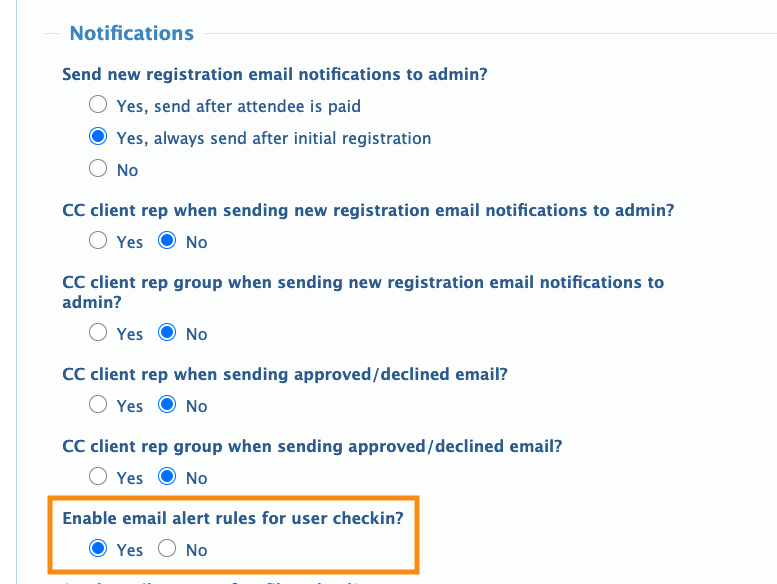
- Step 2. Scroll to the Notifications section.
- Under Enable email alert rules for user checkin, choose Yes:
- Step 3. Scroll to the bottom of the page and click Save:
Setting a Check-in Alert
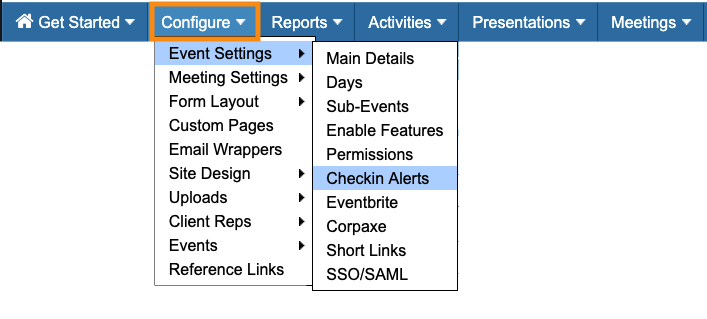
- Step 1. Head to the Configure tab. Choose Event Settings, then Checkin Alerts:
- Step 2. Add a Name (which is only visible to your team).
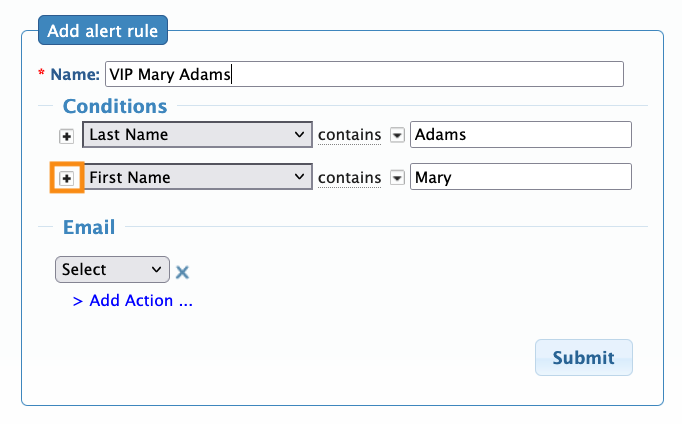
- Step 3. In the Conditions menu, choose one or more form fields to be the basis for this rule.
- In this example, we want to send a notification when one VIP guest checks in: Mary Adams.
- We’ll choose the First Name and Last Name fields, and add the details. (The + button allows you to add multiple fields, as shown below.)
- Step 4. In the Email section, you’ll choose one of these options:
- • Email: Sends an email to the email addresses you enter. (You can add this option multiple times to notify multiple email addresses.)
- • Client Rep: Use this if your Conditions are based on assigned Client Reps. MeetMax will then get the correct email address from your Client Rep List. (More details in the section below.)
- In this example, we’ll send the email notification to the main event host:
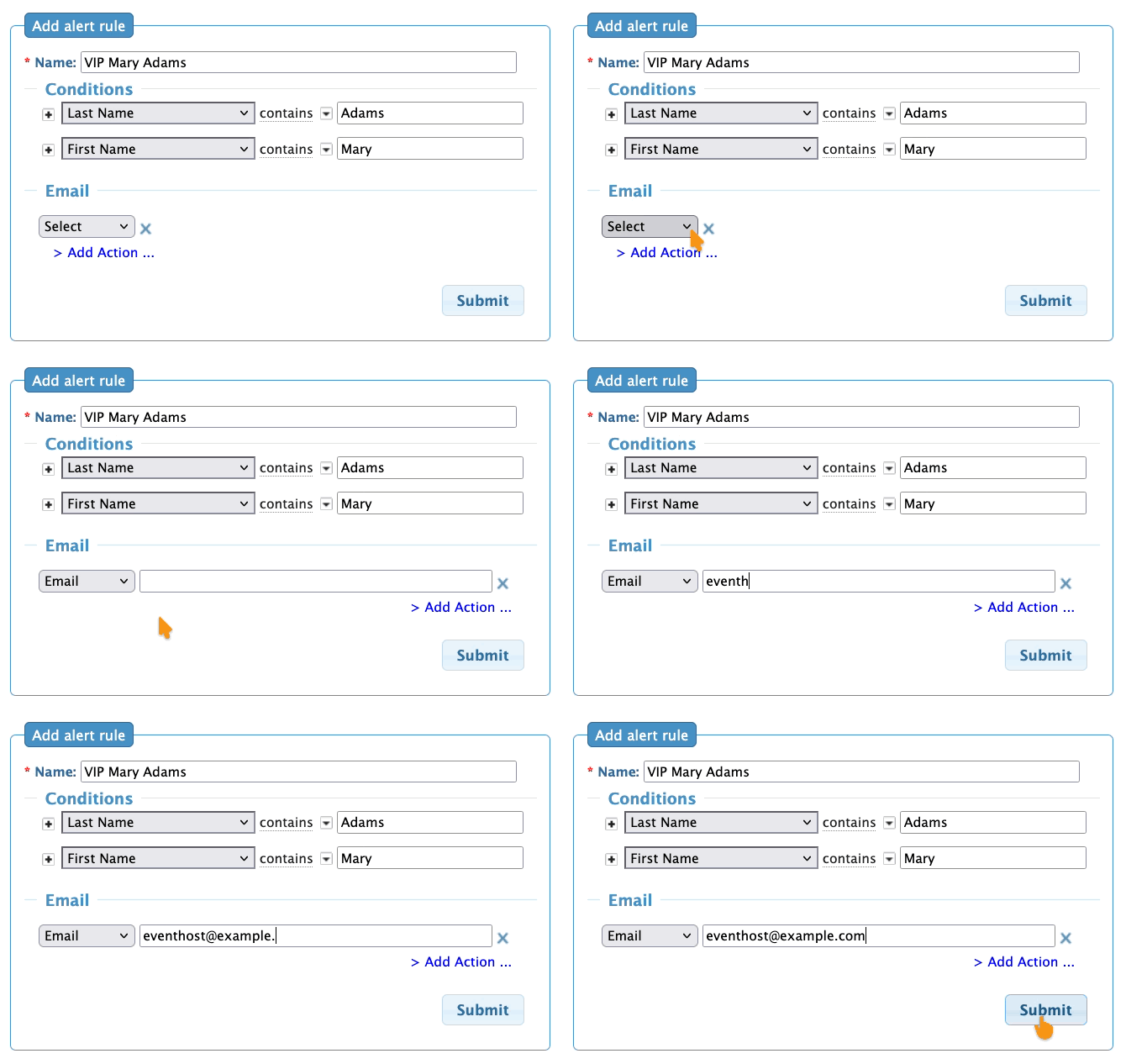
- Step 5. Click Submit to save, as shown above.
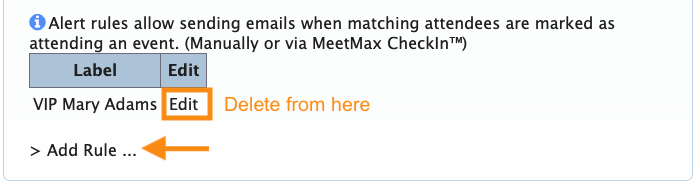
- You can now edit or delete any Check-in Alert from this page:
Sample Alerts
Your Check-in Alerts can be as simple or complex as you need. Here are some common uses.
Group of VIP Attendees
You have a group of VIPs coming to your event. In the Admin version of your registration form, you’ve used the Group Name field to designate who these people are.
Your whole Admin team wants to know when each of the VIPs checks in:
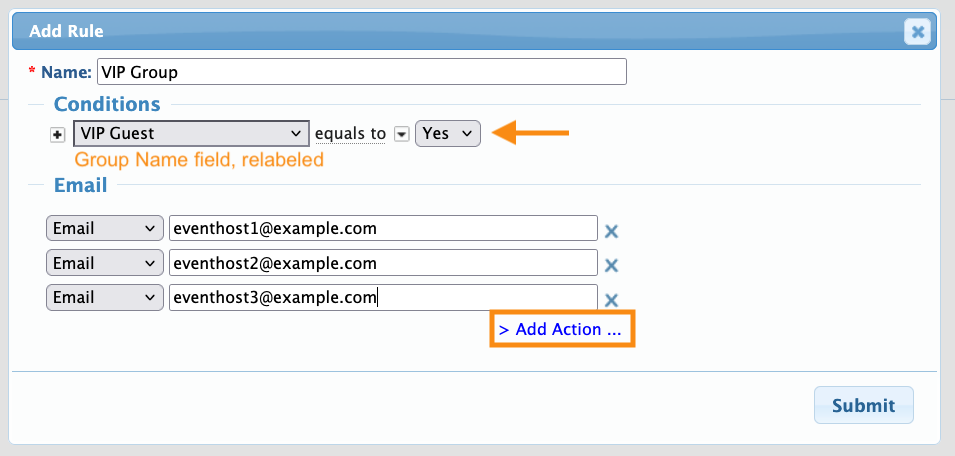
| The Add Action link shown above lets you add another email address or Client Rep to receive the notification. |
Individual Client Rep
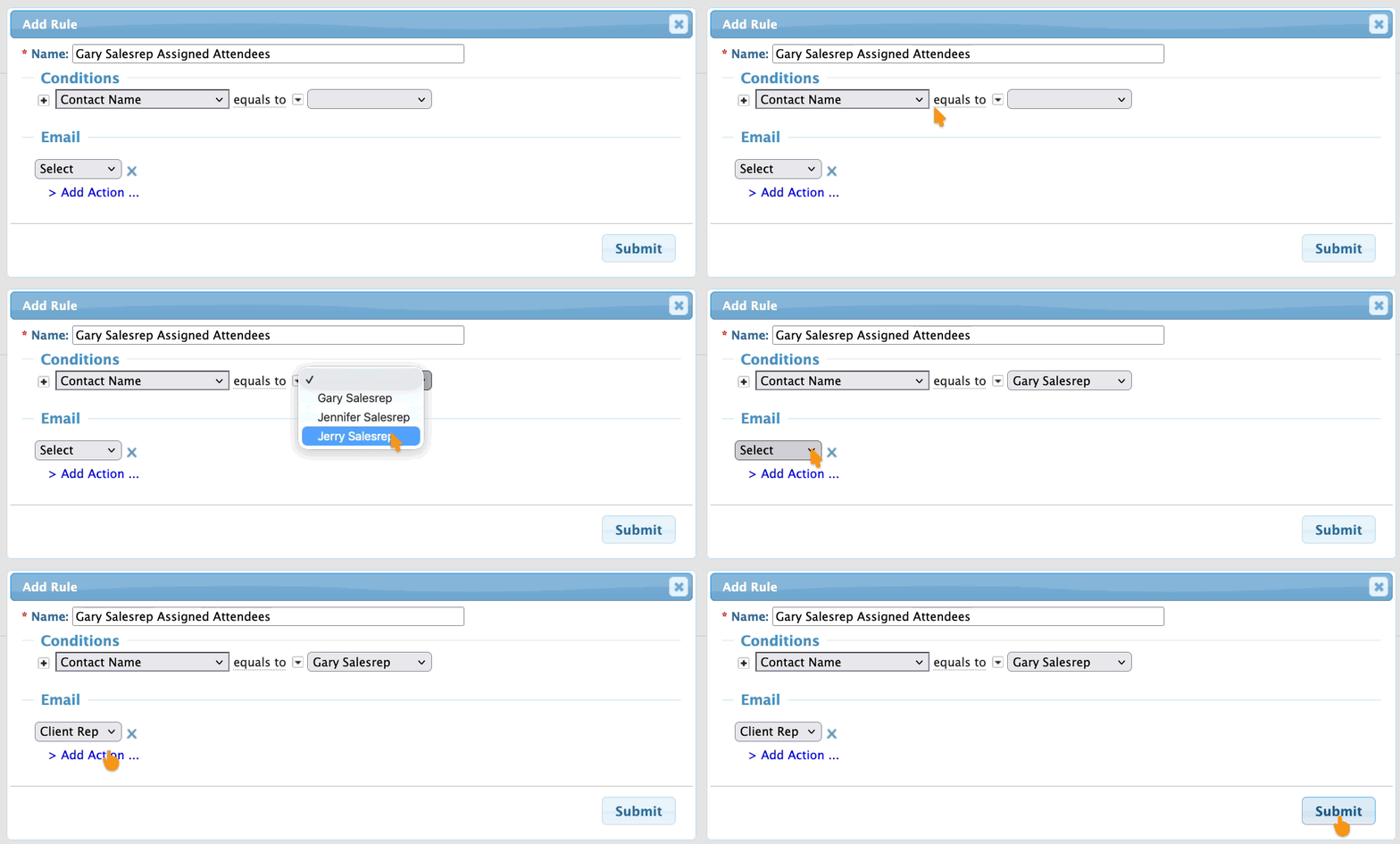
You’re a Client Rep who has several assigned Attendees. The Admin version of the registration form uses the Contact Name field to make these assignments.
You want to be notified when your assigned people check in:
Client Rep Group
You’re a Client Rep who’s part of a Client Rep Group. The group has assigned Attendees, and everyone in group needs a notification as these people check in:
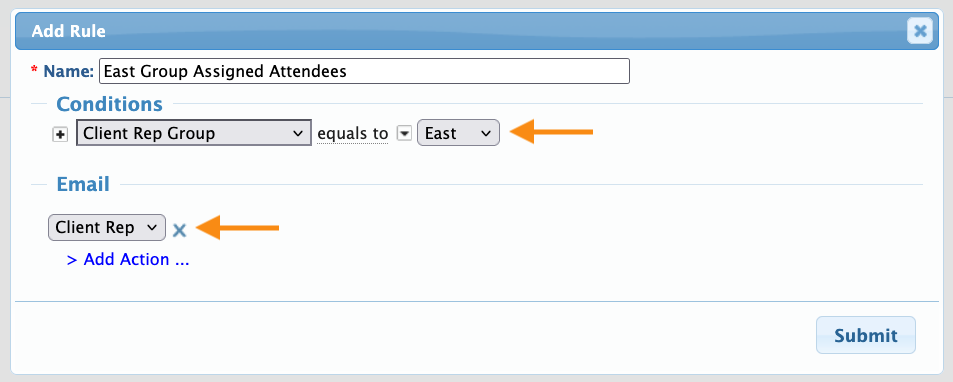
MeetMax automatically checks to see which Client Reps are part of the group you’ve selected, and then sends all group members the email notification.
Travel coordinator
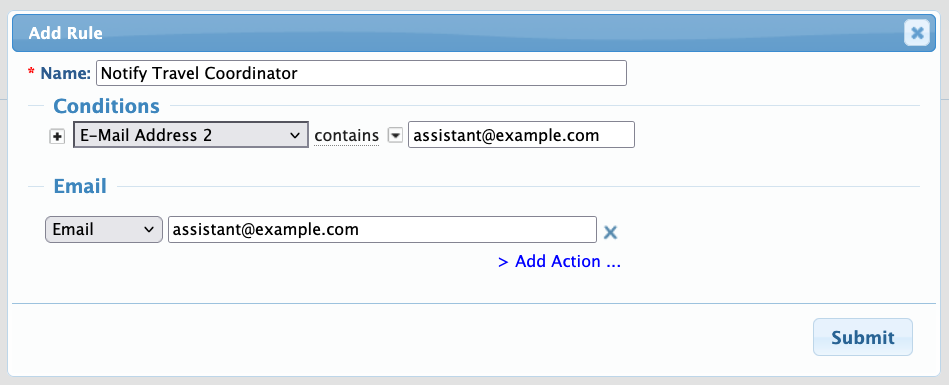
An executive assistant has coordinated registration and travel for a group of your event’s Attendees. The assistant wants to know when each person checks in.
In the Admin version of your registration form, you’ve used the Email Address 2 field to add the assistant as a secondary contact email for each registrant. That field becomes the basis of this rule:
Check-in Alerts and manual check-in
At some events, instead of using our badging service you might mark Attendees as checked in using the Attendee List.
Learn more about manual attendance tracking here:
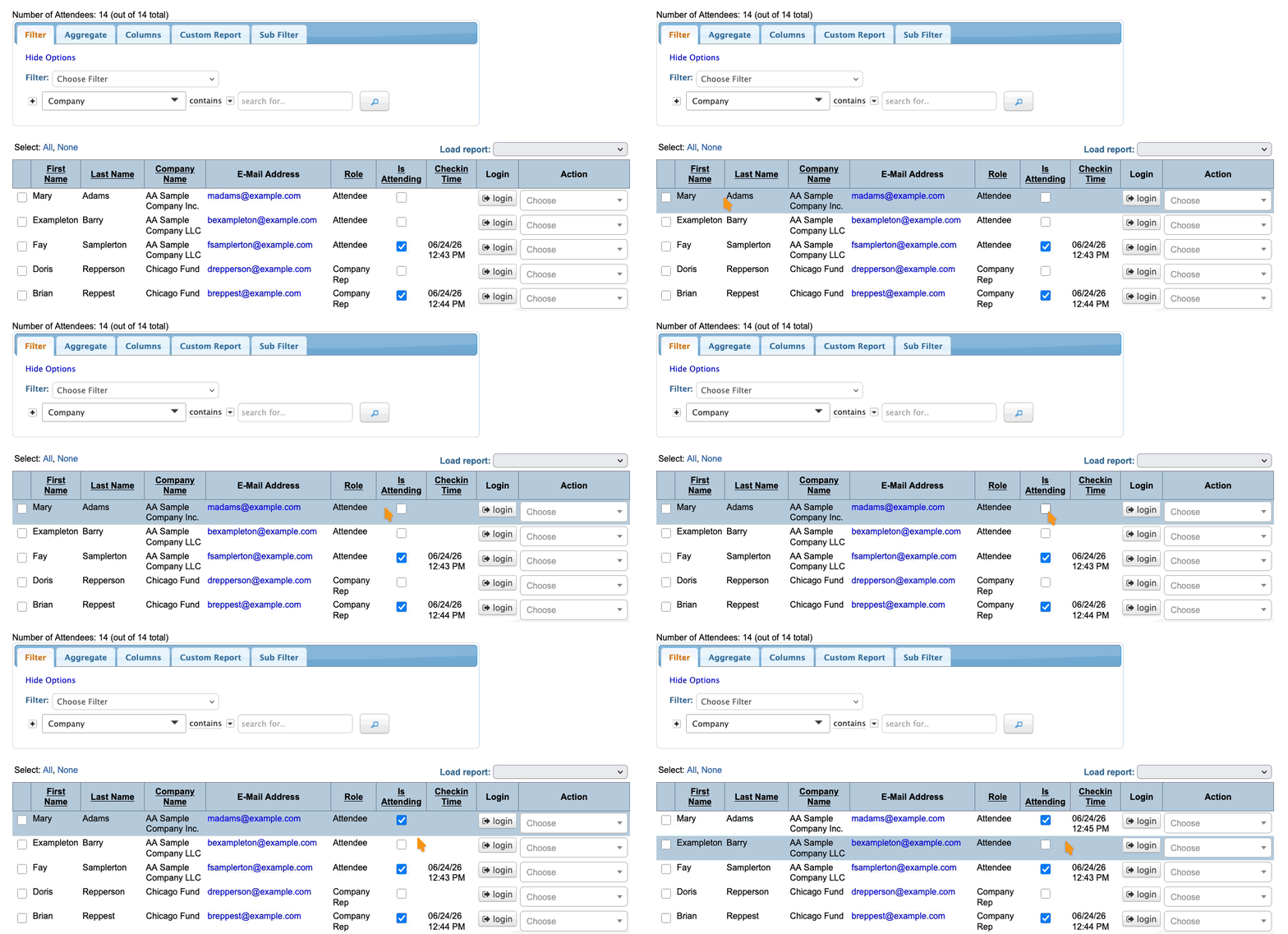
When you click the Is Attending checkbox for any Attendee, MeetMax will send any Check-in Alerts that are in place for that person.

