

What does % Satisfied mean?
This filter is usually used In Moderated meeting programs, where Attendees request meetings with Companies. It’s a helpful way to monitor your scheduling:
- Are you fulfilling the requests of your high-priority participants?
- Are there any Attendees who aren’t getting enough requests satisfied?
- Are there any Companies who’ve received requests that haven’t been fulfilled?
You can filter the Attendee List or the Company List to answer questions like these.
In this article:
From the Attendee List
On the Attendee side, % Satisfied refers to how many of an Attendee’s meeting requests have resulted in a scheduled meeting.
- Step 1. Head to the Attendee List:

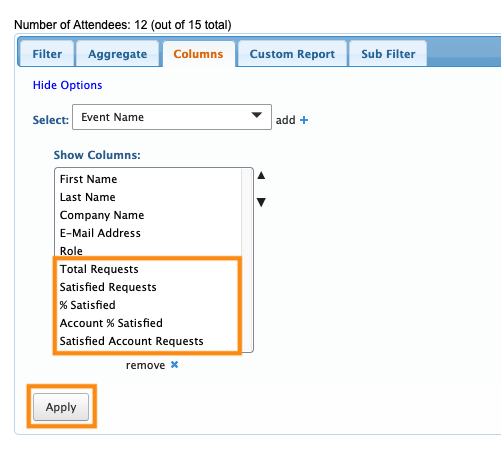
- Step 2. Go to the Columns tab. Here, you can add and remove columns.
- When you’re evaluating satisfied requests, these columns are useful. You might choose to use only some of these, depending on the data you need:
- • Total Requests: Each Attendee’s total number of meeting requests.
- • Satisfied Requests: The number of requests that are now scheduled meetings.
- • % Satisfied: Out of the total number of requests, what percentage are now scheduled?
- • Account % Satisfied: Out of the total number of requests a group of Colleagues has collectively made, what percentage is now scheduled?
- • Satisfied Account Requests: Out of the total number of requests a group of Colleagues has collectively made, how many are now scheduled?
- Click Apply to save the columns:
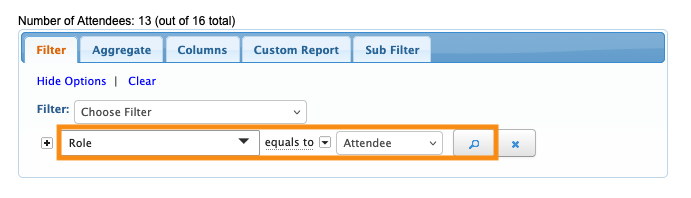
- Step 3. Now, head to the Filter tab. Set the filter by Role, and choose Attendee.
- Click the magnifying class to save the filter:
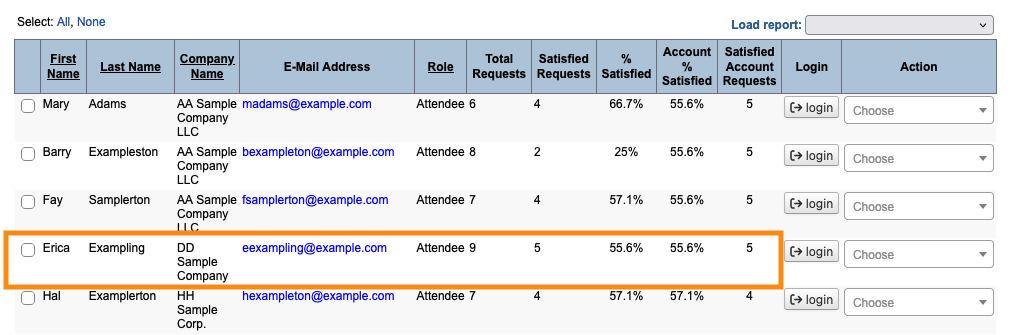
- Step 4. The Attendee List now shows you everyone’s scheduling status as of now.
- Here’s a simple example:
- • Erica Exampling is the only person attending from her company. She’s made 9 total requests, and your team has scheduled 5 of them. Her % Satisfied reflects this.
- • The Account % Satisfied is the same, because Erica is the only representative of her company:
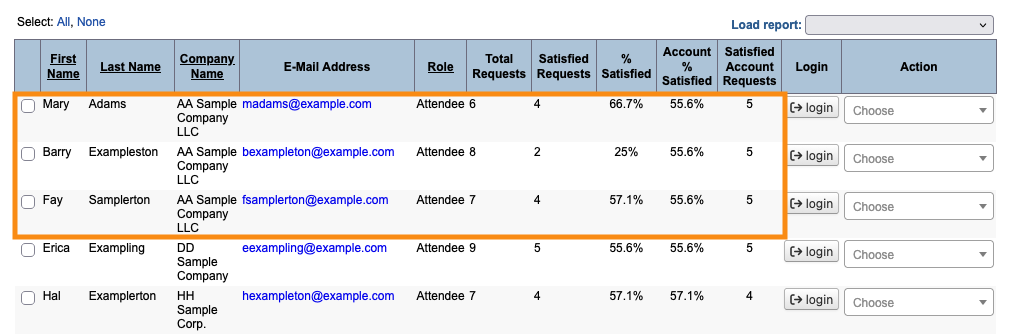
- In the example below, we have three Colleagues from AA Sample Company.
- • Each of them has requested a different number of meetings, as shown in the Total Requests column.
- • Your team has scheduled some of each person’s requests, as shown in the % Satisfied column.
- • In the Account % Satisfied and Satisfied Account Requests, you’ll see the scheduling status for AA Sample Company as a whole:
-
Why doesn’t the total Satisfied Account Requests match the total of the individual Satisfied Requests? It’s because of how MeetMax counts Colleagues in meetings.
In a meeting, Colleagues from the same company count as one participant. So in the example above, some of the scheduled meetings have more than one AA Sample Company employee scheduled. That satisfies more than one individual request, but counts as one satisfied Account Request.
From the Company List
On the Company side, % Satisfied is different. It refers to the total number of meetings that have been requested with the Company, and how many of them have resulted in a scheduled meeting.
- Step 1. Head to the Company List:

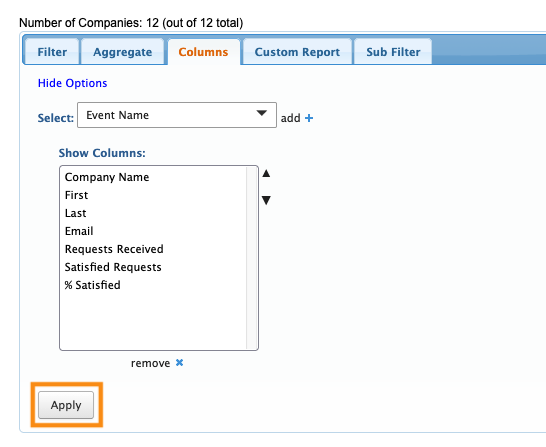
- Step 2. Go to the Columns tab. Here, you can add and remove columns.
- When you’re evaluating satisfied requests for Companies, these columns are useful:
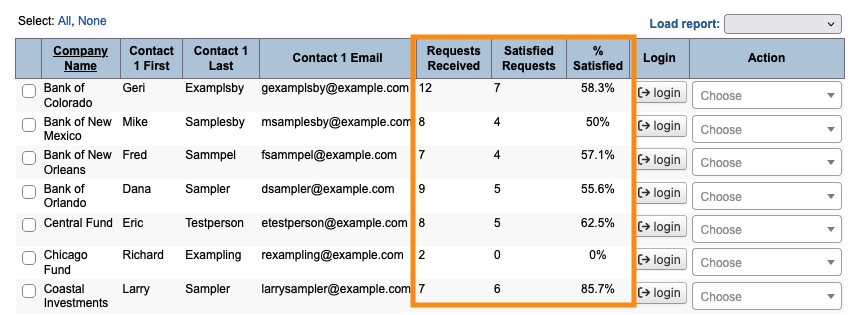
- • Requests Received: The total number of meeting requests each Company has received from Attendees. (If you’re adding a request acceptance step to your scheduling, you can use the Accepted Requests Received column instead.)
- • Satisfied Requests: The number of these requests that are now scheduled meetings.
- • % Satisfied: Out of the total number of requests, what percentage are now scheduled?
- Click Apply to save the columns:
- Step 3. Now, head to the Filter tab. If you want to see all Companies, don’t add any filter.
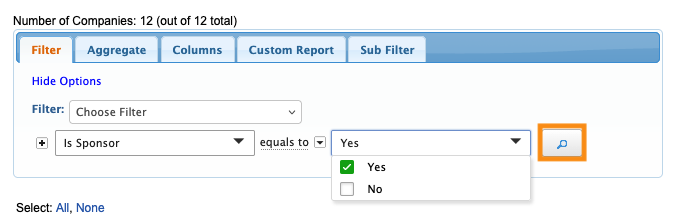
- If you need to see a particular subset of Companies, add a filter to narrow the list as needed. Here’s an example where we’re filtering for Sponsor Companies:
- Step 4. The Company List now shows you each company’s scheduling status as of now:
-
Company Reps appear in the Attendee List. They always display the same % Satisfied as their parent Company, whether the Reps are tied or untied. MeetMax’s meeting functionality is highly customizable. If you have questions about how % Satisfied applies to your event, reach out to our Support team.

