


In this article:
- Where is it?
- How an Attendee finds people to meet with
- Making the meeting request
- What the recipient sees
Where is it?
To enable Attendee-to-Attendee meetings for your event, reach out to our Support team.
Once that’s done, each Attendee can log into MeetMax and use the Meeting Requests tab:

For an Unmoderated meeting program, everything happens here in the Attendees’ accounts. As an Admin, you can make adjustments on behalf of Attendees if needed, but you won’t be participating in the meeting creation process.
If you’re using a Moderated program, see this article instead.
Before requesting meetings
For Unmoderated programs, it’s extremely helpful if all Attendees:
- Enter their blackout times, when they aren’t available to meet
- Complete a Profile form. Profiles help everyone choose the highest-value meetings. You’ll see completed Profiles in the examples below.
How an Attendee finds people to meet with
When an Attendee logs into MeetMax, they’ll head to their Meeting Requests tab. Here, they’ll see a display of all Attendees who are available for 1x1 meetings:

| The pages Attendees use will be branded for your event, and contain the menu options you’ve enabled. |
MeetMax offers a number of ways to narrow this list down:
- Filtering by Attendee details, like names, companies, and tickers
- Filtering by custom form fields
- Filtering by availability
- Bookmarking specific Attendees
Accessing Profiles
Attendees can click anyone’s name to view their Profile details:

| Assuming it’s enabled for your event, Attendees can also use the Message option to reach out to people before requesting a meeting. Learn more about messaging here. |
Making the meeting request
Once an Attendee finds someone they’d like to meet with, they’ll send a meeting request. The recipient must approve this request before a meeting is created.
- Step 1. The Attendee clicks the Request link:

- Step 2. A pop-up will appear. MeetMax adds a suggested meeting time where both participants are available, but the Attendee can choose another time from the menu.
- Step 3. The Attendee can also add a message if needed. Then they’ll click Submit to send the request:

What the recipient sees
The Attendee receiving this request will get an email notification, something like this one:
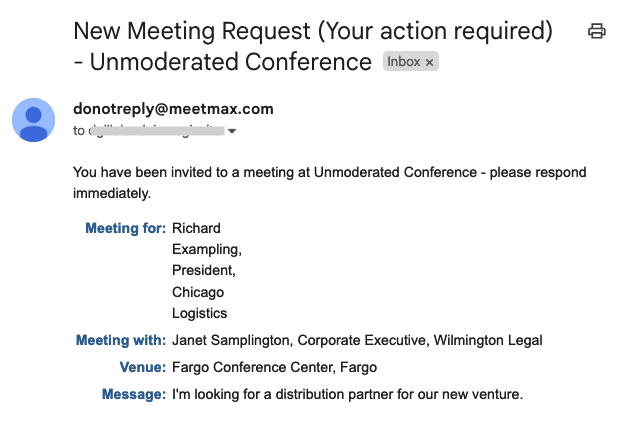
The recipient also sees the same notice in their MeetMax account Inbox:

They can then:

