

Can I add merge fields to my messaging?
When you’re using our custom content editor, you might see the Fields menu. It lets you insert customized content into emails.
| While MeetMax lets you insert custom content in many places, the Fields menu isn’t available in all of them. If you have any questions, please reach out to our Support team. |
In this article:
Creating a custom email
In this example, we’re creating a Custom Page to use as an email. In the Fields menu, we see a number of customized content inserts:
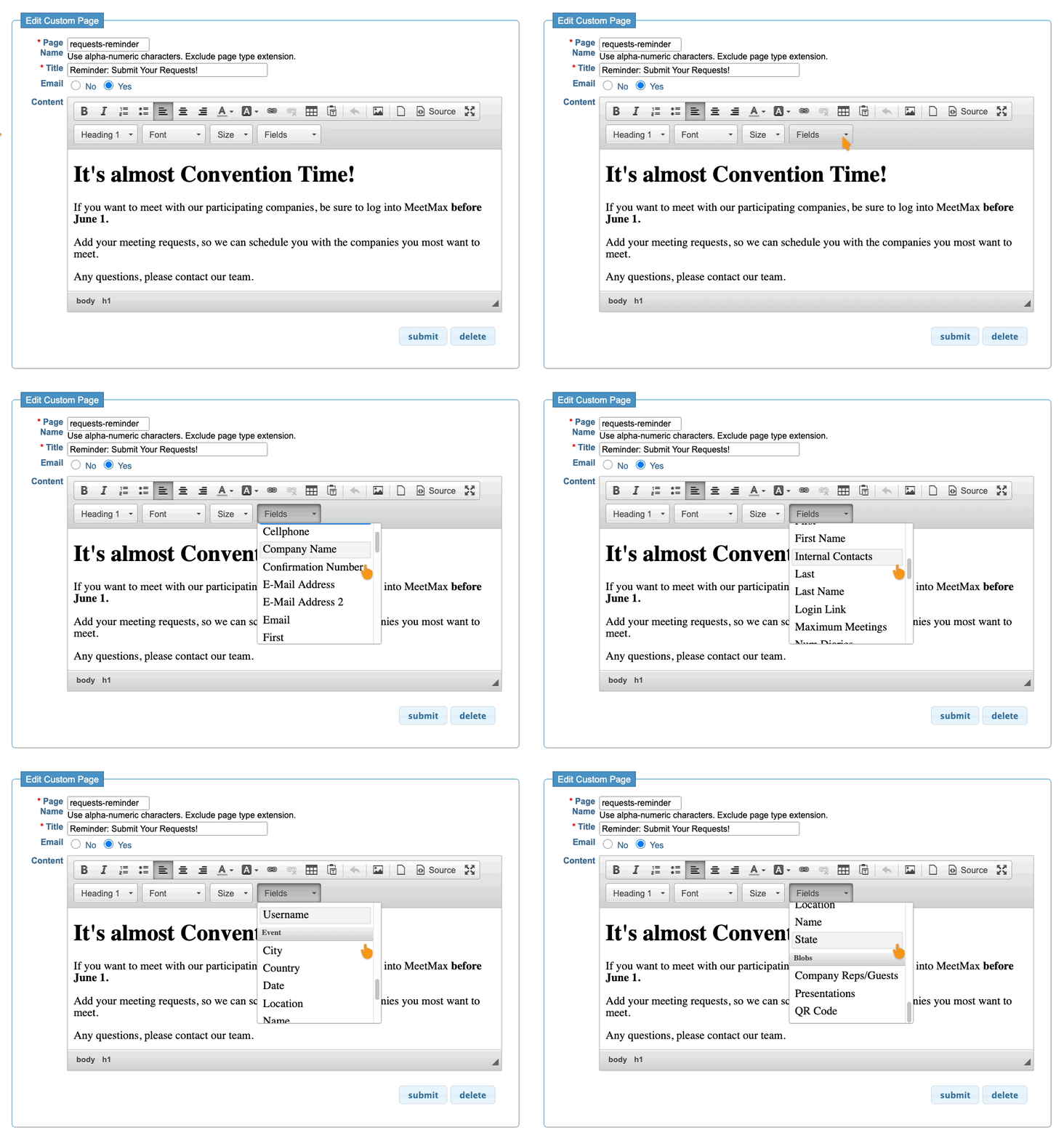
- Step 1. Place your cursor where you want the code snippet to go.
- Step 2. Use the Fields menu to choose the snippet. It inserts into your email as code:
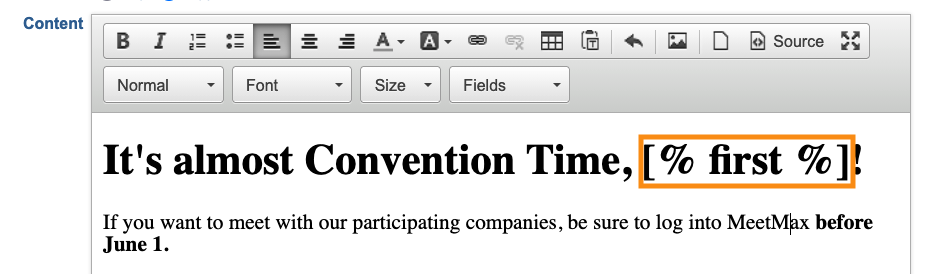
- Step 3. When you preview the email, you’ll see the custom content:
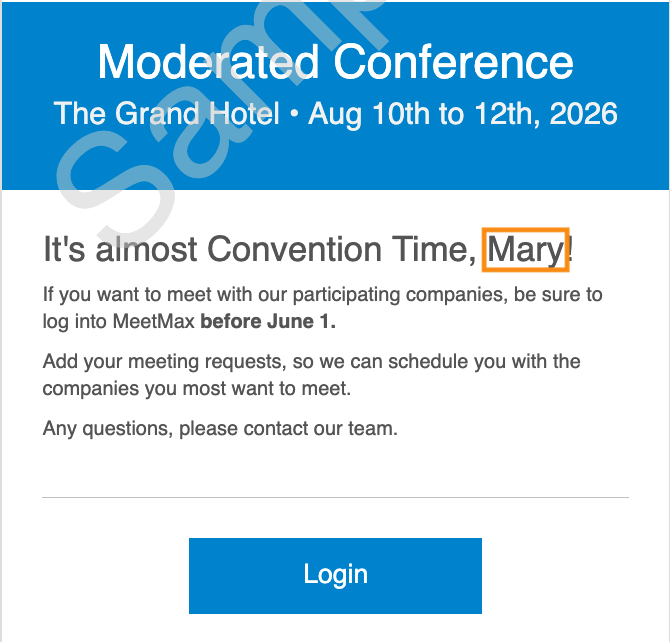
| When you insert a merge field, it displays the exact content each participant entered into that form field. If the field captures a Yes/No answer, you’d see only “Yes” or “No.” | |
| Do you need custom merge fields? Reach out to our Support team. |
Default merge fields
The options in your Fields menu will depend on the fields you’re using in your event’s registration forms. The table below is a complete list, but you’ll only see the available fields for your event.
Keep in mind that a merge field can only work if your registration forms are capturing that information.
| If you relabel a form field, the Fields menu will display your field name instead of the default one below. | |
| Your custom form fields may also appear in this menu. |
| Menu Item | Code Snippet | Information |
|---|---|---|
| Address | [% address %] | Participant’s address |
| Address 2 | [% address2 %] | Participant’s second address line |
| Approved | [% approved %] | Participant’s current registration approval status |
| Attendance Status | [% meeting_presence %] | Participant’s current attendance status |
| Cell | [% contact_cellphone_0 %] | Company Contact’s cell phone number |
| Cellphone | [% cellphone %] | Attendee’s cell phone number |
| City | [% city %] | Participant’s city |
| Client Rep Group | [% bank_rep_group_id %] | Participant’s assigned Client Rep Group name |
| Company Name | [% company %] | Company name |
| Confirmation Number | [% confirmation_number %] | Participant's registration confirmation number |
| Contact Name | [% contact %] | Participant’s assigned Client Rep |
| Country | [% country_code %] | Participant’s country |
| CRM ID | [% crm_id %] | The number assigned to the participant’s record in your CRM |
| E-mail Address | [% email %] | Participant’s primary email address |
| E-Mail Address 2 | [% email2 %] | Participant’s secondary email address |
| [% contact_email_0 %] | Company Contact’s email address | |
| Facebook URL | [% facebook %] | Participant’s Facebook page link |
| First | [% contact_first_0 %] | Company Contact’s first name |
| First Name | [% first %] | Participant’s first name |
| Group Name | [% grp_name %] | Group assigned to this participant |
| Internal Contacts | [% internal_contacts %] | Contacts who receive a cc of all MeetMax emails to a Company |
| Is Attending | [% is_attending %] | Participant’s current attendance/check-in status |
| Is Company Admin | [% is_admin %] | Whether the participant is designated to admin the Company’s MeetMax account |
| Is Company Contact | [% is_contact %] | Whether the participant is designated as their Company’s main contact |
| Last | [% contact_last_0 %] | Company Contact’s last name |
| Last Name | [% last %] | Participant’s last name |
| LinkedIn URL | [% linkedin %] | Participant’s LinkedIn page URL |
| Login Link | [% login_link %] | Link to a participant’s MeetMax login page |
| Maximum Meetings | [% meetings_max %] | Maximum number of meetings set for a participant |
| Meetings Tied to Parent | [% meeting_tied %] | Whether a Company Rep has the same schedule as their Company |
| Nickname | [% nickname %] | Participant’s preferred name |
| Number Diaries | [% num_diaries %] | The number of overlapping meetings the participant can be scheduled into |
| Prefix | [% prefix %] | Mr, Mrs, Ms, etc. |
| Presenting | [% presenting %] | Whether the participant is a presenter |
| Receive Requests | [% receive_request %] | Whether the participant will accept meeting requests |
| Registration code | [% reg_type %] | Participant’s registration code (delivering a specific price) |
| Schedule Approved | [% sched_approved %] | Whether the participant has approved their meeting schedule |
| Schedule URL | [% schedule_url %] | Link to a participant’s unique schedule |
| State | [% state %] | Participant’s state |
| Telephone | [% telephone %] | Participant’s telephone number |
| Telephone | [% contact_telephone_0 %] | Company Contact’s telephone number |
| Text Notifications | [% accept_text %] | Whether the participant has opted in to receive text messages from your event |
| Title | [% title %] | Participant’s title |
| Title | [% contact_title_0 %] | Company Contact’s title |
| Twitter URL | [% twitter %] | Participant’s Twitter link |
| URL | [% url %] | Participant’s website URL |
| Use Availability | [% use_availability %] | Whether the participant’s availability is set to match your event’s time slots. |
| Username | [% username %] | Participant’s username for MeetMax |
| Zip Code | [% zip %] | Participant’s zip code |
| Event: City | [% event_city %] | City where the event is happening |
| Event: Country | [% event_country %] | Country where the event is happening |
| Event: Date | [% event_display_date %] | Event dates |
| Event: Location | [% event_location %] | Event’s venue |
| Event: Name | [% event_name %] | Event’s name |
| Event: State | [% event_state %] | State where the event is happening |
| Company Reps/Guests | [% guests %] | Names of Company Reps included in a Company's paid registration |
| Presentations | [% presentations %] | List of the event’s presentations |
| QR Code | [% qrcode %] | Inserts your event’s QR code |

